Home
» MS OFFICE
»
Fix Collabora Online Font Size Dropdown Not Displaying Correctly
Fix Collabora Online Font Size Dropdown Not Displaying Correctly
If the font-size dropdown in Collabora Online looks clipped, stretches when opened, or shows its list in the wrong place, first check whether the problem is only visual. Select a short test phrase, enter a point size directly in the font-size field, and see whether the text changes. Collabora documents that the Font Size control accepts a manually entered value as well as a list selection. Reset the browser’s zoom for the Collabora site to 100% and reload the editor before changing server settings.
For administrators running CODE, there is also a recent version detail: the official CODE 26.04.4.2 release notes, dated September 24, 2026, describe a general dropdown and combo-box layout fix. They say dropdowns no longer change width as they open and combo boxes have more room for their value. The note does not name the font-size dropdown specifically, so treat it as relevant version information rather than proof of the cause on every installation.
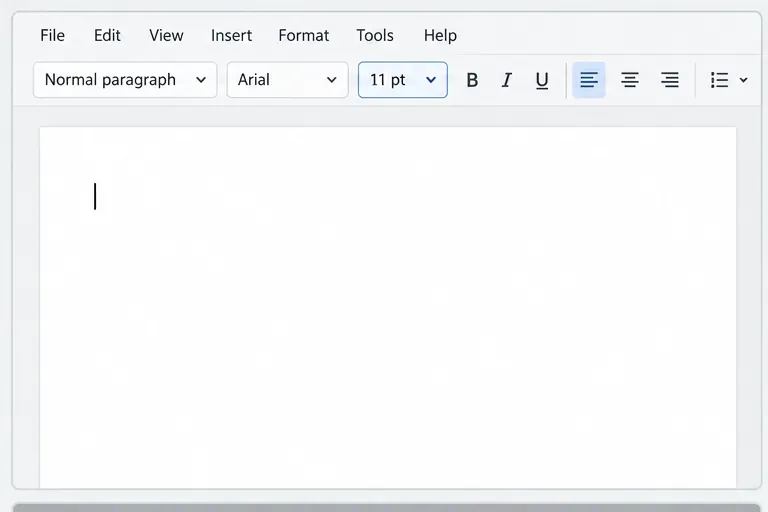
The illustrations below show example editor controls. Collabora Online layouts can differ by release, host integration, browser, and whether the interface uses a classic or tabbed toolbar.
Locate the editable font-size field in the formatting toolbar; the surrounding toolbar arrangement may differ in your host application.
Is the dropdown display wrong, or is font formatting failing?
Those are different problems. A dropdown that is too narrow, clipped, or misplaced points to a display or layout issue. If the text itself does not change after you choose or enter a size, check the selection and editing state as well.
Use a non-sensitive document or a copy. Select one short word, note its current size, enter a different value such as 14 pt in the font-size field, and press Enter. Then click elsewhere and reselect the word. If the text changes and the field reflects the new size, formatting works and the dropdown’s presentation is the part to troubleshoot. If the text does not change, confirm that you selected text rather than only placing the caret, that the document is editable, and that the size value was committed with Enter.
A list that opens but appears cut off at the edge of the browser window is different from a list that opens but has an unusually wide or narrow field. Note which behavior you see. That detail helps an administrator distinguish a viewport or zoom problem from a release-specific toolbar layout issue.
What should I try first?
1. Reset the browser zoom for the Collabora site
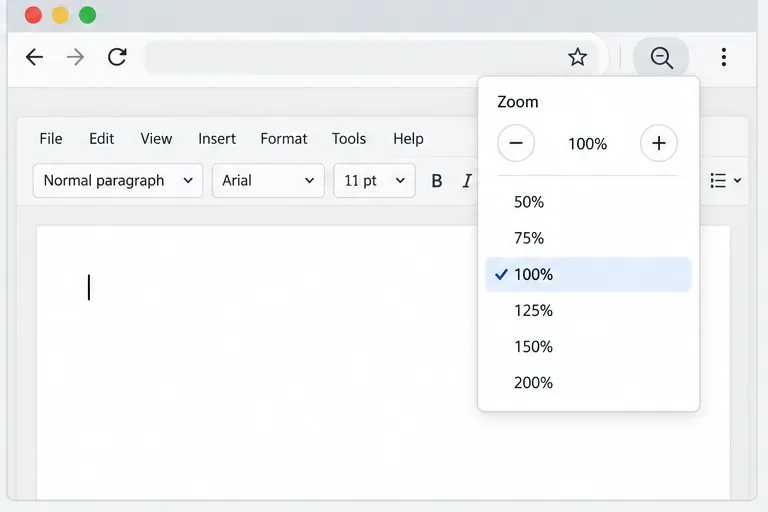
Browser zoom changes the size of webpage controls and can affect how much room the toolbar has. Set the current site to 100% temporarily, then reload the document. In Chrome, open the browser menu and use the zoom controls; Chrome also lets you manage saved zoom levels for individual sites in Settings. In Firefox, the zoom number in the menu resets that site to the default when selected. The shortcut Ctrl+0 on Windows or Linux, or Command+0 on macOS, is another quick reset in browsers that support it.
Set the browser page zoom to 100% for a test; this changes webpage scaling, not the document’s stored font size.
Do not confuse browser page zoom with the document zoom control inside the editor. The browser setting scales the web interface; the document control changes how the page is viewed. If you need a larger interface for accessibility, restore your preferred zoom after the test and ask the host administrator about a layout fix rather than leaving your browser at a setting that is uncomfortable.
2. Reload the editor and test a clean browser session
After changing zoom, reload the Collabora tab. If the toolbar still looks wrong, use a private window or a separate browser profile to check whether an extension or stored site data is involved. Sign in only through your normal organization’s approved route, and test with a sample document if opening a work file in another profile would violate your organization’s access rules.
If the clean session works, re-enable extensions one at a time or review custom browser settings. Extensions that inject scripts or restyle pages can affect web applications, but a successful clean-session test is a clue, not proof of which extension caused the problem. If you clear site data, be aware that you may need to sign in again. Start with a reload and per-site zoom reset; do not erase all browser data as the first step.
3. Use the size field directly or open Character formatting
When the dropdown list is hard to use, click inside the size field, select its current value, type the desired size, and press Enter. The official Collabora formatting-bar help confirms that users can enter a size manually. Apply the value to a selected word or phrase so you can verify the result without changing an entire document by mistake.
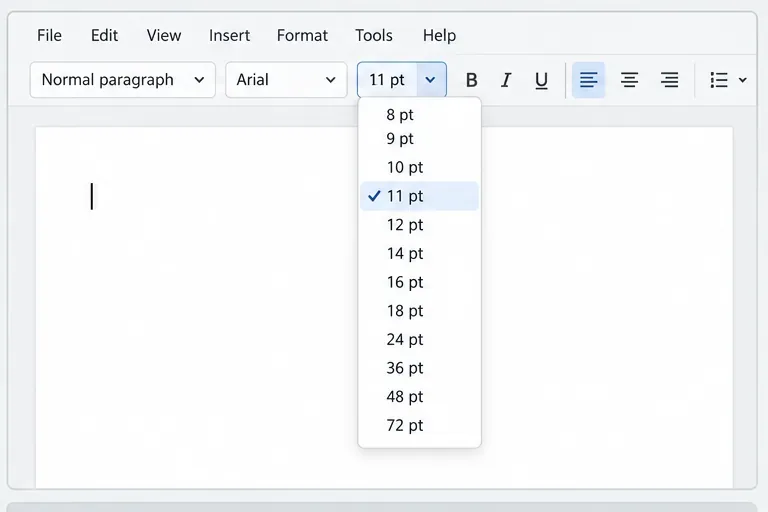
The open size list is a useful comparison: check whether it is clipped, displaced, or changing width as it opens.
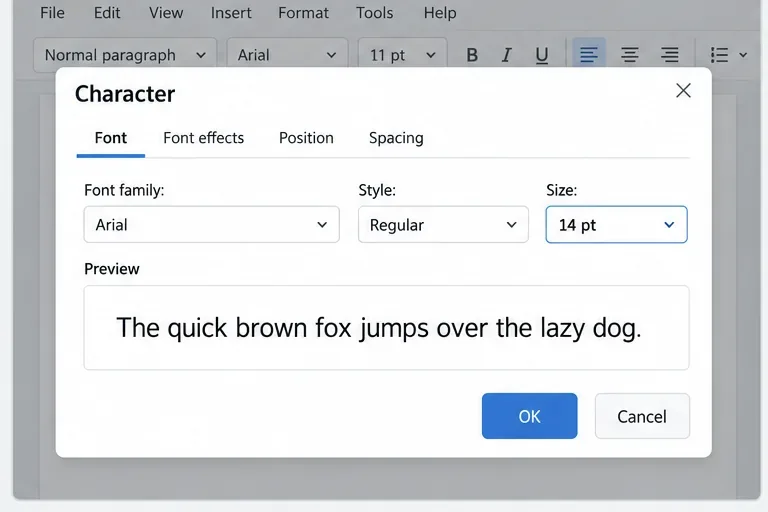
In a Writer document, another route is Format > Character. In the Character dialog, open the Font tab, enter or select a size, and confirm the change. The menu location can vary with the host’s toolbar mode, but the current Collabora Office Help identifies the Character command under Format. In a spreadsheet, select the cell or text first and use the corresponding formatting controls for that selection.
Use Format > Character as a fallback when the toolbar dropdown is difficult to read or open.
If manual entry changes the document correctly but the list itself stays malformed, you have a practical workaround while the browser or server issue is investigated. Save and reopen a test document to confirm that the chosen size persists.
When should an administrator check the Collabora version?
Ask the administrator or service provider to check the installed Collabora Online or CODE version when the same dropdown problem appears in a clean session, across more than one supported browser, or for multiple users. Include the host application (for example, Nextcloud or another WOPI host), browser and version, Collabora build, toolbar mode, and a short description of what the list does. A screenshot can help, but remove document contents, names, and other confidential details first.
For CODE, compare the installed release with the official 26.04 release notes. CODE 26.04.4.2 was released on September 24, 2026, and documents a general improvement to dropdown width and combo-box value space. If your instance is older and the symptom is specifically that a dropdown changes width or cannot display its value, ask whether an update containing that change is available for your installation. Do not assume that the same release is available immediately through every Linux package, container image, appliance, or hosted service; the administrator should follow the host’s supported update path.
If the problem remains after a supported update, the host integrator may need to check whether custom themes, embedded-editor CSS, or an outdated integration package is affecting the toolbar. Avoid editing bundled Collabora frontend files or adding an unreviewed CSS override as a quick fix: those changes can be overwritten during updates or alter other controls. A user who does not administer the server should send the test results to the service owner instead.
Quick diagnosis by symptom
What you see
Useful next check
What the result suggests
Field or menu is clipped, but typing a size works
Reset site zoom and reload
The formatting command works; focus on browser layout or toolbar rendering.
Dropdown changes width when opened
Check the CODE or Collabora release with the administrator
Review release notes for dropdown and combo-box layout changes.
Only one browser or profile has the issue
Test a clean profile with the same sample document
Browser zoom, extensions, or local site data may be involved.
Several users and browsers cannot apply the new size
Confirm selection, edit permission, host integration, and server build
The issue may involve the editing session or deployment, not just the dropdown’s appearance.
The best result is not simply a dropdown that looks normal. Confirm that the intended text changes to the requested size, that the value remains after you move the cursor, and that the document saves correctly. If only the menu is broken, manual entry or the Character dialog can keep work moving while the administrator checks the browser, host integration, or Collabora release.