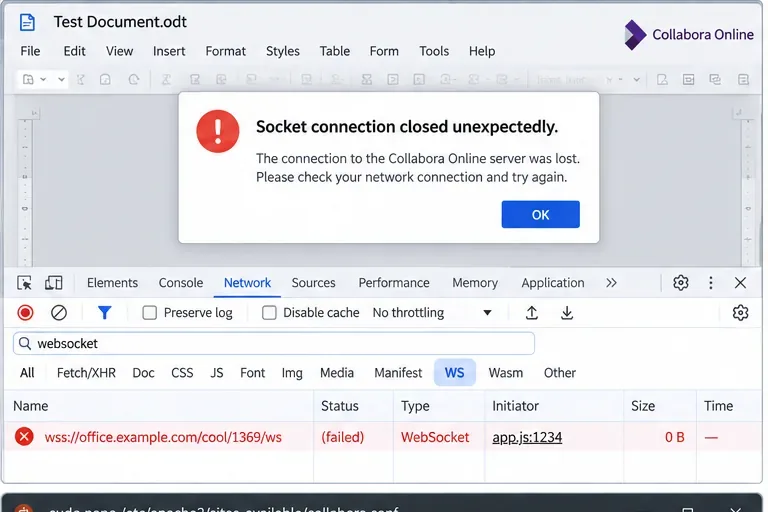
Collabora Online can look healthy at first glance and still fail as soon as the editor tries to establish its live WebSocket. The familiar symptom is a document that begins loading and then reports that the socket connection closed unexpectedly, sometimes accompanied by a failed wss:// request in the browser. In 2026 there is one version-specific reason to check before changing anything else: the 26.04 branch introduced a more compact WebSocket URL, and older reverse-proxy rules can conflict with it.
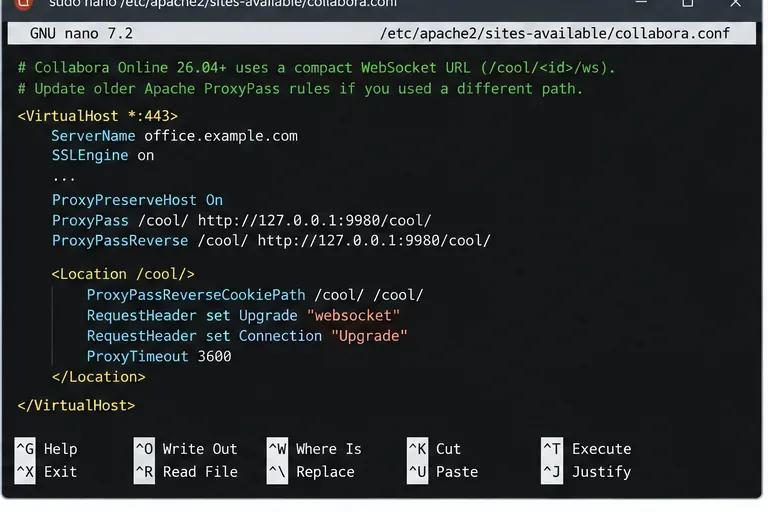
Collabora's official CODE 26.04 release notes say that CODE 26.04.1, released June 8, 2026, required Apache2 reverse-proxy users to change their ProxyPass rule for the new compact WebSocket URL. The later 26.04.2.x notes say that CODE can fall back to the legacy URL when the new route cannot be used and emits an audit warning that points administrators back to the current proxy recommendations. The enterprise Collabora Online 26.04 branch is also current in 2026, so administrators should compare any proxy configuration copied from an older 24.04 or 25.04 guide with the latest vendor documentation before treating the problem as a random network fault.
A failed WebSocket request in the browser is the clearest sign that the problem is on the live editor channel rather than ordinary page loading.
What the error actually means
The message does not identify a single root cause. It means the browser-to-Collabora WebSocket either never upgraded successfully or was established and then terminated unexpectedly. That distinction matters because the fixes differ.
Observed behavior
Most useful first check
Typical causes
Fails immediately when a document opens
Browser Network > WS and reverse-proxy access/error logs
Works briefly, then disconnects at a repeatable interval
Proxy, ingress, load balancer, and firewall idle timeouts
Timeout too short for a long-lived WebSocket
Discovery works but editing fails
Test the WebSocket separately from /hosting/discovery
HTTP endpoints are reachable while the WebSocket route is not
Only one browser or network path fails
Compare request protocol and proxy behavior
HTTP/2 or HTTP/3 handling, CONNECT forwarding, intermediary filtering
Server log explicitly rejects the upgrade
Read the exact coolwsd error
Origin, Host, port, WOPI host, or proxy configuration mismatch
1. Check whether the failure started after a 26.04 upgrade
If the problem appeared immediately after moving from 25.04 or an older CODE image to 26.04, treat the reverse proxy as the first suspect. This is not speculation: Collabora documented the compact WebSocket URL change in the 26.04 release notes, and an official project issue reported WebSockets failing after an upgrade to 26.04.1 until the Apache proxy rules were amended.
Do not solve this by blindly downgrading and leaving the old proxy untouched. A rollback can be a temporary recovery measure, but the durable fix is to align the proxy with the version you intend to run. For Apache, use the current Collabora Online proxy settings rather than a pre-26.04 copy. Collabora's own 26.04 WebSocket issue record documents a case where updating the Apache rules restored operation.
For Apache deployments upgraded to 26.04, compare older ProxyPass rules with the current Collabora documentation instead of assuming a previously working rule is still correct.
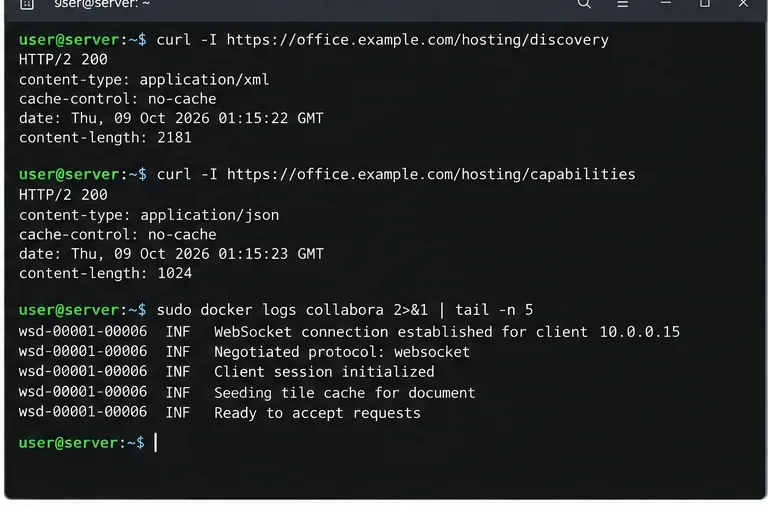
A successful response proves that DNS, TLS, the front-end proxy, and at least part of the Collabora service are reachable. It does not prove that document editing will work. The editor depends on a WebSocket route under /cool/, which has different proxy requirements.
Next, open the browser developer tools, reproduce the failure, and inspect the Network panel with the WS filter. A successful WebSocket handshake normally upgrades the HTTP connection; RFC 6455 defines the server response as HTTP status 101 when the upgrade succeeds. If you instead see 400, 404, 405, 502, or an immediate failed request, correlate that timestamp with the reverse-proxy and coolwsd logs.
3. Fix the Nginx WebSocket path and headers
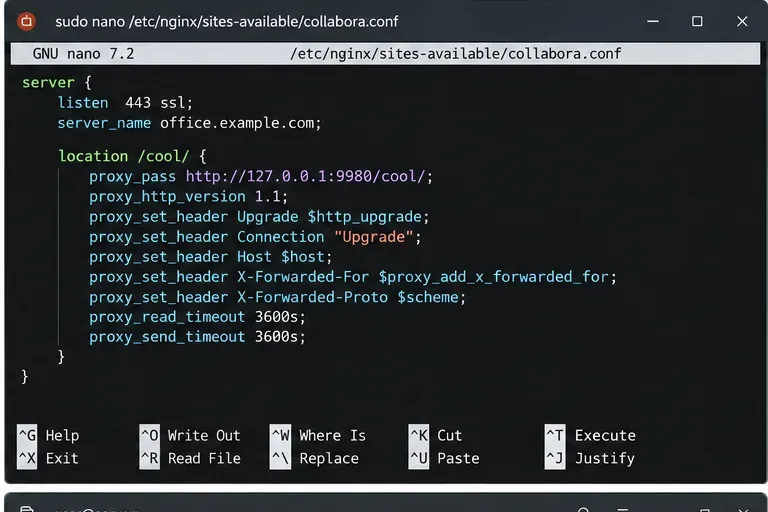
For Nginx, the important properties are straightforward: the request must reach the Collabora /cool/ path, the proxy must use HTTP/1.1 for a classic WebSocket Upgrade flow, the Upgrade and Connection headers must be forwarded, the original Host must be preserved, and the read timeout must be long enough for an editing session.
The Collabora SDK manual has long shown a dedicated WebSocket location with Upgrade, Connection, Host, and a long proxy_read_timeout. An official documentation issue from the Collabora project also called out the need for WebSocket headers on the broader /cool route. A conservative 26.04-friendly pattern is:
Do not paste this over a working production configuration without adapting the upstream address, TLS model, path handling, and any existing security controls. The correct choice is to preserve your topology while matching the current Collabora route and header requirements.
A Collabora WebSocket proxy needs the /cool/ route, HTTP/1.1 Upgrade handling, the original Host, and a timeout suitable for long editing sessions.
Why timeout values matter
WebSocket editing sessions are long-lived. The Collabora project's current Helm values explicitly describe this and use a large proxy timeout for the bundled Nginx proxy. If your edge load balancer, Kubernetes ingress, CDN, firewall, or reverse proxy closes idle connections sooner than the application expects, users can edit normally for a while and then be disconnected at a consistent interval.
When the failure happens after roughly the same number of seconds every time, inspect every intermediary in the path instead of increasing only Nginx's timeout. The shortest timeout wins.
4. Make TLS termination consistent
A common deployment terminates HTTPS at Nginx, Apache, HAProxy, Traefik, or an ingress controller and forwards plain HTTP to Collabora on port 9980. In that design, Collabora's official configuration requires the back end to know that TLS is terminated by the proxy. The SDK manual documents ssl.enable=false together with ssl.termination=true for this model.
For a Docker deployment, this is commonly expressed through Collabora's extra parameters:
--o:ssl.enable=false --o:ssl.termination=true
Use these only when TLS really is terminated upstream. If the proxy connects to Collabora over HTTPS instead, configure that topology consistently rather than mixing the two models. A mismatch can produce wrong schemes, incorrect WebSocket URLs, certificate failures, or redirects that break the upgrade.
5. Check Host and Origin mismatches in coolwsd logs
Collabora validates WebSocket origins. If the log contains wording such as Rejecting WebSocket upgrade followed by an origin and an expected host, fix the external hostname/port relationship rather than adding permissive headers at random. The official Collabora issue tracker contains a documented example where a configured server name including :443 did not match the browser Origin without that explicit port.
Look for the first error at the same time as the failed WS request. Messages about rejected upgrades, bad URI syntax, an unexpected Host, or an unavailable upstream are more actionable than the generic browser popup.
6. If only Chromium-based browsers fail, inspect HTTP/2 or HTTP/3 handling
This is a narrower case, but it is worth checking before rebuilding the server. The Collabora project has documented a Chromium-related case where a proxy passed an HTTP/2 CONNECT WebSocket request directly to coolwsd and received 405 Method Not Allowed. Another issue records HTTP/3/QUIC-related document-loading failures in a particular proxy path. These reports do not mean that HTTP/2 or HTTP/3 must always be disabled; they mean the intermediary must translate client behavior into a WebSocket connection that Collabora supports.
If Firefox works while Chrome fails on the same account and document, capture the protocol and status code at the proxy. Prefer correcting the proxy/ingress behavior over globally disabling modern protocols unless your environment has no compatible alternative.
7. Restart only after validating the configuration
Syntax-test the proxy first. Then reload rather than making repeated blind restarts:
For containers, restart the Collabora service only when you changed its own environment or coolwsd settings. A proxy-only change normally needs only the proxy reload.
Verify both ordinary Collabora HTTP endpoints and the live WebSocket session; successful discovery alone is not enough to prove editing is fixed.
How to verify the fix yourself
Use a short verification sequence instead of relying on a single successful document open:
Confirm /hosting/discovery and /hosting/capabilities are reachable through the same public hostname users access.
Open a document and confirm the browser WS request upgrades successfully rather than returning 4xx/5xx.
Type several edits, wait longer than the old failure interval, and confirm the connection remains stable.
Save and close the document, then reopen it to confirm the WOPI round trip is healthy.
Check coolwsd and proxy logs for rejected WebSocket upgrades, URI parsing errors, or repeated reconnect loops.
If your deployment has a load balancer or ingress, repeat the test through the real production route rather than connecting directly to port 9980.
Which fix should you choose?
If you upgraded to 26.04 and use Apache, updating the proxy rules is the highest-priority action because Collabora explicitly documented that change. If the disconnect occurs after a fixed period, focus on timeout settings across every network hop. If the failure is immediate on all browsers, verify /cool/ routing, Upgrade headers, Host/Origin consistency, and TLS termination. If only one browser family fails, compare HTTP protocol handling before changing Collabora itself.
The key is to avoid treating “socket connection closed unexpectedly” as a Collabora application crash by default. In many deployments the editor, discovery endpoint, and WOPI host are healthy while the reverse proxy is mishandling the one connection type that matters most for live editing: the long-lived WebSocket.