The Collabora Online message “Well, this is embarrassing, we cannot connect to your document” is a symptom, not a diagnosis. It appears after the editor shell loads but the document session cannot complete. In current deployments, the fastest way to fix it is to identify which connection in the WOPI path is failing instead of changing random Collabora settings.
This guide uses current Nextcloud 35 administration documentation and Collabora Online’s 25.04 SDK guidance as reference points. The same troubleshooting logic applies to many ownCloud and custom WOPI integrations, but exact setting names can differ by platform and release.
What usually causes this Collabora connection error?
A working browser session depends on several separate paths. The user’s browser must reach both the storage server and Collabora; the storage server must reach Collabora; Collabora must reach the storage server; the protocols and certificates must be compatible; and the reverse proxy must forward Collabora’s HTTP and WebSocket routes correctly. Nextcloud’s official troubleshooting page explicitly lists those bidirectional reachability requirements.
That means there is no single universally correct fix. Choose the repair path based on the first failed test:
| What fails | Most likely area | Best next action | Tradeoff |
|---|
/hosting/discovery or /hosting/capabilities | DNS, TLS, proxy, Collabora service | Fix public Collabora reachability first | Broad infrastructure change, but it resolves the lowest-level failure |
| Discovery works, document still fails | WOPI host trust or server-to-server routing | Read Collabora and storage logs | More diagnostic work, but avoids unnecessary proxy changes |
| Document starts then disconnects | WebSocket proxying or timeout | Verify /cool/.../ws upgrade handling | Proxy-specific syntax varies by Nginx, Apache, Traefik, and ingress controllers |
| Only internal or containerized access fails | DNS, hairpin NAT, self-resolution, firewall | Test from inside each container or host | May require network design changes rather than app settings |
| Only one storage host fails | WOPI allow/alias configuration | Correct the allowed WOPI host or alias group | Keep the allow list narrow; do not disable trust checks as a permanent workaround |
1. Verify the Collabora discovery and capabilities endpoints
Start with the public Collabora URL that your integration actually uses. Open these endpoints in a browser and from the storage server:
https://office.example.com/hosting/discovery
https://office.example.com/hosting/capabilities
Nextcloud’s current troubleshooting documentation recommends both tests. The discovery endpoint should return XML, while capabilities returns Collabora capability data. A timeout, certificate warning, 404, proxy-branded error page, or redirect loop means you should fix the network or reverse proxy before touching WOPI settings.
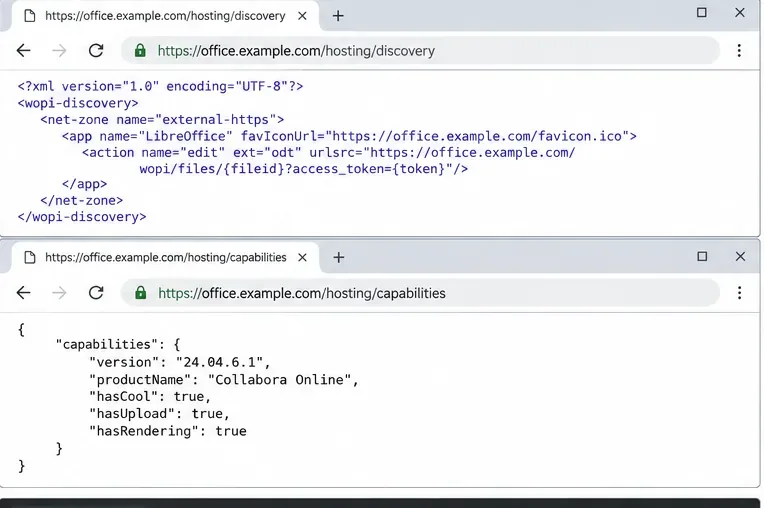
Check the public Collabora discovery and capabilities URLs first; both must be reachable through the same hostname used by the integration.
For authoritative endpoint guidance, see Nextcloud Office troubleshooting and the Collabora Online 25.04 SDK manual.
2. Test all four network directions, not just the browser
A common mistake is assuming that because office.example.com opens in a desktop browser, Collabora can also fetch files from the storage server. That is not guaranteed. Test from the actual hosts or containers:
# From the Nextcloud/storage server
curl -fsS https://office.example.com/hosting/discovery >/dev/null && echo OK

# From the Collabora host/container
curl -fsS https://cloud.example.com/status.php

# Then inspect Collabora logs
docker logs --tail 100 collabora
If the public hostname resolves differently inside Docker, Kubernetes, or a private network, decide whether to fix internal DNS, add an appropriate host mapping, or route through the public endpoint. Internal DNS is usually cleaner at scale; a hosts-file entry is quick for a small static installation but becomes harder to maintain.
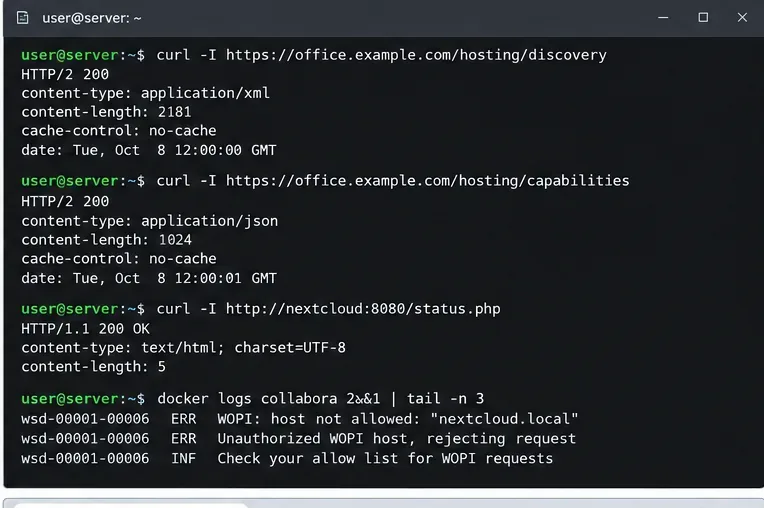
Run reachability tests from the servers themselves, then use the Collabora log to separate a network failure from a WOPI trust failure.
3. Fix the reverse proxy if WebSockets or Collabora routes are missing
Collabora is not a normal static web application. Its reverse proxy needs routes for browser assets, discovery/capabilities, document traffic, and WebSockets. In Collabora’s SDK manual, the Nginx example forwards /browser, /hosting/discovery, /hosting/capabilities, the /cool/.../ws WebSocket path, and related /cool or /lool traffic.
For the WebSocket route, the proxy must preserve the host and pass the HTTP upgrade. A simplified Nginx pattern is:
location ~ ^/cool/(.*)/ws$ {
    proxy_pass http://127.0.0.1:9980;
    proxy_http_version 1.1;
    proxy_set_header Upgrade $http_upgrade;
    proxy_set_header Connection "Upgrade";
    proxy_set_header Host $host;
    proxy_read_timeout 36000s;
}
Do not copy this blindly if you terminate TLS differently. Collabora documents separate patterns for end-to-end TLS and SSL termination. If TLS terminates at Nginx and the backend connection is HTTP, Collabora’s internal SSL settings must match that design. Using HTTPS everywhere is simpler to reason about, while TLS termination at the proxy reduces certificate handling inside containers but introduces another configuration boundary.
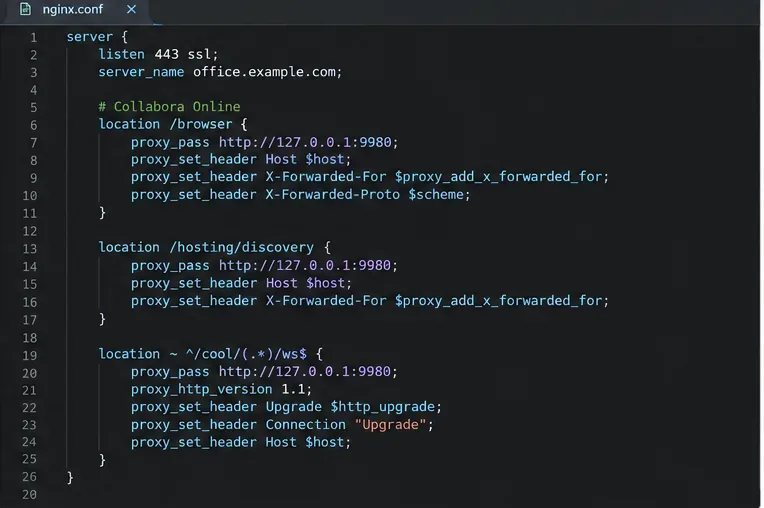
A correct reverse proxy must forward Collabora HTTP routes and preserve the WebSocket upgrade for the document session.
4. Check protocol, certificate, and hostname consistency
Nextcloud’s current Office configuration documentation states that the Collabora Online server should use the same protocol as the Nextcloud installation, with HTTPS recommended. In practice, mixed public HTTP/HTTPS configurations can trigger blocked content, wrong redirect targets, or backend certificate validation failures.
Verify these items together:
- The Collabora URL saved in your storage platform is the exact public URL users reach.
- The certificate presented by that hostname is valid for the hostname and trusted by the storage server.
- Collabora can validate the storage server’s HTTPS certificate.
- Your reverse proxy forwards the original host and scheme correctly.
- There is no redirect from the configured Collabora hostname to another hostname that WOPI does not expect.
A self-signed certificate can be acceptable in a lab if every component is explicitly configured to trust it, but that convenience trades away portability and frequently causes upgrades or container rebuilds to fail later. For production, a publicly trusted or organization-trusted certificate chain is the safer choice.
5. Correct WOPI allow lists instead of disabling them
If discovery works and Collabora logs show messages such as Unauthorized WOPI host or no acceptable WOPI host matching the target, the problem has moved from basic connectivity to trust configuration. Nextcloud’s official troubleshooting documentation specifically points administrators to the container logs for this case.
On the storage side, Nextcloud recommends restricting WOPI requests to the IP addresses of the Collabora servers using the Allow list for WOPI requests setting. On the Collabora side, the permitted WOPI storage hosts must match the storage URLs that Collabora actually receives. For multiple storage domains, Collabora’s current SDK documents WOPI alias groups.
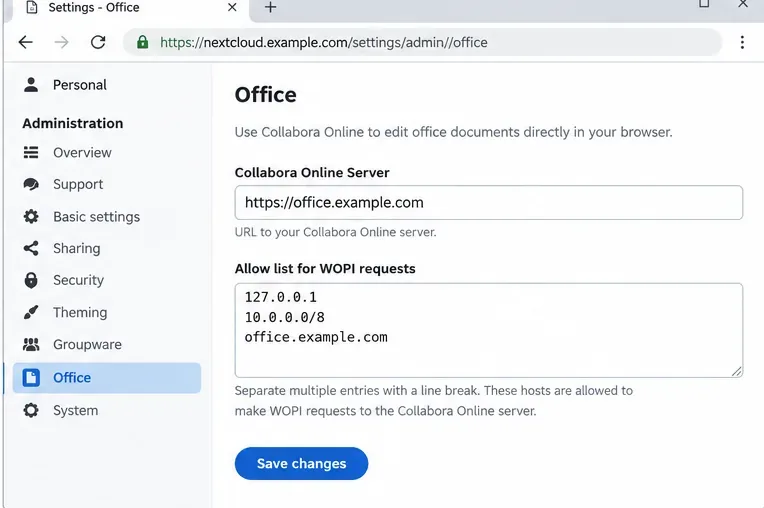
Keep the Collabora server URL and WOPI allow list aligned with the real deployment; use narrow trusted entries rather than turning validation off.
See Nextcloud Office configuration for the current server URL and WOPI allow-list guidance. If you use ownCloud Infinite Scale, its collaboration service uses COLLABORATION_APP_ADDR for the office app URL and COLLABORATION_WOPI_SRC for the externally reachable WOPI source; see ownCloud collaboration service documentation.
When should you use built-in CODE instead of a separate Collabora server?
For a small Nextcloud installation, the built-in CODE server reduces the number of externally managed components. The tradeoff is that it still depends on the Nextcloud instance being able to reach itself through the hostname used in the browser. Nextcloud’s troubleshooting documentation calls this out directly and suggests resolving that hostname correctly when built-in CODE cannot connect.
A separate Collabora server is usually a better fit when you need independent scaling, centralized service for multiple storage instances, or a production architecture with clearer resource boundaries. It adds DNS, proxy, certificate, firewall, and WOPI trust configuration, so the operational burden is higher.
What not to do
- Do not disable WOPI validation as the first fix. It can hide the actual hostname mismatch and weakens a security boundary.
- Do not expose port 9980 directly just because the proxy is failing. Fix the proxy unless direct exposure is an intentional, secured design.
- Do not assume a 200 response from the Collabora homepage proves document editing works. Discovery, capabilities, WOPI file access, and WebSockets are separate paths.
- Do not change multiple layers at once. Test after each change so you know whether DNS, TLS, proxying, or WOPI trust was the real cause.
Final verification checklist
After making a change, verify the system in this order:
- Open
/hosting/discovery and /hosting/capabilities from a browser.
- Fetch the same endpoints from the storage server.
- From the Collabora server, fetch the storage server status URL.
- Open a document while watching both Collabora and storage logs.
- Confirm the browser establishes the Collabora WebSocket without repeated disconnects.
- Confirm a second user can open and edit a test document if collaborative editing is required.
If all six checks succeed, the generic “Well, this is embarrassing” message should no longer be masking a connection failure. If the message remains, capture the exact Collabora log lines and browser network failure for one document-open attempt; those two pieces of evidence are more useful than the generic UI message itself.









