Home
» MS OFFICE
»
Fix Dark Mode Text Visibility Issues in LibreOffice Calc
Fix Dark Mode Text Visibility Issues in LibreOffice Calc
You open a spreadsheet in LibreOffice Calc and some labels or values nearly disappear against the dark interface. The cause may be the application theme, a cell’s saved font and fill colors, or a formatting rule that reapplies those colors. Changing dark mode can improve the menus and sheet canvas, but it does not always correct formatting stored in the workbook.
A reliable fix starts by identifying where the contrast problem appears. If only the menus are hard to read, adjust LibreOffice’s appearance. If particular cells remain unreadable, correct their font color and background. Then verify the sheet in normal view and in print or PDF preview.
First identify what is difficult to see
LibreOffice’s application theme controls the appearance of the interface and document background. Cell font color, cell background, and conditional formatting are separate spreadsheet formatting. A workbook can therefore retain white text on a dark fill or dark text on a dark fill even after you switch the application between Light and Dark.
Use these clues before making changes:
Menus, toolbars, or the sheet canvas are hard to see: check the LibreOffice Appearance settings and your desktop theme.
Only certain cells are unreadable: inspect their font color, fill, and conditional formatting.
Formatting changes return after you type or recalculate: a cell style or conditional formatting rule may be applying them again.
The sheet looks fine onscreen but not in a PDF: compare print preview and export settings; a screen theme is not a substitute for document formatting.
1. Adjust the application appearance
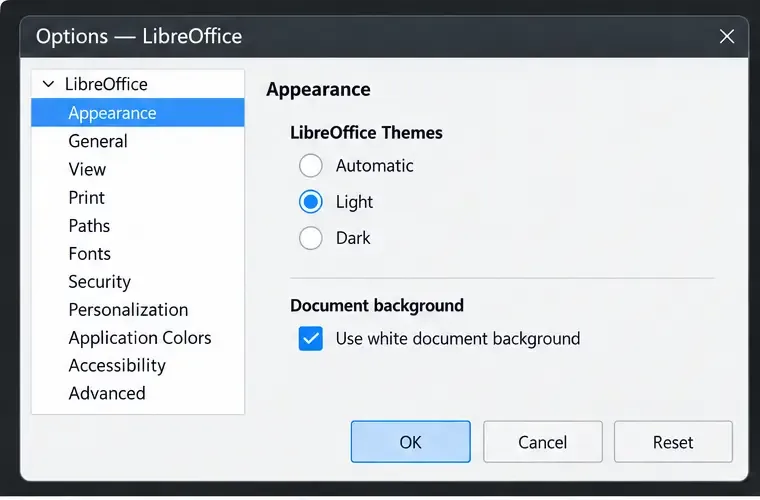
Open Tools > Options > LibreOffice > Appearance and choose Light if a light interface is easier to read. On macOS, the top-level menu may be LibreOffice > Preferences; tabbed and customized interfaces can also place Options in a different spot. The current Appearance page provides Automatic, Light, and Dark choices. Automatic follows the desktop environment’s theme.
If the worksheet’s overall background is difficult to distinguish, enable Use white document background if that option is available. This overrides the theme’s document background color. It does not recolor manually formatted cells, so continue to the cell-level steps when only particular values remain hard to read.
2. Correct the font color in affected cells
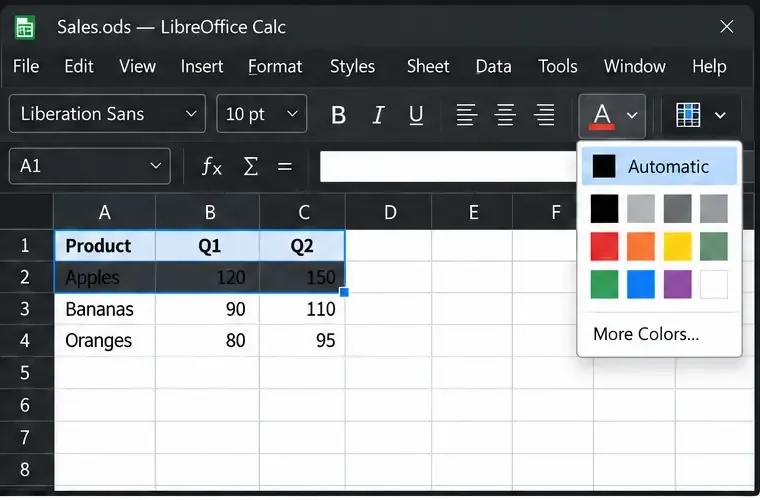
Select the cells with low-contrast text. From the Formatting Bar, open Font Color and choose Automatic. LibreOffice Help describes Automatic as black on light backgrounds and white on dark backgrounds. This is often the quickest fix when cell text has an explicit color that clashes with its fill.
You can also use Format > Cells > Font and set the font color there. Apply the change only to the affected range unless the whole sheet has the same issue. If the sheet uses deliberate colored text for meaning, keep that distinction and choose a readable color that still preserves the intended meaning.
Choose a Light appearance and white document background when the worksheet canvas or surrounding interface is hard to read.
3. Repair a cell fill that hides the text
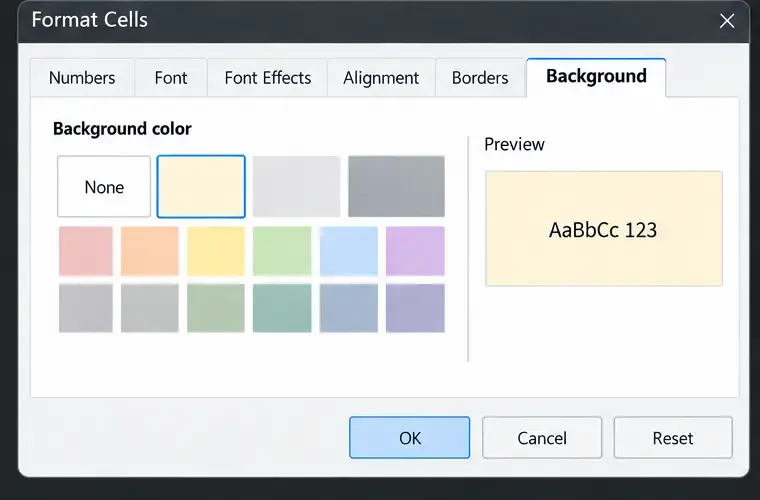
If the cells have a dark or unexpected background, select them and choose Format > Cells > Background. Select None to remove an unnecessary fill, or choose a light neutral fill for a table that needs a distinct background. Pair a dark header fill with light text, and a light body fill with dark text. Avoid choosing colors based only on how they look in one theme.
When the text and background are both intentionally colored, change them as a pair and inspect the result at normal zoom. If borders or grid lines disappear after adding a fill, add subtle borders so readers can still follow rows and columns.
Set selected cell text to Automatic so the font color responds to a light or dark cell background.
4. Check styles and conditional formatting
If a color change does not stick, inspect the cell style and any conditional formatting rules. A style can apply font, background, border, and other formatting to cells; a conditional rule can change appearance when a value or formula meets a condition. Edit the relevant style or rule instead of repeatedly applying a one-off color to cells that will be reformatted again.
Also check whether the sheet or selected cells are protected. If formatting controls are unavailable, you may not have permission to change them. Ask the workbook owner for access rather than trying to bypass protection. For a shared workbook, make a copy before changing broad styles or rules.
How to judge whether the fix worked
Review the workbook in both Light and Dark appearance if you expect to switch themes. The same important labels and values should remain readable, the active selection should still be obvious, and table rows should remain easy to track. Use more than color to convey meaning: headings, borders, symbols, or labels help readers who print in grayscale or have color-vision differences.
Check representative areas, including the first row, totals, formulas, cells with conditional formatting, and any pasted data. Then open File > Print Preview and export a test PDF if the spreadsheet will be shared or printed. Confirm that text, fills, and borders remain legible on the exported page. A screen-only improvement is not enough when the delivered file will be read elsewhere.
When to change the approach
If changing Appearance fixes menus but not a few cells, leave the app theme as preferred and correct those cells’ formatting.
If Automatic font color makes text readable but the sheet still looks crowded, adjust the fills and borders for the affected table.
If colors keep returning, edit the responsible style or conditional formatting rule.
If screen readability improves but print preview does not, revise the workbook’s actual cell formatting and retest the exported file.
If the problem occurs only in one workbook or a protected sheet, ask its owner before changing styles or protection.
Theme and color behavior can vary by LibreOffice version, operating system, and interface layout. The current online Help pages reviewed for this guide describe the Appearance options and Calc cell-formatting controls; menu labels may differ slightly on your computer.
Final verification checklist
Important text is readable against its cell fill at normal zoom.
Headers, totals, and conditional-formatting results are clear.
Switching between Light and Dark appearance does not make critical information disappear.
Print Preview or the exported PDF preserves legible text, fills, and borders.
The workbook still communicates meaning without relying on color alone.
Sources checked October 7, 2026. The Help pages currently identify the Appearance and spreadsheet formatting material as LibreOffice 26.8 and 26.2 content, respectively.
Use the Background tab to replace a low-contrast fill with a lighter cell background.
4. Check styles and conditional formatting
If a color change does not stick, inspect the cell style and any conditional formatting rules. A style can apply font, background, border, and other formatting to cells; a conditional rule can change appearance when a value or formula meets a condition. Edit the relevant style or rule instead of repeatedly applying a one-off color to cells that will be reformatted again.
Also check whether the sheet or selected cells are protected. If formatting controls are unavailable, you may not have permission to change them. Ask the workbook owner for access rather than trying to bypass protection. For a shared workbook, make a copy before changing broad styles or rules.
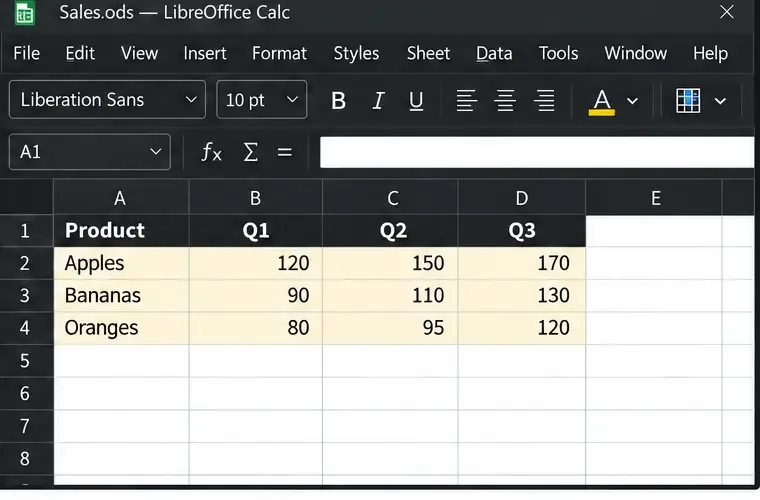
Check that headers and cell values remain legible after the formatting changes.
How to judge whether the fix worked
Review the workbook in both Light and Dark appearance if you expect to switch themes. The same important labels and values should remain readable, the active selection should still be obvious, and table rows should remain easy to track. Use more than color to convey meaning: headings, borders, symbols, or labels help readers who print in grayscale or have color-vision differences.
Check representative areas, including the first row, totals, formulas, cells with conditional formatting, and any pasted data. Then open File > Print Preview and export a test PDF if the spreadsheet will be shared or printed. Confirm that text, fills, and borders remain legible on the exported page. A screen-only improvement is not enough when the delivered file will be read elsewhere.
When to change the approach
If changing Appearance fixes menus but not a few cells, leave the app theme as preferred and correct those cells’ formatting.
If Automatic font color makes text readable but the sheet still looks crowded, adjust the fills and borders for the affected table.
If colors keep returning, edit the responsible style or conditional formatting rule.
If screen readability improves but print preview does not, revise the workbook’s actual cell formatting and retest the exported file.
If the problem occurs only in one workbook or a protected sheet, ask its owner before changing styles or protection.
Theme and color behavior can vary by LibreOffice version, operating system, and interface layout. The current online Help pages reviewed for this guide describe the Appearance options and Calc cell-formatting controls; menu labels may differ slightly on your computer.
Final verification checklist
Important text is readable against its cell fill at normal zoom.
Headers, totals, and conditional-formatting results are clear.
Switching between Light and Dark appearance does not make critical information disappear.
Print Preview or the exported PDF preserves legible text, fills, and borders.
The workbook still communicates meaning without relying on color alone.
Sources checked October 7, 2026. The Help pages currently identify the Appearance and spreadsheet formatting material as LibreOffice 26.8 and 26.2 content, respectively.