Home
» MS OFFICE
»
Fix LibreOffice Calc Formulas Showing Text Instead of Results
Fix LibreOffice Calc Formulas Showing Text Instead of Results
A Calc cell that displays =SUM(B2:B4) instead of a number can mean two very different things: Calc may be showing formulas across the sheet, or that cell may contain text rather than an executable formula. A stale result points to a third issue: calculation settings. Start by checking the scope of the symptom before changing formats or rewriting formulas.
This guide compares the fixes by what they affect, how much work they take, and the risk of changing valid data. The menu labels below follow LibreOffice Help pages checked October 6, 2026. Depending on your operating system, interface layout, and LibreOffice version, a command may appear in a slightly different place.
First, identify what Calc is showing
Click one affected cell and look at the input line (also called the formula bar). If it contains a formula beginning with =, such as =SUM(B2:B4), Calc recognizes a formula expression. If the grid shows the expression in many cells at once, suspect a display setting. If only a few cells show the expression, suspect text entry or the cell format. If the cell shows a number that does not change when inputs change, check recalculation.
Also compare an affected cell with a known working formula. Does the formula bar show a leading apostrophe, a space before the equals sign, or a quote that is not present in the working cell? Is the formula bar correct but the grid still shows the expression? Those clues help you choose a narrow repair instead of changing an entire column.
Choose the fix that matches the symptom
What you see
Likely cause
Best first fix
Tradeoff
Formulas appear throughout the sheet
Show Formulas view is enabled
Turn off View > Show Formulas
Fast and reversible; changes display for the sheet, not formula content
Only certain cells show the typed formula
Text format, leading apostrophe, or pasted text
Inspect the input line, then correct and re-enter only those cells
Precise; needs manual work for many cells
Formula is recognized but its number is old
Manual calculation or stale calculation state
Check Data > Calculate > AutoCalculate, then recalculate
Can refresh many dependent formulas; volatile formulas may also change
Formula returns words or a formatted string
The formula is designed to return text
Review the function and its inputs
May require a formula change if you expected a numeric result
Fix formulas shown everywhere: turn off Show Formulas
When many formula cells display their expressions at once, use the view toggle first. Choose View > Show Formulas and turn it off. The documented shortcut is Ctrl+` on supported keyboard layouts, but the menu is easier to verify because the backtick key position varies. This command switches the grid between formula expressions and calculated results; it does not replace or delete the formulas.
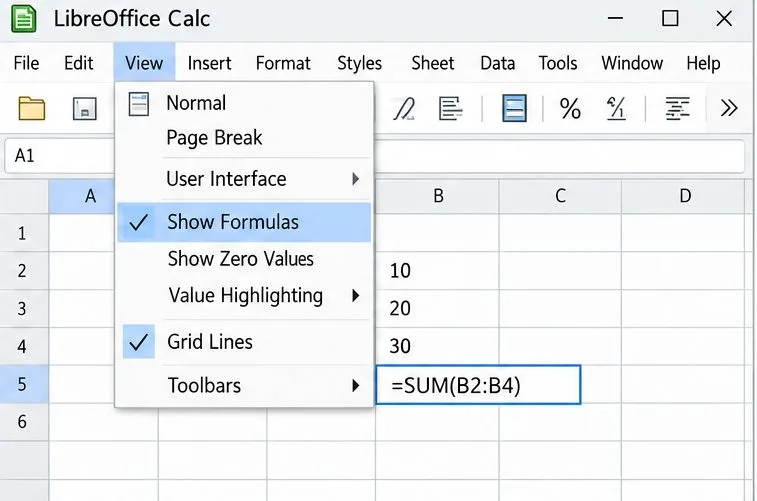
The View menu shows “Show Formulas” checked, and the selected cell displays =SUM(B2:B4); turn off this sheet display option to see calculated values.
If the menu command does not resolve the display, open Tools > Options > LibreOffice Calc > View (on macOS, the route may begin in LibreOffice > Preferences) and clear the Formulas option in the Display section. This is an alternate control for the same display behavior. The official help entry is Show Formulas.
Fix an individual formula stored as text
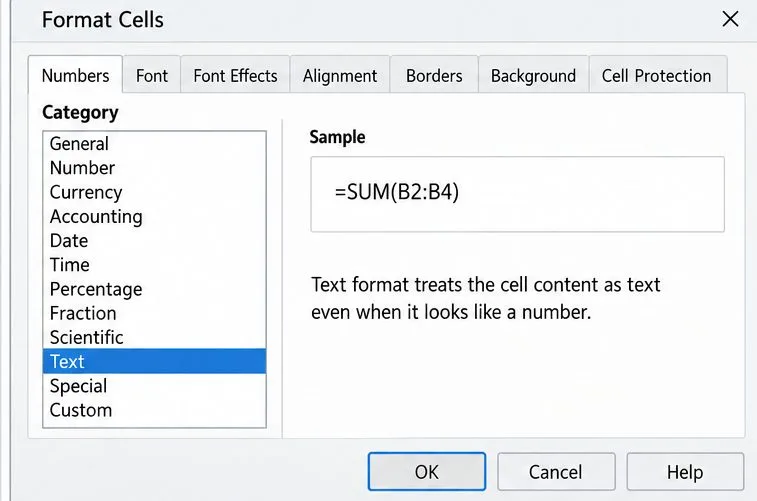
If the problem affects a few cells, inspect their number format. Right-click a cell and choose Format Cells, then look at the Numbers tab. A category of Text tells Calc to treat new entries as text. That setting is useful for IDs, postal codes, and other strings that must preserve leading zeros; it is usually wrong for a formula you want Calc to evaluate.
The Numbers category is set to Text. Use this clue when just one cell displays a formula string instead of calculating it.
To repair a formula cell, change its format to General or an appropriate numeric format, then edit the formula and press Enter. For example, select the cell, press F2, and press Enter to make Calc parse the content again; if the formula still appears as text, replace it by typing the formula with = as its first character and accept the entry. Changing a format alone does not reliably reinterpret content already stored as text. LibreOffice documents that editing or re-entering content is needed after changing how a cell is treated.
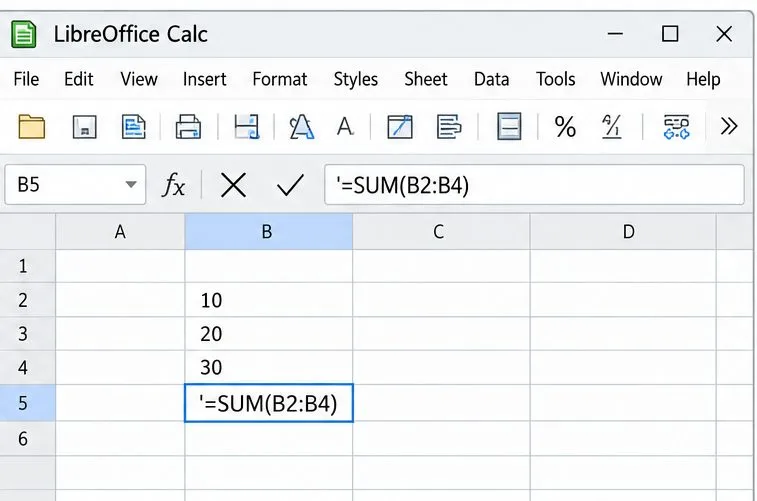
A leading apostrophe in the formula bar marks the entry as text; remove it only when you intend Calc to evaluate the formula.
A leading apostrophe tells Calc to keep an entry as text; it may not be visible in the grid, so the formula bar is useful. A leading space before = can also prevent the entry from being recognized as a formula. Remove the apostrophe or unintended space only if the cell should calculate. If you are documenting a formula as an example, keep it as text. The Formatting Numbers as Text help page explains why the Text format and apostrophe are intentional tools for text values.
When several cells are affected
For a short range, fix one cell and use the fill handle or copy the corrected formula down, checking that relative references adjust as intended. This is safer than converting a large selection when the range contains a mixture of formulas, labels, and identifiers. For a uniform imported column, a bulk conversion or re-entry can save time, but preview the selection and preserve a copy first. Text-to-Columns can split data when separators are present, so do not run it blindly on a mixed sheet.
Fix a result that is present but not updating
If the grid shows a numeric result rather than the formula expression, yet the result stays stale after an input changes, check calculation mode. Choose Data > Calculate and confirm AutoCalculate is enabled. Then use Data > Calculate > Recalculate or press F9. If results remain stale, Recalculate Hard forces a broader recalculation; its documented shortcut is Ctrl+Shift+F9 on common desktop layouts. Keyboard shortcuts can differ by platform.
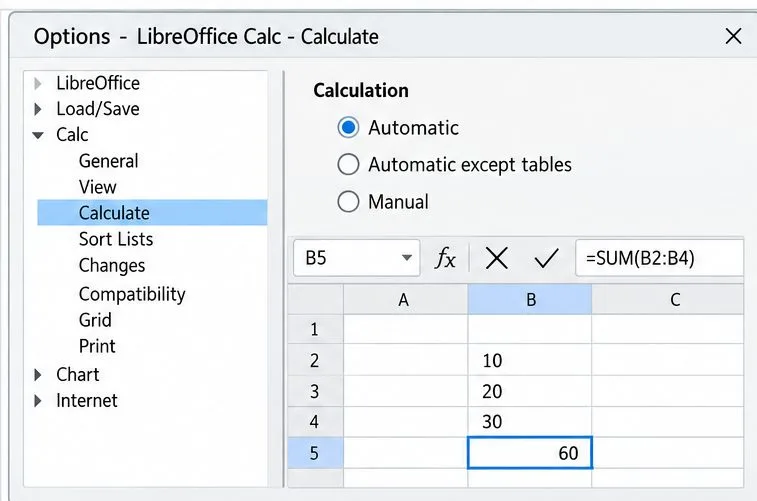
The Calculate settings show Automatic selected, while =SUM(B2:B4) returns 60; check this setting when a valid formula result is stale.
Automatic calculation is usually the convenient choice for an interactive workbook because dependent results update when inputs change. Manual mode can be useful in a very large model when frequent recalculation slows editing, but it creates a stale-results risk: users must remember to recalculate before relying on totals. Do not switch to manual mode as a general troubleshooting fix. The official Calculate commands page distinguishes Recalculate, Recalculate Hard, Formula to Value, and AutoCalculate. Avoid Formula to Value here: it replaces the formula with its current result.
When the formula calculates but the answer is text
Not every text result is a failure. A formula such as ="Total" intentionally returns a word, and functions such as TEXT can format a number into a text string. If the cell shows a result rather than the formula expression, inspect the expression and its inputs. If you expected a number, check that the formula does not wrap the result in a text-producing function and that the referenced input cells contain numeric values rather than text that looks numeric.
For a malformed formula, confirm it begins with =, check parentheses and cell references, and press Enter to accept it. Formula separators and function names may depend on locale or settings, so copy a known working formula from the same workbook instead of assuming a comma-separated example will work in every installation. The Entering Formulas page covers entering and accepting formulas.
Which repair should you use?
Use the View toggle when formulas appear throughout the sheet. It is the quickest and least disruptive option because it changes display, not cell contents.
Correct cell format and re-enter when only specific cells show literal formulas. It takes longer for a large range, but protects unrelated data.
Use a bulk method only when the selected range is uniform and you have checked a copy or preview. It saves repetitive work but carries the greatest risk of altering mixed content.
Enable AutoCalculate when valid formula cells show old values after inputs change. Manual calculation is a performance choice, not a way to repair text entries.
After the fix, test one affected formula: change one of its referenced inputs temporarily, confirm the displayed result updates as expected, and undo the test value. Then check a neighboring formula and save the workbook. If the formula bar shows a correct formula but Calc displays an error code, that is a different problem—inspect the error and its references rather than repeating the display and text-format fixes.