Home
» MS OFFICE
»
Fix LibreOffice Print Scaling That Cuts Off Custom Page Sizes
Fix LibreOffice Print Scaling That Cuts Off Custom Page Sizes
When a LibreOffice document uses a custom page size, clipping usually comes from a mismatch between the document’s page, the paper selected for the print job, and the printer’s printable area. In Writer, start by matching those sizes and checking the preview; there is no universal “scale to fit” control for every Writer print job. In Calc, use the sheet’s Scale settings. Draw and Impress offer their own print-size options.
This guide reflects the LibreOffice Help pages labeled 26.8, checked October 6, 2026. Printer-property names vary by operating system, driver, and printer model, so the final media-size choice may appear under a different label on your computer.
Quick diagnosis
What you see
First setting to check
Only the right or bottom edge is missing
Printer’s nonprintable margins; compare document margins with the printer’s printable area.
Everything is shifted or cropped on every page
Paper size and orientation in both LibreOffice and Printer Properties.
Print Preview looks right, paper output does not
Driver media size, tray selection, borderless mode, or a printer-specific scaling option.
A Calc sheet spans too many sheets
Format - Page Style - Sheet - Scale; set a width or height page limit.
A Draw or Impress page extends past printer margins
File - Print - Size - Fit to printable page, if reducing the design is acceptable.
Why custom page sizes get cut off
A page size saved in the document is not always the same as the paper size the selected printer can feed. A 180 × 120 mm label, card, or plan may be correctly laid out in LibreOffice, while the printer is still set to Letter or A4. The driver may then center, rotate, crop, or scale the page according to its own settings.
Printers also reserve margins for feed and print-head limits. A document can have a valid custom size and still place content outside that printable area. A borderless option may exist on some devices, but it is model- and media-dependent. LibreOffice’s print preview is useful for checking page layout and the selected paper size; the final device behavior depends on the printer properties available on your system.
Fix a Writer document
1. Confirm the page size and orientation
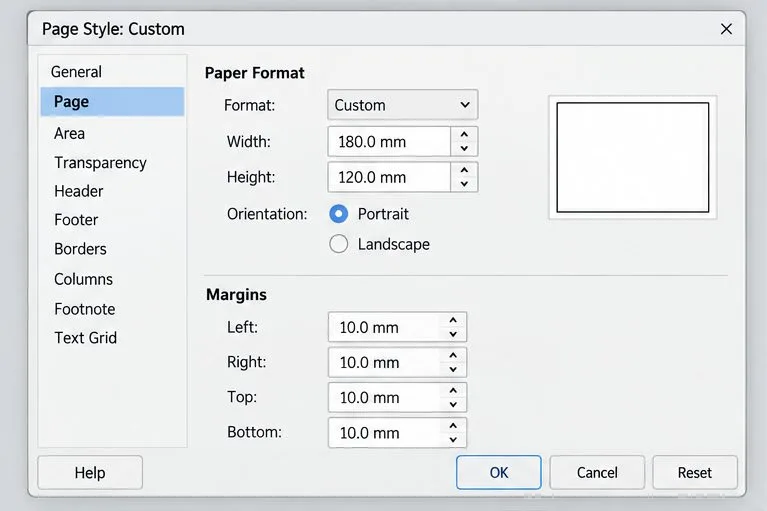
Click inside the affected page and choose Format - Page Style. On the Page tab, check the paper format, width, height, orientation, and margins. The Page Style dialog applies to the current page style, so a document with sections or different page styles may need the setting corrected on more than one style.
For a custom size, choose the custom format and enter the intended width and height. Verify units before editing: 180 mm is not 180 inches. Set portrait or landscape deliberately; rotating the document and rotating the paper are separate choices in some print dialogs. Keep enough margin for the printer’s nonprintable edge and for any required finishing or trimming.
The Page Style page contains the custom width and height alongside orientation and margin settings for the current style.
2. Match the print-job paper to the document
Open File - Print and select the intended printer. In the Print dialog, check the preview and the paper size shown under Page Layout. Then open Properties (sometimes called Printer Properties) and look for the printer’s paper or media size and tray. Choose the same custom size if the driver offers it.
If the driver does not list the size, define it in the printer’s own settings utility or operating-system printer preferences, if the model supports custom media. A paper-size name created for the printer may not automatically update the size stored in the LibreOffice document. Reopen the print dialog after changing driver settings and confirm that the intended printer and paper size are still selected.
3. Compare the preview with the printable area
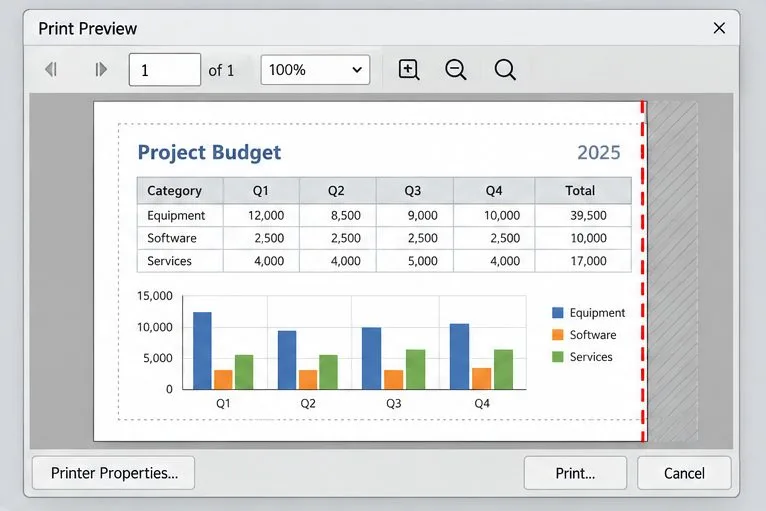
Look at every edge of the preview. If content touches the page edge, increase the corresponding Page Style margin or move the object inward. If the preview shows a clipping boundary, try the correct media size first; shrinking the whole page before correcting a Letter-versus-custom-size mismatch can make the print unnecessarily small.
For a quick isolation test, export a PDF and inspect its page dimensions and content. If the PDF itself has a cut edge, fix the document’s page style, objects, or margins. If the PDF is complete but a physical print is clipped, focus on the selected printer, driver, tray, printable margins, or print scaling. This comparison is a diagnostic clue, not a guarantee that every PDF viewer or printer uses the same defaults.
A preview can expose content near a printer boundary; first match the document and driver paper sizes, then adjust margins or scale if needed.
Use the scaling controls for the right LibreOffice app
Calc: shrink a sheet to a page limit
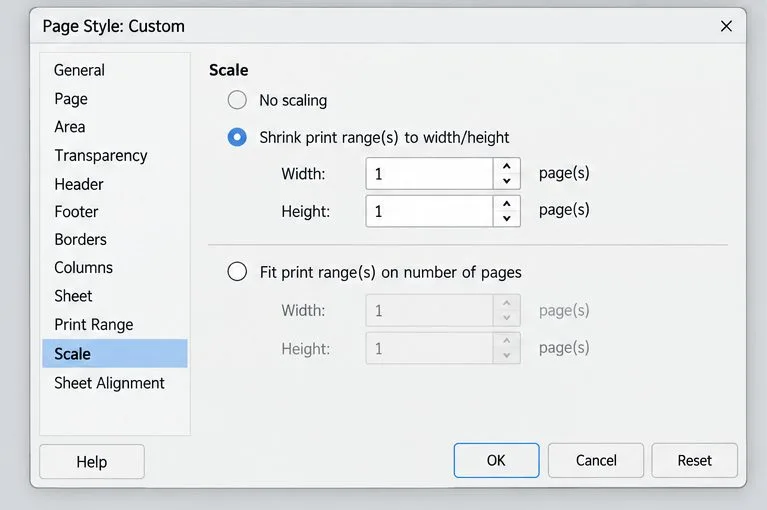
Calc controls spreadsheet scaling in the page style rather than through one general Writer setting. Choose Format - Page Style, open the Sheet tab, and find Scale. Select Shrink print range(s) to width/height to set a maximum number of pages horizontally and vertically. For a one-page-wide sheet that may continue onto additional pages vertically, set Width to 1 and leave Height unrestricted. Setting both Width and Height to 1 forces the print range onto one page and can make small text difficult to read.
Check the defined print range as well. Empty formatting far to the right or below the real table can expand what Calc considers printable. Use Format - Print Ranges to inspect or reset a print range when the preview includes unexpected blank pages. Adjust landscape orientation or print area before reducing the scale so far that labels become unreadable.
Calc’s Sheet tab provides a width-and-height page limit; use only the dimension that needs a limit when readability matters.
Draw and Impress: fit oversized artwork or slides
For Draw and Impress, LibreOffice documents a Fit to printable page choice under the print dialog’s Size settings. It scales down objects that extend beyond the selected printer’s margins. This can solve a poster or slide that is slightly too large for the printable area, but it changes the printed scale. If physical dimensions matter, use a printer that supports the intended paper size or print tiled sections instead.
When the custom size is not available
Check the printer and driver. Select the actual printer, not a generic or virtual device, and inspect its media list. A printer’s documented custom-size range and tray limitations take precedence.
Check the paper source. A custom size may be available only from a manual feed or a particular tray. Page Style can also associate a paper tray with a page style on supported systems.
Try a PDF workflow. Export the document, then use a PDF viewer’s print preview to choose actual size, fit, or custom scaling. Pick “actual size” when dimensions must remain exact and the printer can handle the page; choose “fit” only when a reduced output is acceptable.
Do not force borderless printing. If the printer cannot print to the edge, no LibreOffice scaling setting can remove its physical printable margin. Extend backgrounds for bleed only when the device or print service supports it.
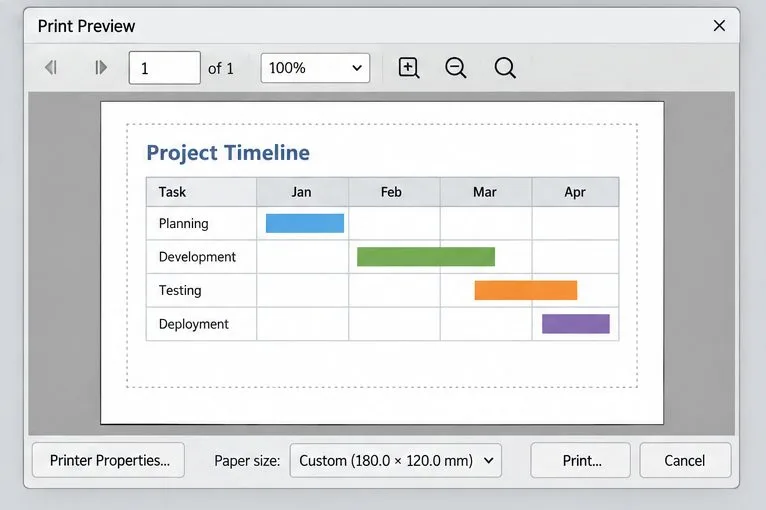
After aligning the document and driver media settings, verify that the full page appears inside the preview margins before printing.
Verification checklist
The document’s custom width, height, and orientation match the intended physical output.
The correct page style is applied to each affected page or section.
The selected printer and tray support the chosen custom paper size.
The Page Layout paper size and Printer Properties media size agree with the document.
Preview shows every edge, and text or graphics sit inside the printer’s printable area.
A one-page test print confirms the physical output; compare a PDF export if the app preview and paper result differ.
If only Calc is affected, review the Scale and Print Range settings before changing Writer’s Page Style. If Writer is affected but the preview and PDF are complete, focus on the driver and the selected media. This separates document layout from the print path and helps preserve the intended dimensions.