Home
» MS OFFICE
»
Fix “LibreOffice Requires a Java Runtime Environment (JRE)” Error
Fix “LibreOffice Requires a Java Runtime Environment (JRE)” Error
If LibreOffice says it requires a Java Runtime Environment (JRE), the message usually appears when you open a feature that depends on Java or when LibreOffice cannot find a usable runtime. You have two valid fixes: turn off Java support if you do not use Java-dependent tools, or install and select a compatible runtime if you do. The right choice depends on whether you rely on LibreOffice Base, Java-based extensions, macros, or database connections.
A JRE is the software that runs Java applications. It is separate from LibreOffice, and installing one does not change Writer or Calc documents. LibreOffice documentation says Java is needed only for features that use the Java platform; the exact feature set can depend on the component and release. This guide uses the current Advanced settings documented by LibreOffice. Illustrative interface images below are examples rather than exact screenshots; labels and layout can vary by operating system and version.
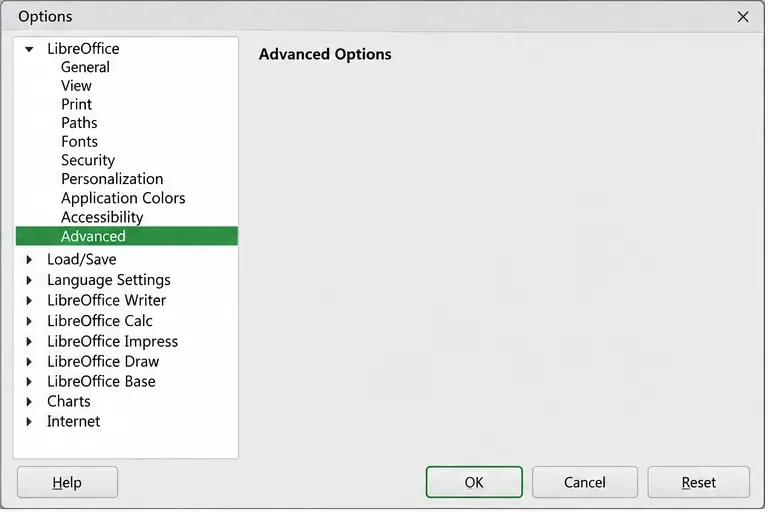
Open LibreOffice’s Advanced preferences to reach the Java runtime controls; the other visible options are not part of this fix.
Choose the fix that matches how you use LibreOffice
Choice
Best when
Trade-off
Disable Java support
You use Writer, Calc, Impress, or Draw and do not need Java-dependent features.
The warning should stop for Java-dependent actions, but those actions will remain unavailable.
Install your operating system’s OpenJDK runtime
You want Java features and prefer updates through your normal system package manager.
Package versions and LibreOffice integration depend on your distribution.
Install a vendor-provided JRE
You need a specific runtime build across multiple computers or your OS repository does not provide a suitable one.
You must choose the correct operating system and CPU architecture and keep that runtime updated yourself.
If you are unsure, start by identifying the feature that raised the message. LibreOffice Base functions, certain database drivers, Java components, and some extensions can need Java. Ordinary Writer editing usually does not. Do not disable Java on a shared workstation until you have checked whether another person or a Base workflow depends on it.
Option 1: Turn off Java when you do not need it
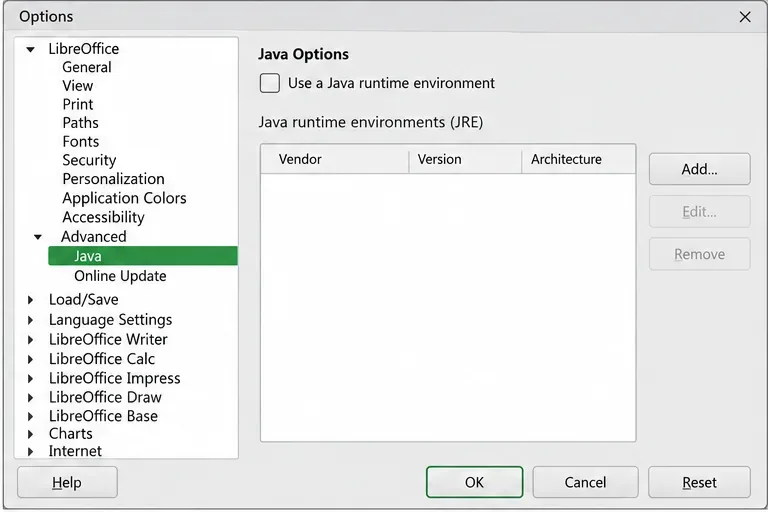
In LibreOffice, open Tools > Options > LibreOffice > Advanced, then clear Use a Java runtime environment. On macOS, the preferences entry may be under the LibreOffice application menu; wording and navigation can differ between releases. If you do not see the same path, use LibreOffice Help to find the Advanced options page.
Clear the Java checkbox only if the Java-dependent features shown in your workflow are unnecessary.
Select OK and reopen the action that displayed the warning. If the alert no longer appears and your normal documents still open, the change worked for your everyday workflow. If a Base wizard, a Java extension, a macro, or a database connection then fails, turn the checkbox back on and use Option 2. Disabling Java hides the dependency; it does not install a missing runtime or make a Java-dependent feature work.
Option 2: Install and select a compatible runtime
1. Check LibreOffice’s architecture first
LibreOffice requires a JRE that matches its own architecture. The official Advanced-options help specifically calls for a 64-bit JRE with 64-bit LibreOffice and a 32-bit JRE with 32-bit LibreOffice. Your operating system being 64-bit does not by itself prove that the installed LibreOffice is 64-bit. Check the LibreOffice package or About information and confirm whether it is 32-bit or 64-bit before downloading Java.
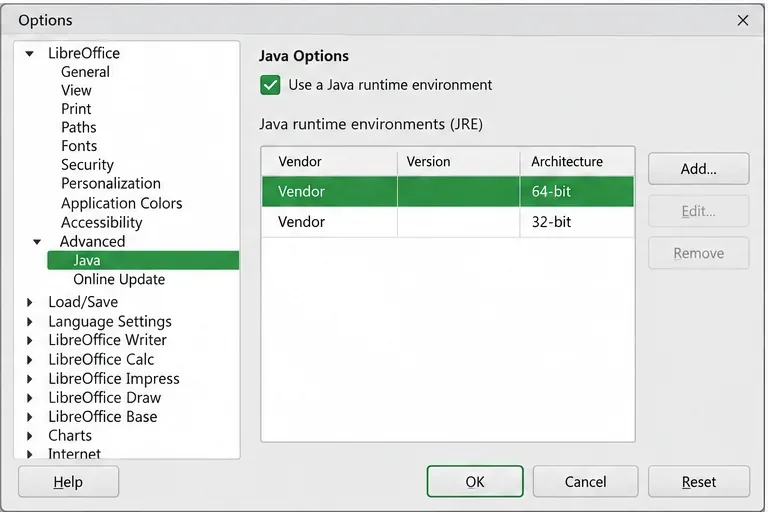
Choose the runtime whose architecture matches LibreOffice; the example entries are generic and do not identify a required Java version.
2. Pick a runtime source
On Linux, the distribution’s OpenJDK runtime is often the simplest starting point because the package manager handles installation and security updates. Use the package search or documentation for your distribution and select a Java runtime package, not a development kit unless your organization specifically requires one. The package name and available Java releases vary by distribution, so a single command is not reliable for every Linux system.
For a separately managed runtime, use a JRE from a reputable vendor and download it from that vendor’s official site. Eclipse Adoptium’s Temurin release page provides operating-system, architecture, and package-type filters. Choose a release compatible with your LibreOffice version and environment; the LibreOffice help page specifies the architecture match but does not establish one Java major version that fits every LibreOffice installation. In a managed workplace, follow the organization’s approved software and update policy.
Do not download a runtime from a third-party “driver” or download mirror. Java is executable software; using the vendor’s or distribution’s signed package makes the source and update channel easier to verify.
3. Restart LibreOffice and select the runtime
Close all LibreOffice windows, install the runtime, and reopen LibreOffice. Go back to Tools > Options > LibreOffice > Advanced. Enable Use a Java runtime environment. Wait for the installed-runtime list to populate; LibreOffice notes that some systems can take a short time and may require a restart after a change.
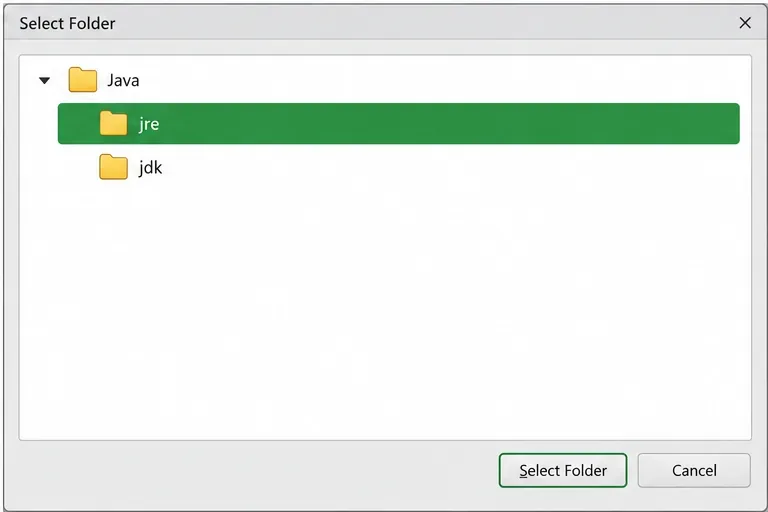
Select the listed runtime that matches LibreOffice’s architecture, then choose OK. If the list remains empty even though Java is installed, use Add to browse to the root folder of the JRE, not to a random Java file or a desktop shortcut. The path differs by operating system and vendor, so use the folder identified by the installer or package manager.
If LibreOffice does not list an installed JRE, use Add to select the runtime’s installation folder as described by its installer.
Verify the result with the feature that raised the message
Return to the original action rather than testing only whether LibreOffice opens. For example, reopen the Base wizard or extension that prompted for Java. A successful check means the feature proceeds past the JRE warning and completes its expected next step. If the warning remains, confirm all four items: the runtime installation completed, Java is enabled, the runtime appears in the list, and its architecture matches LibreOffice. Restart once more after selecting a newly added runtime.
If LibreOffice still cannot detect Java, reinstalling the same runtime repeatedly is unlikely to help. Check whether LibreOffice and Java came from different packaging channels, whether the runtime is inside a sandboxed package, and whether your system administrator manages Java discovery. The right remedy can depend on how LibreOffice was installed; consult your distribution’s LibreOffice packaging guidance or the LibreOffice help forums with your operating system, LibreOffice version, and runtime details.
What the fix does—and what it does not do
Installing a JRE restores access to Java-dependent LibreOffice features when the runtime is supported, detected, and correctly selected. It does not guarantee that every third-party extension or database driver supports the installed Java version. Conversely, turning off the checkbox is a reasonable configuration for users who do not need Java features, but it cannot satisfy a workflow that explicitly requires Java.
For a general office setup, keep Java disabled if you never use a Java-dependent feature and the warning disappears. For Base, Java-based extensions, or Java database connectivity, keep Java enabled and install a runtime matched to LibreOffice’s architecture. Revisit the choice after LibreOffice or Java upgrades, because package paths and supported combinations can change.