Home
» MS OFFICE
»
Fix ONLYOFFICE Co-Editing Lag on a Self-Hosted Docker Server
Fix ONLYOFFICE Co-Editing Lag on a Self-Hosted Docker Server
If ONLYOFFICE co-editing feels slow on a self-hosted Docker server, do not start by changing undocumented editor parameters. First separate the problem into three measurable areas: server resource pressure, reverse-proxy/WebSocket behavior, and storage or container-level errors. Co-editing depends on long-lived, real-time communication, so a server that opens documents successfully can still feel sluggish when several people type at once.
This guide uses a hypothetical example throughout: a small team runs ONLYOFFICE Docs in Docker behind NGINX. One or two users can edit normally, but when six people open the same document, cursor updates arrive late and other users' changes appear after a noticeable pause. This example is only a teaching scenario, not a benchmark or a report of a real deployment.
As of October 2026, ONLYOFFICE Docs 9.4 is the current release listed in the official changelog. Version 9.4 also changed the Community Edition architecture by removing dependencies on RabbitMQ and databases, so advice written for older releases may no longer match a current Community Edition container. Always confirm your installed edition and version before copying tuning advice from an older forum post.
1. Measure the lag before changing anything
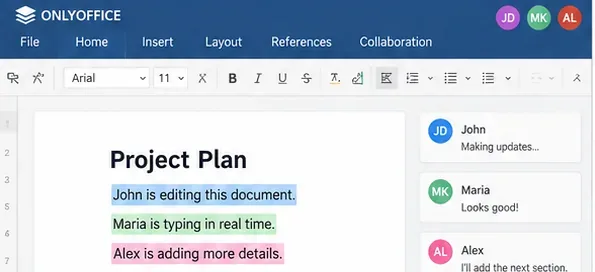
Illustrative example: reproduce the delay with several users in the same document so you can compare behavior before and after each change.
In the hypothetical case, the first mistake would be to restart random services and hope the lag disappears. Instead, create a repeatable test. Open the same document from several browser sessions or test accounts, type short edits, and note what is delayed: keystrokes on the local screen, remote cursor movement, the appearance of another user's text, saving status, or the initial document load.
These symptoms point to different bottlenecks. If the editor itself freezes on the local browser, client-side CPU or a very complex document may be involved. If local typing is immediate but remote edits arrive late, examine the network path and WebSocket session. If every action slows when more documents are opened, inspect server CPU, memory, swap, and disk I/O.
2. Check CPU and memory pressure while users are editing
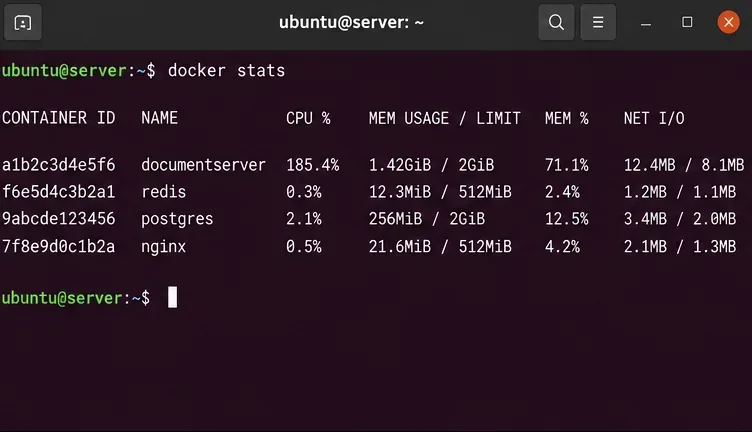
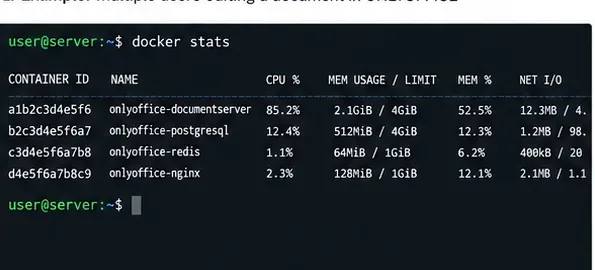
Run docker stats during the actual slow period; a snapshot taken when nobody is editing may hide the bottleneck.
On the Docker host, run:
docker stats
Watch the Document Server container while the test group edits. Also inspect host resources with tools such as:
free -h
uptime
vmstat 1
df -h
ONLYOFFICE's official Docker requirements specify at least 4 GB of RAM and at least 40 GB of free disk space for the documented configurations, with swap requirements as well. Enterprise guidance also makes clear that capacity depends on concurrent active users and on the number, type, and size of documents. Those figures are baselines, not a promise that 4 GB will provide smooth collaboration for every workload.
In our example, suppose docker stats shows the Document Server container repeatedly consuming most available CPU whenever six people type at once. That is meaningful evidence: adding proxy timeouts will not create more CPU. The next step is to remove an overly restrictive Docker CPU limit, move the container to a faster host, or reduce concurrent workload. By contrast, if CPU remains modest, keep investigating before buying hardware.
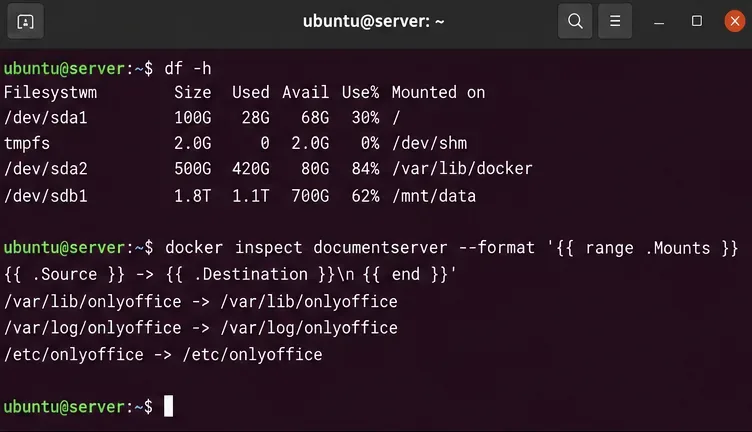
Verify free space and where the container's logs and file cache actually live before blaming the editor or network.
ONLYOFFICE's Docker documentation identifies persistent locations including /var/log/onlyoffice for logs and /var/lib/onlyoffice for file cache. Check the filesystem that backs those paths, not just the host's root filesystem.
If a bind mount points to a slow network filesystem or an overloaded disk, document opening, conversion, and cache activity can add latency. If the disk is nearly full, fix that before doing application tuning. ONLYOFFICE's Linux troubleshooting documentation specifically identifies insufficient disk space as a possible cause of conversion problems.
The project also recommends storing relevant data outside the container when you need persistent logs, cache storage, or external database/Redis/RabbitMQ services. See the official Docker volume guidance.
4. Verify the reverse proxy preserves the real-time connection
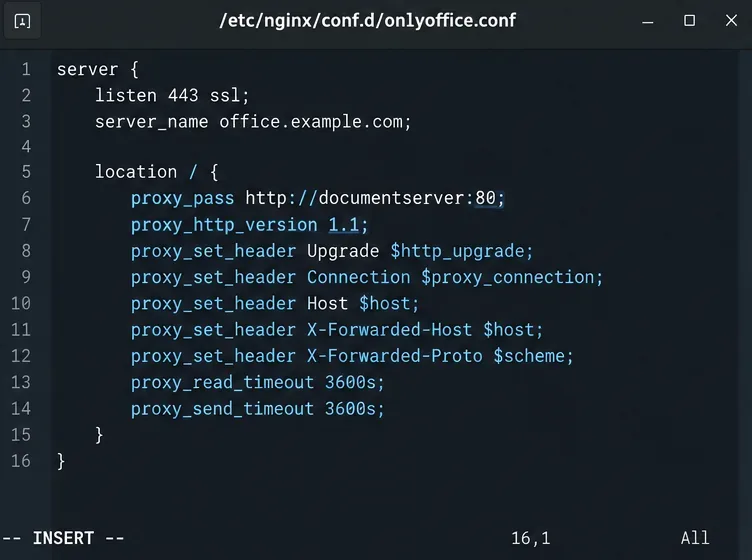
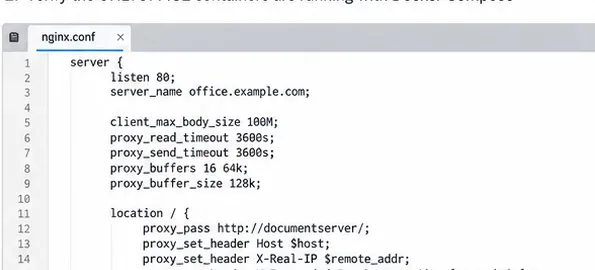
A reverse proxy must preserve the WebSocket upgrade path and the original host/protocol information expected by ONLYOFFICE.
Many self-hosted deployments put ONLYOFFICE behind NGINX, Apache, HAProxy, or Traefik. The official ONLYOFFICE proxy documentation explicitly requires forwarded headers such as X-Forwarded-Proto and X-Forwarded-Host. The configuration shipped by ONLYOFFICE also uses HTTP/1.1 and WebSocket upgrade handling.
For NGINX, compare your configuration with ONLYOFFICE's official example rather than pasting a generic WebSocket snippet from another product. A representative pattern includes:
The exact surrounding map directives and proxy locations matter. Use the complete vendor example for your topology. The supported configurations are published in Using ONLYOFFICE Docs behind the proxy.
In the hypothetical team, suppose the Docker host has plenty of CPU and RAM, but the browser repeatedly reconnects the collaboration channel through a corporate NGINX layer. That points to the proxy path, not the Document Server's compute capacity.
5. Confirm the WebSocket session in the browser
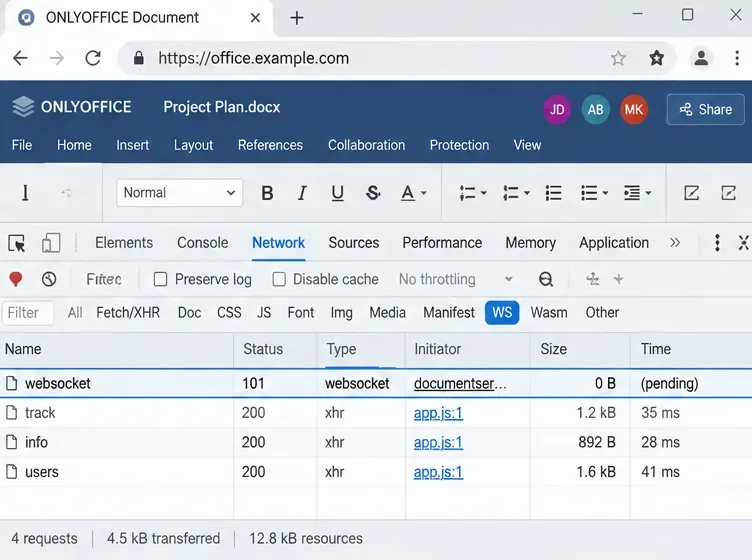
A healthy WebSocket upgrade normally appears as a WebSocket request with status 101 and remains open while the document is being edited.
Open the browser developer tools, select the Network panel, filter for WebSocket traffic, and reload the editor. A successful WebSocket handshake typically shows HTTP 101 Switching Protocols and a connection that stays open. Do not treat a long-lived “pending” WebSocket as a failure by itself; an active WebSocket is expected to remain open.
What matters is repeated disconnect/reconnect behavior, failed handshakes, proxy errors, or long gaps that correlate with the collaboration delay. If remote edits lag at the same moments that the WebSocket reconnects, you now have a concrete network problem to solve.
Check TLS termination, proxy idle timeouts, load balancer rules, WAF policies, and any intermediary that may not preserve WebSocket traffic. If there is more than one proxy layer, test each hop instead of assuming the public NGINX instance is the only one involved.
6. Verify the expected containers and edition-specific architecture
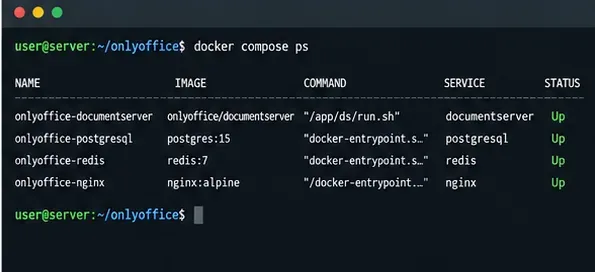
Use docker compose ps or docker ps to confirm that the services expected by your specific deployment are actually running.
Run:
docker compose ps
# or
docker ps
Do not assume every modern ONLYOFFICE deployment must have the same collection of Redis, PostgreSQL, or RabbitMQ containers. This is where version matters. ONLYOFFICE states that starting with Docs 9.4, the open-source Community Edition was simplified into a single-process architecture and removed dependencies on RabbitMQ and databases. Enterprise, Developer, older Community deployments, and custom Compose stacks can differ.
That means a 2023 troubleshooting article saying “RabbitMQ must be the bottleneck” can be irrelevant to a current Community Edition instance. Identify the image and version you actually run:
docker inspect documentserver --format '{.Config.Image}'
docker image ls onlyoffice/documentserver
The official documentation says Docker logs are also available under /var/log/onlyoffice/documentserver inside the container, and under the corresponding host-mounted logs directory if you mount it. The converter log is useful when opening or converting files is slow, while co-authoring issues should be correlated with Document Server logs and browser/network observations.
Turn DEBUG back off after collecting what you need. Verbose logging is for diagnosis, not a permanent performance setting. Follow the vendor procedure in Enabling debug logging in ONLYOFFICE Docs.
8. Update carefully if you are running an old image
Before an upgrade, preserve your known-good proxy and integration settings; after the upgrade, retest the exact same co-editing scenario.
If the deployment is significantly behind the supported release line, an update can include bug fixes and architecture improvements. But “pull latest and restart” is not a safe performance recipe on a production collaboration server.
First record the current image tag, compose file, JWT settings, mounted volumes, reverse-proxy configuration, and integration configuration. Use a pinned version when your change process requires reproducibility. ONLYOFFICE's Docker installation guide documents how to specify a particular version, and the official changelog tells you what changed.
Before intentionally stopping a busy production Document Server, follow ONLYOFFICE's shutdown guidance for your edition and deployment so active editing sessions are handled safely. Do not use a benchmark document containing unsaved user work as your upgrade test.
How the hypothetical case narrows down the real fix
Return to the example team with six co-editors. The troubleshooting result depends on what you observe:
Observation
Most useful next action
Document Server CPU saturates as more editors join
Remove inappropriate CPU limits or add compute capacity; proxy tuning will not solve CPU starvation.
Memory is exhausted and the host swaps heavily
Add RAM or reduce workload; inspect container limits and concurrent open documents.
Disk is nearly full or cache/log volumes sit on slow storage
Free space or move the workload to appropriate local storage before application tuning.
WebSocket repeatedly disconnects while CPU remains low
Fix the reverse proxy/load balancer path and compare it with ONLYOFFICE's official proxy examples.
Only large legacy files are slow to open
Inspect conversion logs, disk performance, and document complexity rather than assuming co-editing itself is broken.
Problem began after a version or proxy change
Compare the exact image/configuration change and retest with the previous known-good configuration if your rollback plan allows it.
A practical baseline for Docker deployments
For a small self-hosted installation, start with the published ONLYOFFICE minimums, but size for your real concurrent activity rather than total registered users. Keep persistent logs and cache on storage with predictable latency. Avoid tight CPU or memory limits unless you have measured the workload. Keep the Docker host itself from swapping under normal editing load.
Place ONLYOFFICE behind a reverse proxy configuration derived from the vendor's supported examples, preserving WebSocket upgrades and forwarded host/protocol headers. Monitor the server during actual co-editing, not just at idle. If you need deeper evidence, enable DEBUG logging temporarily and correlate log timestamps with browser WebSocket behavior and host metrics.
What not to do
Do not change undocumented values in local.json just because a forum post calls them “performance tweaks.”
Do not assume a persistent WebSocket shown as “pending” is broken; long-lived WebSockets are expected.
Do not add Redis, RabbitMQ, or PostgreSQL solely because an old deployment diagram used them. Check the architecture of your edition and version first.
Do not disable TLS verification, JWT security, or proxy protections as a shortcut to lower latency.
Do not compare an idle server metric with the period when users actually report lag.
Do not upgrade a production instance without preserving volumes, configuration, and a rollback path.
Bottom line
ONLYOFFICE co-editing lag is easiest to fix when you treat it as a measurable systems problem. Reproduce the delay, observe Docker and host resources under load, verify storage, confirm the browser keeps a healthy WebSocket through every proxy, and inspect logs only for the time window in which the lag occurs. Once you know whether the bottleneck is compute, memory, disk, network/proxy behavior, or a specific version/configuration change, the fix becomes targeted instead of speculative.