Home
» MS OFFICE
»
Fix ONLYOFFICE “Document Could Not Be Saved” Error in Nextcloud
Fix ONLYOFFICE “Document Could Not Be Saved” Error in Nextcloud
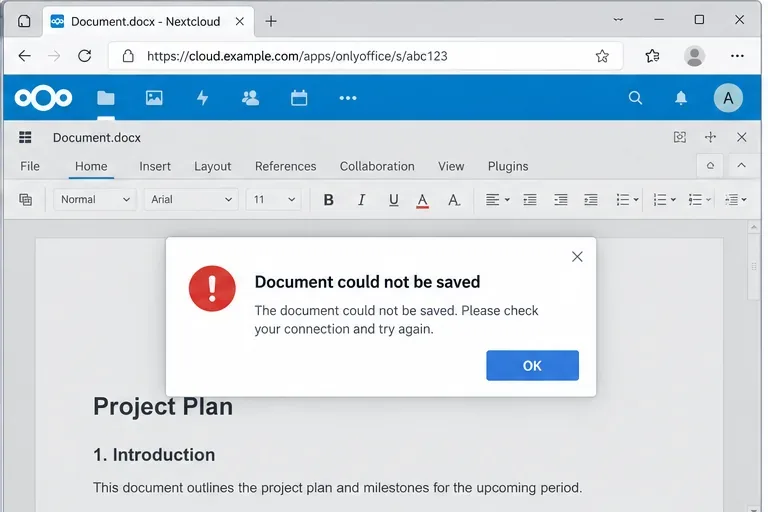
You open a DOCX in Nextcloud, ONLYOFFICE loads normally, you make a change, and then the editor reports “Document could not be saved.” The tempting conclusion is that the browser lost the file or that ONLYOFFICE itself cannot write to disk. In a Nextcloud integration, that is often the wrong place to start.
The important detail is how saving works. Nextcloud gives ONLYOFFICE Docs a document URL and a callbackUrl. ONLYOFFICE downloads the file, hosts the editing session, and later calls Nextcloud back so Nextcloud can fetch the updated file and replace the stored version. The official ONLYOFFICE integration documentation describes this callback exchange explicitly. That means the editor can open successfully while the return path used for saving is broken. Action: treat opening and saving as two separate network tests.
An editing session can load successfully yet still fail when the updated document must travel back to Nextcloud.
Start with the verified behavior, not the error text
As of the current official integration documentation, ONLYOFFICE’s Nextcloud connector uses a server-to-server workflow: the Document Server must be reachable from Nextcloud, and Nextcloud must also be reachable from the Document Server. When editing ends, ONLYOFFICE sends a POST request to the callback URL; Nextcloud then downloads the edited document and replaces the previous version. See the official ONLYOFFICE Nextcloud integration guide and the ONLYOFFICE API description of the Nextcloud integration.
Verified: a bad or unreachable callback path can produce a save failure even when the editor opened. ONLYOFFICE’s troubleshooting documentation specifically tells administrators to check the DocService logs and verify that the callback URL is reachable when a save error occurs. Action: do not begin by reinstalling the editor or clearing browser cache; first test the server-to-server path.
1. Run the connector’s built-in connection check
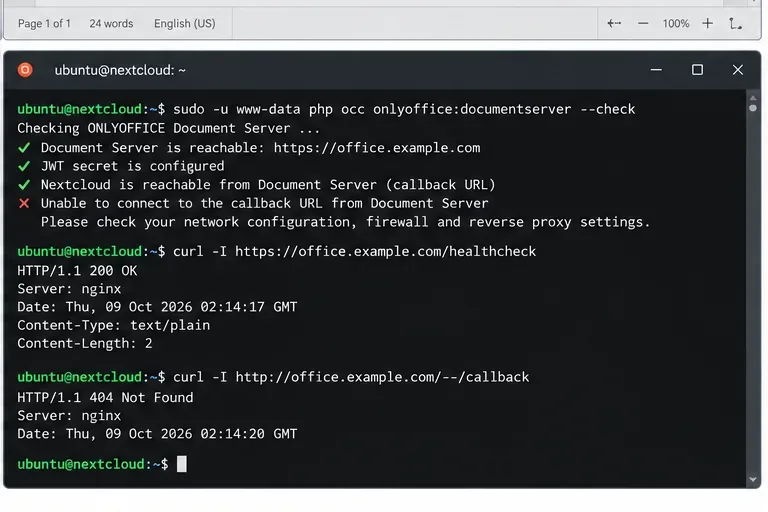
On the Nextcloud host, run the ONLYOFFICE connector check as the web-server user. On a typical Debian or Ubuntu installation:
cd /var/www/nextcloud
sudo -E -u www-data php occ onlyoffice:documentserver --check
The exact Nextcloud path and HTTP user can differ by distribution or container layout. Nextcloud’s own administration manual recommends running occ as the HTTP user so file ownership remains consistent. ONLYOFFICE documents occ onlyoffice:documentserver --check as the connector connection test.
What this proves: it can reveal an obvious Document Server configuration or connectivity error. What it does not prove: every callback generated during a real editing session will succeed through every proxy, DNS route, and authentication layer. Action: if the check passes but saving still fails, continue to the callback and logs instead of declaring the integration healthy.
A connection check is a useful first gate, but a failed return path from ONLYOFFICE to Nextcloud is the more important clue when editing works but saving does not.
2. Verify both public and internal server addresses
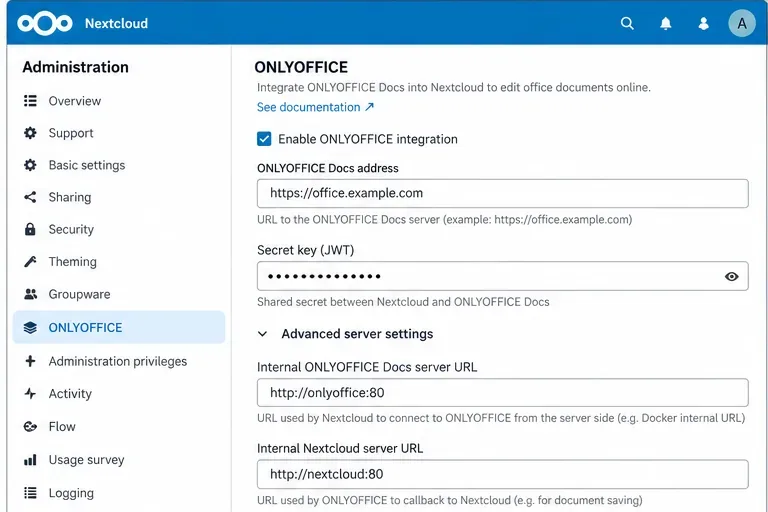
In Nextcloud, open Settings → Administration → ONLYOFFICE. The main ONLYOFFICE Docs address must be usable by the relevant clients and services. If the public URLs are not routable internally because of Docker networking, NAT, split-horizon DNS, or firewall policy, expand the advanced server settings.
The official connector exposes separate internal addresses for exactly this situation:
ONLYOFFICE Docs address for internal requests from the server: the address Nextcloud uses to reach ONLYOFFICE.
Server address for internal requests from ONLYOFFICE Docs: the address ONLYOFFICE uses to reach Nextcloud for callbacks and related server-to-server traffic.
For example, two containers on the same Compose network may be able to use service names internally while browsers still use public HTTPS hostnames. Do not blindly copy that pattern: the names must actually resolve in your network. Action: test each direction from the machine or container that originates the request.
The advanced server addresses are designed for deployments where the public hostname is not the correct route for server-to-server traffic.
A common misunderstanding: “The editor opens, so DNS and routing are fine”
That conclusion is not reliable. The browser, Nextcloud, and ONLYOFFICE Docs are three different network participants. The browser may reach office.example.com while the Document Server container cannot resolve or connect to cloud.example.com. Likewise, Nextcloud may reach ONLYOFFICE through an internal hostname while the callback points to an unreachable public address.
Action: enter the ONLYOFFICE container or host and test the Nextcloud address it is expected to use. A basic HTTPS request to the Nextcloud host can confirm DNS/TCP/TLS reachability, but remember that a successful status.php request does not validate the real callback authorization or POST handling.
3. Check JWT before changing proxy rules
JWT is another frequent source of confusion. Starting with ONLYOFFICE Docs 7.2, JWT is enabled by default and a secret key is generated automatically. The official instructions require the same secret on the Document Server and in the Nextcloud ONLYOFFICE connector. The current connector documentation also exposes the authorization-header setting for installations that do not use the default header.
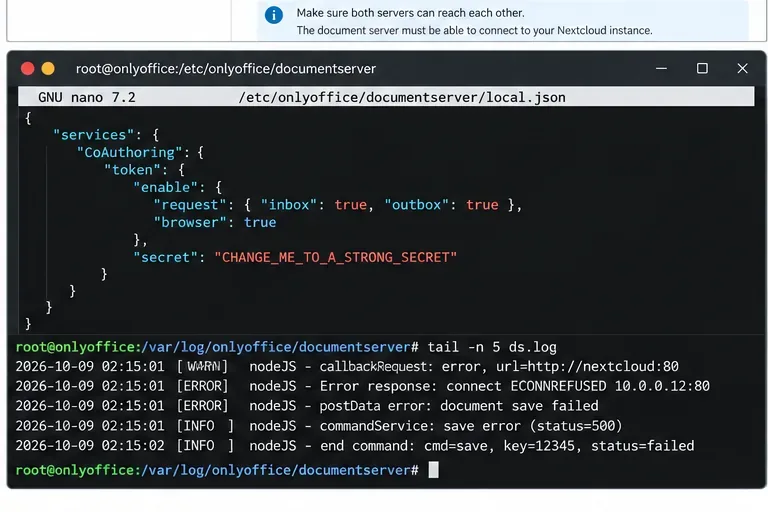
Verified: the shared secret must match. Deployment-dependent: the exact place you manage it depends on whether ONLYOFFICE is installed from packages, on Windows, or in Docker. In Docker deployments, a JWT_SECRET environment variable is commonly used; the effective server configuration can also be inspected in /etc/onlyoffice/documentserver/local.json.
Action: compare the effective secret and header settings on both sides, then restart ONLYOFFICE services or the container after server-side changes. Do not “fix” the problem by permanently disabling JWT; that removes a security control instead of correcting the configuration. The details are in ONLYOFFICE’s JWT configuration guide.
JWT configuration and callback-network failures are separate layers; logs help determine whether the request was rejected for authentication or never reached Nextcloud at all.
4. Inspect ONLYOFFICE and Nextcloud logs at the time of the failed save
ONLYOFFICE recommends checking DocService logs for save errors. For Linux and Docker installations, Document Server logs are under /var/log/onlyoffice/documentserver; Docker users can also follow container output with docker logs -f <container>. If more detail is necessary, ONLYOFFICE documents a temporary debug mode through DS_LOG_LEVEL=DEBUG or the log4js configuration. See the official debug logging guide.
On Nextcloud, the default file-based log is normally nextcloud.log in the configured data directory. You can discover the active path with:
sudo -E -u www-data php occ log:file
Nextcloud also documents log:tail and log:watch when the Log Reader app is available. Action: reproduce one save failure, note the timestamp, then correlate both sides. A network refusal, TLS error, 401/403 response, 5xx response, or storage exception points to very different fixes.
5. Fix TLS and reverse-proxy problems without weakening production security
A self-signed or privately issued certificate can break server-to-server HTTPS when the corresponding CA is not trusted. The connector has a Disable certificate verification (insecure) option, but ONLYOFFICE explicitly describes it as insecure and recommends replacing the certificate with one issued by a trusted CA. Action: use certificate-verification bypass only as a short diagnostic step in a controlled environment; the durable fix is a valid certificate chain trusted by both servers.
If a reverse proxy sits in front of ONLYOFFICE, confirm that it preserves the expected scheme, host, and upgrade behavior. ONLYOFFICE publishes dedicated reverse-proxy guidance, including forwarded headers and WebSocket-related settings. See ONLYOFFICE’s Nextcloud reverse-proxy configuration guide.
Deployment-dependent: the exact Nginx, Apache, Traefik, HAProxy, ingress-controller, or CDN configuration cannot be inferred from the save error alone. Action: compare your proxy configuration with the vendor example for your topology and examine the HTTP status recorded during the callback before changing timeouts or headers at random.
6. If the callback reaches Nextcloud, check storage and write failures
Once logs prove that the callback reaches Nextcloud successfully, move down the stack. Nextcloud must be able to retrieve the new document and replace the stored version. Local filesystem permissions, a read-only mount, exhausted disk space, quota restrictions, unavailable external storage, or an application/storage exception can all prevent that final write.
What is known: ONLYOFFICE’s callback status values distinguish a document that is ready to save from a save error, and the callback contains a URL to the edited document for the storage service to retrieve. The official callback-handler documentation defines status 2 as ready for saving and status 3 as a saving error.
What is not known from the browser message alone: whether the failure happened in ONLYOFFICE, on the network path, in Nextcloud, or in the underlying storage. Action: do not recursively change file ownership on a Nextcloud data directory merely because the editor says it cannot save. Confirm a storage-side error in Nextcloud’s log first.
7. Understand the Save button and force-save behavior
Another misconception is that every press of Save immediately replaces the file stored by Nextcloud. The connector can use an intermediate-save or force-save option. The official integration guide says that when Keep intermediate versions when editing (forcesave) is enabled, clicking Save sends changes to storage directly; otherwise, changes are maintained in the editor cache and the normal final-save workflow occurs later.
This matters for troubleshooting. If only force-save fails but normal close-and-save succeeds, or vice versa, the timestamps and callback statuses become valuable evidence. Action: reproduce the failure in one clearly defined workflow and capture logs from that attempt instead of mixing manual Save, browser close, and multiple concurrent editor tabs.
Quick diagnosis table
Symptom
Most useful next check
Do not assume
Editor will not open at all
Document Server URL, JWT, browser/server reachability
That it is a save-only problem
Editor opens, but save fails
Callback reachability and DocService logs
That successful opening proves the return path
401/403 around callback or command traffic
JWT secret and authorization header
That a proxy timeout is the cause
TLS/certificate validation errors
Certificate chain and trust stores
That disabling verification is a permanent fix
Callback reaches Nextcloud but file is unchanged
Nextcloud log, storage mount, quota, write errors
That ONLYOFFICE lost the edit
Failures only behind proxy/NAT
Advanced internal URLs and forwarded routing
That public URLs work identically inside containers
How to verify the fix
Use a small test DOCX in a noncritical folder. Open it in ONLYOFFICE, type a unique line such as a timestamp, wait for the editor to report the change as saved, then close the editor normally. Reopen the file from Nextcloud and confirm the text is present. Next, inspect the version history if your deployment uses it and check the server logs for the same time window.
A good result is not merely “the editor opens.” The complete test is: Nextcloud can reach ONLYOFFICE, ONLYOFFICE can reach the callback address on Nextcloud, authentication succeeds, Nextcloud can fetch the updated file, and the storage backend accepts the replacement.
When the cause is still unclear
If none of the logs shows an obvious failure, temporarily increase ONLYOFFICE and Nextcloud logging during one controlled reproduction, then return the log level to normal. Nextcloud warns that DEBUG logging is verbose and can affect performance, so it should be a diagnostic measure rather than a permanent production setting. Review Nextcloud’s logging documentation before changing log levels.
At that point, preserve the exact timestamps, HTTP status codes, connector version, Nextcloud version, ONLYOFFICE Docs version, topology, and the relevant redacted log lines. Those facts are far more useful than the browser’s generic “Document could not be saved” message.