Home
» MS OFFICE
»
Fix ONLYOFFICE Document Server Running Out of Memory on a VPS
Fix ONLYOFFICE Document Server Running Out of Memory on a VPS
Start by checking whether the Linux host or the ONLYOFFICE container is hitting its memory limit. The current ONLYOFFICE Docs Community Edition guidance lists 4 GB RAM and at least 4 GB of swap as baseline requirements. Its Docker troubleshooting page says 2–4 GB of RAM use can be normal for a few dozen active users, because memory use rises with open documents and concurrent users. The hardware table recommends Kubernetes for deployments above 400 concurrent active users. These are reference figures, not a promise that every VPS will handle the same load: the host OS, other containers, document size, and the VPS provider’s limits also matter.
This guide focuses on the common Docker installation on a Linux VPS. Follow the four steps in order: measure host and container pressure, check logs and the forgotten-files cache, reduce avoidable load or correct an overly low container cap, then restart only if needed and verify under normal use. The command examples use <CONTAINER_ID> as a placeholder; replace it with the ID or name from docker ps. Take a backup and schedule maintenance before stopping an editor that has active users.
1. Confirm where the memory pressure is occurring
Run the first commands on the VPS host, not inside the ONLYOFFICE container:
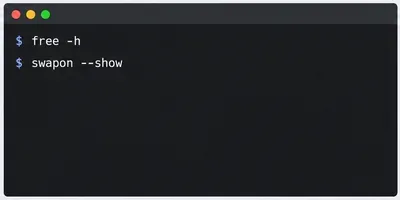
free -h
swapon --show
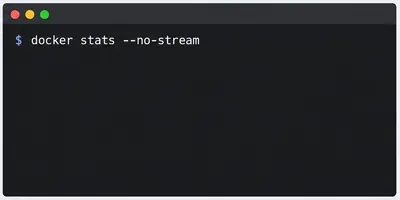
docker stats --no-stream
free -h shows available host memory and swap. swapon --show confirms whether swap is active. In docker stats, compare ONLYOFFICE’s memory use with its displayed limit. If the host has almost no available memory and several services are using RAM, the VPS may be undersized. If the host still has headroom but the ONLYOFFICE container is close to a much smaller limit, the container cap may be the immediate cause. Swap that is nearly full, sustained swapping, or heavy disk activity can make editing sluggish even before the host kills a process.
Step 1: run free -h and swapon --show on the VPS host to see available RAM and whether swap is active.Step 1: docker stats --no-stream compares the ONLYOFFICE container’s current memory use with its limit.
The first command prints the memory and memory-plus-swap settings in bytes. A zero memory limit generally means no explicit container memory cap is configured; it does not mean the VPS has unlimited RAM. Docker’s memory-swap setting is a combined memory-and-swap ceiling, so do not interpret it as swap alone. The second command reports whether Docker recorded an OOM kill for the container and its last exit code. Docker documents these limits as controls enforced by the Linux host, and host-wide OOM pressure can affect more than one container.
2. Check the container logs and ONLYOFFICE’s known high-use case
Read recent logs before changing settings or deleting files:
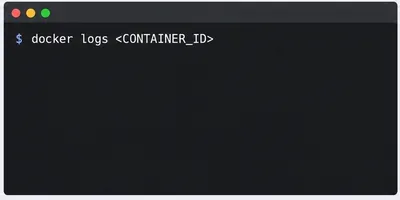
docker logs --since 1h <CONTAINER_ID>
Look for repeated restarts, database startup errors, and messages near the time an editor became unavailable. Also check the host kernel log for out-of-memory events if you have permission:
ONLYOFFICE’s Docker troubleshooting page specifically suggests checking for stuck or forgotten documents in /var/lib/onlyoffice/documentserver/App_Data/cache/files/forgotten/ when memory use seems unexpectedly high. First inspect the directory’s size and contents; do not blindly remove its files. They may be relevant to recovery or troubleshooting. If the directory is large or continues to grow, preserve the files and logs, then follow the official troubleshooting guidance or ask ONLYOFFICE support what is safe to clean for your version.
Step 2: inspect the container’s recent logs before changing the VPS or deleting cached files.
3. Reduce avoidable demand and correct a too-small Docker cap
An “active user” in ONLYOFFICE’s sizing guidance is someone with a document open in the editor, including someone who is only viewing it. Users merely signed in to an integrated platform without an open document do not count the same way. Ask users to close unused document tabs and avoid scheduling a large editing burst on a small VPS. If load follows several large spreadsheets or complex files being opened together, compare memory at low activity and at the actual peak rather than estimating from account count alone.
If the VPS has swap disabled, adding swap can provide a short-term buffer against an abrupt spike. ONLYOFFICE’s current Docker installation guide lists at least 4 GB of swap and notes that the amount depends on the host OS. Swap is disk-backed and much slower than RAM, so it is not a substitute for adequate physical memory. Before creating a swap file, check that one does not already exist, verify free disk space, and confirm that your filesystem and VPS provider support the method. On a typical Linux filesystem that supports a swap file, an example is:
Do not run these commands over an existing /swapfile. To keep a newly created swap file after reboot, add one matching entry to /etc/fstab only after checking for an existing entry:
/swapfile none swap sw 0 0
If Docker shows a low container memory limit, inspect the Compose file or the deployment panel that created the container. Increase or remove the limit only after checking the VPS’s total RAM and the memory used by the OS, database, integration platform, and other services. Do not allocate all host RAM to ONLYOFFICE. If the host itself is exhausted, changing a Docker cap will not create more physical memory; resize the VPS or move other services to another host. Compose supports memory limits, but the configured limit must match the actual deployment mode and available host memory.
A 2 GB VPS running ONLYOFFICE alongside Nextcloud or other services is below the vendor’s stated 4 GB RAM baseline. A 4 GB VPS can also run short of memory when the host OS and integration stack share it. In those cases, a larger VPS or a dedicated Document Server host is more reliable than repeatedly restarting the container. For more than 400 concurrent active users, the current ONLYOFFICE table recommends a Kubernetes deployment and contacting ONLYOFFICE for sizing advice; that is not a workload to solve by adding a small swap file to one VPS.
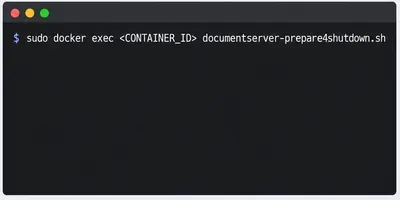
Step 4: before a planned container restart, run ONLYOFFICE’s documented preparation script so active editing sessions can disconnect cleanly.
4. Restart safely, then verify the result
Do not restart Document Server while people are editing unless the outage is unavoidable. ONLYOFFICE explains that a document is saved after all users editing it have closed it. Before a planned container stop, its troubleshooting guide recommends the preparation script shown below; it can take up to five minutes while users disconnect. Warn users first, preserve backups, and follow your normal maintenance procedure.
If you use Docker Compose, make the durable change in the Compose configuration or control panel and use the project’s normal restart workflow. A one-off change to a running container may disappear when it is recreated. Do not use --oom-kill-disable or an extreme OOM priority to keep ONLYOFFICE alive; Docker warns that host memory exhaustion can then put the VPS and other services at risk.
After the VPS or container comes back, confirm that the container stays healthy, the editor opens and saves a test document, host memory remains available, and the container is not repeatedly restarting. Observe both host and container memory during a representative busy period. If memory climbs continuously after documents close, the forgotten-files directory grows, or OOM events return, collect the output of free -h, swapon --show, docker stats, docker inspect, and recent logs for support. Do not treat one successful restart as proof that capacity is fixed.
Quick decision guide
What you observe
Most useful next move
Host RAM is exhausted and other services are also affected
Upgrade the VPS or move non-editor services. A container setting cannot add host RAM.
Host has room, but ONLYOFFICE reaches a low Docker limit
Review the Compose or provider limit and raise it only within safe host headroom.
Usage rises with open documents and then falls when they close
Compare against expected concurrency and document types; consider more RAM if normal peaks cause OOM.
Usage remains unusually high after activity drops
Inspect recent logs and the documented forgotten-files cache; preserve data and investigate before cleanup.
More than 400 users have documents open concurrently
Use the vendor’s cluster/Kubernetes sizing path rather than a single small VPS.