Home
» MS OFFICE
»
Fix the “Document Is Locked by Unknown User” Error in LibreOffice
Fix the “Document Is Locked by Unknown User” Error in LibreOffice
You open a Writer file and see “Document is Locked by Unknown User.” The message can be alarming, especially when you are the only person at your computer. In most cases, LibreOffice has detected a lock associated with that file. The lock may belong to a document that is still open on another computer, or it may be leftover metadata after LibreOffice or the computer closed unexpectedly. The word “unknown” does not by itself mean the document is corrupted or password-protected.
Start by checking for another active editing session. If you have confirmed that no LibreOffice session is using the document, preserve a copy, then inspect the matching lock file. Remove that file only as a last step. The procedure below is safest for a local file or a folder you administer; network shares and managed document servers may require an administrator to clear a server-side lock.
Why does LibreOffice say the document is locked?
LibreOffice uses file locking so that a document opened for writing is protected from another session making conflicting edits. Its documentation says Writer, Impress, Draw, and Calc documents without spreadsheet sharing can be locked while open. When another user holds the lock, LibreOffice can offer read-only access, an editable copy, or cancellation. File-system permissions also matter: collaborators need appropriate access to both the document and its associated lock file.
A lock can remain after a crash, forced shutdown, lost network connection, or disconnected remote session. Other causes include a second LibreOffice process, a colleague editing the same file, a file opened from a network drive, or a server checkout that was never checked back in. Treat the lock as active until you have checked these possibilities.
Fix the error from easiest to most cautious
1. Check for another open copy
Do not delete anything yet. Look at every open LibreOffice window and desktop, and ask anyone who may share the folder whether they have the file open. If the document is on a shared drive, check any other computer or remote desktop where you recently edited it. Close the document normally on the other session and wait briefly for the lock to clear before trying again.
If LibreOffice stopped responding, check whether another LibreOffice process is still running. Save other documents in that session first. Close LibreOffice normally if possible; use the operating system’s process manager only when the application cannot close. Force-quitting can discard unsaved work, so use it only after checking all open windows and recovery prompts.
2. Protect the document before changing the lock
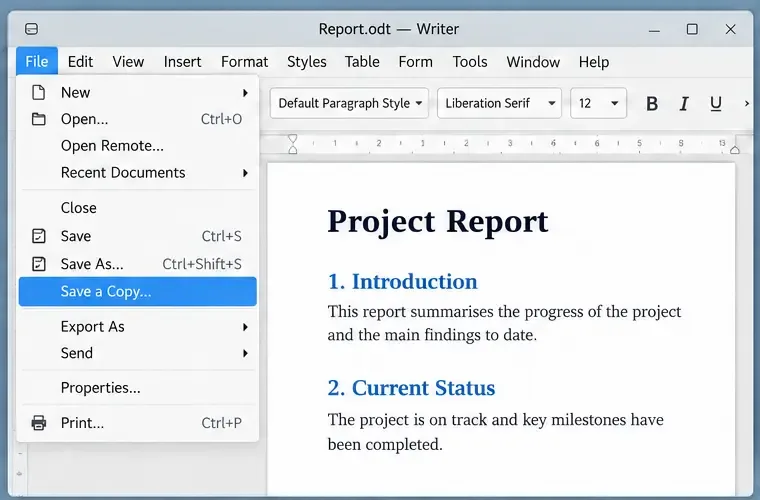
If the dialog offers a read-only option, use it to inspect the file or recover visible text without changing the original. You can also cancel and make a separate copy in your file manager before reopening it. In Writer, File > Save a Copy creates another file with the same contents while leaving the current document open. Save the copy with a new name in a location you can write to. Do not overwrite the original while another person may be editing it.
Use Save a Copy to preserve a working version before troubleshooting the locked original.
Confirm that the copy opens and contains the latest expected text. If it does not, keep the original untouched and look for LibreOffice’s recovery prompt or a recent backup before proceeding. A backup protects against accidental deletion; it does not prove that the lock is stale.
3. Find the matching hidden lock file
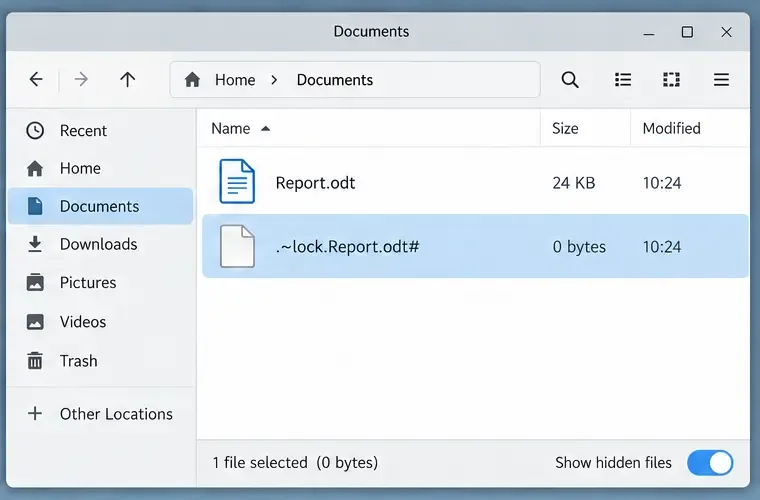
LibreOffice’s lock file is usually stored beside the document. In common local-file setups it may appear as a hidden filename resembling .~lock.Report.odt# for Report.odt. The exact format can vary with operating system, document format, and storage provider, so match the base document name carefully. Do not delete unrelated lock files or files whose names only look similar.
Turn on the file manager’s option to show hidden files, then open the folder containing the document. On many Linux desktops, Ctrl+H toggles hidden files; Windows File Explorer has a Hidden items option in its View controls; Finder can show hidden items with Command+Shift+.. These controls belong to the operating system and can change between versions. If you cannot identify the right file, stop and ask your system administrator rather than guessing.
Show hidden files and identify the lock file that matches the document name.
4. Remove a stale lock only after verifying it is inactive
Delete or move the matching lock file only when all of these checks are true:
LibreOffice is closed on every computer that could have the document open.
No collaborator is editing it, and no remote session or checkout is still active.
You have made a separate backup of the document.
The selected lock file is in the same folder and clearly corresponds to the exact document.
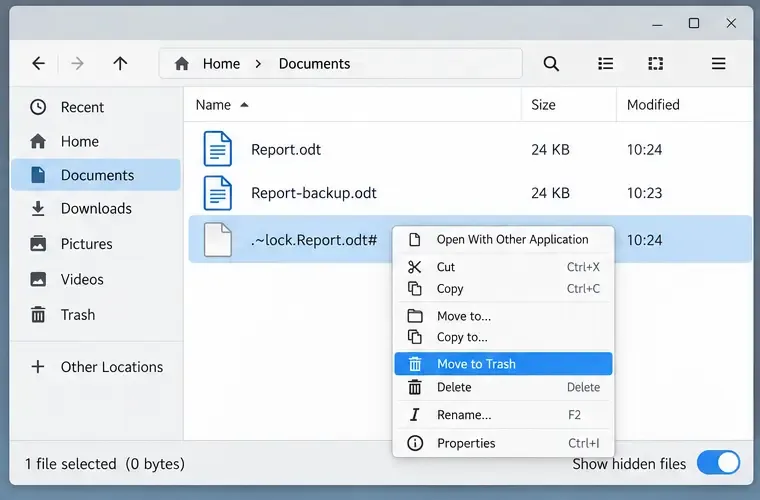
After confirming no LibreOffice session is using the file and making a backup, remove only the matching stale lock file.
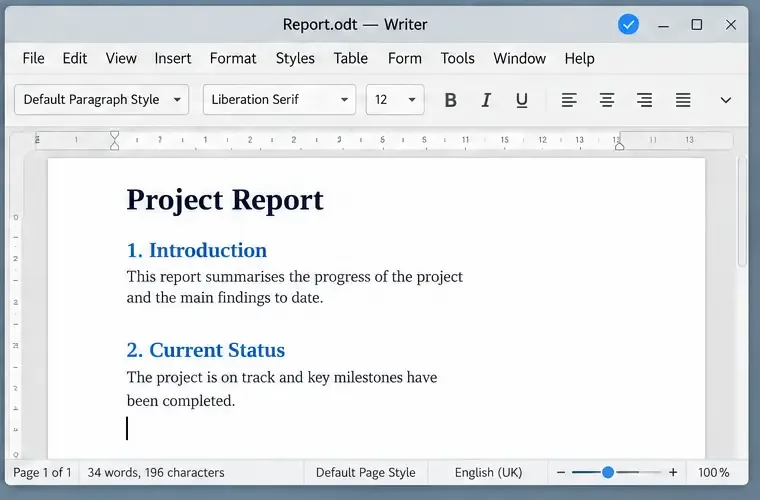
Prefer moving the suspected stale lock to the file manager’s trash instead of permanently deleting it. Then reopen the original document. If it opens normally, save a small harmless change only if appropriate and close it normally; check that LibreOffice removes its lock when the session ends. Keep the backup until you have verified the document’s contents.
Reopen the original document and confirm that it is editable and saves normally.
If the warning returns, do not repeatedly delete the lock. Another session may be recreating it, the file server may be retaining a lock, or the folder permissions may prevent LibreOffice from updating lock information correctly.
When the file is on a shared drive or document server
For a Windows share, WebDAV, SSH, or other shared folder, confirm that the network connection is stable and that your account can create, change, and remove files in the folder. LibreOffice’s collaboration guidance specifically notes that shared users need suitable permissions for both the document and its lock file. A read-only mount or restrictive folder permissions can make a valid lock appear difficult to clear.
If you opened the document through a remote file service, check that service’s own locking controls. LibreOffice’s CMIS workflow uses Check Out to lock a server document and Check In or Cancel Checkout to release the lock. A file stored on a server may therefore remain locked even when no local .~lock file is visible. Ask the server administrator to verify the checkout or stale-lock status. Do not remove files from a shared folder while another user may be working in it.
If the message remains after the lock is cleared
Restart LibreOffice and try the document again. Confirm that you are opening the intended copy and folder, not a duplicate from a synced or temporary location. Check whether the file or folder is marked read-only and whether your account can save another test file in that same folder. If you can save elsewhere but not there, the issue is likely with folder or server access rather than the document itself.
If the error occurs only on one computer after you have ruled out an active lock, use Help > Restart in Troubleshoot Mode to test LibreOffice with a temporary profile. This mode can help diagnose a damaged user profile, but it does not clear a lock held by another user or server. If the document still will not open, retain the original and backup and contact your administrator with the full file path, storage type, LibreOffice version, operating system, and whether the warning appears for other files.
Final check
The original file opens without the unknown-user warning.
The expected latest content is present, and you can edit it if you should have write access.
A save completes successfully in the intended folder.
After closing Writer normally, the lock disappears or the server reports the document as checked in.
Your backup remains available until you have confirmed the result.
If any check fails, restore the suspected lock from the trash if possible, keep working from the backup, and ask the storage or server administrator to check for an active session. The safest fix is the one that restores access without overwriting a collaborator’s changes.
LibreOffice Help pages were checked on October 7, 2026. Menu labels and hidden-file controls can vary by LibreOffice interface, operating system, and storage provider.