Home
» MS OFFICE
»
Fix Token is Not Valid Error in ONLYOFFICE Nextcloud Integration
Fix Token is Not Valid Error in ONLYOFFICE Nextcloud Integration
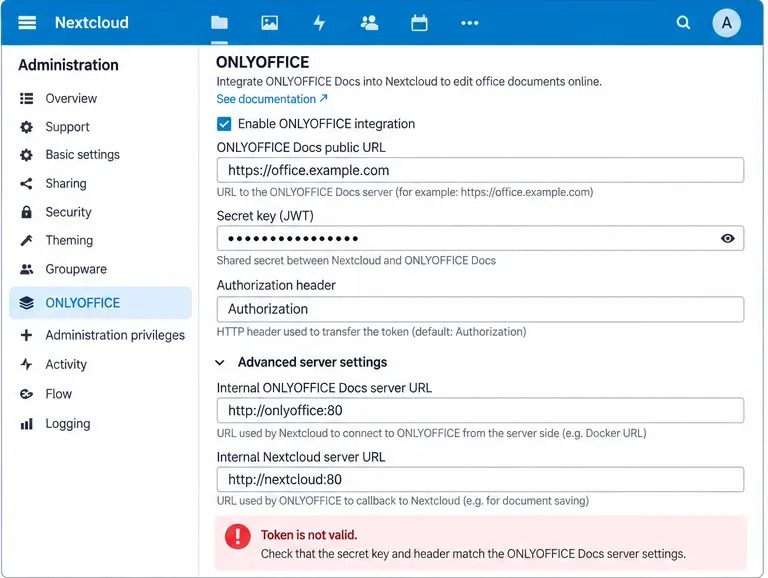
The ONLYOFFICE message “Token is not valid” usually means the two sides of the integration are not validating the same JSON Web Token (JWT). In a Nextcloud setup, the important point is that there are several token paths: the editor configuration sent to the browser, incoming requests to ONLYOFFICE Docs, and outgoing requests such as callbacks to Nextcloud. A failure in any one of them can look similar from the user side.
One current detail matters before you start changing settings: JWT has been enabled by default in ONLYOFFICE Docs since version 7.2, and the Document Server can generate a secret automatically. That makes an old tutorial that says “leave JWT disabled” a poor baseline for a modern installation. ONLYOFFICE’s current guidance is to configure your own secret and use the same secret in the connector. See ONLYOFFICE’s JWT configuration guide.
The error is a validation failure, not proof that the Document Server itself is offline. Start by comparing the JWT secret and header on both sides.
Quick reference: what to check first
Symptom
Most likely area
First action
Error appears immediately when opening a document
Secret, browser token, or header mismatch
Compare the Nextcloud jwt_secret and jwt_header with the active Document Server settings.
Worked before a container restart, then failed
Automatically regenerated or changed Docker secret
Inspect the running container environment and recreate it with a fixed JWT_SECRET.
Direct Document Server health check works, but Nextcloud reports invalid token
Connector configuration or proxy/header path
Run the connector’s occ onlyoffice:documentserver --check test and compare headers.
Only callbacks or saves fail
Outgoing token validation, callback path, or storage-side header handling
Check Document Server logs and verify that the callback request reaches Nextcloud with the expected JWT header.
Error appears intermittently around expiration boundaries
Clock skew or token lifetime
Verify time synchronization on both hosts before changing JWT leeway.
1. Confirm the shared secret is actually the same
JWT validation depends on a shared secret. ONLYOFFICE Docs signs tokens with that secret, and the receiving side verifies the signature using the same value. A one-character difference, trailing whitespace, old environment variable, or regenerated Docker secret is enough to make a valid-looking token fail verification.
On Nextcloud, the connector supports the jwt_secret setting. The official connector also provides an occ configuration interface, so you can inspect the value that Nextcloud is actually using instead of relying on a configuration file you think is active. The connector’s current settings are documented in the official ONLYOFFICE Nextcloud connector README.
Do not paste the secret into support tickets, screenshots, shell history shared with others, or public issue reports. Compare it locally.
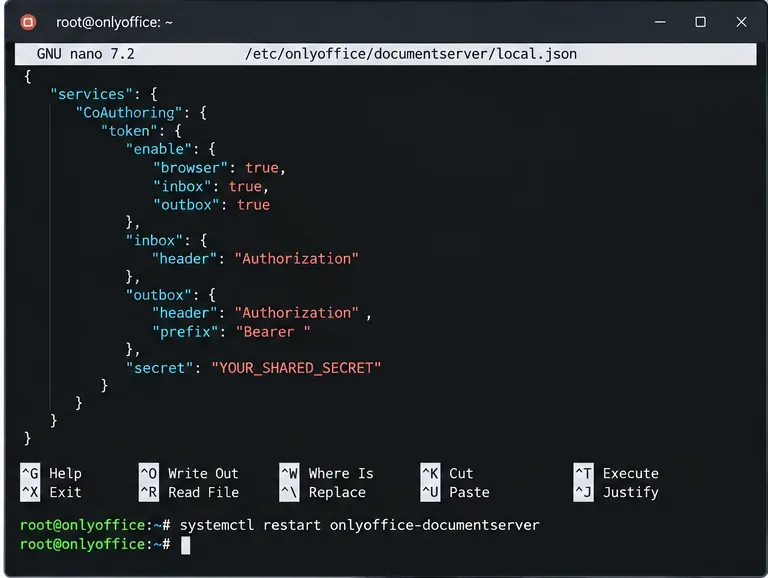
For a native Linux installation of ONLYOFFICE Docs, the supported configuration file is:
/etc/onlyoffice/documentserver/local.json
ONLYOFFICE documents separate browser, inbox, and outbox token settings. The secret values used for validation must be consistent with your connector configuration. Do not edit default.json; ONLYOFFICE explicitly warns that defaults can be overwritten on restart or upgrade. Use local.json for package installations.
A package-based Document Server can keep JWT settings in local.json. The token header and secret must agree with the Nextcloud connector.
If you run ONLYOFFICE Docs in Docker
Use Docker environment variables rather than hand-editing local.json inside the container. ONLYOFFICE states that Docker can regenerate JWT configuration during startup; its official image supports JWT_ENABLED, JWT_SECRET, JWT_HEADER, and JWT_IN_BODY. The current Docker image documentation lists Authorization as the default JWT header. See the official Docker DocumentServer repository.
After changing Docker environment variables, recreate the container so the running service receives them. Merely editing a Compose file without recreating the container does not change its existing environment.
2. Make the JWT header match exactly
A common misunderstanding is that the header name is cosmetic. It is not. ONLYOFFICE Docs has configurable inbox and outbox token headers, and the Nextcloud connector has a jwt_header setting. They must describe the same request path.
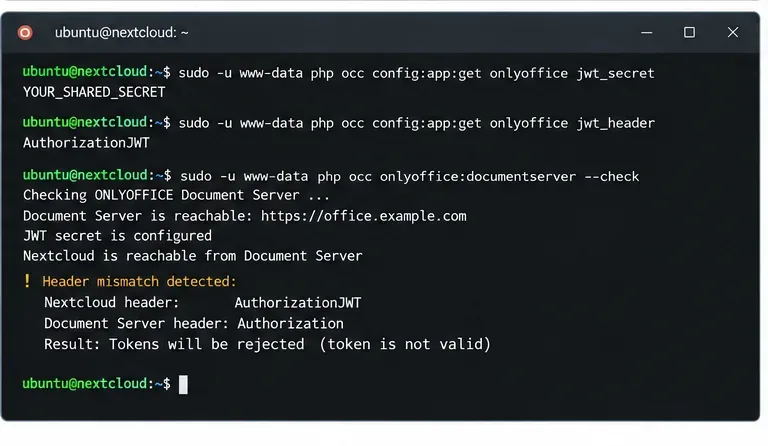
Current ONLYOFFICE API documentation lists Authorization as the Document Server default for incoming JWT requests, and the official Nextcloud integration documentation likewise identifies Authorization as the normal connector default. Older examples and existing installations may use AuthorizationJWT or another explicitly configured value. The safe rule is therefore not “always use one specific string”; it is make the active configuration match on both sides.
The request format also matters. ONLYOFFICE’s API documentation shows header tokens sent using the Bearer scheme. For the underlying protocol details, see ONLYOFFICE token-in-header documentation.
A different JWT header can make the secret look wrong even when both sides use the same secret. Inspect the effective settings instead of guessing.
If you deliberately use a custom header, configure the same value in both products. If you have no reason to customize it, using the current default Authorization reduces moving parts.
3. Check whether a reverse proxy is changing the token path
If the Nextcloud and ONLYOFFICE settings match but the error remains, inspect the path between them. A reverse proxy, authentication gateway, WAF, or ingress controller can affect authorization headers. This depends on your stack, so do not assume the proxy is guilty without evidence.
Use this practical test sequence:
Confirm the public Document Server URL is reachable from the Nextcloud host.
Confirm the internal Document Server URL, if configured, resolves from the Nextcloud server or container.
Confirm the internal Nextcloud/storage URL resolves from the ONLYOFFICE Docs host or container.
Inspect proxy access/error logs while running the connector check.
If your proxy has explicit rules for Authorization, confirm it forwards rather than replaces or removes the header.
Do not disable JWT just to make the error disappear. That removes the validation mechanism rather than repairing it. Also do not disable TLS verification as a JWT fix: certificate verification and JWT signature validation are separate controls. If you have a certificate problem, fix the certificate chain or trust configuration independently.
4. Use the connector’s own health check
The official ONLYOFFICE connector includes a purpose-built diagnostic command:
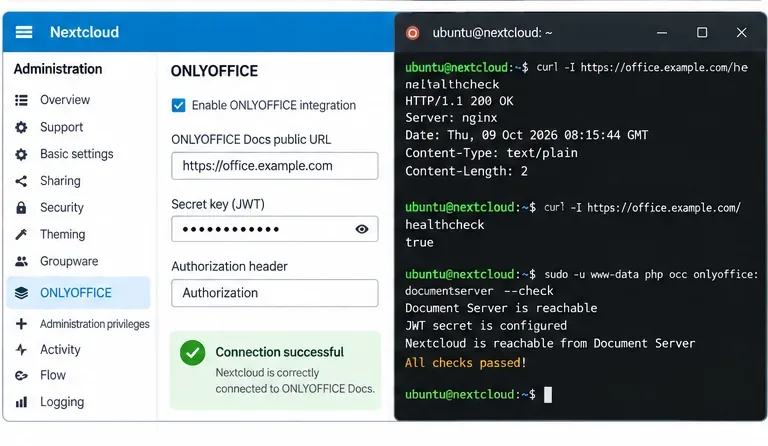
The connector documentation says this check reports either a successful connection or the cause of an error. It is more useful than testing only the Document Server landing page because it exercises the integration from Nextcloud’s perspective.
If the check says the Document Server is reachable but token validation fails, return to the secret and header. If it cannot reach the server at all, solve DNS, routing, firewall, TLS, or internal URL problems before spending more time on JWT.
5. Verify time only when the evidence points there
JWTs may include time-related claims and the Nextcloud connector exposes jwt_leeway and jwt_expiration settings. That does not mean you should increase leeway first. A clock that is materially wrong can cause otherwise correct tokens to fail; increasing leeway can hide the infrastructure problem.
Compare UTC time on the Nextcloud and ONLYOFFICE hosts or containers:
date -u
timedatectl status
Make sure both systems synchronize time reliably. Only after confirming a small, legitimate clock difference should you consider a narrowly bounded leeway. The connector’s supported JWT settings are listed in the official connector configuration reference.
How JWT validation works in this integration
ONLYOFFICE Docs uses JWT to protect editor initialization and server-to-server requests. Its API separates browser tokens from incoming and outgoing HTTP request tokens. For incoming requests, the token can be carried in a header or, for supported POST requests, in the request body. For GET requests, ONLYOFFICE documents header-based token handling. See the official request-signature documentation.
This explains why one operation can work while another fails. For example, opening the editor can succeed while a later callback or download request fails if only one direction has the correct token settings.
Common misconceptions
“If /healthcheck returns true, JWT must be correct.”
No. A health endpoint proves the service is responding; it does not prove that the Nextcloud connector and Document Server share the same JWT secret and header. Action: run occ onlyoffice:documentserver --check and inspect effective connector settings.
“I can edit local.json inside a Docker container and be done.”
That is fragile for Docker deployments. ONLYOFFICE recommends setting JWT through Docker environment variables because startup can regenerate configuration. Action: define JWT_ENABLED, JWT_SECRET, and, when needed, JWT_HEADER in your container configuration and recreate the container.
“AuthorizationJWT is always the required header.”
No. Current official Document Server configuration lists Authorization as the default header, although existing deployments and older examples may use another explicitly configured header. Action: read both active configurations and make them identical.
“Turning JWT off is the fastest fix.”
It may remove the immediate validation error, but it also removes a security control and can mask the underlying mismatch. Action: fix the shared secret/header unless you have a deliberate, documented reason to operate without JWT.
Final validation checklist
The same JWT secret is configured in Nextcloud and ONLYOFFICE Docs.
The JWT header name matches on both sides.
Docker deployments use persistent environment variables, not an ad hoc edit inside the container.
The public and internal server URLs are reachable in the direction where they are used.
No proxy rule unexpectedly removes or rewrites the JWT header.
The Nextcloud and ONLYOFFICE systems have synchronized clocks.
occ onlyoffice:documentserver --check succeeds.
A real document opens, edits, autosaves, closes, and reopens with the saved change.
Do not stop at a green connection test: confirm a real edit can be saved and reopened, because that exercises the complete document workflow.
When the token error still remains
If the secrets and headers match, the clocks are synchronized, and the connector check succeeds but a specific operation still reports an invalid token, capture the exact failing request direction and corresponding logs before changing more settings. ONLYOFFICE distinguishes browser, inbox, and outbox validation, so the next question is whether the failure occurs during editor initialization, a command sent to Document Server, or a callback/download sent back to Nextcloud.
Use the Document Server logs together with the Nextcloud log and proxy logs for the same timestamp. Avoid posting complete JWTs or secrets publicly. If you need to compare token structure, redact the signature and sensitive claims. The reference behavior for signing and validation is described in ONLYOFFICE’s signature documentation.