Home
» MS OFFICE
»
How to Add Custom Fonts to Collabora Online CODE Docker
How to Add Custom Fonts to Collabora Online CODE Docker
To make a custom typeface available in Collabora Online CODE (Collabora Online Development Edition) running in Docker, the font files must be available to the Collabora container itself. Installing them only on the Docker host or in a separate Nextcloud container does not make them available to the office server. For a single Compose deployment, a read-only bind mount is usually the simplest option; a custom image is easier to reproduce across a managed fleet, while remote font configuration can centralize delivery if you can operate it securely.
The exact font directories can vary by image and release. Collabora’s current upstream Helm deployment mounts custom fonts at both /usr/share/fonts/custom and /opt/cool/systemplate/usr/share/fonts/custom. That is a useful reference for the two locations, but it is not a guarantee for every standalone Docker tag. Check the paths in the image you actually run before deploying the example below.
Which font installation method fits your deployment?
Choose based on how many CODE instances you maintain, how you deploy updates, and whether you can operate a secure font host.
Method
Best fit
Trade-off
Read-only bind mount
One Compose host or a small installation
Easy to update without rebuilding, but every host needs the same files and compatible container paths.
Custom Docker image
CI/CD, repeatable deployments, or several managed hosts
Fonts are versioned with the image, but changing a font means rebuilding and redeploying it.
Remote font configuration
Several instances that need a centrally managed catalog
Central delivery adds a service and network dependency; production use needs HTTPS and operational hardening.
If you install Collabora with its Helm chart, first check the chart’s deployment.customFonts settings: the upstream chart already provides a custom-font mount option. For a standalone Docker Compose setup, continue with a bind mount if your image paths match.
Font format: Use font files supported by your Collabora setup. The official Collabora fontserver project documents TrueType (.ttf) and OpenType (.otf) files.
License: Confirm that the font license permits server-side use and distribution to your users. Do not copy fonts from a desktop operating system unless the license allows that use.
Family name: The name displayed in the font menu comes from the font’s internal metadata, which may differ from its filename. Test using the family name, not just the file’s name.
All instances: If a proxy routes users to multiple Collabora containers, install the same font files on every instance. Otherwise the same document can render differently depending on which server opens it.
Exact image paths: Check the running image’s directories and startup configuration. Do not blindly reuse older paths such as /opt/lool or paths from an unrelated package.
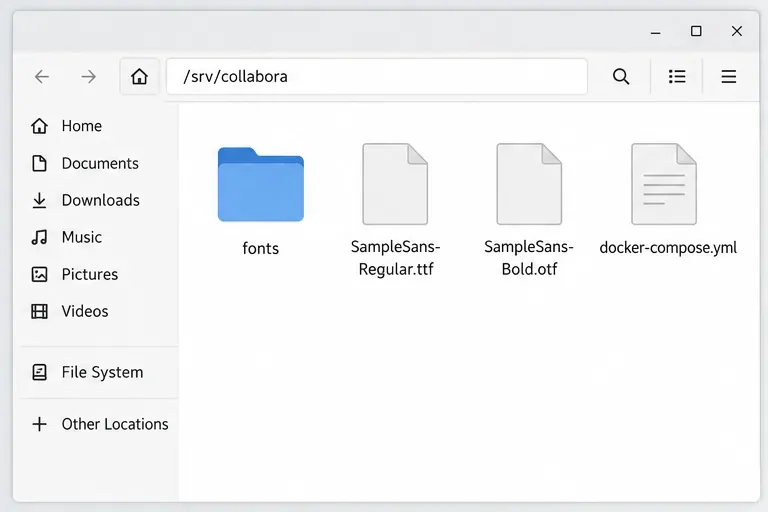
Make a host directory such as ./fonts next to your Compose file, and place the permitted .ttf or .otf files in it. Keep the directory limited to fonts you intend to expose through Collabora.
The host-side fonts folder and Compose file before adding the directory to the Collabora service.
How do you add fonts with Docker Compose?
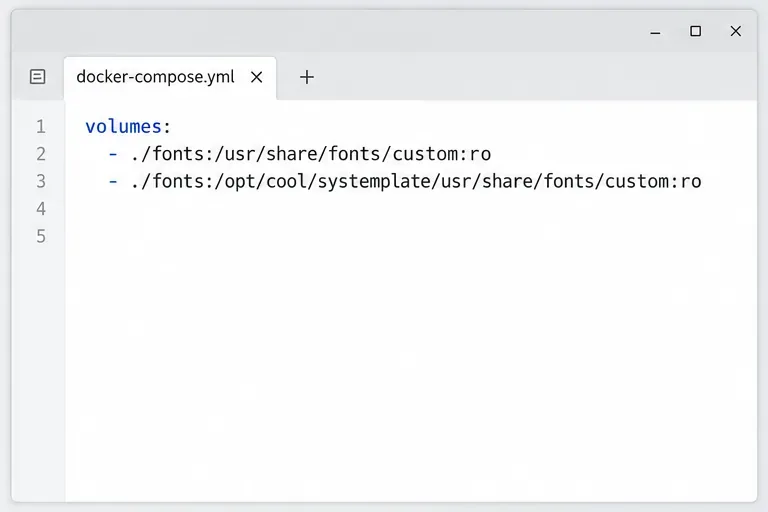
Add the two read-only volume entries to the existing Collabora service’s volumes list. Keep the service’s current image, ports, environment variables, and other settings; this is an addition, not a replacement Compose file.
The source directory on the left is on the Docker host. The paths on the right are inside the container. The :ro suffix makes the files read-only to the container. These target paths follow Collabora’s current upstream Helm template; for standalone CODE Docker, inspect your exact tag first. If either location is absent or your release uses different directories, use the paths supported by that image instead of forcing this example.
The example volume mapping sends the same host fonts directory to both upstream Collabora font locations.
Apply the Compose change during a quiet period because recreating the Collabora service can interrupt active editing sessions. If your service is named collabora, run:
docker compose up -d collabora
Use your actual Compose service name if it differs. Avoid a full stack restart unless other services also need a configuration change.
How can you confirm the container can see the files?
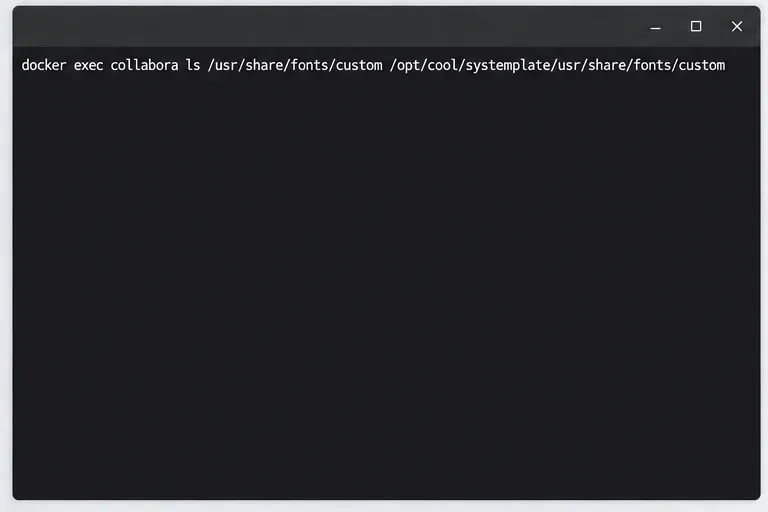
First check that the mounted directories contain the font files. Replace collabora with the container name used in your setup:
docker exec collabora ls /usr/share/fonts/custom
docker exec collabora ls /opt/cool/systemplate/usr/share/fonts/custom
Example verification command: list both mounted paths in the running Collabora container.
Seeing the files confirms the Docker mounts, but it does not prove the editor has loaded the font. If the image includes Fontconfig utilities, you can inspect discovered family names with fc-list, for example:
docker exec collabora fc-list : family file
Filter the output for the family you expect, using a tool available in your container. If fc-list is not installed, do not add packages to a running container as a permanent fix; verify the image’s font configuration or use a reproducible custom image. If the files are visible but not discovered, check permissions, file format, internal family metadata, and both mount paths. Then consult the logs for the exact image and release you deployed.
How do you test the font in Collabora Online?
Open or create a test document through the normal integration that launches your Collabora editor.
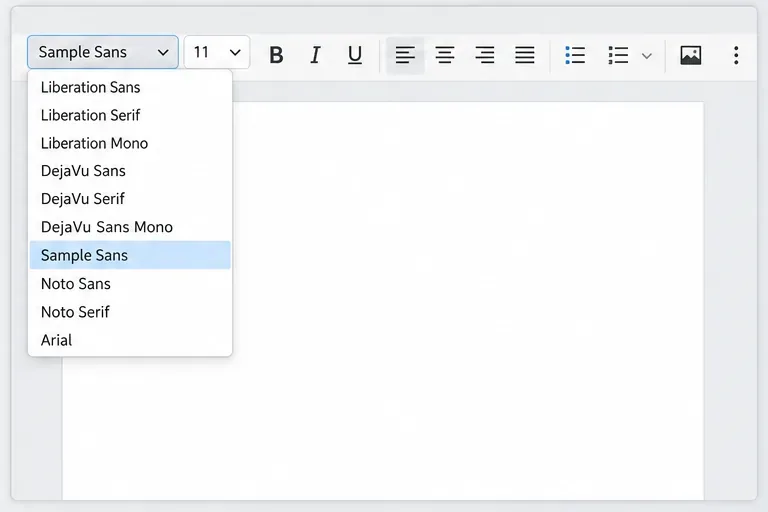
Open the font family menu and look for the font’s internal family name.
Select it, type a short sample, save, close, and reopen the document.
Check the same document from another user or browser if your deployment has multiple Collabora instances.
The example below illustrates the expected kind of check: a font family appears in an editor menu. It is not a capture from a live CODE deployment, and your toolbar may differ by version or integration.
An example of the verification step: confirm the intended font family appears in the editor’s font menu.
If the family appears but text renders in a substitute font, make sure the selected face and weight exist (for example, regular and bold), and confirm the font is present in the systemplate path as well as the general font directory. A menu entry alone is not proof that every style or every server has the font.
When is a custom image or remote font service worth it?
Build a custom image for repeatability
A Dockerfile that copies approved font files into the paths used by your chosen CODE image makes deployments easier to reproduce: the image digest identifies both the server build and its font set. The cost is a rebuild, scan, and rollout whenever you update a font or the base image. Recheck the target directories after base-image upgrades, and avoid treating a font copy instruction as universal across CODE versions.
Use remote font configuration for a shared catalog
Collabora’s fontserver project describes remote font configuration and a JSON catalog. Its maintainers label that repository as intended for development and testing, so do not treat the sample server as a production-ready service. For production, use a properly maintained HTTPS endpoint, restrict and validate the fonts it serves, and account for network availability and cache refresh behavior. This choice can reduce per-host file management, but it adds a service whose failure or configuration drift can affect font availability.
For one CODE container managed with Docker Compose, start with a read-only bind mount: it is simple to roll back and does not require a custom build. For a fleet maintained through CI/CD, prefer a custom image when you want each deployment to carry an explicit, reviewable font set. Consider remote font configuration only when central distribution is a meaningful operational benefit and you can provide a secure, reliable HTTPS service. In every case, verify the paths and test the font in an actual document after deployment; the host’s font list alone cannot confirm Collabora has loaded it.