Home
» MS OFFICE
»
How to Add Document Encryption at Rest to a Collabora CODE Setup
How to Add Document Encryption at Rest to a Collabora CODE Setup
Collabora CODE does not have a setting that encrypts the stored copy of every document at rest. CODE is the online editor in a WOPI integration; the connected file platform or storage service is responsible for saving the document. To protect files after they are saved, configure encryption on that storage layer. If your WOPI host is Nextcloud, its server-side encryption is one option; if your concern is a stolen server disk, use block-device encryption on the host’s storage instead.
That distinction matters because CODE must process document contents while a user edits them. Collabora says documents are removed from memory when sessions end and are not persistently stored on Collabora Online servers, but at-rest encryption does not hide an open document from the editor or from an authorized storage application. The instructions below use Nextcloud as a concrete example; ownCloud, Seafile, and custom WOPI hosts have their own storage-encryption controls.
Which layer should encrypt the file?
Goal
Where to configure it
What it does not solve
Protect files written to a remote storage provider
Nextcloud server-side encryption or the storage provider’s own encryption, depending on your architecture
Nextcloud’s server-side keys are available to the server; it does not hide an open document from the server.
Protect local server disks if hardware is removed
Operating-system disk or block-device encryption, such as LUKS on Linux
Once the system is unlocked and running, authorized processes can read files.
Keep the storage provider or server administrator from reading file contents
A supported client-side or end-to-end encryption workflow
Online editing may require decrypted content to reach CODE; verify compatibility with your file platform before choosing this model.
Protect traffic between users, the WOPI host, and CODE
HTTPS/TLS on the relevant connections
TLS protects data in transit, not the copy stored on disk.
Nextcloud’s current administration guidance describes server-side encryption as especially useful for external storage. It encrypts file contents, not filenames or directory structure, and its keys are kept on the Nextcloud server. It is not a substitute for end-to-end encryption when the goal is to prevent a Nextcloud administrator from reading files, and it is not a substitute for disk encryption when the goal is protection against physical theft.
Before you enable Nextcloud server-side encryption
Identify the real storage path. Confirm whether Nextcloud writes files to local disk, an external mount, or an object-storage service. Choose encryption for the layer that holds the durable copy.
Back up first. Make a tested backup of the Nextcloud database, configuration, data, and encryption keys. Keep the instance secret and keys in a protected backup location. Without the keys, encrypted files may be unrecoverable.
Plan for existing files. Enabling server-side encryption encrypts new and changed files by default. Encrypting the full existing library is a separate maintenance operation.
Check access and compatibility. Nextcloud’s key modes, authentication methods, shares, and external-storage behavior differ. Review the version-matched Nextcloud manual and confirm that you have command-line access to occ.
Choose the right threat model. Server-side encryption does not keep a compromised Nextcloud server or an administrator with access to its keys from reading files. Do not turn it on expecting that protection.
How do I enable encryption when Nextcloud is the WOPI host?
1. Confirm that Nextcloud owns the saved document
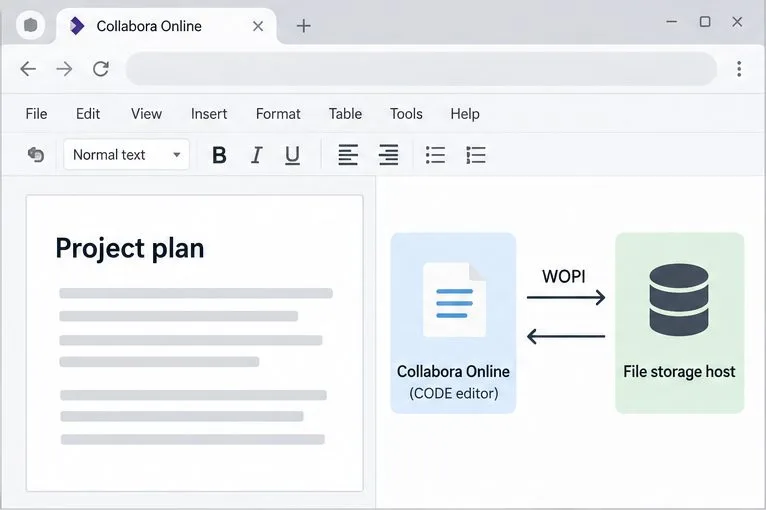
Open a test document through the Nextcloud Files interface and launch it in Collabora. In the typical WOPI setup, Nextcloud is the file host and CODE is the editor. CODE requests the document for editing and sends saved changes back to the host. Configure persistent-storage encryption in Nextcloud or the storage backend, not in a CODE editing menu.
The editor and the file-storage host are separate parts of a WOPI setup; configure encryption where the saved file is stored.
2. Enable the server-side encryption feature
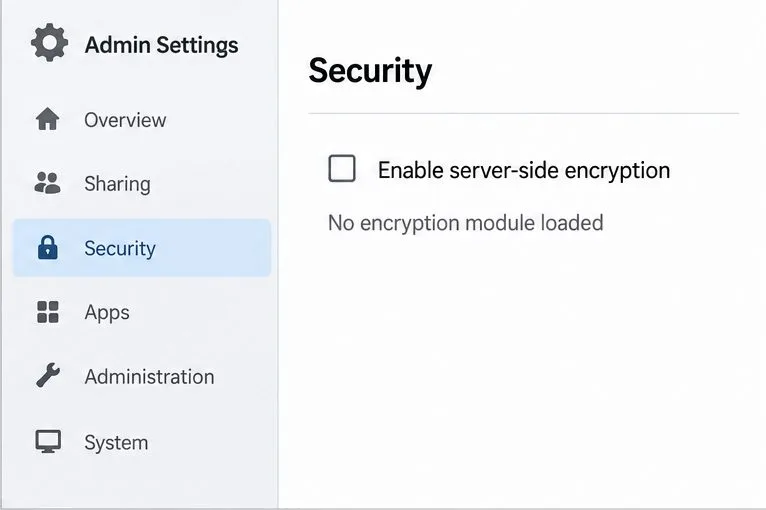
Sign in as a Nextcloud administrator and open the Server-side encryption section of the Administration settings. Select Enable server-side encryption and follow the on-screen confirmation. Menu wording can vary by Nextcloud release. The encryption feature and the encryption module are separate: if the page reports that no module is loaded, continue to the Apps section.
The Security settings page exposes the server-side encryption switch; the module must also be enabled before the feature is ready.
3. Enable the default encryption module
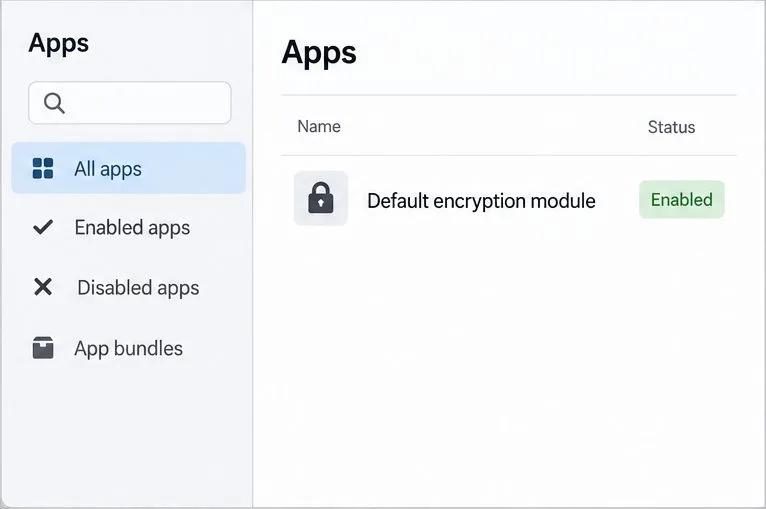
Open Apps, find the Default encryption module (also referred to in the manual as the Nextcloud Default Encryption Module), and enable it. Return to the encryption settings and confirm that the module is selected. Nextcloud’s guide then instructs users to log out and back in to initialize their encryption keys.
Enable the default encryption module in Apps, then return to the encryption settings and confirm it is selected.
4. Check the status from the Nextcloud server
Run the status command as the Nextcloud web-server account from the Nextcloud installation directory. On a typical Debian or Ubuntu archive installation, that may look like this:
cd /var/www/nextcloud
sudo -u www-data php occ encryption:status
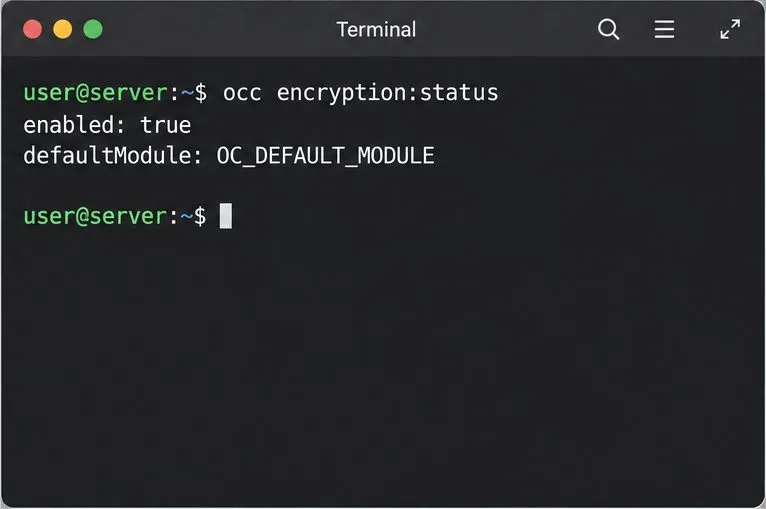
Use your actual installation path and web-server user. For a container deployment, run occ inside the Nextcloud container using that installation’s documented command. A healthy status reports that encryption is enabled and identifies the default module. This confirms the server-side feature status; it does not by itself prove that every older file has been encrypted.
The occ encryption:status output confirms that Nextcloud reports encryption as enabled and names the active default module.
What about documents already in the library?
By default, Nextcloud encrypts files created or changed after server-side encryption is enabled. If you also need existing files encrypted, first take a fresh backup, plan a maintenance window, and prevent users from changing files during the operation. The Nextcloud command reference documents occ encryption:encrypt-all for encrypting files for all users. Follow the instructions for your installed Nextcloud version, run the command as the web-server account, and wait for it to finish before returning the service to normal use.
sudo -u www-data php occ encryption:encrypt-all
Do not use occ encryption:disable as a rollback shortcut. Disabling the flag does not decrypt existing files. Nextcloud documents a separate decrypt-all procedure and warns that disabling encryption without decrypting files can cause unpredictable errors. Test the backup and recovery procedure before changing encryption state in production.
How can I verify the storage protection?
Check occ encryption:status and confirm the intended module is active.
For a new test file, upload a harmless text document through Nextcloud, edit it in Collabora, save, close the session, and reopen it through Nextcloud. This verifies that the normal editor and storage workflow still works.
If you need to prove that data is encrypted on a particular backend, use the storage provider’s documented verification method or a controlled test outside the live service. Do not assume that a file’s name, extension, or one command-line text search is a reliable encryption test.
Review backups separately. A readable backup copy is still an unencrypted copy even if the live Nextcloud data path is protected.
Confirm HTTPS/TLS for browser-to-service and host-to-CODE traffic separately; this is transport protection, not encryption at rest.
When Nextcloud SSE is not the right choice
If your Nextcloud instance stores files only on its own local disk and your main concern is a stolen or retired drive, disk encryption at the operating-system layer is usually the more direct control. It encrypts the block device while powered off; after boot and unlock, Nextcloud and CODE can still read documents needed for editing. Configure it during server provisioning or through the operating system’s storage procedure, and retain recovery keys outside the server.
If your requirement is that administrators and storage providers must never see document contents, use a platform-supported end-to-end encryption design and verify its Collabora compatibility before deploying it. A browser editor needs document data available for the editing session, so at-rest encryption on the storage backend alone cannot provide that guarantee while a user is editing. CODE itself does not add a universal document-encryption-at-rest toggle.