Home
» MS OFFICE
»
How to Auto-Save LibreOffice Documents Directly to Nextcloud
How to Auto-Save LibreOffice Documents Directly to Nextcloud
You finish a few paragraphs in LibreOffice, close the laptop, and later discover that the newest copy never reached Nextcloud. The usual cause is not that LibreOffice cannot work with Nextcloud. It is that three different mechanisms are being confused: LibreOffice saving the document, LibreOffice AutoRecovery, and Nextcloud synchronization. For reliable automatic saving, each one has to be configured for the job it actually performs.
The most dependable setup for a desktop computer is to save the document inside a folder managed by the official Nextcloud Desktop Client, then enable LibreOffice's option to save the modified document itself at an interval. Nextcloud then synchronizes that changed local file to the server. If you truly need LibreOffice to write to Nextcloud over the network without a local sync folder, WebDAV is available as an alternative, but it is more dependent on network connectivity and authentication.
This guide reflects the official LibreOffice 26.8 help and current Nextcloud stable documentation available in October 2026. LibreOffice 26.8.0 was released on August 26, 2026; organizations that favor the mature branch may still be on 26.2.x. Menu wording can differ slightly by operating system or release.
What “auto-save directly to Nextcloud” really means
There are two workable designs:
Method
Where LibreOffice saves
How the file reaches Nextcloud
Best fit
Nextcloud Desktop Client
A local synchronized folder
The Nextcloud client uploads changes
Most desktop users; better tolerance of temporary network loss
LibreOffice WebDAV remote file
The Nextcloud server over HTTPS/WebDAV
LibreOffice sends the save operation directly
Users who deliberately want remote-file access and have reliable connectivity
Nextcloud explicitly recommends its desktop sync client for synchronizing a computer with a server. LibreOffice separately documents support for remote services including WebDAV. Those are both valid workflows, but they behave differently when the network disappears.
Recommended method: save into the Nextcloud sync folder
1. Confirm the Nextcloud Desktop Client is connected
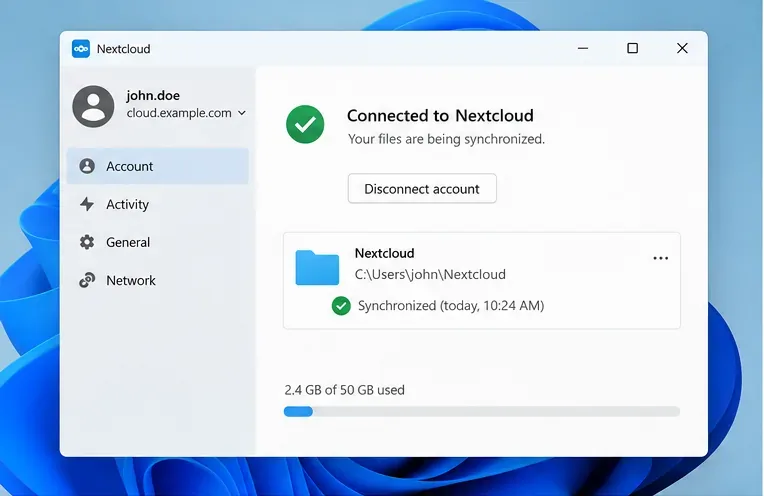
Install and sign in to the official Nextcloud Desktop Client, then make sure you have at least one local folder synchronized with your Nextcloud account. The client lets you choose local directories and keeps their contents synchronized with the server. Before changing LibreOffice settings, wait until the client reports that synchronization is current.
Confirm that the Nextcloud Desktop Client is connected and that the local sync folder is available before configuring LibreOffice.
2. Save the document inside that synchronized folder
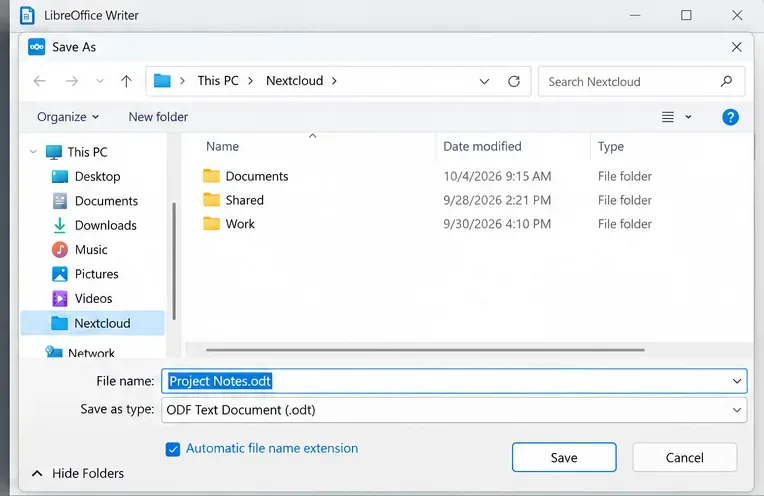
In Writer, Calc, Impress, or another LibreOffice module, choose File > Save As. Browse to the local Nextcloud folder and save the file there. For example, on Windows this might be a folder such as C:\Users\YourName\Nextcloud\Work; your actual path depends on how you configured the desktop client.
This first save matters because an automatic save can only update a document that already has a real filename and destination. A new, unsaved document still needs an initial Save or Save As operation.
Save the LibreOffice document into the local folder that the Nextcloud Desktop Client is already synchronizing.
3. Turn on LibreOffice automatic document saving
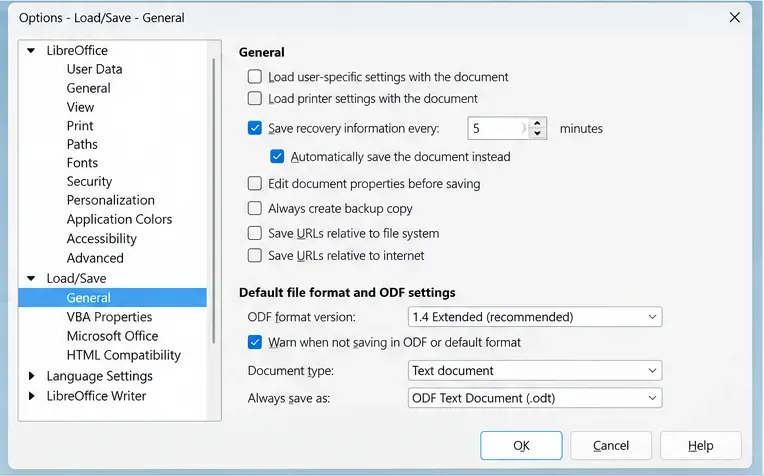
Open Tools > Options > Load/Save > General on Windows or Linux. On macOS, the same settings may appear under LibreOffice preferences. Enable Save AutoRecovery information every, choose an interval, and then enable Automatically save the document instead.
The distinction is important. LibreOffice's normal AutoRecovery setting stores information intended to recover modified documents after a crash. The Automatically save the document instead option tells LibreOffice to save the modified document itself using the selected interval. The official LibreOffice Help describes these as separate behaviors.
An interval of five minutes is shown below only as an example. Pick an interval that fits your work. Very short intervals can mean more frequent disk writes and synchronization activity, while a longer interval leaves a larger window of unsaved edits.
Enable “Automatically save the document instead” under Load/Save > General so LibreOffice periodically writes the modified file, not only recovery data.
4. Verify that Nextcloud actually receives the saved change
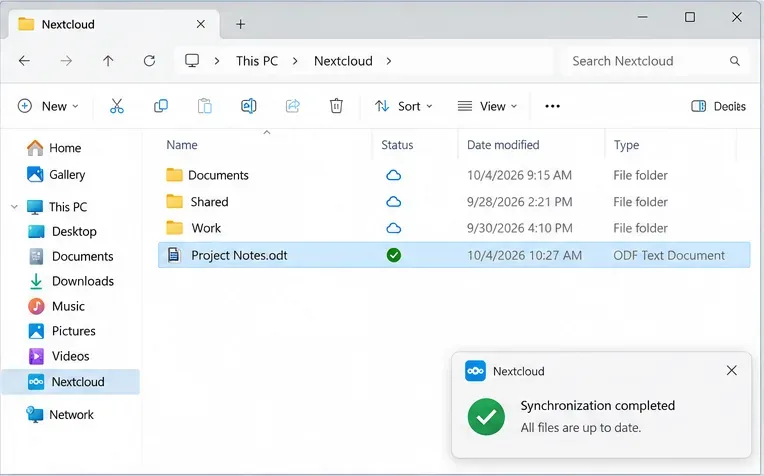
Edit the document, wait beyond your chosen LibreOffice save interval while the application is idle, and then watch the Nextcloud client. The synchronized file should show an up-to-date state after the client uploads the changed file. For a stronger test, open the Nextcloud web interface from another browser session or device and confirm that the file's modified time and contents reflect your latest edit.
Verify the result in the sync folder and wait for the Nextcloud client to report that synchronization is complete.
What if you want LibreOffice to save straight to Nextcloud over WebDAV?
LibreOffice can open and save remote files, and its remote-file service supports WebDAV. Nextcloud exposes authenticated file operations through WebDAV. The current Nextcloud documentation gives the standard file URL as https://cloud.example.com/remote.php/dav/files/USERNAME/, with an added subdirectory before /remote.php when Nextcloud is installed below the domain root.
In LibreOffice, choose File > Save Remote or File > Open Remote, open Manage Services, and create a WebDAV service. LibreOffice's help lists WebDAV fields for the host, port, secure connection, label, and root path. With HTTPS, use the secure-connection option and the appropriate HTTPS port for your deployment.
For Nextcloud, use the WebDAV path shown in your account's Files settings rather than guessing it. Nextcloud also recommends using an app password with third-party WebDAV clients instead of the regular account password. This is especially relevant when two-factor authentication, OIDC, or other authentication policies are enabled.
One limitation is worth stating clearly: the LibreOffice documentation describes automatic document saving and WebDAV remote saving, but it does not make a Nextcloud-specific guarantee about offline queuing or retry behavior for periodic saves to a disconnected WebDAV service. If your connection is intermittent, the desktop sync-folder method is safer because the document is first saved locally and can be uploaded when synchronization resumes.
Common problems and the quickest fix
Symptom
Likely cause
What to check
The file is in Nextcloud but recent edits are missing
Only AutoRecovery is enabled
Enable “Automatically save the document instead,” then test again.
The file saves locally but does not appear on the server
The destination is outside the synchronized folder, or sync is paused/offline
Check the file's actual path and the Nextcloud client status.
WebDAV keeps asking for a password
Account authentication policy or unsuitable credentials
Create and use a Nextcloud app password for the WebDAV client.
WebDAV is slow or times out
Network/server latency or authentication overhead
Test the server connection; Nextcloud specifically recommends an app password for third-party WebDAV clients.
A conflict copy appears
The same file was edited on multiple devices before synchronization completed
Stop editing competing copies, compare versions, and keep the intended document before resuming work.
Final self-check
The document has a real filename and is stored inside the intended Nextcloud sync folder, or it was deliberately opened through a configured WebDAV service.
LibreOffice has Automatically save the document instead enabled at the interval you chose.
The Nextcloud client reports that the file is synchronized after an automatic save.
The newest content is visible from the Nextcloud web interface or another device.
If you use WebDAV, the connection uses HTTPS where available and a Nextcloud app password rather than relying on your normal account password.
If all five checks pass, LibreOffice is writing the working document automatically and Nextcloud is receiving those changes through the method you selected. The key is to verify both halves of the workflow: LibreOffice must save the actual document, and Nextcloud must complete its own upload or remote write.