How to Change the Default Font and Normal Style in Word 2010

To set a new default font in Word 2010, open the Font dialog, choose the typeface and size you want, select Set As Default, and apply the change to documents based on Normal.dotm. This affects new documents that use Word’s Normal template; it does not reformat documents you already saved. You can also modify the Normal style directly if you want to manage body text through Word’s style system.

Set the default font for new Word 2010 documents

Word 2010 uses the Normal template to provide the starting formatting for a blank document. The exact font may already have been customized on your computer, so use the settings shown in your own dialog as the starting point.

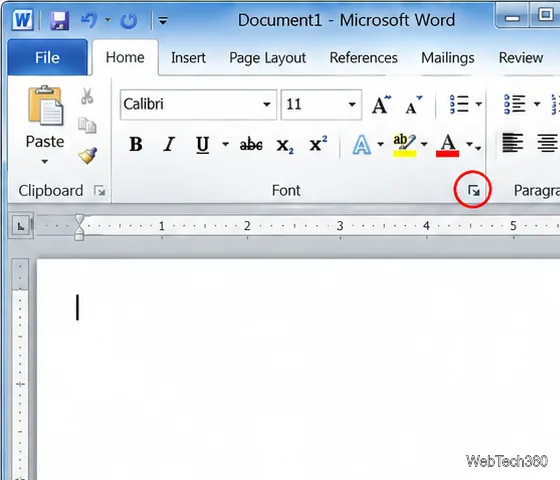
  1. Open the Font dialog. Open a document in Word 2010, select the Home tab, and click the small dialog box launcher in the lower-right corner of the Font group. You can also press Ctrl+D. The launcher opens the full Font dialog instead of changing only the selected text from the ribbon.
Word 2010 Home ribbon with the Font dialog launcher circled at the lower-right of the Font group.
The Font dialog launcher opens the full set of default font controls.
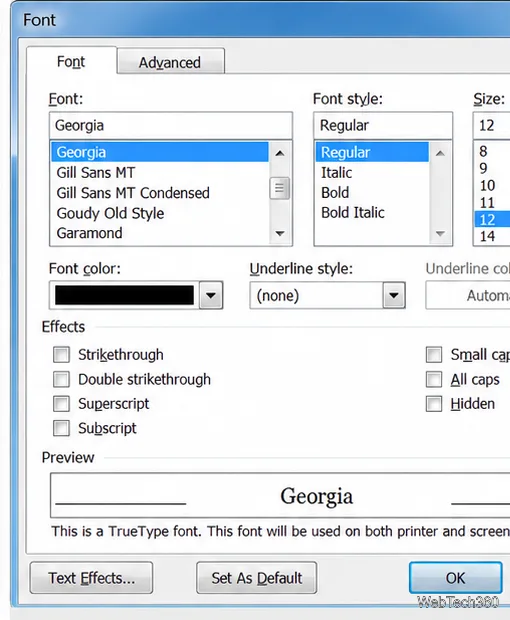
  1. Choose the typeface and basic formatting. On the Font tab, select a font family, font style, and size. You can also set font color, underline style, and the available effects, such as strikethrough, superscript, or small caps. Check the Preview area before saving. If you share documents, choose a font that recipients are likely to have installed; otherwise Word may substitute another typeface on their computers.
Word 2010 Font tab with Georgia, Regular, and 12-point text selected, plus font effects and the Set As Default button.
Choose a typeface and size on the Font tab, then review the preview before applying defaults.

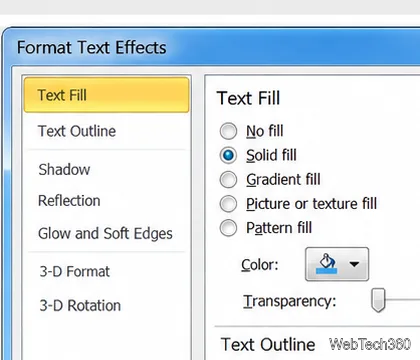
Keep decorative effects limited to cases where they improve emphasis. Text color, outlines, shadows, and similar treatments can reduce readability in long passages and may look different when printed.

Format Text Effects dialog showing Text Fill options and the Text Outline section.
The Text Effects dialog groups fill, outline, shadow, and reflection formatting.
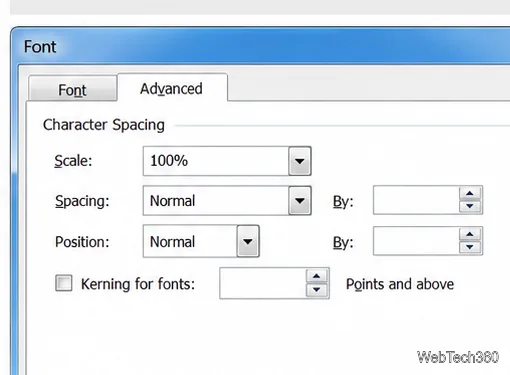
  1. Review the Advanced tab only if needed. Word 2010’s Advanced tab provides character-spacing controls such as Scale, Spacing, Position, and kerning. Use Spacing to expand or condense characters, or Position to raise or lower them. Small changes can affect line wrapping, so inspect a sample paragraph after adjusting these values.
Word 2010 Advanced font tab showing character spacing, position, scale, and kerning controls.
Use the Advanced tab for character spacing and position adjustments available in Word 2010.

Do not expect this tab to offer every modern OpenType typography feature. Microsoft notes that advanced typography effects such as ligatures are not displayed in Word 2010 for Windows, even if they are present in a file created by a newer compatible version.

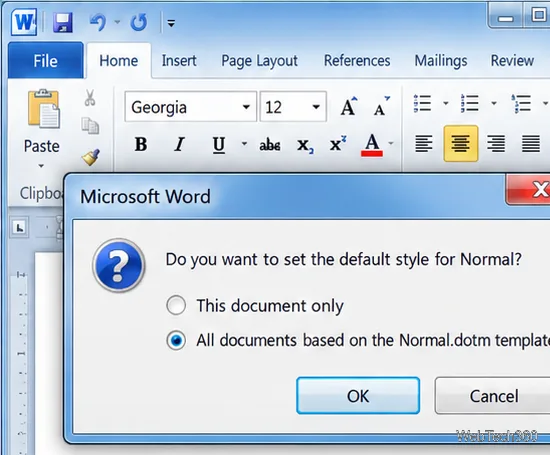
  1. Save the choice as a default. Select Set As Default at the bottom of the Font dialog. In the confirmation window, choose All documents based on the Normal.dotm template to use the new font in future blank documents. Choose This document only if you want the default to apply only to the open file. Select OK to confirm.
Word confirmation window with All documents based on the Normal.dotm template selected.
Choose the Normal.dotm template option to carry the default formatting into future blank documents.

The Normal.dotm option changes the starting font for documents built from that template. It does not rewrite existing files or automatically change documents created from a separate custom template.

Change the Normal style as well

The Font dialog’s default command is the quickest way to set a starting typeface. If you want to manage the body-text style itself, edit Normal, the style commonly used for regular paragraphs:

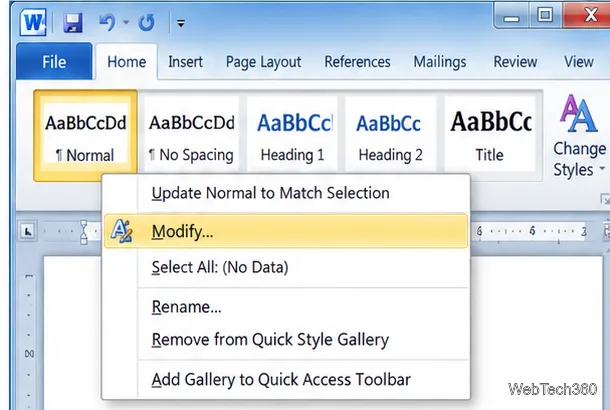
  1. On the Home tab, find the Styles gallery. Right-click Normal and choose Modify.
Word 2010 Styles gallery with the Normal style context menu open and Modify highlighted.
Right-click Normal in the Styles gallery and choose Modify to edit body-text formatting.
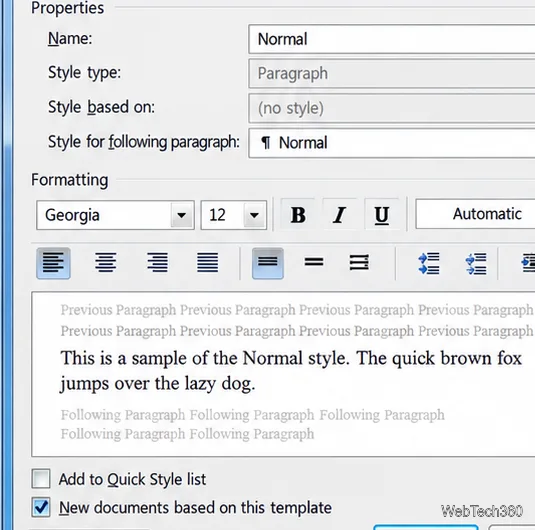
  1. In the Modify Style window, choose the font, size, and basic formatting. If you want the style change to carry into future blank documents, select New documents based on this template, then click OK. Leave that box cleared when the change is only for the current document.
Modify Style dialog for Normal showing Georgia 12-point formatting and New documents based on this template checked.
Select New documents based on this template when the Normal style should carry forward.

Normal controls regular body paragraphs, but heading styles can have their own formatting. To change headings too, modify Heading 1, Heading 2, or another style separately. This keeps documents consistent when you use styles instead of manually formatting each heading.

Check the result and troubleshoot resets

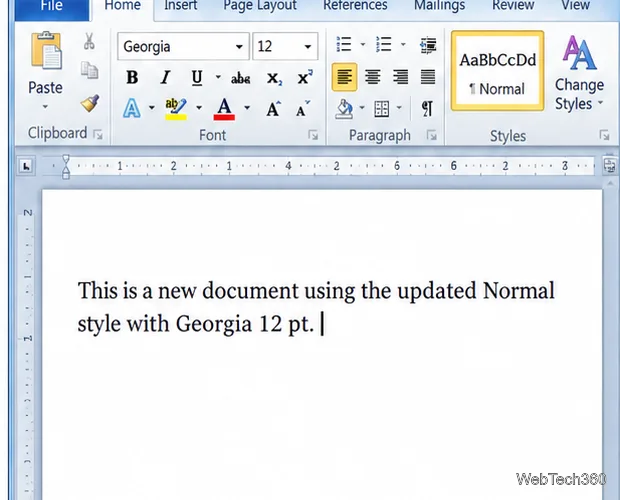
Create a new blank document with Ctrl+N, then click in the document and check the font name and size on the Home tab. Type a short test line if needed. A new document is the right test: an already-open document may retain its earlier formatting, and text with direct formatting can override the Normal style.

A blank Word 2010 document with Georgia 12-point text and the Normal style selected.
A new blank document confirms that the saved Normal style is being used.

If the setting does not persist, reopen the Font dialog and confirm you selected the Normal.dotm option rather than This document only. Also check that Normal.dotm is not marked read-only and that your Windows account can write to the templates folder. On managed computers, permissions or a Word add-in may restore an organization’s preferred defaults. Microsoft’s current troubleshooting guidance covers those permission and add-in checks; its newer interface labels can differ from Word 2010.

Microsoft references

Leave a Comment

How to Move a Picture in Microsoft Word
How to Move a Picture in Microsoft Word

Learn how to drag a picture in Word, choose text wrapping, keep it with a paragraph or fix it on the page, and troubleshoot images that will not move.

How to Insert a Checkbox in Excel: Two Easy Methods

How to Insert a Checkbox in Excel: Two Easy Methods

Learn how to insert a checkbox in Excel with the in-cell tool, count checked items with formulas, or add a linked Form Control in older desktop versions.

How to Autofill Letters in Excel: A to Z and Beyond

How to Autofill Letters in Excel: A to Z and Beyond

Generate A to Z, lowercase letters, or labels beyond Z in Excel with a fill-handle formula, SEQUENCE, or a reusable custom list.

How to Strikethrough in Excel: Shortcuts and Step-by-Step Methods

How to Strikethrough in Excel: Shortcuts and Step-by-Step Methods

Learn how to strikethrough in Excel on Windows, Mac, and the web, format part of a cell, and remove the line without deleting its value.

What Is Microsoft Access? How Its Database Tools Work

What Is Microsoft Access? How Its Database Tools Work

Microsoft Access is a Windows database app for storing related records, building queries, creating data-entry forms, and generating reports. Learn how it works and when it fits.

Office Outlook 2010 Import and Export: Move Data with a PST

Office Outlook 2010 Import and Export: Move Data with a PST

Learn how to import a PST into Outlook 2010 or export mail, contacts, calendar, and tasks. Follow the correct menus and avoid missing folders or duplicates.

Change Gridline Height and Width in Word 2010

Change Gridline Height and Width in Word 2010

Learn how to adjust gridline height and width in Word 2010, change visible line frequency, and set the underlying horizontal and vertical drawing-grid spacing.

Recover an Outlook PST Password with Nucleus Kernel

Recover an Outlook PST Password with Nucleus Kernel

Recover a forgotten Outlook PST password with Kernel’s current steps, including how to identify the right file, make a backup, and check the tool’s limits.

How to Insert a Live Web Page in a PowerPoint Slide

How to Insert a Live Web Page in a PowerPoint Slide

Use the LiveWeb add-in to place a website on a PowerPoint slide, set its size and refresh behavior, and check compatibility before presenting.

How to Make an Access 2010 Database Open to a Form

How to Make an Access 2010 Database Open to a Form

Set an Access 2010 database application to open directly to a data-entry form, hide object lists, limit menus, and check the setup before sharing.