Home
» MS OFFICE
»
How to Change the Default Storage Location in ONLYOFFICE Workspace
How to Change the Default Storage Location in ONLYOFFICE Workspace
Short answer: in ONLYOFFICE Workspace, the Control Panel can move portal static data away from the default local disk to a supported third-party storage service. The current official administration guide lists Amazon S3, Google Cloud Storage, Rackspace Cloud Storage, and Selectel Cloud Storage for this purpose. It does not describe a Control Panel field where you can type an arbitrary local path such as /mnt/storage.
This guide uses a clearly hypothetical example throughout. Imagine a small design agency called Northstar Studio. Its self-hosted ONLYOFFICE Workspace server is running out of local disk space because uploaded files and other portal static data have grown steadily. The administrator wants to move that portal storage to an Amazon S3 bucket while keeping the Workspace portal itself on the same server. Northstar Studio is only an illustration, not a real test or customer result.
Before changing anything, it helps to distinguish two different tasks that are often described as “changing the default storage location.” The first is switching the portal’s static-data storage from the local disk to a supported object-storage provider in the Control Panel. The second is moving the host filesystem directory used by a self-hosted Docker installation. ONLYOFFICE documents these as different layers, so the steps below focus first on the supported Control Panel method and then explain the local-disk case separately.
What changes when you select a new storage provider?
By default, ONLYOFFICE Workspace stores portal data on the local disk of the machine where Workspace is installed. The official Storage page says a connected third-party service can be used for static portal data. After you choose and connect a new provider, the page reloads and a data migration process starts. Depending on the amount of data, that migration can take time.
For Northstar Studio, the goal is therefore not “make every user save future documents into a particular folder.” It is “move the portal’s storage backend from Disk Default to the S3 bucket.” That distinction matters because user folder organization, connected third-party folders inside the Documents module, backup destinations, and the administrator-level Storage backend are separate features.
Step 1: Back up the portal before changing storage
A storage change starts a migration, so create a recoverable backup first. ONLYOFFICE provides backup and restore controls in the Control Panel. A backup can be stored temporarily, in the Documents module, on a computer path, or in supported third-party storage depending on the deployment and configuration.
For the hypothetical Northstar Studio server, the administrator would make a fresh backup and confirm where the resulting archive is stored before touching the Storage page. This does not prove a migration will fail; it simply gives the administrator a recovery path if credentials, bucket policy, network access, or another dependency is wrong.
Step 2: Open the Control Panel and check the integration
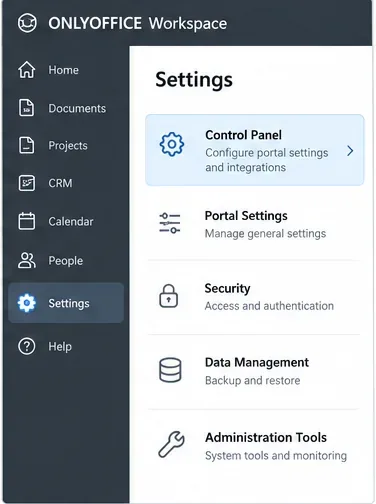
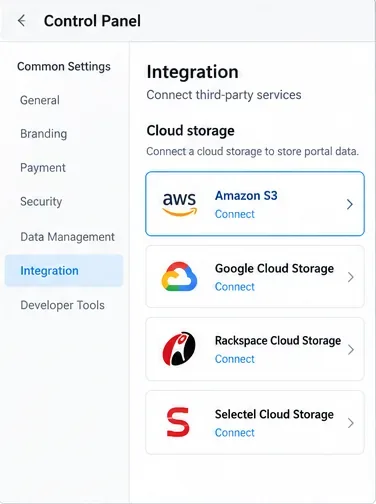
Sign in with an account that can administer the portal. From the Workspace start page, open the Control Panel, or open portal Settings and follow the Control Panel link in the left-side area. The third-party service must first be connected in the portal’s Integration section; otherwise its storage option is disabled in the Storage page.
ONLYOFFICE Workspace interface illustration showing Settings with the Control Panel entry used to reach portal administration.
Northstar Studio plans to use Amazon S3, so the administrator first verifies that Amazon S3 is configured as a third-party service. The same prerequisite applies when choosing Google Cloud Storage, Rackspace Cloud Storage, or Selectel Cloud Storage.
Control Panel Integration illustration listing Amazon S3, Google Cloud Storage, Rackspace Cloud Storage, and Selectel Cloud Storage as storage integrations.
Step 3: Open Common Settings → Storage
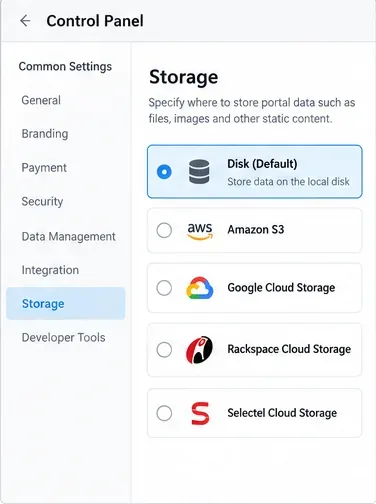
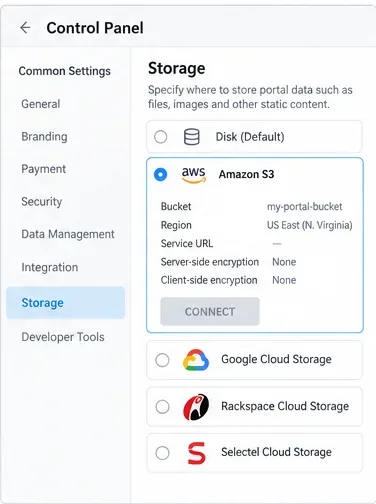
In Control Panel, go to the Storage page under Common Settings. Disk Default is selected initially. This is the point where you choose which supported backend should hold the portal’s static data.
Control Panel Storage illustration with Disk Default selected and the four documented third-party storage choices visible.
If you only wanted to keep data on the server’s local disk, do not select a cloud provider. Disk Default remains the local-storage choice. If your real requirement is to move that local data to a different mount point on the same server, skip to the section about Docker and host paths below; the Storage page is not a generic filesystem-path selector.
Step 4: Enter the provider-specific settings
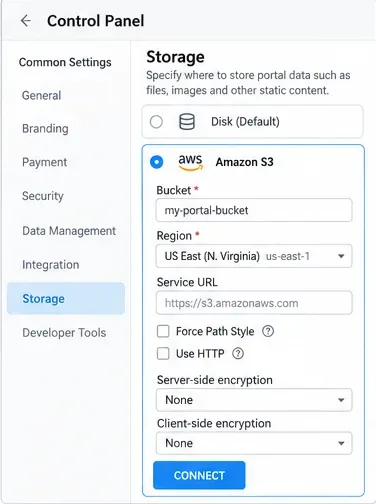
Select the provider you want to use and fill in the required connection details. For Amazon S3, the current ONLYOFFICE documentation describes fields including Bucket and Region, plus optional Service URL, Force Path Style, Use HTTP, and encryption-related settings. Google Cloud Storage uses a bucket name; Rackspace and Selectel use their own container and region fields.
Amazon S3 storage configuration illustration showing bucket, region, optional service URL, path-style, HTTP, and encryption settings before connection.
In the Northstar Studio example, the administrator would enter a dedicated S3 bucket and the correct AWS region. They would leave Service URL unchanged unless they intentionally need a different endpoint. Credentials and permissions should be limited to what Workspace needs, and network access from the server to the storage service should be verified before starting migration.
Practical checks before clicking Connect
Confirm the bucket or container exists in the expected region.
Confirm the integration credentials are valid and authorized for the required object operations.
Confirm the Workspace server can reach the provider endpoint.
Keep the recent backup available outside the data being migrated.
Schedule the change for a period when you can watch the portal and storage service for errors or unexpected capacity usage.
Step 5: Connect the storage and let migration finish
Click Connect. According to ONLYOFFICE’s official guide, the page reloads and the data migration process starts. Do not assume the change is complete merely because the provider was accepted. Wait until the Storage page returns with the new storage selected, then verify normal portal use.
Storage illustration showing Amazon S3 selected after configuration, with the chosen bucket and region summarized.
For Northstar Studio, a sensible validation would include opening several existing documents, uploading a new file, previewing images or other static content, and checking the S3 bucket for new objects. The exact object layout is an implementation detail; the important result is that portal content works normally and the new backend is being used. If the portal reports errors, investigate credentials, bucket policy, region, endpoint reachability, and server logs before making additional changes.
What if you want a different local disk or mount point instead?
This is where many “default storage location” tutorials become misleading. The Control Panel’s Disk Default option does not expose an arbitrary host directory picker. For Docker-based Workspace deployments, ONLYOFFICE’s own migration documentation states that portal data is stored under /app/onlyoffice on the host. The manual Docker installation documentation also creates component directories below that tree, such as CommunityServer, DocumentServer, MailServer, ControlPanel, and database-related directories.
If you need to move those host-side directories to a larger disk, treat it as a deployment migration rather than a Control Panel setting. Back up the installation, stop the relevant containers, copy data while preserving ownership and permissions, update the host-side bind mounts or Docker Compose volume definitions used by your specific deployment, and only then start the stack again. The exact Compose file and volume mapping depend on how Workspace was installed, so copying a generic command from another deployment can break the portal.
How is changing portal storage different from changing backup storage?
They are separate choices. The Storage page determines where supported portal static data is stored. The Backup page determines where backup archives are written. You can, for example, keep portal data on Disk Default while writing backups to another location, or move portal static data to S3 while keeping backups somewhere else. For resilience, keeping backups logically separate from the primary storage backend is usually easier to reason about during recovery.
Which option fits your situation?
Goal
Use
Key limitation
Move portal static data from local disk to supported cloud/object storage
Control Panel → Common Settings → Storage
Only the documented providers are available in this interface
Keep data on local server disk
Disk Default
No arbitrary local path picker is documented in Control Panel
Move self-hosted Docker data to another host disk or mount
Deployment-level volume/bind-mount change
Exact paths depend on the installation method; back up first
Change where backup archives are saved
Control Panel → Backup
This does not change the primary portal storage backend
Final verification checklist
The intended provider is selected on the Storage page.
The migration has finished rather than merely started.
Existing files open and download normally.
New uploads work.
Users can still access the portal without storage-related errors.
The new bucket or container shows activity consistent with portal use.
A recent backup remains available and has not been accidentally stored only inside the data set you just moved.
In the Northstar Studio example, the storage change is successful only when the portal behaves normally after migration and the administrator has confirmed that the selected S3 backend is active. That practical definition is more useful than treating the Connect button itself as proof that the job is finished.