Home
» MS OFFICE
»
How to Configure Collabora Online Behind Nginx
How to Configure Collabora Online Behind Nginx
What a working reverse proxy should do
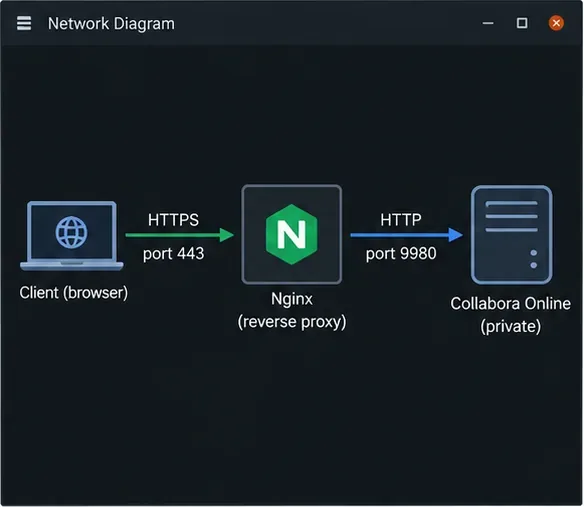
A healthy Collabora Online deployment behind Nginx gives users one public HTTPS address for the editor while keeping the Collabora service on a private network. The editor should load its browser assets, discover office capabilities, open a document through the connected storage platform, and keep its WebSocket connection alive during editing. A valid Nginx syntax check alone does not prove those paths work.
This example assumes a standalone Collabora server or CODE container listens on port 9980, Nginx serves office.example.com, and TLS ends at Nginx. Replace the hostname and certificate paths with yours. The backend address 127.0.0.1:9980 applies only when Nginx and Collabora share a host and the service is bound to loopback. For separate containers, use the Collabora service name on a private Docker network, such as http://collabora:9980.
A sample deployment path shows public HTTPS ending at Nginx and a private connection to Collabora Online.
Before changing Nginx
Confirm that the public DNS name resolves to the proxy, that the TLS certificate covers that exact name, and that Nginx can reach Collabora on its internal address. If you use Docker, attach both services to a user-defined network and do not publish the Collabora port publicly. If Nginx runs on the host, bind the container port to loopback, for example 127.0.0.1:9980:9980. Your firewall should expose the public web ports you intend to serve, not the Collabora backend port.
Choose one TLS arrangement. The configuration below uses TLS from the browser to Nginx and plain HTTP on a trusted private hop to Collabora. This is TLS termination. If policy requires encryption between the proxy and Collabora as well, use HTTPS for the upstream and configure Nginx to trust the backend certificate. Do not switch only the proxy_pass scheme: the server-side TLS settings must match the actual Collabora listener. Collabora documents both proxy arrangements in its Nginx reverse-proxy guidance and 25.04 SDK manual.
Set Collabora's proxy-aware TLS options
For TLS termination, configure Collabora's coolwsd service with ssl.enable=false and ssl.termination=true. How you set these values depends on how Collabora was installed: edit the supported coolwsd.xml configuration or use the documented options for your package or container. With the CODE Docker image, deployments commonly pass the options as extra_params; check the image documentation for your version and quote arguments correctly in Compose. Restart or recreate the Collabora service after changing its configuration.
These settings tell Collabora that the external connection is protected by the proxy even though the proxy-to-backend hop uses HTTP. They do not install a public certificate, configure DNS, or authorize a storage server to use Collabora. Configure the WOPI host allow-list or integration settings separately according to your storage platform.
Configure Nginx to forward the editor routes
Nginx must pass the discovery and browser resources and preserve the WebSocket upgrade used by interactive editing. The following is a single-server example. Define the map in the Nginx http context, such as the main nginx.conf, not inside the virtual host:
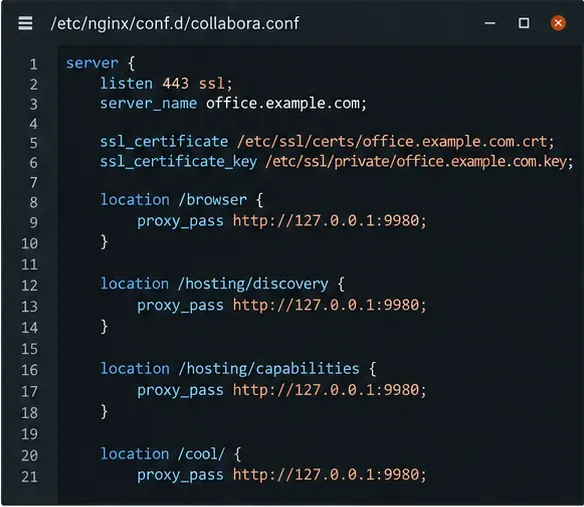
Place the server block in the site configuration included by Nginx. This assumes TLS certificates are already installed and the proxy-to-Collabora connection is HTTP:
The paths beginning with /cool carry the main WebSocket and editor requests; the pattern also includes legacy /lool paths for compatibility. Nginx's WebSocket proxying requires the HTTP/1.1 upgrade headers because Upgrade and Connection are hop-by-hop headers. The long read timeout helps avoid closing an otherwise active editing connection due to an ordinary short proxy timeout. See the Nginx WebSocket proxy documentation and proxy module reference.
The example virtual host routes Collabora's browser assets and hosting endpoints to the private service.
For HTTPS on the upstream, change the backend URLs to https:// and configure Nginx's upstream certificate verification and trusted certificate chain appropriately. Avoid disabling certificate verification as a permanent workaround. If Nginx is in another container, replace the loopback address with the Collabora service name; 127.0.0.1 inside the proxy container points back to that proxy container.
When you use a URI prefix such as /collabora/ instead of a dedicated hostname, the configuration and Collabora's generated discovery URLs need additional path handling. Start with a dedicated hostname unless your platform explicitly supports a subpath deployment. A server block that forwards requests at the root does not automatically make discovery-generated URLs work under a prefix.
Reload and verify each layer
Validate the Nginx configuration before applying it, then reload the service:
sudo nginx -t
sudo systemctl reload nginx
If the syntax check fails, fix the reported file and line first. A successful reload confirms Nginx accepted the configuration, not that the backend, certificate, or WebSocket path works. Check DNS and certificate validity separately, then request the two Collabora endpoints through the public hostname:
curl -fsS https://office.example.com/hosting/discovery | head
curl -fsS https://office.example.com/hosting/capabilities
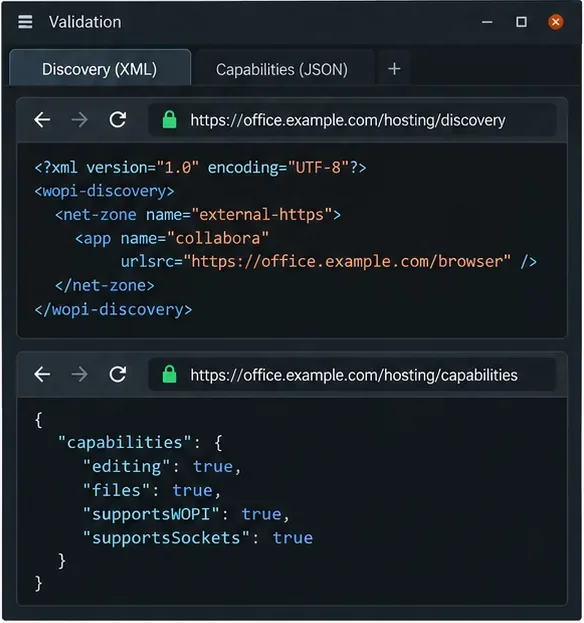
The discovery endpoint should return XML rather than an Nginx 404 page or a login page; capabilities should return a response from Collabora. Inspect the discovery XML's editor URLs: they should use the public HTTPS hostname and reachable paths, not a container name or internal-only address. The sample image below shows the types of responses to look for; its displayed values are illustrative, not output from a live server.
Use the public hostname to check that discovery returns XML and the capabilities endpoint responds.
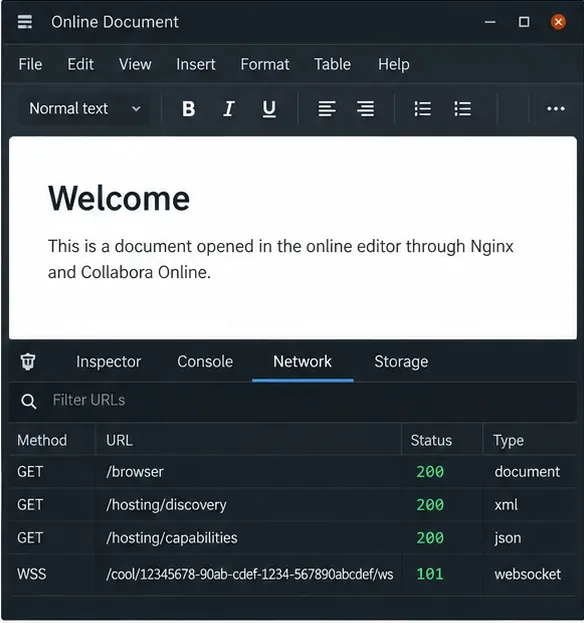
Finally, configure your document platform to use https://office.example.com as its Collabora server and open a test document. A useful success signal is that the editor loads and remains responsive while typing, saving, and reopening the document. In browser developer tools, the WebSocket request under /cool/ should upgrade successfully; HTTP status 101 Switching Protocols is the expected WebSocket handshake result. Do not treat a drawn example status as evidence that your own server passed this check.
During a real editor session, inspect the browser network panel for successful asset requests and a WebSocket upgrade.
Read failures by their symptoms
502 Bad Gateway: Nginx cannot reach the upstream. Check the service name, port, container network, listener, and logs. If containers are separate, do not use the proxy container's loopback address.
404 on discovery or browser assets: Confirm the request reaches the correct virtual host and that the location forwards the path without an unintended URI rewrite. Test the public URL, not only the backend URL.
Editor loads but hangs or disconnects: Inspect the /cool/.../ws request. Missing upgrade headers, an HTTP/1.0 upstream connection, a short timeout, or a proxy that buffers the connection can interrupt editing. Confirm the request upgrades and remains open while the document is active.
Unauthorized WOPI host: The proxy can be healthy while Collabora rejects the storage platform. Check the actual WOPI host name against Collabora's allow-list and the platform's connector configuration. Do not solve this by opening the backend to the public internet.
Mixed-content or certificate warning: Make sure the public editor URL and the URLs in discovery use HTTPS and the certificate matches the hostname. If you terminate TLS at Nginx, verify the Collabora termination setting as well.
Once these checks pass, keep the Collabora backend private and monitor both Nginx and Collabora logs when upgrading either component. This single-upstream example does not configure high availability, load balancing, or per-document session affinity. For multiple Collabora replicas, follow the deployment guidance for the relevant Collabora controller or load balancer and test document affinity before routing production traffic.
Sources and version notes
Configuration details were checked against Collabora's proxy documentation and 25.04 SDK manual, and Nginx's WebSocket and proxy-module references, on October 6, 2026. Package and container options can vary by Collabora release; confirm the setting names for the version you run before applying them. The article does not assume a particular storage platform or prove a live deployment.