Home
» MS OFFICE
»
How to Configure HTTPS and an SSL Certificate for ONLYOFFICE Docker
How to Configure HTTPS and an SSL Certificate for ONLYOFFICE Docker
To put ONLYOFFICE Docs behind HTTPS in Docker, use a certificate that matches the public hostname, make it available inside the container, and publish the container’s HTTPS port. HTTPS is the encrypted web connection; a TLS certificate helps browsers verify that they reached the expected server. This guide uses a certificate and private key you already obtained from a trusted certificate authority (CA). If you use a reverse proxy, follow the separate option below because the proxy may handle HTTPS instead.
Which HTTPS setup fits your deployment?
ONLYOFFICE Docs can serve HTTPS directly from its Docker container, or a reverse proxy such as NGINX or Traefik can accept HTTPS and forward requests to Docs. Direct TLS is a straightforward choice for a standalone server whose public ports 80 and 443 are available. A reverse proxy is often simpler when another web service already owns those ports or several sites share one server. Avoid configuring both layers blindly: decide which component terminates TLS and document whether the proxy-to-container connection is HTTP or HTTPS.
This walkthrough configures direct HTTPS with a CA-issued certificate. ONLYOFFICE also documents an automatic Let’s Encrypt option using LETS_ENCRYPT_DOMAIN and LETS_ENCRYPT_MAIL; it requires ports 80 and 443 to be reachable and not already occupied by a proxy. A self-signed certificate is useful for a private test network, but public browsers and connected storage services will not trust it automatically.
What should you prepare first?
A Linux host with Docker Engine and the Docker Compose plugin installed.
A DNS A record for the hostname, such as docs.example.com, pointing to the host’s public IPv4 address. Add an AAAA record only if IPv6 is configured and reachable.
Inbound firewall and cloud firewall rules that allow TCP 443. If you request or renew certificates with HTTP validation, TCP 80 may also be required.
A certificate chain for the exact hostname and its matching private key. Certificate authorities commonly provide a full chain file and a private key file.
A persistent host directory for the ONLYOFFICE data volume and a strong JWT secret. JWT (JSON Web Token) is a shared secret used to authenticate requests between Docs and an integrating application.
Check DNS resolution and confirm that the Docker host can listen on HTTPS port 443 before changing the container.
Step 1: Place the certificate and private key on the host
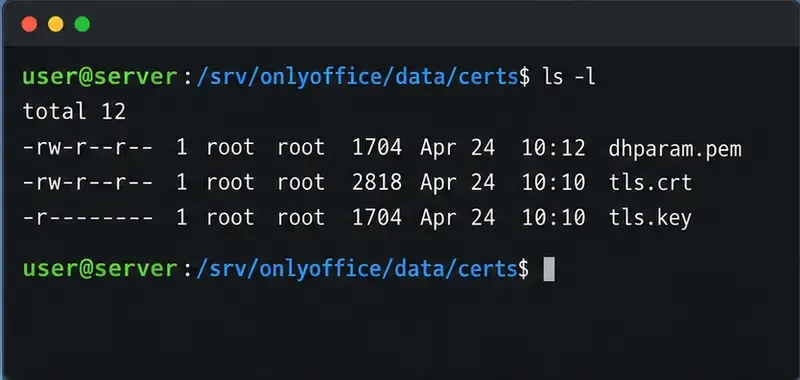
For this example, the host keeps persistent data under /srv/onlyoffice/data. Replace the sample hostname and paths with your own. Store the certificate’s full chain as tls.crt and the matching private key as tls.key in a certs subdirectory:
Keep the private key readable only by the account or service that needs it. Do not paste it into a Compose file, an issue report, or a public repository. If Docker cannot read the key because of ownership or permissions, adjust access narrowly for the container’s runtime rather than making the key world-readable.
Inspect the certificate’s dates and hostnames before starting the service:
The Subject Alternative Name (SAN) list should include the exact hostname people will visit. You can compare the public keys derived from the certificate and private key; the two hashes should match:
Keep the certificate and its matching key in the host’s persistent certificate directory; protect the private key with restrictive permissions.
Step 2: Configure the Docker Compose service
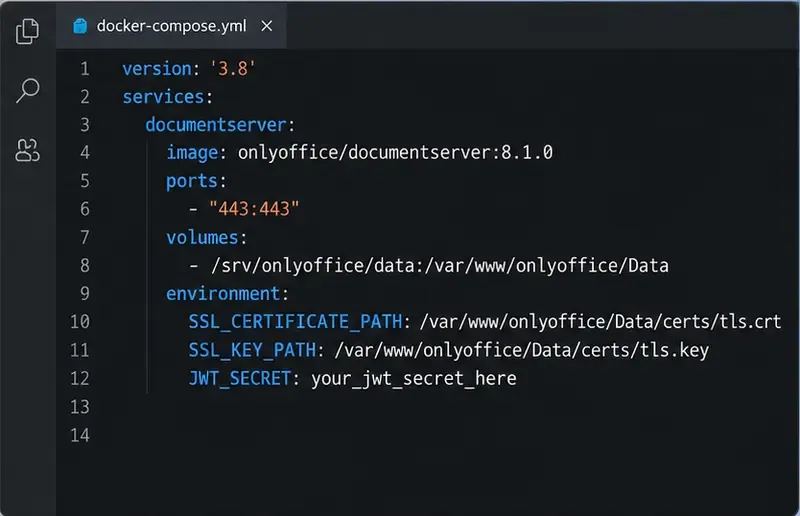
ONLYOFFICE’s Docker documentation places certificates under /var/www/onlyoffice/Data/certs. Its current environment-variable list gives the default certificate filenames as tls.crt and tls.key, while example installation instructions also use onlyoffice.crt and onlyoffice.key. Setting the paths explicitly avoids relying on a filename convention. The host directory is bind-mounted into the matching container data directory, and port 443 is published as host port 443.
Create a compose.yaml file such as this, replacing the sample JWT value with a secret generated for your installation. The image tag below is an example version; check the official image listing and use a version you intend to maintain.
Generate a strong secret with openssl rand -hex 32 and place it in the environment file or Compose configuration with suitable file permissions. If another app integrates with Docs, configure that app with the same JWT secret and the public HTTPS address. If this is an existing installation, preserve its volumes, networks, other environment variables, and integration settings when editing the existing Compose file; do not replace a working service definition with this minimal example.
Start or recreate the service from the directory containing the Compose file:
The Compose service publishes HTTPS and points ONLYOFFICE Docs to the certificate files mounted under its data directory.
Step 3: Test HTTPS and the certificate
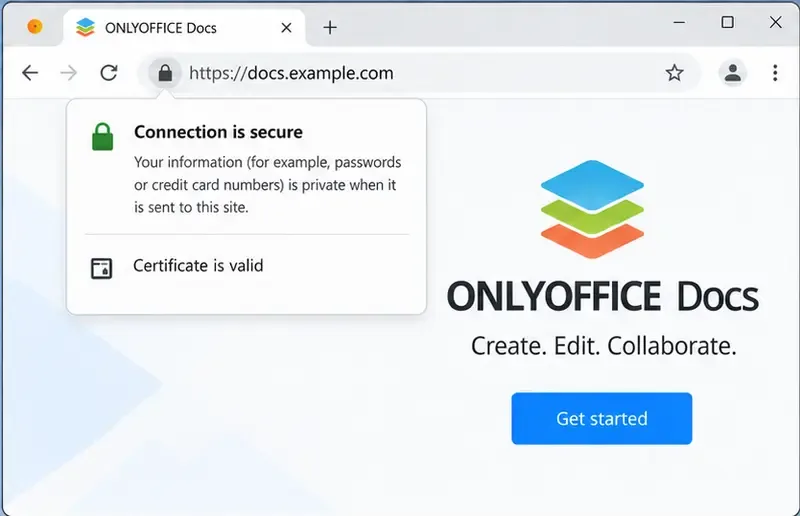
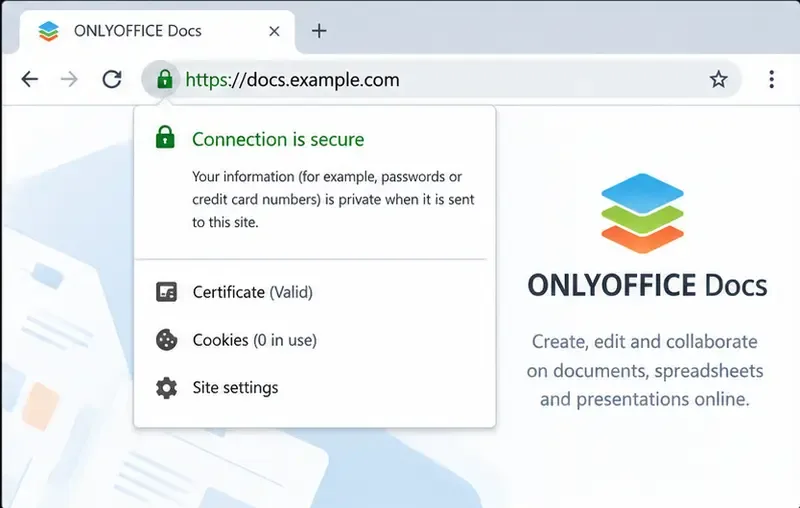
Open https://docs.example.com in a browser, substituting your hostname. Check that the browser shows a secure connection and does not report a name mismatch, an expired certificate, or an untrusted issuer. Confirm that the ONLYOFFICE Docs welcome page loads. When Docs is connected to Nextcloud, ownCloud, or another platform, test opening and saving a document too; a browser lock alone does not prove the integration’s callback requests or JWT configuration work.
From a shell, ask the server for its TLS certificate and test the HTTPS response:
The -servername option sends the hostname using Server Name Indication (SNI), which lets a server select the correct certificate when multiple hostnames share an address. The certificate dates, issuer, and SAN should match the certificate you installed. Review docker compose logs if the browser cannot connect or the container restarts repeatedly.
After deployment, visit the public HTTPS hostname and confirm that the page loads without a certificate warning.
What if a reverse proxy already handles HTTPS?
If NGINX, Traefik, Caddy, or a hosting gateway already owns public ports 80 and 443, it may be better to install the public certificate at that proxy. In that topology, publish the Docs container only on a private Docker network or bind its HTTP port to loopback, then configure the proxy to forward the required requests and WebSocket traffic. Set the integrating application’s ONLYOFFICE address to the public https:// URL. Follow the proxy’s and ONLYOFFICE’s current instructions for forwarded headers and upstream TLS; do not publish the container’s port 443 on the same host port the proxy already uses.
Choose this pattern when one proxy routes traffic for multiple services. Use the direct container setup above when Docs should own the public HTTPS endpoint and the needed ports are free. If the proxy connects to the container over HTTP, that internal hop is not encrypted; keep it on a trusted private network or configure upstream TLS if your security requirements call for it.
Common problems and how to fix them
The browser says the certificate is invalid. Check the SAN hostname, certificate expiration, full chain, and that DNS points to the intended host. A certificate for the bare domain does not automatically cover a subdomain.
The container reports a missing certificate or key. Verify the host source path, the bind mount destination, exact filenames, and the two SSL_..._PATH values. Docker’s --mount syntax requires the source path to exist; Compose bind mounts should also point to the intended existing directory.
Port 443 is already allocated. Stop the conflicting service, use a reverse proxy, or choose a different public host port and make sure the URL and firewall reflect it. If a proxy is in front, it should usually own public port 443.
HTTPS works, but document editing fails. Verify the integration URL, JWT secret on both services, proxy forwarding rules, and whether Docs can reach the storage platform. Test an actual open-and-save cycle.
The certificate renews but the site still serves the old one. Confirm the renewal updated the host-mounted file and that ONLYOFFICE has reloaded it. If necessary, restart the service after renewal, for example with a Certbot deploy hook that runs docker compose restart documentserver from the Compose project directory. Test renewal with Certbot’s dry-run option before relying on automation.
Keep the certificate current
HTTPS setup is not complete until renewal is planned. Record who issues and renews the certificate, where the private key is stored, which process copies renewed files into the mounted directory, and how the service reloads them. Run the renewal client’s dry-run test, monitor certificate expiry, and verify the public endpoint after every renewal. If you use ONLYOFFICE’s built-in Let’s Encrypt variables instead of a host-managed certificate, follow the current Docker instructions for that method and check its renewal behavior for the exact image and deployment you run.