Home
» MS OFFICE
»
How to Configure LDAP / Active Directory Sync in ONLYOFFICE
How to Configure LDAP / Active Directory Sync in ONLYOFFICE
A good ONLYOFFICE LDAP or Active Directory integration is not finished when the connection saves successfully. The result you want is more specific: the intended users are imported, their names and email addresses map correctly, group membership produces the expected access model, domain users can sign in with their directory credentials, and later directory changes reach ONLYOFFICE without unexpectedly disabling unrelated accounts.
This guide uses the current ONLYOFFICE Workspace Server workflow as the main path. ONLYOFFICE DocSpace also supports LDAP, but its navigation and some available fields differ; LDAP in DocSpace is currently documented as a Business-plan feature. If you are using DocSpace rather than Workspace, use the corresponding ONLYOFFICE DocSpace LDAP documentation instead of assuming every Workspace screen is identical.
For Workspace Server, the source reference is the current ONLYOFFICE Workspace LDAP configuration guide. The screenshots below are configuration-oriented views of the documented settings; exact spacing and navigation can vary with the ONLYOFFICE release and product edition.
What success should look like before you start
Define the expected result first. For example, suppose Active Directory contains 420 employees, but only the 180 users under OU=Staff,DC=example,DC=com should enter ONLYOFFICE. You also want the ONLYOFFICE-Admins group to receive administrative access, while ordinary employees remain standard portal users.
A successful configuration should satisfy all of these checks:
The import count is close to the number expected from the configured User DN and filter.
User profiles show the correct first name, last name, email address, title, and other mapped values.
Imported LDAP profiles are marked as directory-managed in ONLYOFFICE.
A test user can authenticate with the configured directory login format.
Group membership is correct for several sample users, not just one administrator.
A controlled directory change appears after a manual or scheduled synchronization.
Users outside the intended scope are not unexpectedly disabled.
If you cannot state the expected user count, group count, and two or three test identities before the import, pause and obtain those values from the directory administrator. They make validation much easier than judging success from a green status message alone.
Step 1: Enable LDAP authentication and choose transport security
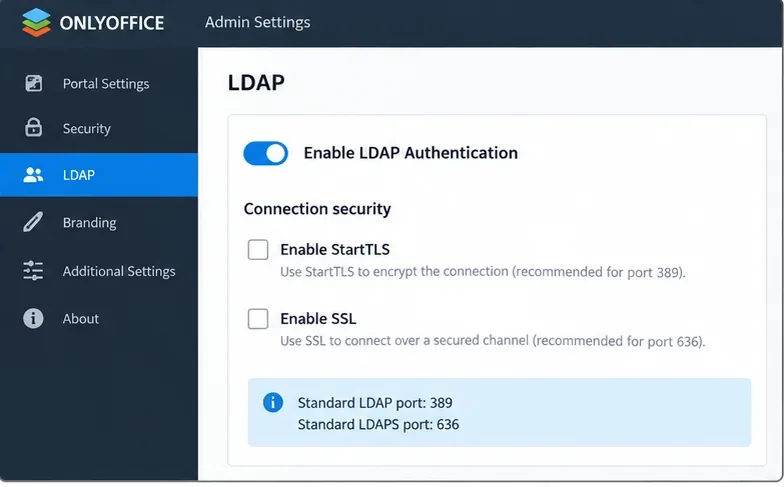
In ONLYOFFICE Workspace Server, open the Control Panel, then the LDAP page under Portal Settings, and enable LDAP authentication. The documented connection options are regular LDAP, StartTLS, or SSL/LDAPS. StartTLS normally uses port 389, while SSL/LDAPS uses port 636.
Enable LDAP authentication first, then choose the transport method that matches the directory server. The documented defaults are port 389 for LDAP or StartTLS and port 636 for SSL/LDAPS.
Use encrypted transport whenever your directory policy supports it. A working plaintext LDAP connection is not equivalent to a production-ready result if credentials or directory data traverse an untrusted network.
Quality check: confirm with the directory administrator whether the server expects StartTLS on 389 or LDAPS on 636, and whether the ONLYOFFICE host trusts the directory server’s certificate chain.
Step 2: Set the server, User DN, filter, and login attribute
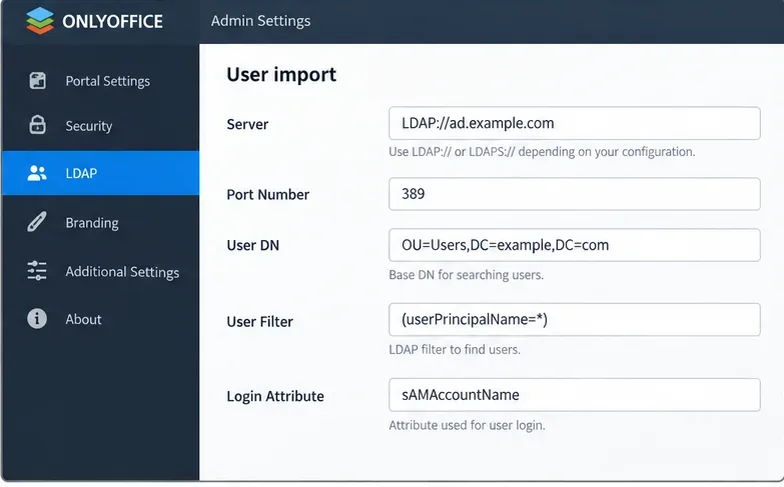
The core user-import fields determine both who is visible to ONLYOFFICE and how those users sign in. For Active Directory, ONLYOFFICE documents these defaults:
User Filter:(userPrincipalName=*)
Login Attribute:sAMAccountName
The User DN is the starting point for the directory search. A broad DN such as DC=example,DC=com searches a larger tree; a narrower DN such as OU=Staff,DC=example,DC=com limits the scope before the filter is applied.
For Active Directory, define the search base deliberately and use the documented (userPrincipalName=*) filter with sAMAccountName as the login attribute unless your directory design requires something different.
A common quality problem is starting with the entire directory because it is convenient, then trying to exclude service accounts and test identities later with a complicated filter. If organizational units already separate the intended population, use the narrowest stable User DN that represents the business scope.
Quality check: compare the expected population from that DN and filter with the people you actually intend to provision. If the scope is wrong, correct it before importing.
Step 3: Map user attributes carefully
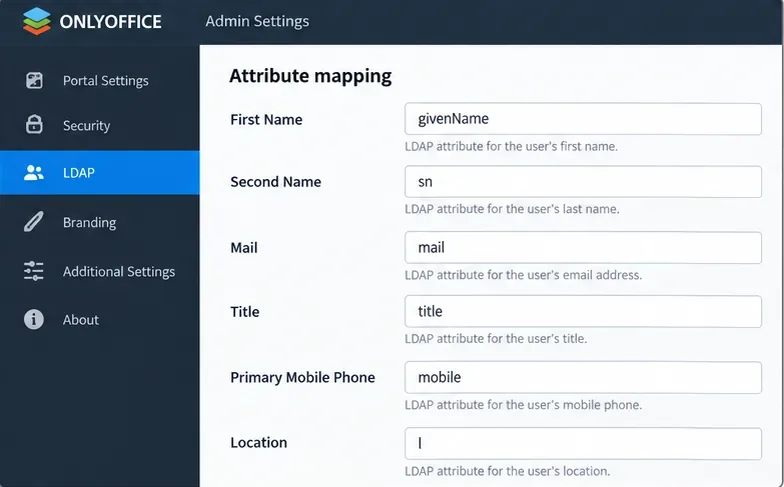
ONLYOFFICE allows directory attributes to populate portal fields such as First Name, Second Name, Mail, Title, Primary Mobile Phone, and Location. The exact attribute names depend on your LDAP schema. In Active Directory, common examples include givenName, sn, mail, title, and mobile.
Map portal fields to attributes that are actually populated in your directory. A technically valid mapping is still poor if most imported profiles end up blank or misleading.
Email deserves special attention. ONLYOFFICE states that the portal email is taken from the Mail Attribute; if it is missing, an address can be formed from the Login Attribute and LDAP Domain. It also notes that an existing portal user with the same email can be synchronized with the LDAP user.
Quality check: inspect at least five representative directory records before import, including an administrator, a normal employee, and a user from a different organizational unit. Verify that the mapped attributes are populated consistently.
Step 4: Decide whether you really need group synchronization
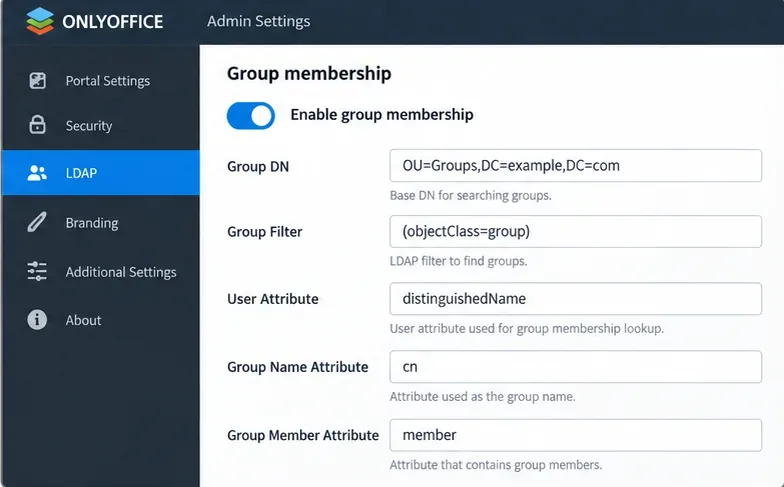
Enable Group membership only when ONLYOFFICE should import LDAP groups and use them for portal organization or permissions. For Active Directory, ONLYOFFICE documents:
Group Filter:(objectClass=group)
User Attribute:distinguishedName
Group Member Attribute:member
The Active Directory group settings must match how your directory represents membership. The group name attribute should also match your schema; cn is a common example, not a universal requirement.
There is an important behavior documented by ONLYOFFICE: when group import is enabled, only users who belong to at least one selected group are added. That can be useful for access scoping, but it can also surprise administrators who expect the User DN alone to control the import.
Quality check: choose three users: one in an included group, one in multiple groups, and one outside all imported groups. Predict the result before syncing, then compare the actual outcome.
Step 5: Assign administrative rights conservatively
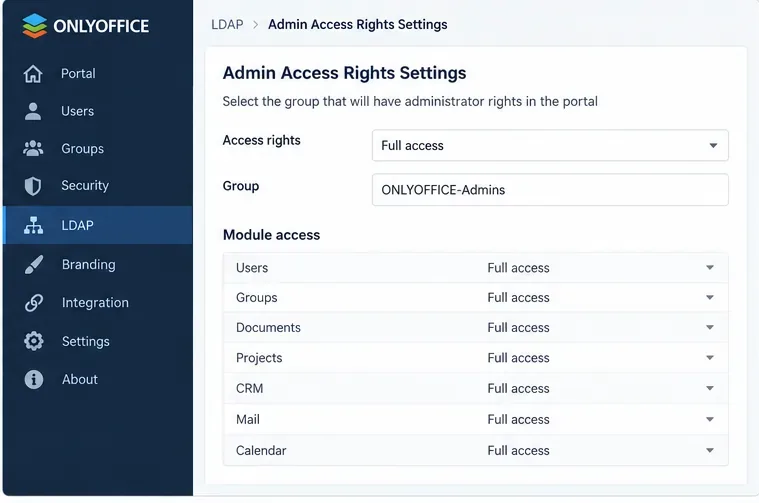
Workspace Server can map administrative access to LDAP groups. This is convenient for centralized administration, but it also means directory-group changes can alter portal privileges.
Grant LDAP-derived administrative rights to a dedicated, tightly controlled directory group rather than a broad employee group.
Start with the smallest administrative group that fits your operating model. Verify both membership and nested-group behavior in your own directory before relying on it for privileged access.
Quality check: confirm that one intended administrator receives the expected rights and that an ordinary imported user does not. If privileges are broader than expected, stop and correct the directory group or mapping before rolling the setup out.
Step 6: Configure the read account and optional welcome message
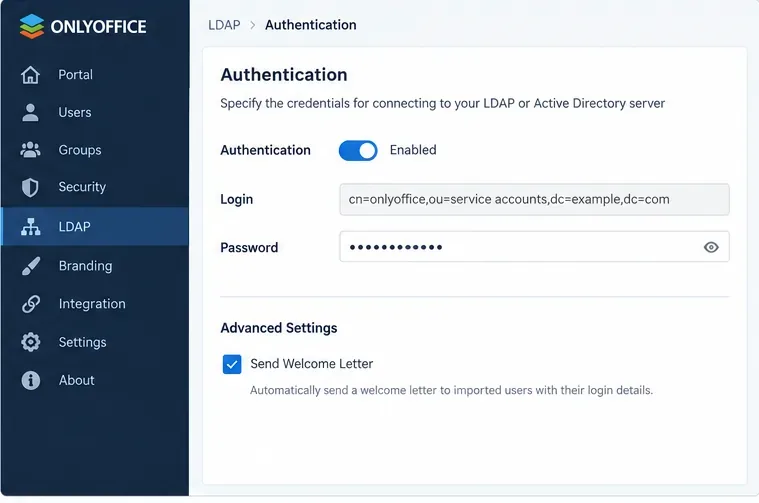
ONLYOFFICE Workspace provides an Authentication option for credentials that have rights to read directory data. Use a dedicated directory account with the minimum read permissions required for the search scope rather than a domain administrator account.
Use a dedicated read account for LDAP queries. The welcome-letter option is useful only when the Mail Attribute is configured and the resulting addresses can actually receive portal mail.
Store and rotate that credential according to your organization’s service-account policy. If the password expires silently, synchronization can fail even though the LDAP configuration itself has not changed.
Quality check: verify that the bind account can search the configured User DN and Group DN but does not have unnecessary directory-write or administrative privileges.
Step 7: Save, review the import scope, then confirm
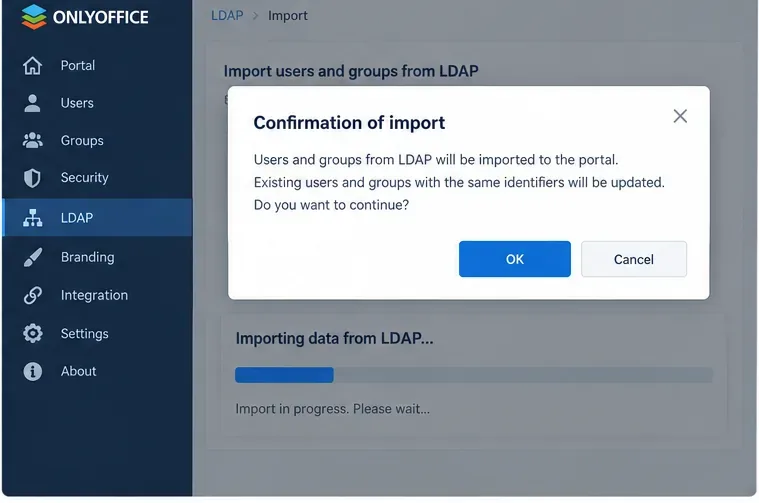
When you save the LDAP settings, ONLYOFFICE presents a confirmation before importing users. Do not treat this as a routine click-through. Changing Server, User Filter, User DN, Group Filter, or Group DN after users have already been imported can have a significant effect: the official Workspace documentation warns that existing imported users and their data that no longer match the new settings can be disabled.
Use the confirmation step as a control point: verify the intended search scope, filters, mappings, and group rules before starting the import.
Back up the portal before changing an established LDAP scope, as ONLYOFFICE explicitly recommends. For a first deployment, consider beginning with a narrow test organizational unit or test group, validating the result, and then expanding the scope.
Quality check: after import, compare actual users and groups with your expected list. Sample profiles rather than checking only the total count.
Step 8: Enable Auto Sync only after the first import is correct
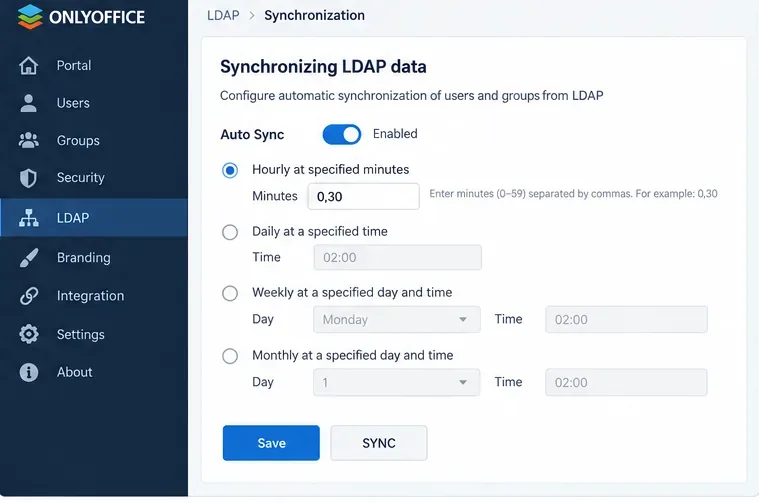
ONLYOFFICE can synchronize LDAP data automatically every hour at specified minutes, daily at a specified time, weekly, or monthly. It also provides a manual Sync action. The documentation notes that information for an individual LDAP user is also synchronized after that user logs in.
Schedule automatic synchronization only after a manual sync produces the expected users, attributes, groups, and permissions.
For most organizations, begin with a predictable schedule that gives administrators time to notice directory mistakes before they propagate repeatedly. More frequent synchronization is not automatically better; choose the interval based on how quickly identity changes must reach ONLYOFFICE and how confidently your directory processes are controlled.
Quality check: make one safe test change in the directory, such as changing a test user’s title, run a manual Sync, and verify the update. Then test the scheduled synchronization separately.
How to verify LDAP login after import
ONLYOFFICE Workspace documents three login forms for imported LDAP users:
LoginAttribute, for example Andrew.Stone
LoginAttribute@LDAPDomain, for example Andrew.Stone@example.com
LDAPDomain\LoginAttribute, for example example\Andrew.Stone
Test with a non-administrative user as well as an administrator. A successful directory bind alone does not prove that the imported user can authenticate through the portal using the intended login form.
When to change your approach
Observed result
What it suggests
Next action
Connection works but too many users appear
User DN or User Filter is too broad
Narrow the search scope before production import.
User count is correct but names or emails are blank
Attribute mapping does not match your directory data
Inspect real directory records and correct the mappings.
Enabling group sync removes expected users from the import
Those users do not belong to an imported group
Review Group DN, Group Filter, and membership design.
Users import but cannot sign in
Login attribute, LDAP domain, bind/authentication, or directory policy may be wrong
Test the documented login formats and validate the directory account and TLS path.
Manual sync works but scheduled changes do not appear
Auto Sync schedule or job execution needs checking
Confirm the schedule, run a manual Sync, and compare timestamps and a controlled test change.
A scope change would exclude existing LDAP users
The change can disable accounts outside the new scope
Back up first and test the new scope with a small controlled population.
Limits to keep in mind
LDAP synchronization is an identity and directory integration, not a replacement for careful authorization design. It can import users, groups, attributes, and directory-backed authentication, but the quality of the result depends heavily on the structure and hygiene of the source directory.
Also distinguish ONLYOFFICE products. Workspace Server exposes LDAP through its Control Panel and supports the settings described above. DocSpace has its own LDAP page and documented fields, including DocSpace-specific mappings such as user type and initial user quota; the feature is currently listed by ONLYOFFICE as available on the paid Business plan. Do not assume a Workspace screenshot or option will appear unchanged in DocSpace.
Final acceptance checklist
The directory connection uses the intended secure transport.
User DN and filters import only the expected population.
Group membership matches several known Active Directory examples.
Administrative rights are limited to the intended group.
A normal LDAP user can sign in using the expected login form.
A manual synchronization applies a controlled directory change correctly.
Auto Sync repeats that behavior at the chosen schedule.
A backup exists before changing an established LDAP scope.
Once those checks pass, the integration is doing more than “connecting to LDAP.” It is producing the user population, identity data, group structure, authentication behavior, and synchronization outcome you intended. If any of those results diverge, correct the directory scope or mapping before increasing the sync frequency or expanding the rollout.