Home
» MS OFFICE
»
How to Configure ONLYOFFICE JWT Secret Key Authentication
How to Configure ONLYOFFICE JWT Secret Key Authentication
ONLYOFFICE JWT authentication works only when the Document Server and the integrating application use the same secret key. On current Docker deployments, JWT validation is enabled by default. For a stable integration, set your own persistent JWT_SECRET instead of relying on the container's automatically generated value, then configure the same secret in Nextcloud, your custom document manager, or whichever connector talks to ONLYOFFICE Docs.
This practical reference focuses on the configuration you are most likely to need: Docker and Docker Compose, custom integrations that sign editor configuration, header/body behavior, verification, rotation, and common errors. It is based on current ONLYOFFICE documentation checked in October 2026.
Quick reference
Setting
Typical Docker value
Purpose
JWT_ENABLED
true
Enables JWT validation. Current Docker images default to enabled.
JWT_SECRET
A strong private random value
Shared HMAC secret used to sign and validate tokens.
JWT_HEADER
Authorization
Header name used for JWT-bearing HTTP requests.
JWT_IN_BODY
false by default
Controls token validation in request bodies for supported HTTP requests.
Signing algorithm
HS256
Algorithm used by ONLYOFFICE's official signature examples.
Starting with ONLYOFFICE Docs 7.2, Docker deployments enable JWT by default and generate a random secret when you do not supply one. The official Docker documentation warns that an automatically generated secret can change after a reboot or container recreation and break integrations. Set an explicit secret for any real deployment. See Configuring JWT for ONLYOFFICE Docs and the official Docker installation guide.
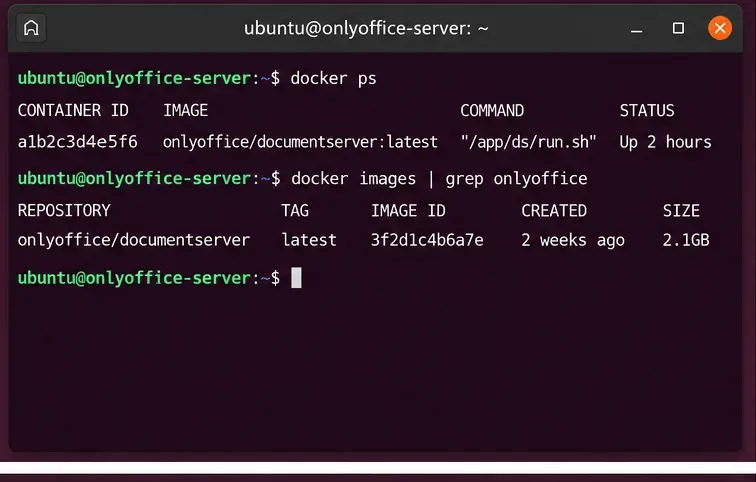
1. Identify the ONLYOFFICE container and deployment method
Confirm which ONLYOFFICE Docs container is running before changing JWT settings, especially if more than one instance exists on the host.
Determine whether the instance was launched with docker run, Docker Compose, a control panel, or another orchestration layer. You need to change the source configuration that creates the container. Editing a generated file inside the container is not the persistent solution.
For Docker specifically, ONLYOFFICE tells administrators to use environment variables rather than manually editing /etc/onlyoffice/documentserver/local.json. If you edit JWT values directly in that file, the Docker startup process can restore or regenerate them when the container restarts.
2. Generate a strong secret and store it securely
Generate the JWT secret on a trusted system and store it in your secret-management workflow rather than embedding it in public source code.
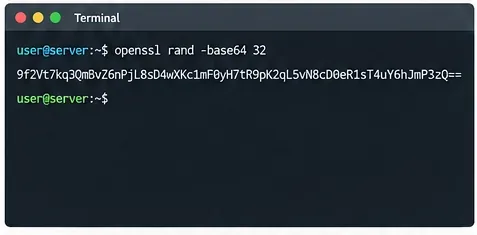
A convenient shell command is:
openssl rand -hex 32
This produces 32 random bytes represented as 64 hexadecimal characters. ONLYOFFICE does not require this exact format; the important requirement is that both sides share the same secret and that it is difficult to guess.
Treat JWT_SECRET like a password or API credential:
Do not commit it to a public Git repository.
Do not put it in frontend JavaScript shipped to browsers.
Restrict access to the Compose environment file or secret store that contains it.
Use a different secret for separate environments such as production and staging.
ONLYOFFICE's signature documentation explicitly warns that token signing must happen on the server because any browser-side code that contains the secret exposes it to users. The official examples use HMAC-SHA256 (HS256). See ONLYOFFICE JWT signature documentation.
3. Configure JWT in Docker Compose
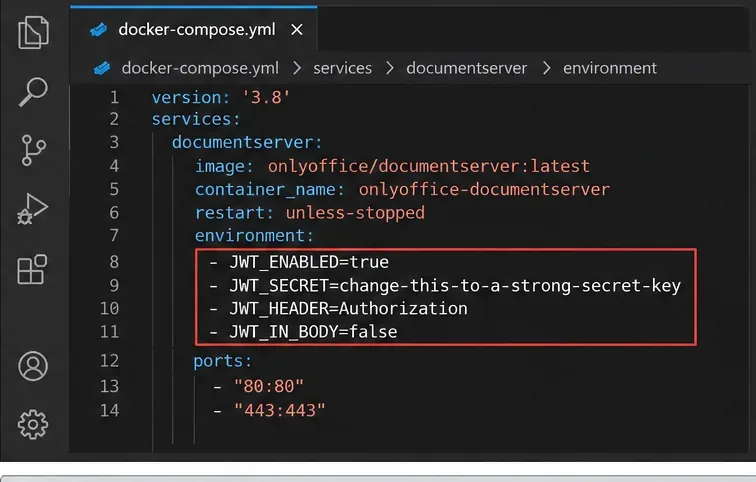
Set a persistent JWT secret in the container definition so it survives container recreation and host reboots.
Then ensure that file is excluded from version control and readable only by the administrators or service account that needs it.
The official ONLYOFFICE Docker-DocumentServer repository documents JWT_ENABLED, JWT_SECRET, JWT_HEADER, and JWT_IN_BODY. Current Docker startup code defaults JWT validation to enabled, uses Authorization as the default header, and generates a random secret when an explicit one is not supplied.
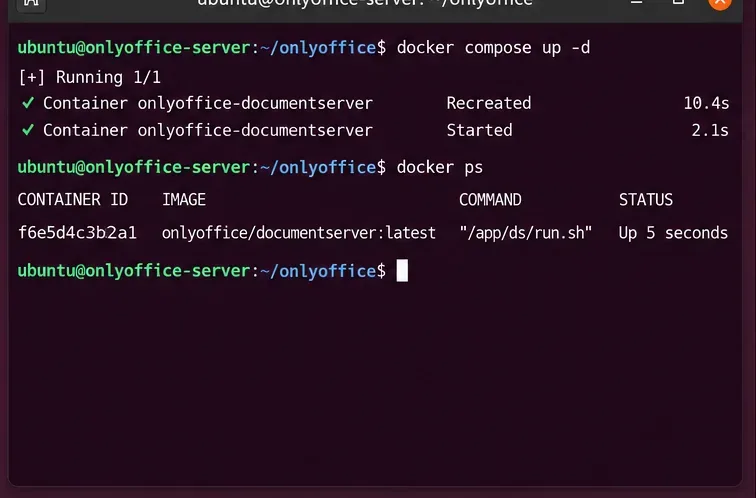
4. Recreate the container so the new environment is applied
Changing a Compose environment value requires the Document Server container to be recreated with the new configuration.
For Compose:
docker compose up -d --force-recreate
docker compose ps
For a container originally created with docker run, the official JWT guide instructs administrators to stop and remove the old container, then create a new one with the JWT environment variables. Do not remove persistent volumes or bind-mounted data while doing this.
You can also inspect the running container's environment without printing the secret itself:
If the container name differs, replace onlyoffice-documentserver accordingly.
5. Configure the same secret in the integration
This is the part most often missed. Enabling JWT on ONLYOFFICE Docs without configuring the document-management side causes rejected editor requests. The connector or custom application must sign requests with exactly the same secret.
Nextcloud example
In the ONLYOFFICE settings for Nextcloud, enter the same secret key used by the Document Server. The header name must also match. ONLYOFFICE's current Nextcloud integration documentation lists jwt_secret and jwt_header as connector settings, with Authorization as the normal default header. See the official Nextcloud connector documentation.
If your connector has a field labeled “Secret key,” “JWT secret,” or similar, do not generate a second independent secret there. Copy the same secret value.
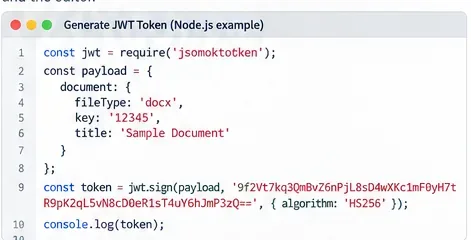
6. For a custom integration, sign the full editor config on the server
A custom integration should generate the JWT on its backend using the same secret configured in ONLYOFFICE Docs; never expose that secret in browser code.
For a custom application, build the editor configuration first, sign that configuration on the backend, then assign the resulting JWT to the top-level token property.
ONLYOFFICE's browser-signature documentation says the token payload for opening a file must have the same structure as the editor config. Since version 7.1, the set of parameters involved in validation is strictly regulated for this operation, so signing a stale or partial structure is a common cause of failures. See Browser token signing.
The resulting config passed to DocsAPI.DocEditor contains the token:
new DocsAPI.DocEditor("placeholder", config);
The official API reference defines config.token as the encrypted signature used by ONLYOFFICE Docs to validate the editor configuration.
7. Understand header versus body tokens
JWT in ONLYOFFICE covers more than the browser editor config. It is also used for service-to-service requests such as command, conversion, and callback traffic.
Traffic
Where the token is used
Key point
Browser editor initialization
config.token
Token payload should match the signed editor config.
Incoming service requests
Body or header
For POST requests, body tokens avoid HTTP-header size limits.
GET requests
Header
Body token is not applicable to GET.
Outgoing callbacks
Body/header according to configuration
Your integration must validate the token using the shared secret.
ONLYOFFICE supports request tokens in both the body and header. Its security FAQ notes that headers can run into server-specific length limits and therefore recommends body tokens for applicable incoming requests. Starting from Docs 7.1, an incoming body token takes precedence when present; otherwise the header token is used. The outgoing side can send both. See ONLYOFFICE request-token documentation.
The Docker variable JWT_IN_BODY defaults to false, so do not enable it merely because it exists. Change it only when your integration is designed to send and validate body tokens consistently.
8. Test with a real editor request
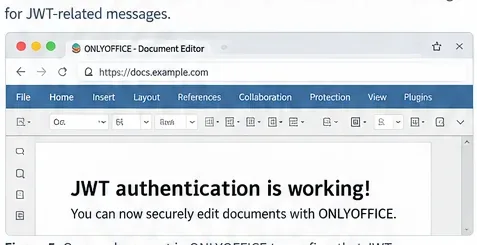
Test the exact integration path users will use: open a document, edit it, and confirm save/callback behavior rather than testing only the Document Server landing page.
A useful validation sequence is:
Open a document through your real integration.
Verify the editor loads without token errors.
Make a small edit.
Close the editor or trigger the normal save path.
Verify the storage application receives and accepts the callback.
A successful Document Server welcome page does not prove that JWT is configured correctly between two applications. JWT errors often appear only when the integration sends the editor config, command, conversion request, or callback.
The official security overview explains the expected behavior: ONLYOFFICE validates a token and uses the signed payload values; if the token is missing or invalid when validation is required, the request is rejected. See ONLYOFFICE Docs security overview.
9. Check JWT status and logs when authentication fails
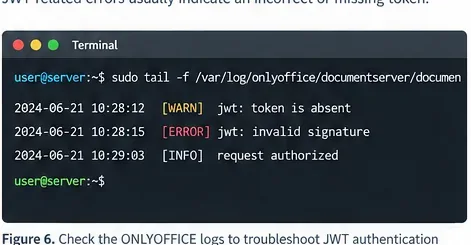
When a document fails to open or save, check the Document Server logs for missing-token or signature-validation errors before changing unrelated network settings.
Current Docker startup code points administrators to the JWT status helper. With the correct container name, run:
If an integration fails immediately after changing the secret, compare these items in order:
Is JWT_ENABLED actually enabled in the recreated container?
Does the integration use the exact same secret, including capitalization and punctuation?
Does the connector use the same JWT header name?
For a custom editor, are you signing the same config object that you send to the browser?
Are callbacks and command requests also signed and validated as required?
Did a secret stored in a shell or Compose file get truncated, interpreted, or replaced by environment-variable expansion?
Common failure patterns
“Invalid token” or “Invalid signature”
The most likely cause is a secret mismatch or a token signed over a payload that differs from the request being validated. Regenerate the token after any relevant config change. Do not reuse an example token from the documentation; those examples are signed with demonstration secrets and are not valid for your server.
It works until Docker restarts
This usually means the deployment was relying on the automatically generated JWT secret. ONLYOFFICE explicitly warns that a random secret can be regenerated after reboot or container recreation. Set JWT_SECRET yourself and put the same value in the integration.
Nextcloud shows a connection or token error
Check the secret and header on both sides first. ONLYOFFICE's Nextcloud documentation requires the connector's jwt_header to match the header configured in Document Server. The normal current default is Authorization.
A large signed request returns an HTTP error
Investigate whether the JWT is being sent in a header that exceeds a proxy or web-server header-size limit. ONLYOFFICE's security FAQ explains that this is one reason body tokens are preferred for applicable POST requests.
Rotating the JWT secret safely
A JWT secret rotation must be coordinated. There is no benefit in changing only the Document Server while the connector keeps signing with the old secret.
For a straightforward single-instance deployment:
Generate the new secret and store it securely.
Schedule a short maintenance window if active editors could be affected.
Update the integration's secret and the Document Server's JWT_SECRET as one coordinated change.
Recreate the Document Server container.
Open, edit, and save a test document.
Confirm callbacks work before returning the service to normal use.
For multiple Document Server instances behind a load balancer, all instances serving the same integration need compatible JWT configuration during the change. Plan the rollout rather than rotating one node ad hoc.
Production checklist
Persistent secret: set JWT_SECRET explicitly; do not rely on the random generated value.
Same secret everywhere: Document Server and the integration must share the identical value.
Backend signing: never expose the secret in frontend/browser code.
HS256: use the HMAC-SHA256 approach shown in ONLYOFFICE's official code samples.
Header agreement: if a connector sends JWT via a named header, that name must match Document Server.
Container recreation: Docker environment changes require recreating the container.
Real integration test: open, edit, save, and verify callback behavior.
Secret storage: keep the secret out of public repositories and logs.
Controlled rotation: update both sides together and verify before ending maintenance.
Bottom line
For a Docker-based ONLYOFFICE installation, the durable configuration is simple: generate a strong secret, set JWT_ENABLED=true and JWT_SECRET through container environment variables, recreate the container, and configure the exact same secret in your connector or backend. Custom integrations should sign the editor config and service requests on the server with HS256, never in browser code.
If JWT suddenly breaks after a restart, check whether the secret was ever made persistent. If it fails immediately after a configuration change, compare the secret, header, and signed payload before looking elsewhere. Those three checks resolve the majority of JWT setup mistakes without weakening authentication.