Home
» MS OFFICE
»
How to Configure SSL Termination for a Collabora CODE Container
How to Configure SSL Termination for a Collabora CODE Container
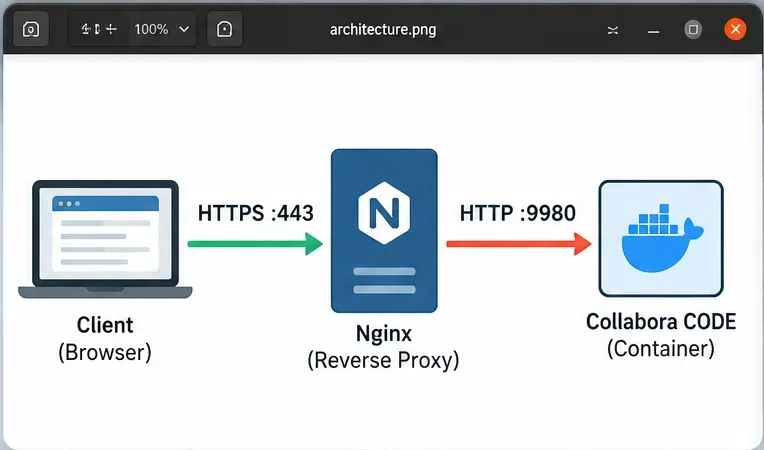
SSL termination is a strong fit for a Collabora Online Development Edition (CODE) container when you want one public HTTPS endpoint while keeping certificate management at a reverse proxy such as Nginx. In this design, the browser connects to Nginx over HTTPS, Nginx decrypts the traffic, and Collabora receives plain HTTP on its internal port. The quality target is not merely “the page loads.” A successful deployment should have a valid public certificate, a reachable WOPI discovery endpoint, working WebSocket upgrades, and a real document-editing session that stays connected.
Collabora’s own proxy documentation describes this SSL-offload pattern as an HTTP-only connection between the proxy and Collabora, with ssl.enable=false and ssl.termination=true on the Collabora side. See the Collabora Online reverse proxy settings. The examples below use Nginx and Docker Compose, but the same outcome can be achieved with other reverse proxies if they preserve the required host and WebSocket behavior.
What a Good SSL-Termination Setup Should Achieve
Check
Expected result
If it fails
Public TLS
https://office.example.com presents a trusted certificate
Fix DNS, certificate, or Nginx listener first
Discovery
/hosting/discovery returns XML through HTTPS
Check proxy routing and upstream reachability
WebSocket
Document session upgrades successfully and remains connected
Check Upgrade, Connection, and timeout settings
Internal exposure
Port 9980 is reachable only where the proxy needs it
Bind to localhost or a private Docker network
End-to-end editing
A document opens, edits, and saves without connection errors
Inspect WOPI host allowlisting and proxy logs
SSL termination separates the public HTTPS connection from the private HTTP connection to Collabora CODE on port 9980.
Step 1: Confirm the Network Boundary Before Changing Collabora
Decide where TLS ends and which hosts can reach port 9980. If Nginx runs on the same machine as Docker, binding the published port to 127.0.0.1 is a simple way to prevent direct Internet access. Docker documents that publishing a port to 127.0.0.1 keeps it local to the host; see Docker’s port-publishing documentation.
If Nginx runs in another container, a shared private Docker network is usually cleaner than publishing 9980 publicly. The principle is the same: clients should use the HTTPS reverse-proxy hostname, not the Collabora container directly.
Step 2: Run CODE in SSL-Termination Mode
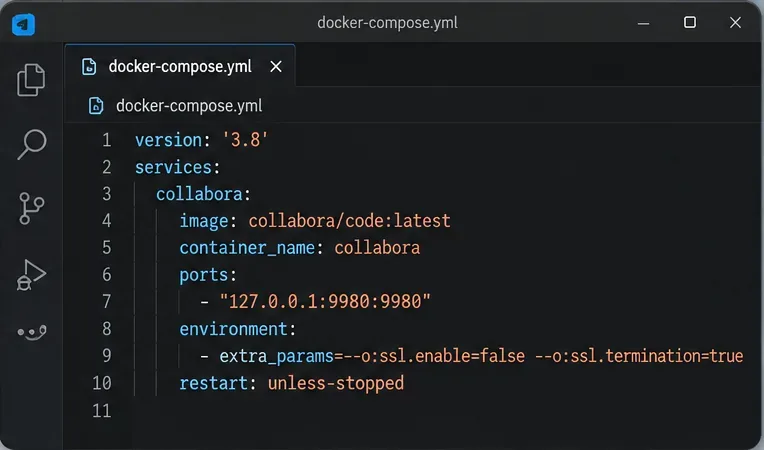
For proxy-side TLS termination, Collabora should know that the original client-facing scheme is HTTPS even though its immediate upstream connection is HTTP. The documented settings are:
Replace YOUR_TESTED_TAG with a version you have validated rather than automatically assuming that latest is safe for a production-like deployment. Also configure the appropriate WOPI host or alias settings for your integration; those values depend on whether you are connecting Nextcloud, ownCloud, another WOPI host, or a custom integration.
A Compose configuration can keep port 9980 local while passing ssl.enable=false and ssl.termination=true to CODE.
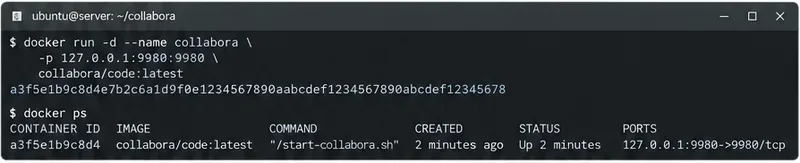
After starting the container, confirm that it is running and that the port mapping matches your intended boundary:
Binding CODE to 127.0.0.1:9980 is appropriate when Nginx runs on the same host and is the only service that needs direct access.
Version note for 26.04 deployments
Do not treat the two SSL flags as the only variable when troubleshooting a current 26.04 image. In mid-2026, Collabora tracked regressions around the distroless Docker image and SSL-disabled configurations. An official GitHub issue documents a 26.04 startup regression, and Collabora community follow-up reported the affected SSL-termination behavior working again in a later 26.04.2.4.1 image. Review CollaboraOnline/online issue #16019 if a previously working termination configuration breaks immediately after an image upgrade.
This is also a reason to pin and test your image version. A configuration error and a container-image regression can look similar from Nginx: both may surface as a 502 response or a failed upstream connection.
Step 3: Configure Nginx to Terminate TLS and Proxy Collabora Paths
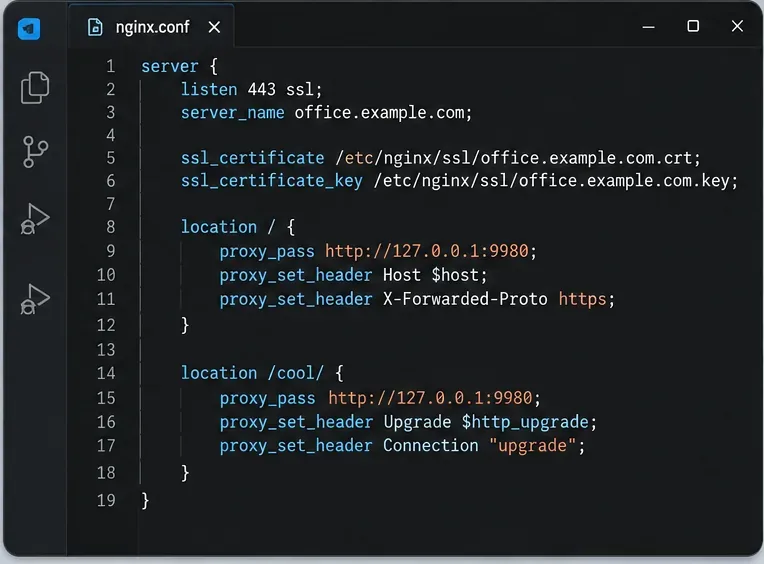
Nginx needs a valid certificate for the Collabora hostname and must forward Collabora’s HTTP endpoints plus WebSocket traffic. Collabora’s proxy guide shows dedicated locations for browser assets, discovery, capabilities, main WebSocket connections, download/upload paths, and the admin WebSocket. The following configuration follows that structure while adding common forwarded headers:
The WebSocket headers are not cosmetic. Nginx’s official documentation explains that Upgrade and Connection are hop-by-hop headers and must be passed explicitly for reverse-proxied WebSockets. See Nginx WebSocket proxying. The standard proxy module documentation also covers proxy_set_header, proxy_pass, and proxy_read_timeout: ngx_http_proxy_module.
The reverse proxy terminates TLS at port 443, forwards requests to CODE over HTTP, and preserves WebSocket upgrade headers for live editing.
Step 4: Validate Nginx Before Reloading
Test the Nginx configuration before replacing a known-good running configuration:
sudo nginx -t
Only reload if the syntax test succeeds:
sudo systemctl reload nginx
Then confirm that Nginx itself can reach the local Collabora backend. On a same-host setup, a useful check is:
curl -I http://127.0.0.1:9980/hosting/discovery
The exact response headers can vary by Collabora release, but the key result is that the TCP connection succeeds and the endpoint responds rather than timing out or refusing the connection. If this local request fails, changing public TLS settings will not fix the underlying container or network problem.
Step 5: Verify the Public HTTPS Endpoint
From a client that resolves the public hostname, request the discovery endpoint through Nginx:
A browser request to https://office.example.com/hosting/discovery should return XML. This is a better functional check than relying on the root URL because root-page behavior is not the main WOPI contract and can differ by version.
Also inspect the certificate chain with your browser or a TLS diagnostic tool. The hostname should match the certificate, the chain should be trusted, and there should be no mixed-content warnings caused by Collabora advertising plain HTTP URLs to the browser.
Step 6: Test a Real Document and the WebSocket
Discovery success is necessary but not sufficient. Open a document from your actual WOPI host and keep it open long enough to exercise the live session. In browser developer tools, the Collabora WebSocket request should upgrade successfully rather than repeatedly reconnecting or returning a 400/502 error. A healthy session should allow you to type, save, and reopen the document.
If the editor shell loads but the document fails shortly afterward, prioritize the WebSocket path, proxy timeout, WOPI allowlist, and host-header behavior. If Nginx logs show an upstream connection error before any WebSocket is established, inspect CODE’s listener and image version first.
How to Diagnose Common Failure Modes
502 Bad Gateway
A 502 usually means Nginx could not get a valid response from the configured upstream. Check whether CODE is actually listening on 9980 and whether you are using the correct upstream protocol. In the intended SSL-termination design, the proxy-to-CODE hop is HTTP. If an image regression causes CODE to keep serving HTTPS internally despite your flags, logs and a direct curl test will reveal the mismatch. Do not permanently switch to an HTTPS upstream merely to hide an unexplained configuration regression; first verify the behavior of the exact CODE image you are running.
Discovery works but documents do not open
This often points to WebSocket forwarding or WOPI authorization rather than TLS itself. Verify the /cool/.../ws route, the upgrade headers, and the host you allowed as a WOPI source. Collabora can be perfectly reachable over HTTPS while still rejecting or failing an editing session.
Mixed-content or incorrect scheme URLs
If a browser sees an HTTPS page that references HTTP resources, verify ssl.termination=true, your forwarded scheme header, and the server name. The public side of the deployment must consistently identify itself as HTTPS even though the private hop is HTTP.
Container reports unhealthy even though editing works
Recent 26.04 releases introduced health-check behavior that has changed during the distroless-image transition. Collabora tracked a case where the probe did not respect an HTTP backend configuration behind TLS termination. If functional tests pass but Docker health is unexpectedly red, check the release-specific issue history before redesigning a working proxy. See CollaboraOnline/online issue #16032.
When to Use a Different Design
Proxy-side SSL termination is appropriate when the reverse proxy and Collabora communicate over a trusted local interface or isolated private network. If traffic between Nginx and CODE crosses an untrusted network, plain HTTP on the internal hop may not meet your security requirements. In that case, use TLS to the backend as well, or place both services on a protected network where interception is not a realistic threat.
Likewise, if you already operate a platform-managed ingress that handles certificates, routing, and WebSockets correctly, there is little benefit in adding a second Nginx layer only for Collabora. The correct architecture is the one that gives you a single, observable TLS boundary without unnecessary hops.
Final Validation Checklist
The Collabora hostname resolves to the reverse proxy.
Port 443 presents a trusted certificate for that hostname.
CODE is not unnecessarily exposed to the public Internet on port 9980.
ssl.enable=false and ssl.termination=true are applied for the HTTP backend design.
Nginx can reach CODE on its private address.
/hosting/discovery responds through the public HTTPS URL.
The /cool/.../ws WebSocket upgrades successfully.
A real document opens, edits, saves, and reopens.
You have pinned and tested the exact CODE image version you plan to deploy.
If all of those checks pass, SSL termination is doing its job: external traffic is protected by HTTPS, Collabora understands the public connection as secure, and the editing path remains functional. If one check fails, troubleshoot at that layer instead of changing several parts of the stack at once.