Home
» MS OFFICE
»
How to Configure the Admin Console Password for Collabora Online
How to Configure the Admin Console Password for Collabora Online
If you can open Collabora Online but cannot sign in to its Admin Console, the credentials may never have been configured for the Collabora server. The fix depends on how Collabora was installed: a Linux package installation uses the coolconfig utility, while the official CODE Docker image accepts the username and password environment variables. These are separate setup paths; choose the one that matches your deployment.
The Admin Console is a server-side management page. It is not the same account as your Nextcloud administrator, a document user's login, or a WOPI integration credential. Collabora's SDK Manual 24.04 documents the console address, the Linux configuration method, and the Docker image variables. Because deployment details can change between releases, check the documentation for the version you run before applying a production change: Collabora Online SDK Manual 24.04.
Choose the configuration method that matches your installation
Deployment
Set the credentials with
Apply the change
Linux package installation managed by systemd
sudo coolconfig set-admin-password
Restart coolwsd if required by your package configuration, then check the service
Collabora CODE Docker image
Container environment variables username and password
Recreate the container with the updated environment
First identify the deployment. If coolwsd runs directly as a system service and the host has the coolconfig command, use the package method. If the service runs in a container based on collabora/code, configure its environment instead. Avoid setting a password on the host and expecting it to change an already running container.
For a Linux package installation, set a password interactively
Open a terminal on the Collabora server or connect over SSH using an account with sudo access.
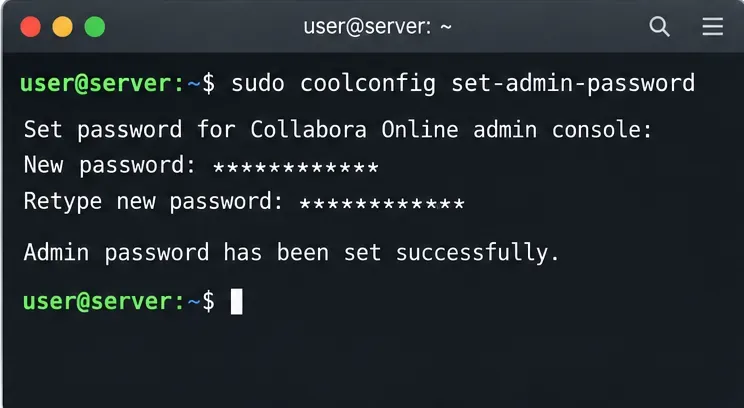
Run sudo coolconfig set-admin-password.
When prompted, enter the Admin Console username and password, then confirm the password. The terminal should not echo the password as you type.
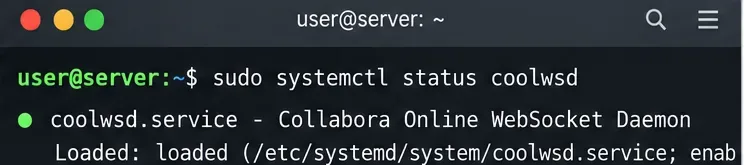
If your installation requires a service restart after a configuration change, run sudo systemctl restart coolwsd. Check service state with sudo systemctl status coolwsd.
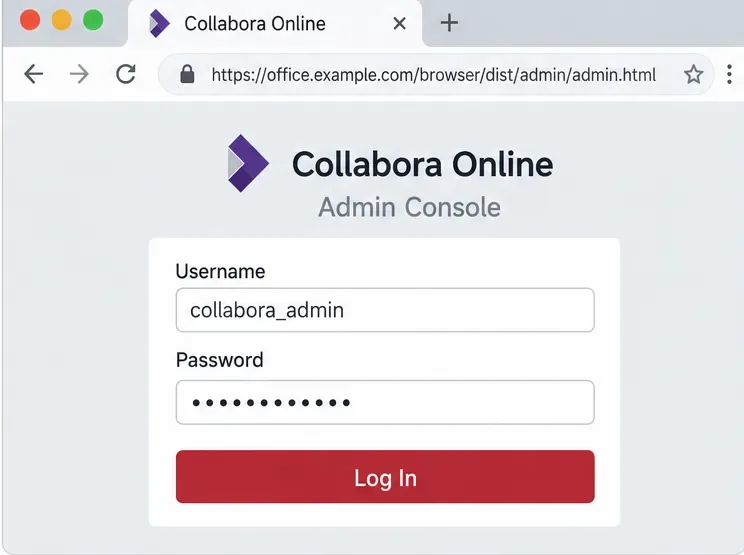
Open the Admin Console URL and sign in with the credentials you just set.
A terminal example of the interactive command used to configure an Admin Console password on a package installation.
The documented utility asks for the username and password interactively and stores the password as a salted hash in the configuration file. This is preferable to placing a plain password directly in a command line or manually writing a password into XML. Treat the command as an administrative action: run it on the Collabora host, not on the Nextcloud host unless Collabora is installed there too.
If coolconfig is not found, confirm that this is a package-based Collabora installation and that you are on the correct server. A CODE container has its own configuration mechanism. If the command succeeds but authentication still fails, verify the hostname and port, retry with the exact username you set, and inspect the service logs before changing unrelated proxy or WOPI settings.
For the CODE Docker image, set both environment variables
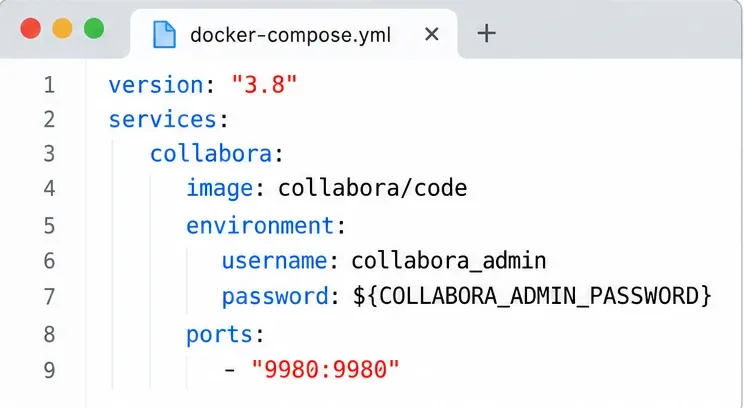
The official CODE image reads username and password from its environment when the container starts. Add both values to the container configuration; setting only a password is not enough. For Docker Compose, a mapping can look like this:
Keep the actual password in a protected environment file or deployment secret store, rather than committing it to a source repository or pasting it into a public support request. A Compose .env file is convenient for variable substitution, but it is still a file containing sensitive data: restrict who can read it. Anyone with Docker daemon access can generally inspect container configuration, so environment variables do not replace access controls on the host.
A Compose example that supplies both CODE Admin Console credentials through container environment settings.
Save the Compose file and recreate the container so Docker passes the updated environment at startup. For a service named collabora, that is commonly docker compose up -d --force-recreate collabora. A simple container restart does not replace the environment values stored when that container was created. Check your Compose version and service name before running the command, and avoid displaying a literal password in shell history.
For a direct docker run deployment, the equivalent settings are environment variables passed with -e, such as -e username=collabora_admin and -e password=.... Use your secret management approach to provide the value; do not copy a sample password from a tutorial into an internet-facing service.
Open the Admin Console and verify the login
The documented console path is /browser/dist/admin/admin.html. On the default port, the full URL is https://your-collabora-host:9980/browser/dist/admin/admin.html. If TLS terminates at a reverse proxy, use the public HTTPS hostname and port exposed by that proxy. The address may differ if your administrator configured a non-default port or URL routing.
The Admin Console login page uses the credentials configured on the Collabora server; the displayed hostname is an example.
Sign in and confirm the console loads its monitoring information. The SDK Manual describes live session monitoring, including open documents and users. Because the console can expose operational details and allows administrative actions such as closing document sessions, limit access to trusted administrators, use HTTPS, and avoid exposing the management endpoint broadly to the public internet. Apply network restrictions at the firewall or reverse proxy if your deployment supports them.
For a package installation, confirm the service is healthy with sudo systemctl status coolwsd. For Docker, inspect the container state with docker compose ps and its recent logs with docker compose logs --tail=100 collabora. A healthy service alone does not prove the password is correct; the final check is a successful sign-in at the Admin Console URL.
Use the service status command to check that a package-based Collabora service is running after configuration.
Common misconceptions and what to do instead
“The Admin Console uses my Nextcloud password.”
Not by default. The Collabora Admin Console credentials are configured on the Collabora server, independently of Nextcloud user accounts. Action: use coolconfig set-admin-password on a package installation, or update the CODE container environment and recreate the container.
“I changed the Docker Compose file, so the running container has the new password.”
Editing the file does not change an existing container's saved environment. Action: recreate the relevant Compose service, then test the new credentials. Keep the password out of command output and version control.
“If the Admin Console URL opens, the server is secured.”
Page access only proves that the route responds; it does not prove that strong credentials are configured or that network access is restricted. The SDK Manual says the console is disabled when its required username or password is not set, and it describes administrative monitoring functions. Action: set a unique password, confirm authentication is required, and restrict who can reach the console endpoint.
“The Admin Console is the place to set document-editing credentials.”
The console password protects the management interface. It does not replace WOPI host configuration or the identity system used by your file platform. Action: leave WOPI and reverse-proxy settings unchanged unless you are troubleshooting those separate connections.
If login still fails
Confirm whether Collabora runs as a host service or in a CODE container, then use only the matching configuration path.
Check the exact public console URL, including HTTPS, port, and /browser/dist/admin/admin.html.
For Docker, confirm both username and password are present in the effective service configuration and recreate the container after changes.
For a package installation, rerun the interactive coolconfig command on the Collabora host and inspect coolwsd status and logs.
If a reverse proxy is involved, ask its administrator to verify that the Admin Console route and any required WebSocket traffic are passed correctly. Do not weaken authentication to work around a proxy issue.
Once you can sign in and the service is healthy, store the new credential in your approved password manager and document which host or container owns it. Collabora's Admin Console configuration can vary by release and packaging method; the 24.04 SDK Manual cited above is version-specific, so use the matching documentation for a newer or vendor-customized deployment.