LibreOffice Base can work as a front end for an existing PostgreSQL database, so you can browse tables, create queries, and build forms or reports without moving the data into an embedded Base database. For most current installations, the cleanest route is LibreOffice's direct PostgreSQL connection. JDBC is still useful as a fallback when your environment requires a Java driver or when the direct connector is unavailable.
Illustrative scenario: imagine a small operations team called Northwind Field Services. Its PostgreSQL server contains a database named sales_ops. The database runs on db.example.internal, listens on port 5432, and the team has a read-only role named analyst_ro. The example is fictional and is used only to show how the setup decisions fit together.
The steps below follow the current LibreOffice Help for PostgreSQL and JDBC connections and PostgreSQL's current server documentation. As of October 2026, LibreOffice lists 26.8.0 as the latest branch and 26.2.6 as the mature previous branch; exact labels or button placement can vary slightly by operating system and release. See the official LibreOffice release notes and LibreOffice PostgreSQL connection help for the current wording.
Before You Start: Gather the Four Connection Values
You normally need four pieces of information from the PostgreSQL administrator:
- Database name, such as
sales_ops.
- Server name or IP address, such as
db.example.internal.
- Port, usually
5432 unless the administrator changed it.
- PostgreSQL login and its authentication method or password.
Do not assume that a server accepting local PostgreSQL connections will also accept a LibreOffice connection from another computer. PostgreSQL's listen_addresses controls which network interfaces accept TCP/IP connections, while pg_hba.conf controls which client addresses, databases, users, and authentication methods are allowed. PostgreSQL documents both behaviors in its connection settings and client authentication documentation.
Step 1: Open Base and Choose an Existing PostgreSQL Database
Start LibreOffice Base and create a new Base database document. In the Database Wizard, choose Connect to an existing database, then select PostgreSQL as the database type. LibreOffice's Database Wizard explicitly supports connecting a Base document to an existing database rather than creating a new embedded one.
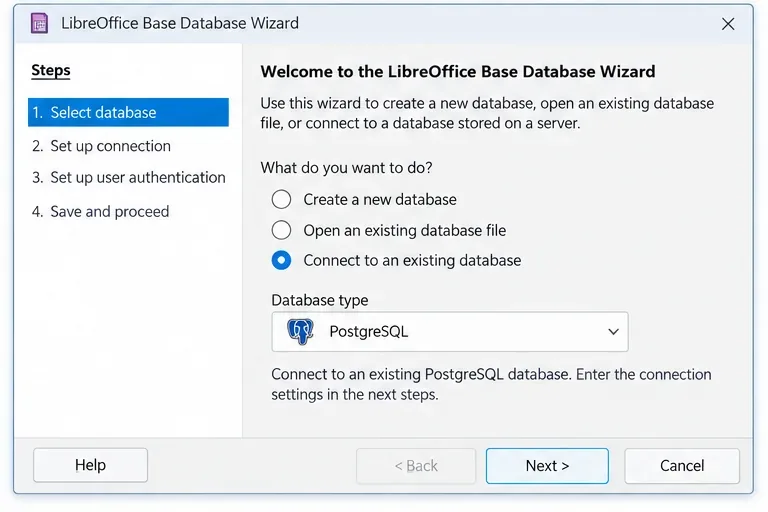
Caption: The Database Wizard is set to connect to an existing PostgreSQL database rather than create a new embedded database.
For the Northwind Field Services example, this means Base will store connection information and Base objects such as queries, forms, and reports, while the actual business tables remain in PostgreSQL.
Step 2: Enter the Database Name, Server, and Port
On the PostgreSQL connection page, enter the database name, server, and port supplied by your administrator. In the running example, those values are sales_ops, db.example.internal, and 5432.
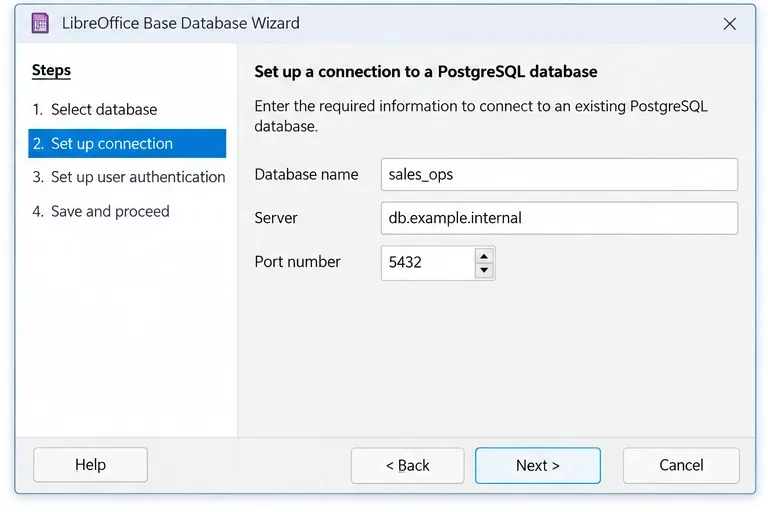
Caption: The direct PostgreSQL connection page with the example database name, server, and default PostgreSQL port.
LibreOffice also allows a PostgreSQL-specific connection string instead of filling the basic fields. The official help shows forms such as dbname=MyDatabase host=myHost port=5432 and postgresql://myHost:port/MyDatabase. This can be useful when an administrator gives you additional driver-specific parameters. LibreOffice notes that user= and password= values in this connection string are ignored and authentication is requested at connection time.
Step 3: Enter the PostgreSQL User and Test the Connection
Enter the PostgreSQL role that should be used from Base. A read-only or least-privilege account is usually a safer starting point than a database owner or superuser when the purpose is reporting or analysis. In the example, the role is analyst_ro.
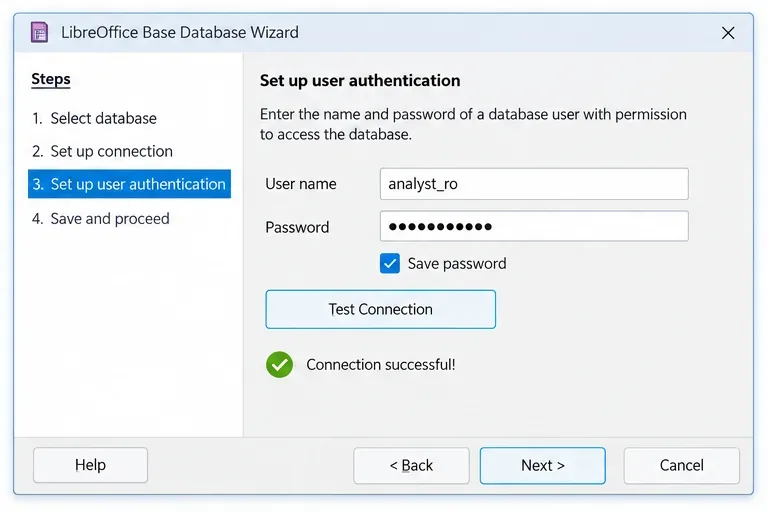
Caption: Authentication is configured with the example read-only role and the connection test reports success.
Use Test Connection before saving the Base document. A successful test confirms that Base can reach the server and authenticate with the supplied role. It does not prove that the role has permission to read every table you expect to use, so table visibility still needs to be checked after the connection opens.
If the test fails, keep the exact message. Errors such as no pg_hba.conf entry, password authentication failed, user does not exist, or database does not exist have different causes. PostgreSQL's authentication troubleshooting page explains these messages and recommends checking the server log when the client-side error is not enough.
Step 4: Save the Base Database Document
After the test passes, choose whether to register the database with LibreOffice and whether to open it immediately for editing. Registration is useful when other LibreOffice components need to refer to the data source by name. Then click Finish and save the Base document as an .odb file.
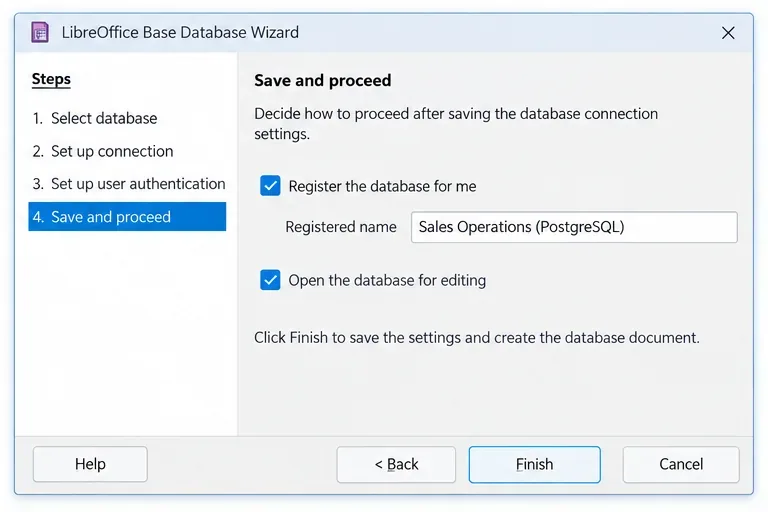
Caption: The final wizard page can register the PostgreSQL data source and open the saved Base document for editing.
The .odb file is not a copy of the PostgreSQL database in this setup. Treat it as the LibreOffice-side database document that holds the connection definition and Base objects. If you move the .odb file to another computer, that computer still needs network access, valid credentials, and any required drivers or certificates.
Step 5: Confirm That the Expected Tables Are Visible
Open the saved Base document and select Tables. You should see the objects that the PostgreSQL role is allowed to access. In the fictional example, the expected tables might include customers, orders, products, and order_items.
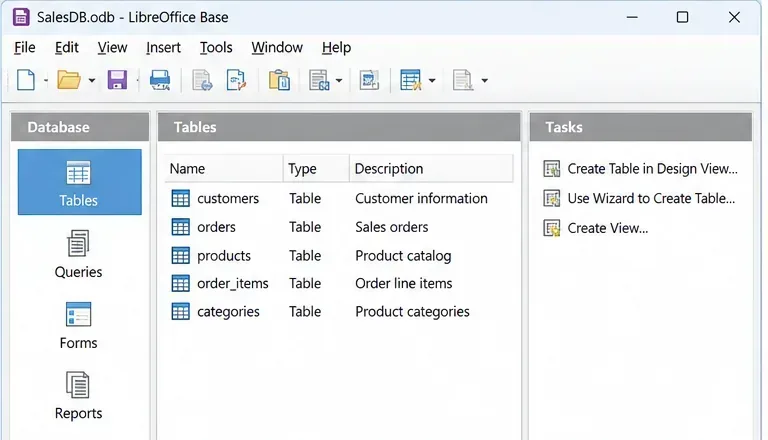
Caption: The Base tables view is the first practical check that the connected PostgreSQL role can see the expected schema objects.
If the connection succeeds but tables are missing, this is usually no longer a network problem. Check the PostgreSQL role's privileges, schema visibility, and the schema search path. Ask the database administrator which schemas and objects the account is expected to see before changing permissions yourself.
Step 6: Run a Small Read-Only Query Before Building Forms or Reports
Before creating a larger Base solution, run a simple read-only query against a small table. For example:
SELECT customer_id, full_name, city
FROM customers
ORDER BY full_name;
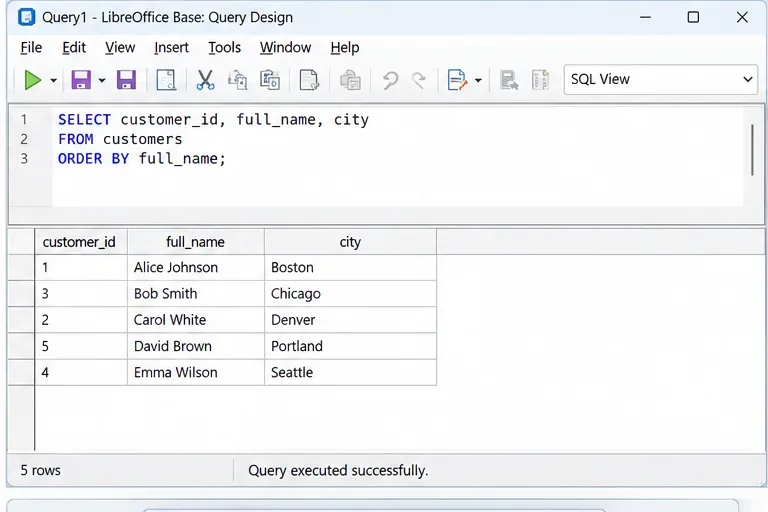
Caption: A small SELECT query is a useful functional check after the PostgreSQL tables become visible in Base.
This verifies more than the initial connection test: it checks that Base can execute SQL through the connection, that the role can read the target object, and that returned rows are usable in the Base query interface. Start with SELECT statements if you are validating a production database. Do not test by inserting, updating, or deleting real records unless that is explicitly part of your access requirements.
Step 7: Configure TLS When the Database Policy Requires Encryption
For a remote or production database, follow your organization's TLS requirements rather than assuming an unencrypted connection is acceptable. PostgreSQL supports encrypted client/server connections when SSL is enabled on the server, and administrators can require SSL-specific host rules in pg_hba.conf. The authoritative setup details are in PostgreSQL's SSL/TLS documentation.
LibreOffice's direct PostgreSQL connection accepts driver-specific connection parameters, but not every PostgreSQL connection parameter is necessarily handled by the LibreOffice driver manager. If you need certificate verification, client certificates, or a policy-specific SSL mode, confirm the exact connection string with your database administrator and the LibreOffice documentation for your installed version. That is a point where copying a generic Internet connection string can create a false sense of security.
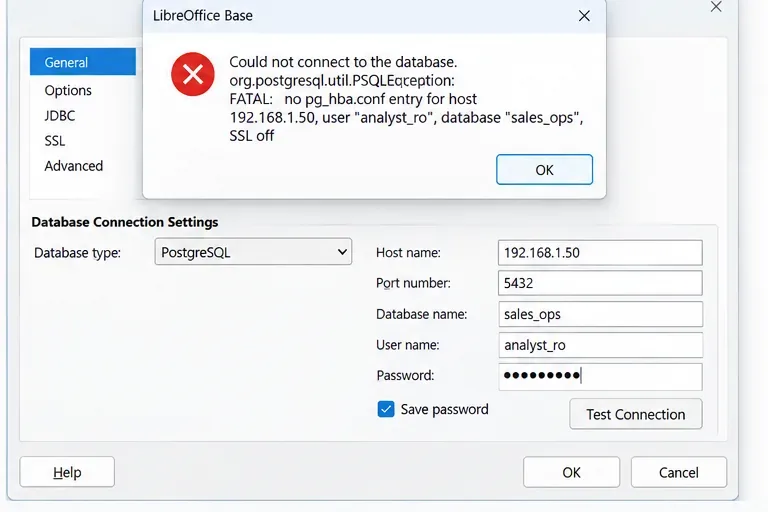
Caption: An authentication error that mentions pg_hba.conf and SSL state points to server-side connection policy, not simply a mistyped Base document name.
Step 8: Use JDBC Only When You Need the Java Driver Path
If the direct PostgreSQL option is unavailable in your environment or an administrator specifically standardizes on JDBC, Base can connect through a JDBC driver. This path adds Java and driver setup, so it is better treated as a deliberate alternative rather than a prerequisite for every PostgreSQL connection.
Download the PostgreSQL JDBC driver only from the official pgJDBC site. The pgJDBC documentation states that the driver JAR must be on the Java class path. LibreOffice's JDBC help instructs users to add the driver path under Tools > Options > LibreOffice > Advanced > Class Path and restart LibreOffice afterward.
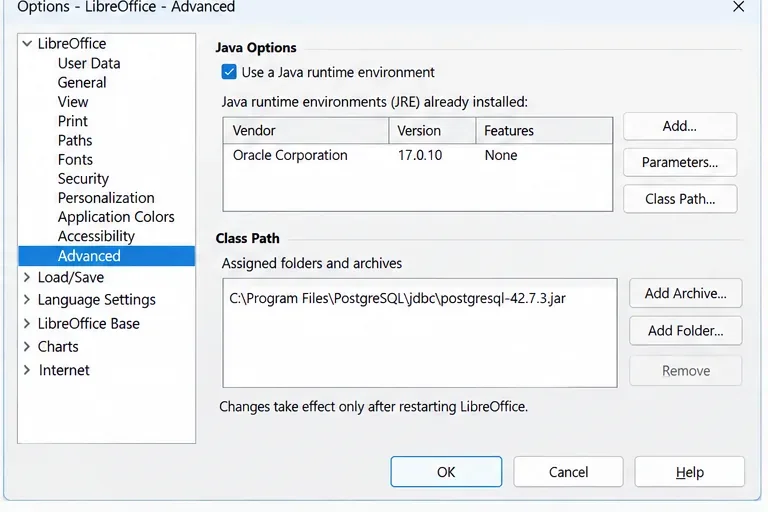
Caption: JDBC fallback requires a Java runtime and the PostgreSQL JDBC JAR on LibreOffice's class path.
For PostgreSQL, pgJDBC documents URLs in the form jdbc:postgresql://host:port/database. With the fictional server, that would be jdbc:postgresql://db.example.internal:5432/sales_ops. The PostgreSQL JDBC driver class is org.postgresql.Driver; modern Java applications can load it through Java's service-provider mechanism when the JAR is present, although LibreOffice's JDBC wizard may still ask for a driver class value. See the pgJDBC setup guide, pgJDBC connection URL documentation, and LibreOffice JDBC help.
Quick Troubleshooting Table
| Symptom | Most useful next check |
|---|
| Connection refused or timeout | Confirm server name, port, firewall path, PostgreSQL listen_addresses, and whether the server is actually listening on that interface. |
no pg_hba.conf entry | Ask the administrator to check the matching host/database/user rule and whether the connection must use SSL. |
| Password authentication failed | Verify the PostgreSQL role and password; do not assume the operating-system account name is the database role. |
| Connection works but tables are missing | Check role privileges, schema visibility, and the expected schema/search path. |
| JDBC driver class cannot be loaded | Confirm the pgJDBC JAR is on LibreOffice's Class Path, Java is enabled, and LibreOffice was restarted. |
| Works on one computer but not another | Compare DNS/network reachability, client IP rules in pg_hba.conf, certificates, local Java/JDBC setup if used, and saved credentials. |
What a Successful Setup Should Look Like
A useful success criterion is not merely “the connection test passed.” For the Northwind Field Services example, the setup is genuinely ready when the Base document reopens cleanly, the analyst_ro account can see only the intended PostgreSQL objects, a small SELECT query returns expected rows, and the connection meets the organization's encryption and authentication requirements.
If you reach the point where basic queries work but more complex Base forms or reports expose datatype, performance, or driver-specific limitations, stop treating the issue as a connectivity problem. At that stage, compare the direct PostgreSQL connector with JDBC for the specific workload, and test the exact query or datatype that matters. The connection method should serve the database policy and the Base features you actually use, not become an end in itself.









