Home
» MS OFFICE
»
How to Connect ONLYOFFICE Desktop Editors to an ownCloud Server
How to Connect ONLYOFFICE Desktop Editors to an ownCloud Server
You can connect ONLYOFFICE Desktop Editors to an ownCloud server directly from the desktop application's Clouds section. The essential workflow is simple: add an ownCloud connection, enter the server URL, sign in on the ownCloud page that opens inside Desktop Editors, and then browse the Files area. The important condition is that the ownCloud side must already be prepared for ONLYOFFICE integration if you want collaborative editing rather than just a disconnected local-file workflow.
According to the current ONLYOFFICE documentation, the expected server-side setup includes an ownCloud server, ONLYOFFICE Docs, and the official ownCloud integration app. The ownCloud Marketplace currently lists the ONLYOFFICE connector as version 10.0.0, released September 15, 2026, with compatibility shown for ownCloud Classic 10–11. Because server and connector requirements can change, check the current compatibility information before upgrading either component. See the official ONLYOFFICE Desktop Editors ownCloud connection guide and the official ownCloud Marketplace listing for ONLYOFFICE.
When this setup is a good fit
This connection is useful when your organization already stores files in ownCloud but users prefer a desktop office suite for day-to-day editing. It gives Desktop Editors access to documents stored in ownCloud and can preserve collaborative capabilities when the server integration is configured correctly.
For example, imagine a small engineering team whose ownCloud address is https://cloud.example.com. The team keeps proposals, budgets, and presentation decks in shared folders. Each employee has ONLYOFFICE Desktop Editors installed on Windows, macOS, or Linux. Instead of downloading a DOCX file, editing a copy, and uploading it again, a user can connect Desktop Editors to the company's ownCloud instance and work from the cloud file list.
This example is illustrative, not a test result or customer claim. The exact experience depends on the versions, authentication policies, network routing, TLS certificates, and ownCloud permissions used by your organization.
What you need before connecting
A working ownCloud account: you need a valid username or email address and password for the target server.
The ownCloud server address: normally use the HTTPS URL users already open in a browser, such as https://cloud.example.com.
ONLYOFFICE Desktop Editors: the application must already be installed on the computer.
Network access: the computer running Desktop Editors must be able to reach the ownCloud server. An Internet connection is required when the server is remote and is also required for real-time co-editing.
Server-side ONLYOFFICE integration: for the supported integrated workflow documented by ONLYOFFICE, the administrator should have ONLYOFFICE Docs and the official ownCloud connector installed and configured.
The ONLYOFFICE integration documentation also states that ownCloud and ONLYOFFICE Docs must be able to reach each other over the network. For server administrators, the official ONLYOFFICE ownCloud integration guide explains the connector and Document Server requirements.
Step 1: Open the Clouds section in ONLYOFFICE Desktop Editors
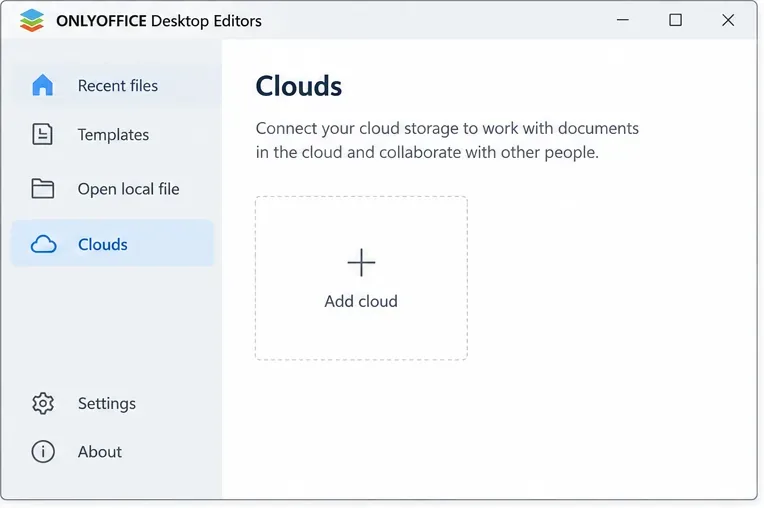
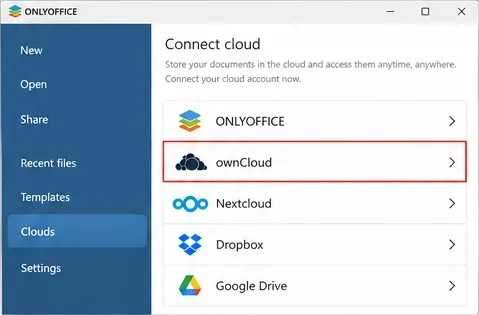
Launch ONLYOFFICE Desktop Editors and go to the main application window. In current documentation, connected services are managed from the Clouds area. Click the plus control next to Clouds or the equivalent add-cloud option shown by your installed version.
Open the Clouds section and start adding a new cloud connection.
If your interface uses slightly different wording, look for the section where third-party cloud services are added. The location can shift between releases, but the official flow remains centered on adding an ownCloud account from the cloud connection area.
Step 2: Choose ownCloud as the cloud service
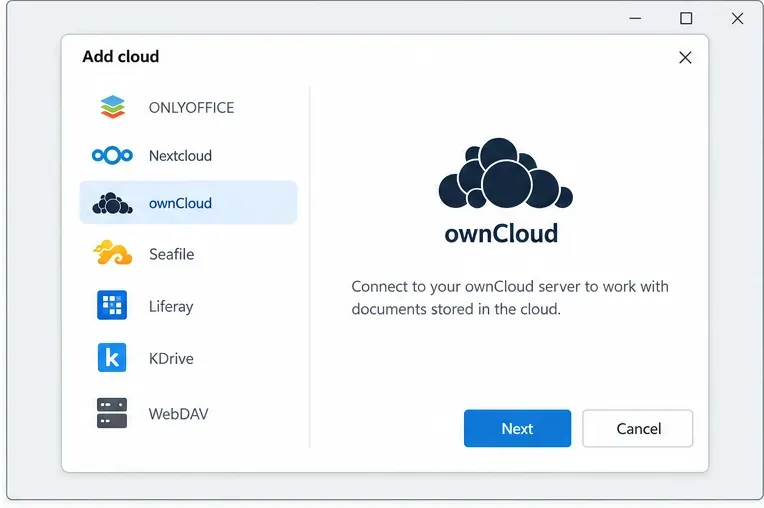
Select ownCloud from the available cloud providers. ONLYOFFICE Desktop Editors supports several third-party services, so verify that you choose ownCloud rather than Nextcloud or a generic WebDAV option when following this integration procedure.
Select ownCloud from the available cloud services before entering the server address.
Using the dedicated ownCloud entry is important because the documented sign-in flow and integration behavior are designed around ownCloud rather than a generic storage connection.
Step 3: Enter the ownCloud server URL
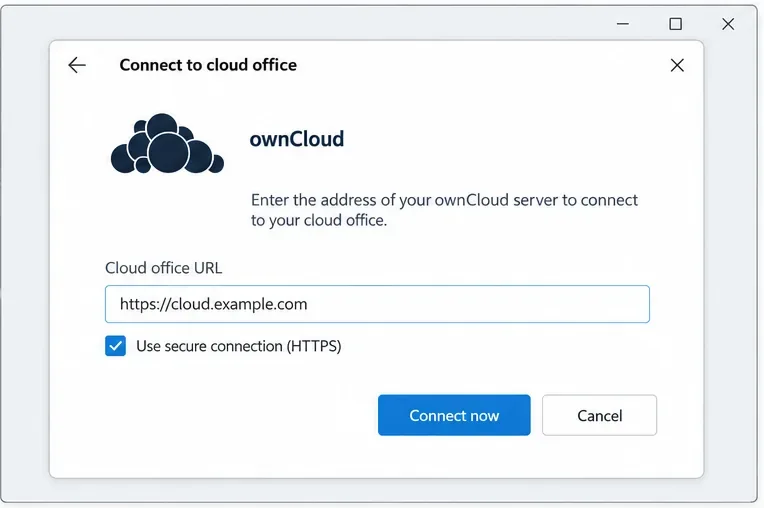
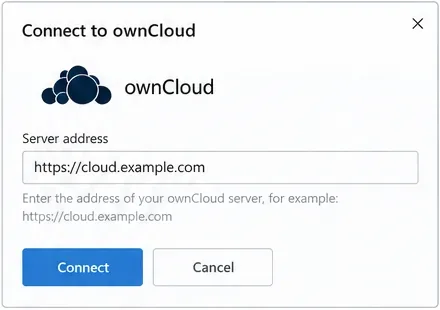
In the Cloud office URL or server-address field, enter the ownCloud domain name or IP address. In the example, the value is https://cloud.example.com. For a production system, HTTPS is strongly preferable because credentials and document traffic should not travel over an unencrypted connection.
Enter the ownCloud server address, preferably using the HTTPS URL your users normally visit.
Then click Connect now. If the server is published under a subpath or behind a reverse proxy, use the externally reachable URL that resolves correctly from the user's computer. Do not substitute the ONLYOFFICE Document Server address here; this field is for the ownCloud server that hosts the user's files.
Step 4: Sign in with your ownCloud account
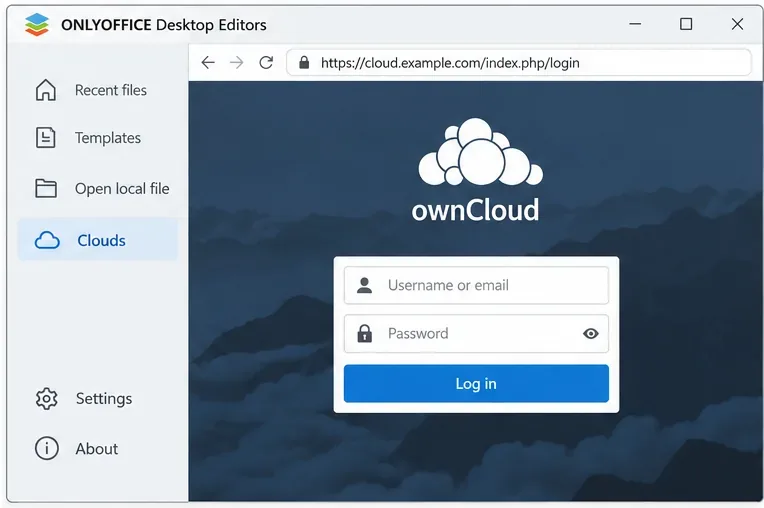
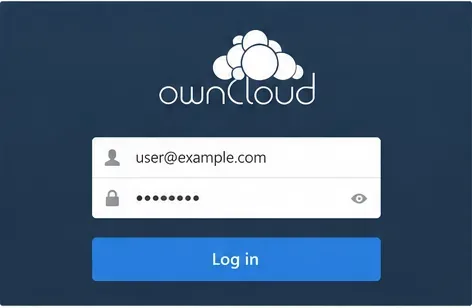
After the connection starts, the ownCloud sign-in page should open in a new tab inside the Desktop Editors interface. Enter the same username or email address and password you use for ownCloud, then choose Log in.
Sign in to ownCloud from the page opened inside Desktop Editors.
If your organization uses a customized login flow, single sign-on, multifactor authentication, or an identity proxy, the page may look different from a standard ownCloud login. Follow the authentication method approved by your administrator. If the embedded login cannot complete, test whether the same account can sign in to the ownCloud URL in a normal browser before changing Desktop Editors settings.
Step 5: Confirm that ownCloud appears as a connected cloud
Return to the main Desktop Editors window if necessary. A successful connection should appear in the Clouds area. This is the first practical check that authentication completed and the desktop application stored the cloud connection.
Confirm that ownCloud is available in the cloud connection area after authentication.
If ownCloud does not appear, repeat the connection and verify the URL carefully. A typo in the hostname, an unreachable private address, a blocked port, or a certificate problem can prevent the login page from loading correctly.
Step 6: Verify the server address if the connection fails
If Desktop Editors cannot reach ownCloud, reopen the connection dialog and compare the server address with the URL that works in your browser. Use the complete scheme and hostname, for example https://cloud.example.com. Avoid entering a local-only hostname unless the computer can resolve it.
Recheck the ownCloud server address when troubleshooting a failed connection.
For self-hosted installations, also confirm that your reverse proxy presents a certificate trusted by the operating system. A self-signed or internally issued certificate may require installation of your organization's trusted root certificate before embedded authentication works reliably.
Step 7: Reauthenticate if your session has expired
Cloud sessions can expire or be invalidated after password changes, server upgrades, or administrator actions. When that happens, sign in again rather than repeatedly reopening the same document. Use the current ownCloud credentials and complete any additional authentication steps required by your organization.
Reauthenticate with ownCloud when the saved session is no longer valid.
Do not share passwords or embed credentials in the server URL. The documented flow separates the server address from the ownCloud login page, which is the safer and expected pattern.
Step 8: Open a file from ownCloud and verify the round trip
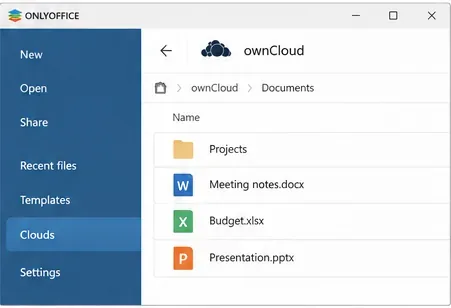
After login, the ownCloud Files area should open. Browse to a folder and open a small test document you have permission to edit. Make a harmless change, save it, then verify from the ownCloud web interface or another authorized client that the updated file is present.
Browse ownCloud files from Desktop Editors and open a document to confirm the connection works end to end.
This round-trip check is better than judging success only by whether the login screen accepts your password. It verifies that authentication, file listing, opening, editing, and saving all work together.
How to manage or remove the connected account
The official Desktop Editors instructions state that connected cloud accounts are listed in the left-side Clouds area. The account menu can provide options such as Open, Logout, and Remove from list. Use Logout when you want to end the current session but may reconnect later. Use Remove from list when you want the account entry removed from Desktop Editors.
You can also add more than one cloud account. This can be useful for administrators or consultants who work with separate ownCloud environments, but label your workflow carefully so you do not edit a file in the wrong tenant.
Common connection problems and what they usually mean
Symptom
What to check first
The login page never opens
Confirm the ownCloud URL is reachable from the same computer and that DNS, firewall, proxy, and TLS settings are correct.
The URL works in a browser but not in Desktop Editors
Check certificate trust, reverse-proxy behavior, authentication redirects, and whether the embedded login flow is allowed by your identity setup.
Login succeeds but files do not appear
Check the user's ownCloud permissions and confirm the server-side ONLYOFFICE integration is healthy.
A file opens but collaborative editing does not work
Verify that ONLYOFFICE Docs is reachable from ownCloud and from end clients as required by the integration architecture.
Saving fails after a server change
Reconnect the account, verify the public URL, and ask the administrator whether proxy, certificate, or connector settings changed.
Server-side checks for administrators
If many users fail at the same time, the problem is more likely on the server side than on individual desktops. Confirm that the official ONLYOFFICE connector is enabled in ownCloud and points to the correct ONLYOFFICE Docs address. The ONLYOFFICE documentation notes that Document Server must be resolvable and connectable from ownCloud and must also be able to send requests back to ownCloud.
As of October 7, 2026, the ownCloud Marketplace lists ONLYOFFICE connector version 10.0.0 as the latest release and shows ownCloud Classic 10–11 compatibility. Treat that as a point-in-time compatibility check, not a permanent rule. Before an upgrade, review the current Marketplace release information and the ONLYOFFICE integration documentation.
How to know the setup is actually working
A successful connection should pass four checks: Desktop Editors can reach the ownCloud URL, you can authenticate, your permitted folders and files appear, and a test edit can be saved back to ownCloud. If all four work, the desktop-to-cloud path is functioning. If only the first two work, focus on permissions and server-side integration rather than repeatedly reinstalling the desktop application.
For the example team using https://cloud.example.com, the desired result is straightforward: a user opens Desktop Editors, selects the connected ownCloud account, navigates to the shared project folder, edits the document, saves it, and sees the updated file reflected in ownCloud. That is the practical benchmark for deciding whether this setup fits the team's workflow.