Home
» MS OFFICE
»
How to Create Interactive Fillable PDF Forms in LibreOffice Writer
How to Create Interactive Fillable PDF Forms in LibreOffice Writer
The reliable way to create a fillable PDF in LibreOffice Writer is to insert actual form controls, then export the document with Create PDF form enabled. A text box is an input field; a check box lets the reader make a selection. Printed lines, blank cells, and underscores only look like fields. They do not become interactive PDF controls by themselves.
You can build a basic application, intake, or registration form without connecting it to a database. Keep the editable Writer file as your source, use the Form Controls toolbar to insert fields, and test the exported PDF in a PDF reader before sharing it. The steps below use the English labels in LibreOffice 26.8 Help; wording and toolbar placement can vary slightly by release and operating system. LibreOffice’s Form Controls help describes the available controls and how to insert them.
1. Plan the form before adding fields
Start with a new Writer document and decide what information the recipient must enter. For a simple event registration form, you might need Name and Email text boxes, an Attend check box, one Ticket type radio-button group, and a Country drop-down. A check box works when several answers may be selected; a radio-button group works when the recipient must choose one answer. A list or combo box is useful when the choices are known in advance.
Lay out clear labels in the document before inserting controls. A small table can keep labels and fields aligned, while headings separate sections. Leave enough width and height for typical responses. Use a short, descriptive form title and add instructions where a blank field could be confusing. Planning the fields first reduces later resizing and helps ensure every control has a purpose.
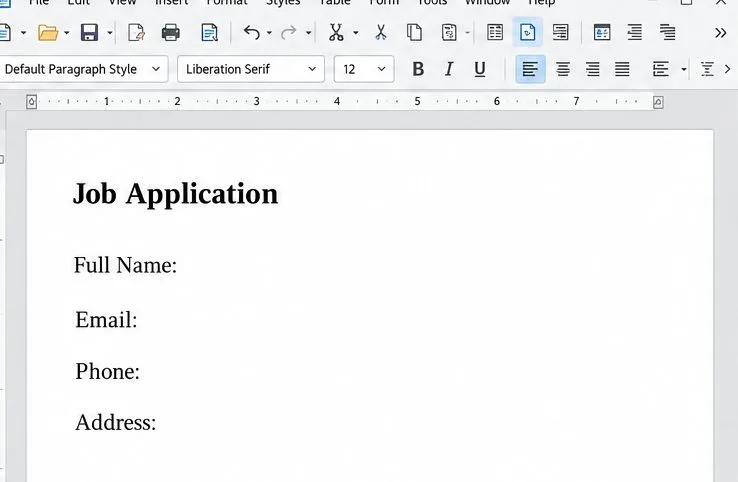
A Writer-style page lays out a job application with labeled spaces for a name, email, phone, and address before interactive controls are added.
2. Open Form Controls and insert the first input
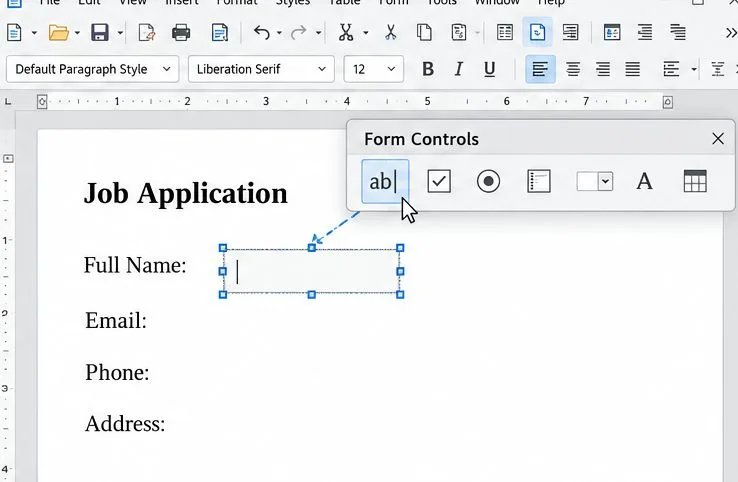
Choose View > Toolbars > Form Controls. In the toolbar, switch on Design Mode so you can add and edit controls. Click the Text Box control, then click and drag on the page to set its size next to a label such as “Full Name.” LibreOffice’s current help gives this same basic sequence: choose a control icon, then click and drag in the document.
If the toolbar is missing, reopen it from View > Toolbars. If clicking the page selects text instead of placing a control, confirm that Design Mode is on and that the Text Box tool is selected. When you finish editing, you will turn Design Mode off to use the fields normally.
The Form Controls toolbar is open above a Writer-style page while a text box is placed beside the Full Name label.
3. Add controls and set their properties
Repeat the insertion process for each planned field. Use text boxes for open-ended responses, check boxes for independent yes/no or multi-select choices, option buttons for one-of-several choices, and list boxes or combo boxes for a compact set of options. Keep each control aligned with its printed label and large enough to use comfortably.
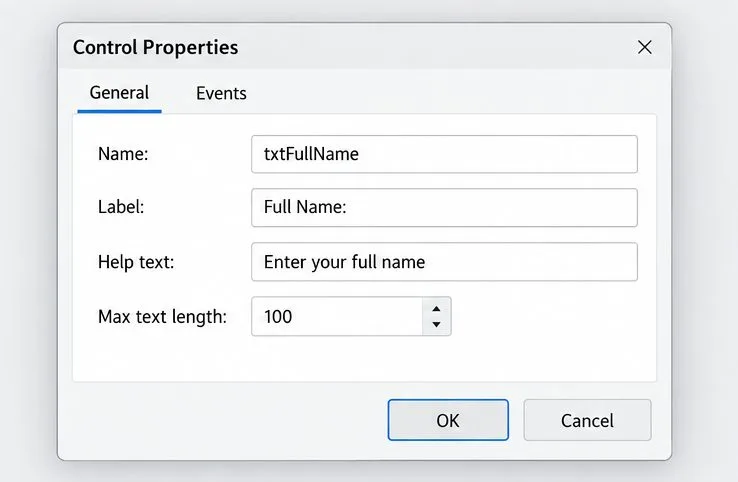
Right-click a control and choose Control Properties to review its settings. Give each field a unique, meaningful name, such as ApplicantName or ContactEmail. Set a useful label or help text where available, and configure choices or a maximum text length when the field needs them. A unique field name makes the data easier to recognize if responses are later collected or exported.
A Control Properties dialog shows a field name, visible label, help text, and a maximum text length for the selected text box.
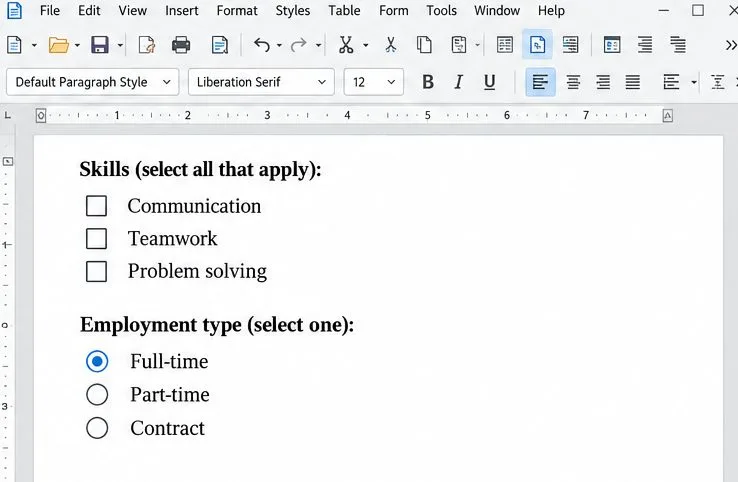
For option buttons that belong to the same question, assign the same Name property so only one answer in that group is selected at a time. Give a separate question a different name. LibreOffice notes that the shared name establishes the functional group; a surrounding group box is mainly a visual aid. For a question that allows more than one answer, use separate check boxes instead.
A Writer-style form section shows three check boxes for multiple selections and a radio-button group for a single employment choice.
4. Set the keyboard order and test the Writer form
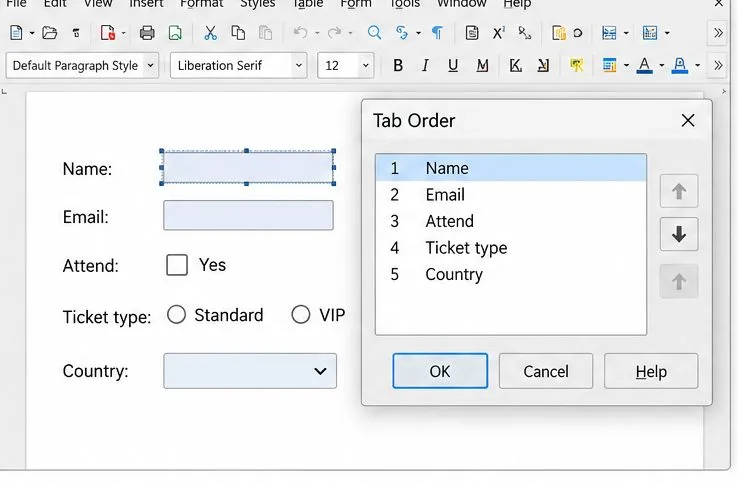
Set a sensible activation or tab order so the recipient can move from the first field to the last by pressing Tab. Select the Activation Order control on the Form Design toolbar to open the Tab Order dialog, then arrange the fields in the same order a person reads the page. This matters for keyboard-only users and makes quick entry less frustrating.
Turn Design Mode off and try the form in Writer. Click into text boxes, type sample entries, toggle every check box, choose each radio-button option, and open each list. Press Tab repeatedly and confirm the focus moves through the controls in a logical sequence. If you cannot interact with a control, switch back to Design Mode only to edit it; otherwise users may select or move the control instead of filling it in.
A Tab Order dialog lists Name, Email, Attend, Ticket type, and Country in the order a user can reach them with the keyboard.
5. Export a PDF that contains the form fields
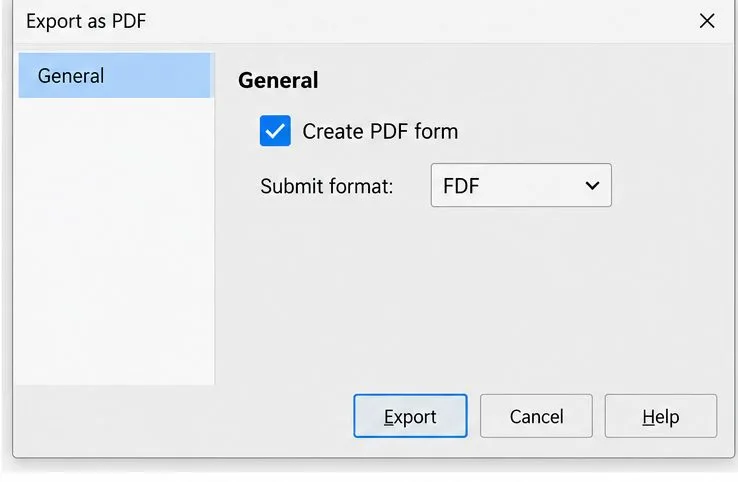
Save the working document as an ODT file first so you can return to the editable source. Then choose File > Export As > Export as PDF. In the PDF options, open the General tab and select Create PDF form. The current LibreOffice Help explains that this option creates a PDF form users can fill out and print. If the box is not selected, the page may look correct while the exported file has no interactive fields.
The Submit format menu chooses the data format for a form submission, such as FDF, PDF, HTML, or XML. It does not, by itself, choose an email address, web service, or destination for responses. If your PDF includes a submit button, configure its action and URL as a separate step and test it with the service that will receive the data. For a form recipients will fill out and save locally, leave the submission workflow unset unless you have a specific requirement. Avoid printing the document to a new PDF as a substitute for export; direct PDF export is the step that includes the interactive form controls.
The PDF Export dialog has Create PDF form checked and the Submit format set to FDF.
6. Test the exported PDF in a reader
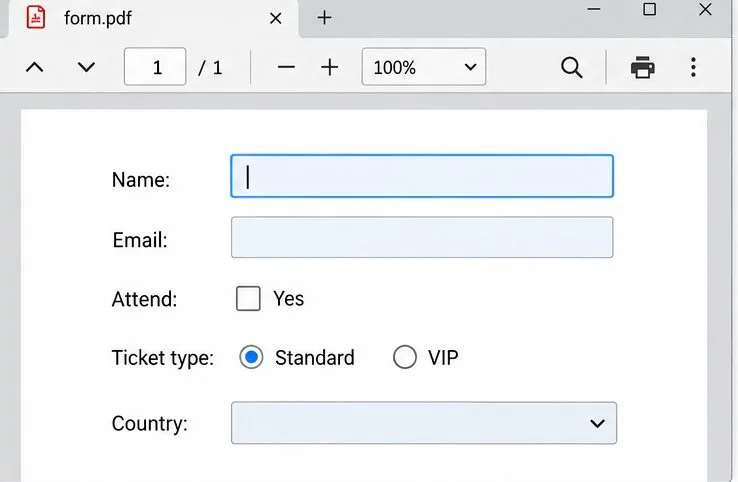
Open the exported file in a PDF reader that supports fillable PDF forms. Click every field, type sample information, check and uncheck boxes, change radio-button selections, open the drop-down, and save a copy. Close and reopen that copy to confirm the entries remain. Test keyboard navigation with Tab as well. If recipients will use a browser preview or a mobile PDF app, test those environments too because field support and appearance can vary between readers.
A PDF viewer displays empty, focusable text fields, a check box, radio buttons, and a drop-down list in an exported form.
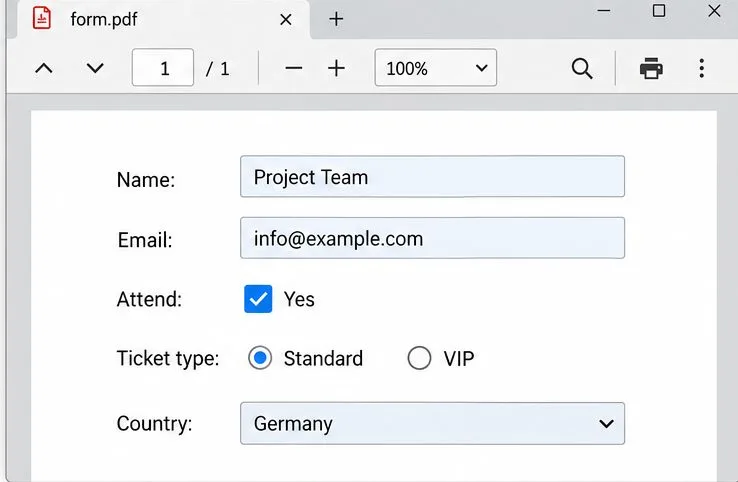
Compare the PDF with the original Writer layout. Look for clipped fields, labels that no longer line up, unexpected defaults, and controls that are difficult to click. Try realistic long text in at least one field. If the form is intended for a broad audience, also review contrast, readable labels, tab order, and screen-reader behavior; selecting an accessibility-related PDF export option is not a substitute for testing the exported form.
A PDF viewer shows sample entries, a checked box, a selected radio button, and a country value in a tested form.
Common problems and how to fix them
The PDF looks right but has no fields: return to Export as PDF and check Create PDF form in the General options.
A blank line cannot be clicked: replace it with a Text Box control. A visual underline is not an input field.
Several radio buttons can be selected: check that options for one question share the same Name property and that other questions use different names.
The recipient selects controls while trying to type: switch Design Mode off before testing and before sharing the Writer document.
Responses are not sent anywhere: the submission format only specifies data packaging. Configure a submit action and destination separately, or ask recipients to save and return the completed PDF through your chosen process.
Some recipients cannot use a field: test the PDF in the reader or device they use and simplify controls if that environment does not handle them reliably.
For a dependable result, keep the ODT source, export with Create PDF form enabled, and test the actual PDF rather than relying on the Writer preview. That short review catches the main causes of non-fillable or awkward forms before recipients receive them.