Home
» MS OFFICE
»
How to Custom Brand ONLYOFFICE Docs with Your Logo and Colors
How to Custom Brand ONLYOFFICE Docs with Your Logo and Colors
The shortest answer: use Docs API branding for the logo, and a custom interface theme for the colors
If your goal is to make the ONLYOFFICE Docs editor look like part of your own product, the cleanest setup is a two-layer customization: configure editorConfig.customization.logo in the Docs API integration for the header logo, then add a custom theme JSON file on the Document Server for the editor colors. These are separate mechanisms, and they have different availability rules.
As verified against ONLYOFFICE documentation on October 7, 2026, the editor-header logo parameter is available only for ONLYOFFICE Docs Developer. The official API specifies 300×20 images for image, imageDark, and imageLight, with a recommended logo height of 20 pixels. Custom interface themes, meanwhile, have been supported since ONLYOFFICE Docs v7.0 and are installed as JSON theme files on the Document Server. The current official reference is the ONLYOFFICE Docs standard branding documentation, and the theme file workflow is documented in Changing interface themes in ONLYOFFICE Docs.
This approach fits teams that embed ONLYOFFICE Docs into their own web application and control the Document Server. It is not the same as changing a DocSpace or Workspace portal theme. If your target is the surrounding portal rather than the editor itself, use that product’s branding settings instead.
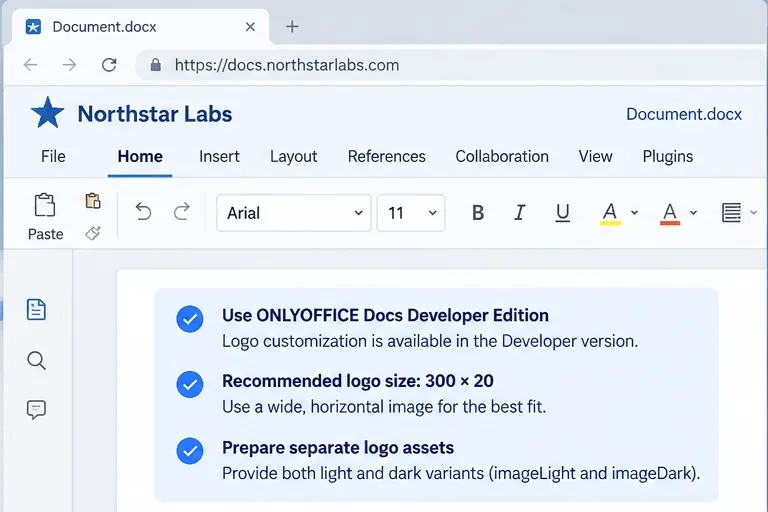
Start by confirming that your edition and integration model support the editor branding you plan to use.
Step 1: confirm what you actually need to brand
Before editing files, separate the branding surface into three questions. Do you only need a logo in the editor header? Do you also want brand colors throughout toolbars, buttons, text, borders, and panels? Or do you need a deeper white-label experience that changes additional interface elements?
Header logo: use editorConfig.customization.logo. ONLYOFFICE marks this parameter as Developer-only.
Interface colors: install a custom theme JSON on the Document Server. This is the right mechanism for brand colors.
Deeper white-label controls: check the extended white label documentation. ONLYOFFICE states that those parameters require the extended white label license for Docs Developer.
This distinction matters because changing a theme file will not automatically replace the header logo, and setting the logo object will not recolor the rest of the editor.
Step 2: prepare logo files for light and dark headers
Prepare a wide, simple logo that remains legible at a 20-pixel header height. The API documentation specifies a 300×20 image size for the standard header image variants. Use separate artwork for dark and light backgrounds when your brand mark would lose contrast. For example, a dark navy wordmark may work on a pale header but disappear on a dark theme; a white or light variant solves that.
Host the images at stable HTTPS URLs that the editor can load. Avoid short-lived signed URLs if the logo needs to be consistently available. Also test the assets through the same network path and browser security policy used by real users.
Step 3: add the logo to your Docs API configuration
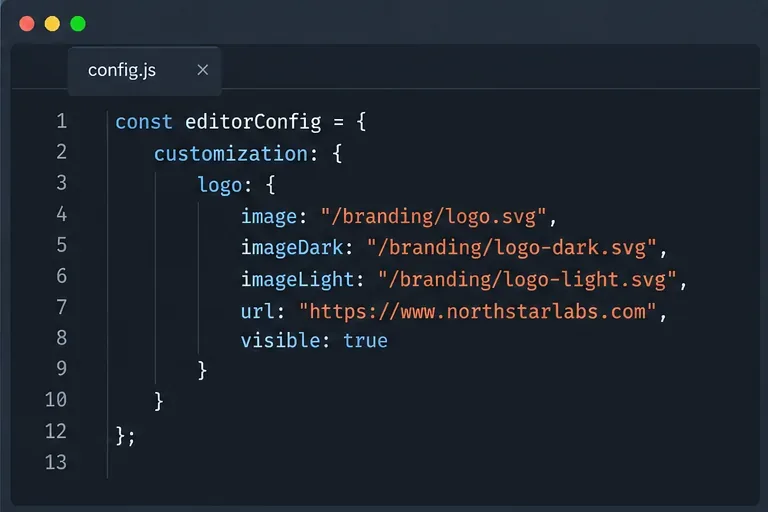
image is the common work-mode logo. imageDark is for a dark or colored header, and imageLight is for a light header such as the Gray theme. url controls where a click on the logo goes; set it to an empty string or null if the logo should not be clickable. visible controls whether the logo is shown.
Add the logo object to the configuration your application passes when it creates the Docs editor.
Step 4: verify the logo in both light and dark conditions
Open a real document through your integration and check the header at normal browser zoom. A successful result is not merely “the file loaded.” The logo should be sharp, vertically centered, readable at the compact header height, and free of unexpected background boxes. Also check that a click behaves as intended.
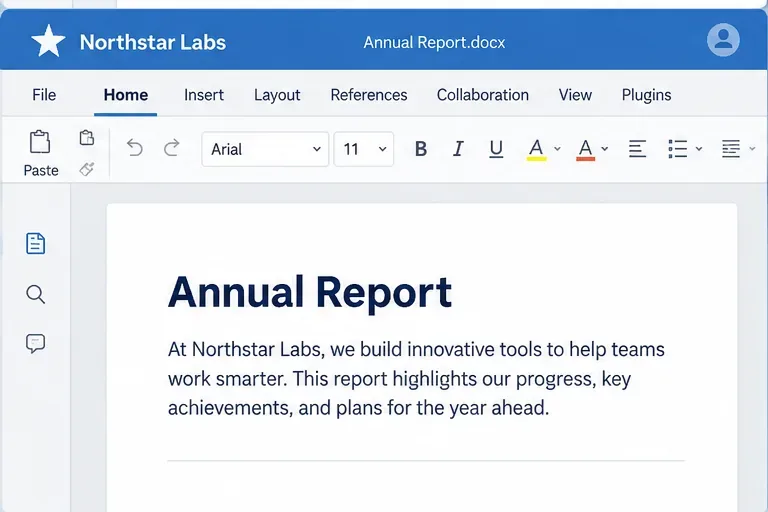
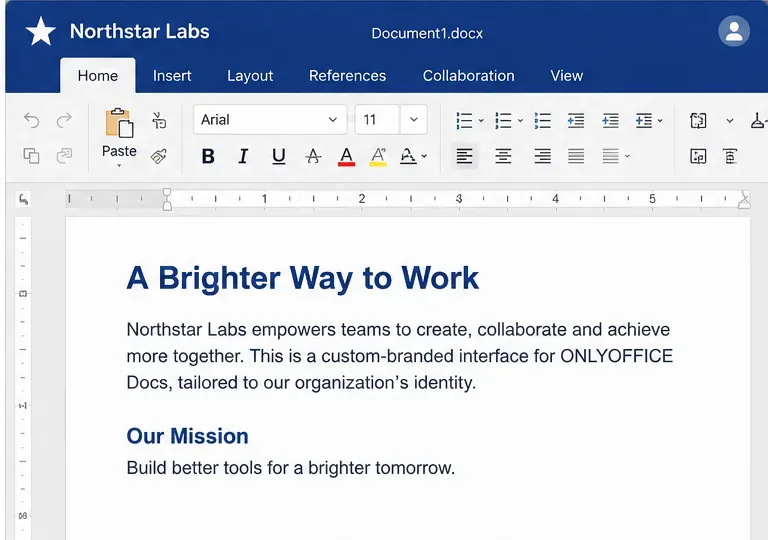
Verify the logo against a light or colored header and make sure it remains readable at normal editor scale.
Then switch to a dark interface condition and repeat the check. If the logo becomes low-contrast, use a dedicated imageDark asset rather than trying to force one graphic to work everywhere.
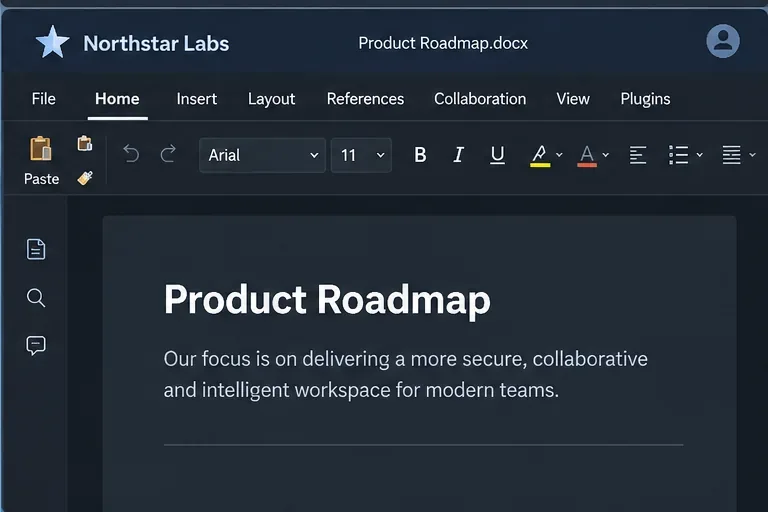
A separate light-colored logo variant keeps the brand visible against a dark editor header.
Step 5: create a custom color theme JSON
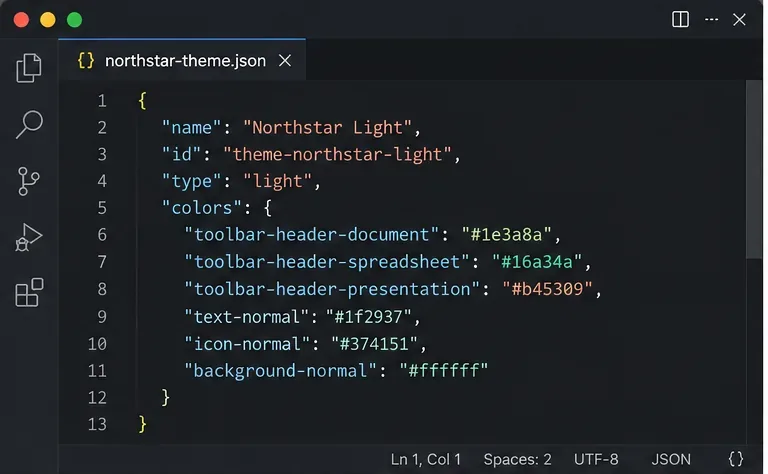
For interface colors, create a theme file whose id begins with theme-. ONLYOFFICE documents light and dark as valid theme types and supports colors in hexadecimal or RGBA notation. Do not confuse this with a document color scheme: this JSON changes the editor chrome itself, not the theme colors stored inside a DOCX, XLSX, or PPTX file.
The values above are an example palette, not a prescribed ONLYOFFICE theme. The parameter names are documented theme variables. In production, start with a small set of high-impact values, preview the result, then expand only as needed. This makes it easier to catch poor contrast or inconsistent states.
Create a theme JSON with a unique theme-prefixed ID and carefully chosen interface color variables.
Step 6: place the theme file in the Document Server theme directory
ONLYOFFICE documents these locations for custom theme files:
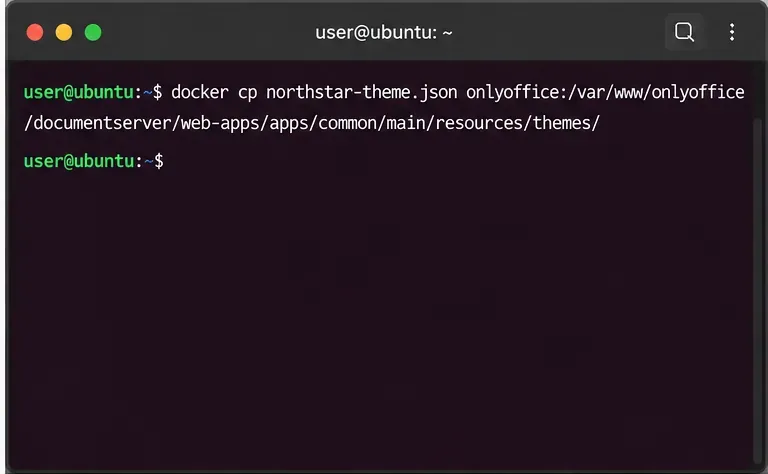
Replace onlyoffice with your actual container name or ID. If your deployment is rebuilt frequently, do not rely on a one-off copy as your only source of truth. Put the theme into your deployment process, image customization, or another persistent mechanism appropriate to your environment so upgrades and container replacement do not silently remove it.
For Docker deployments, copy the custom theme JSON into the documented themes directory inside the Docs container.
Step 7: refresh, wait for cache, and select the custom theme
The official guide notes that the server cache for the theme request has a five-minute lifetime. After placing the file, allow for that delay and refresh the editor. In some cases, ONLYOFFICE also recommends restarting services and clearing cache if the theme does not appear.
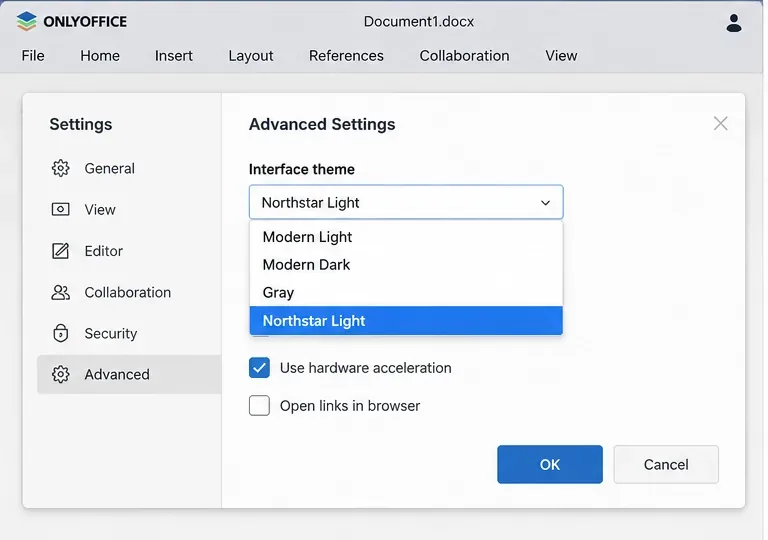
Once loaded, the theme should appear in the Interface theme list in Advanced settings. Select it and inspect more than the header. Check menus, dialogs, selected tabs, hover states, disabled controls, icons, notification badges, and text contrast.
When the theme is recognized, it should be selectable from the editor’s Interface theme list.
Step 8: validate the finished brand as a system, not just a screenshot
A good custom brand should survive normal editor use. Open a document, spreadsheet, presentation, and PDF if those editors are in scope. Try common dialogs and collaboration controls. Verify both light and dark conditions if you offer both. Check keyboard focus, disabled states, hover contrast, and long file names. A color that looks attractive in the header can still make a selected tab or secondary text hard to read.
The final check should cover the full editor workflow, not only the logo and header color.
How to know the customization is working
You can consider the implementation successful when the configured logo appears consistently, the correct logo variant remains legible on the active header, the custom theme appears in the theme picker, brand colors render without breaking text or icon contrast, and the experience remains usable across the editor types your users actually open.
If the logo never changes even though the configuration object is being passed correctly, first confirm the edition and license because the API reference marks the logo parameter as Docs Developer-only. If the color theme never appears, verify the JSON ID and syntax, file location, container persistence, cache timing, and service state. If a theme loads but looks wrong, reduce the customization to a smaller set of documented variables and add colors incrementally.
Common boundaries and mistakes
Branding the editor is not the same as branding DocSpace or Workspace
ONLYOFFICE has separate customization surfaces. This guide is specifically about ONLYOFFICE Docs editor branding. Portal branding controls, tenant names, portal favicons, and surrounding navigation belong to DocSpace or Workspace settings, not the Docs API header logo object.
A document color scheme is not an interface theme
Document color schemes affect content such as text, tables, charts, and shapes. A custom interface theme controls editor UI elements such as toolbars, panels, buttons, icons, borders, and labels. Choose the mechanism that matches the surface you want to change.
Do not assume every white-label control is included with standard branding
ONLYOFFICE separates standard branding from extended white-label parameters. If you need broader control of items such as interface fonts, layout visibility, or About-related elements, verify the current license requirements in the official white label reference before planning the implementation.
Practical deployment checklist
Confirm ONLYOFFICE Docs Developer if you need the header logo customization described here.
Create 300×20 logo assets, including light and dark variants where contrast requires them.
Configure editorConfig.customization.logo in the integration layer.
Create a valid custom theme JSON with an ID beginning with theme-.
Place the theme file in the documented Document Server themes directory.
For Docker or immutable deployments, make the theme installation repeatable and persistent.
Allow for the documented cache delay, then refresh and select the theme.
Test contrast, states, editor types, and both light and dark conditions before rolling out broadly.
When you keep logo branding, interface theming, and extended white-label controls conceptually separate, ONLYOFFICE Docs becomes much easier to customize predictably. Start with the smallest change that achieves the desired brand fit, verify it under real editor conditions, and only then expand the theme.