Home
» MS OFFICE
»
How to Customize the CODE User Interface and Hide Specific Toolbars
How to Customize the CODE User Interface and Hide Specific Toolbars
Short answer: In CODE, change the overall toolbar style with the Compact or Tabbed view setting. To hide one notebook tab or one command, the supported route is the WOPI host’s PostMessage API; the viewer’s normal menus do not permanently remove individual commands for everyone. Administrators can set the default interface mode for a server, while hosts embedding CODE can send session-level hide or show messages.
Choose the method that matches your access. If you only want more document space, collapse the toolbar or switch to Compact view. If your WOPI integration should omit the Help tab or a formatting command, send the corresponding PostMessage after the editor is ready. If your goal is to prevent an action such as printing, downloading, or editing, use the relevant WOPI capability or permission as well; hiding a button changes presentation, not authorization.
Pick the right customization
What you want to change
Use this method
What it affects
Use the compact menu or tabbed notebookbar by default
Set user_interface.mode in the server configuration
Default interface mode for that CODE deployment
Make more room for the document temporarily
Collapse the notebookbar from the UI, or send Collapse_Notebookbar
Hides the tab buttons; the user can expand them again
Hide a notebookbar tab such as Help
Send Hide_NotebookTab
One tab in a WOPI-embedded editor session
Hide one command across the editor UI
Send Hide_Command
That command’s menu, toolbar, and contextual-menu entries
Hide only a particular toolbar button
Send Hide_Button with its button ID
One toolbar button; the ID can vary by UI and release
The relevant SDK manual identifies Hide_NotebookTab as available starting in 24.04.11.1 and Hide_Command starting in 24.04.11.2. CODE release packages and integrator builds can differ, so check the version of the server you actually run before relying on an API message.
Change the default between Compact and Tabbed view
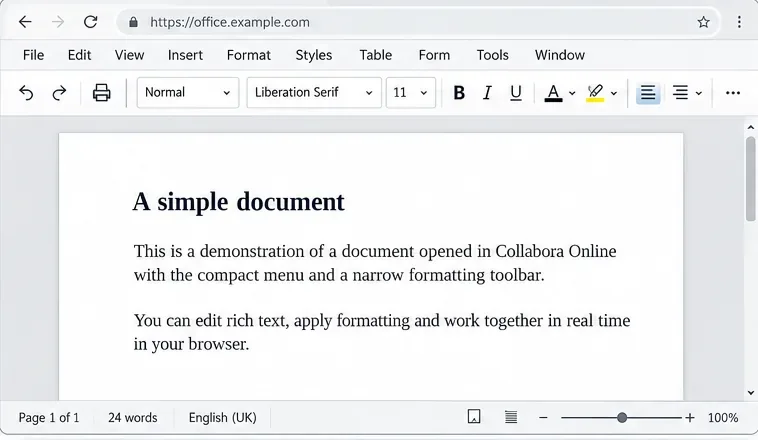
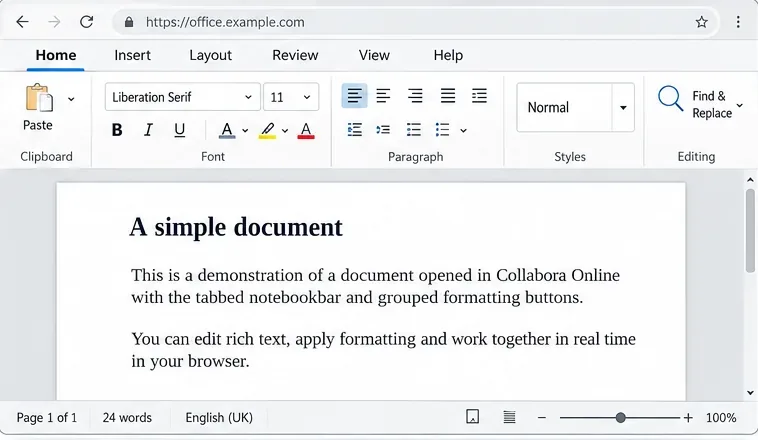
Compact view uses a menu and a smaller toolbar. Tabbed view groups controls into the notebookbar tabs. The server setting is user_interface.mode, with supported values compact and tabbed. Older labels such as classic and notebookbar are deprecated in favor of these names.
Illustrative compact view: the editor uses a menu row and a narrow formatting toolbar above the document.
For an administrator-controlled default, edit the existing <mode> entry inside the <user_interface> section of coolwsd.xml:
<user_interface>
  <mode type="string" desc="Controls the user interface style. The 'default' means: Take the value from ui_defaults, or decide for one of compact or tabbed (default|compact|tabbed)" default="default">tabbed</mode>
</user_interface>
Use compact instead of tabbed for the compact menu. In a real configuration file, change the existing mode entry rather than adding a second one. The exact configuration path and restart procedure depend on whether CODE is installed as a package, container, or through another platform. Follow that deployment’s configuration method, restart or reload the service as required, and open a new document session to confirm the default.
This sets a default interface mode; it does not hide a specific command. A user or integrator may have saved interface preferences that take precedence, depending on the server’s saved-UI-state configuration. If one browser keeps reopening in a different view, test a fresh session and check the integrator’s user-preference behavior before changing more server settings.
Collapse the toolbar without removing commands
When the aim is simply to increase document space, collapsing the tabbed notebookbar is usually sufficient. The SDK’s Collapse_Notebookbar message hides the notebookbar buttons; the tab names remain available so users can expand the controls again. The same message also hides the button strip in Compact view. This is a reversible display change, not a way to disable editing features.
Illustrative tabbed view with the notebookbar tabs and grouped formatting controls visible.
In a supported interface, a user can also collapse or expand the notebookbar by interacting with its tab strip. The precise click or double-click behavior can vary with the view and release. If users need to restore a collapsed bar, keep the tab names visible and test the action in the same CODE build they use.
Hide one tab or command in a WOPI integration
Per-session hiding requires a host application that embeds CODE in an iframe and can send messages to it. It is not a general-purpose setting that can be pasted into coolwsd.xml. The PostMessage API uses messages with a MessageId, a timestamp, and optional Values. The WOPI host must complete the readiness exchange before sending editor commands. Configure the WOPI PostMessageOrigin for the host page and use the exact CODE iframe origin as the browser message target; do not use a wildcard target origin.
After the host has received the appropriate App_LoadingStatus readiness event and sent Host_PostmessageReady, it can send a hide message. For example, the following calls hide the Help tab and the underline command for the open editor session:
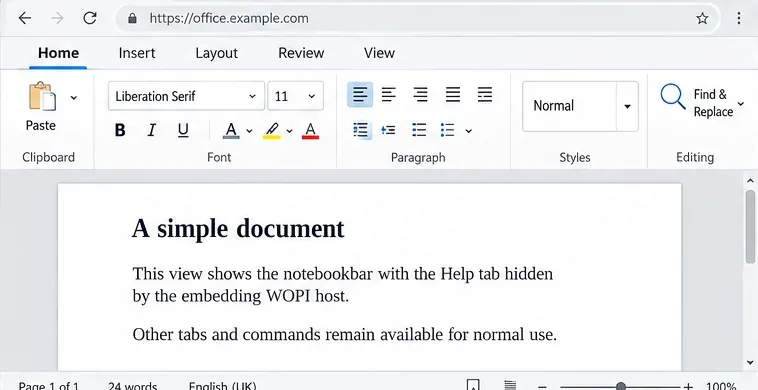
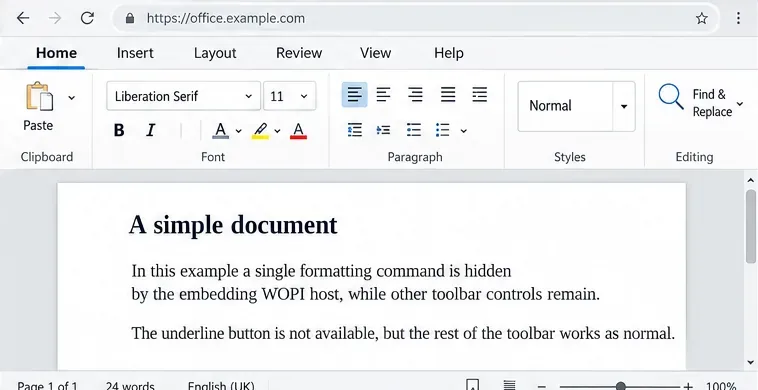
Illustrative Tabbed view with the Help tab hidden and the other notebookbar tabs still visible.Illustrative WOPI-host customization: the underline command is hidden while the rest of the toolbar remains visible.
Replace office.example.com with the origin of your own CODE iframe. The example illustrates the message shape; wire it into the host’s real iframe lifecycle and validate the origin of incoming messages before responding. The CODE documentation notes that host messages sent before Host_PostmessageReady may be ignored.
Which message should you use?
Hide_NotebookTab: Use it for an entire tab in Tabbed view. Its id is the tab ID, such as Help. Show_NotebookTab reverses the change. The tab remains hidden for the session until a show message arrives.
Hide_Command: Use it when the command should disappear from the menu, toolbar, and contextual menus. An example ID is .uno:Underline. Show_Command reverses it. Use this only when removing that command from all those surfaces is the intended result.
Hide_Button: Use it when you want to hide a single button rather than every UI entry for the command. Its ID is a toolbar button ID, not necessarily the UNO command name. Collabora documents that these IDs usually remain stable but are not guaranteed to; confirm them against the source for your exact build and device form factor.
Hide_Menubar: This hides the menubar as a whole. It is not a per-command control and should not be confused with hiding a notebookbar tab.
The postMessage API is intended for an integration host. If you run Nextcloud, ownCloud, or another platform, check whether its connector exposes a supported setting before building custom host code. Avoid injecting CSS into the editor page: it is fragile across releases and only conceals controls visually.
Check that the change fits your use case
Open a test document using the same browser, document type, permissions, and CODE release as your users. Confirm the selected mode, check that only the intended tab or command is hidden, and test the matching show message or toolbar expand action. Repeat for Writer, Calc, and Impress if your integration serves all three; available commands and toolbar IDs are not necessarily identical between modules.
If a hidden control still appears, check that the host sent Host_PostmessageReady, that its WOPI PostMessageOrigin and iframe target origin are correct, and that the message used the expected ID and spelling. Also check the server version against the documented feature baseline. A successful visual hide does not remove the command from the underlying document engine or establish a security restriction. Use WOPI permissions and backend policy for access control.