Home
» MS OFFICE
»
How to Debug Collabora Online Connection Logs with the coolwsd Log Level
How to Debug Collabora Online Connection Logs with the coolwsd Log Level
Collabora Online’s current public configuration template still exposes logging.level in coolwsd.xml, with supported values ranging from warning through debug and trace. For a connection failure, raise the level briefly, reproduce one failed connection, inspect the service’s actual log destination, and restore the normal level when you finish. The value shown in the XML is not always the effective value: a startup command or container setting can override it, and high-verbosity areas such as WebSocket logging may be disabled separately.
This guide focuses on diagnosing a browser-to-Collabora connection or document-opening failure. It uses the current public coolwsd.xml.in source template and official Collabora material checked October 6, 2026. Package defaults and service names can differ by release and deployment, so confirm your running instance before copying paths or restart commands.
What the coolwsd log level changes
coolwsd is the Collabora Online WebSocket Daemon, the server process that handles browser sessions and document activity. Its log level determines how much detail the process emits. The current source template lists named levels including fatal, critical, error, warning, notice, information, debug, and trace, as well as numeric levels 0–8. The numeric values run from least to most verbose. For a first diagnostic pass, debug is a reasonable step up; use trace only when you need finer connection detail.
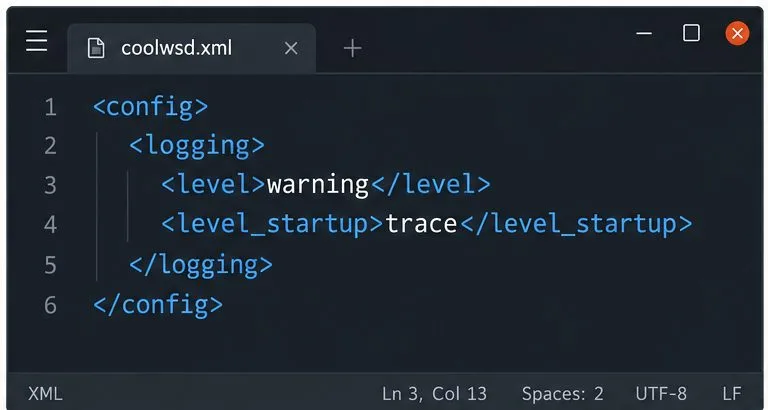
The separate level_startup setting controls logging during initial startup, then logging returns to the level in level. The current template sets startup logging to trace; that does not mean normal operation remains at trace. Avoid changing level_startup when the problem occurs after the service is already running.
More verbose output can increase log volume and may include URLs, addresses, session identifiers, or other operational details. Treat logs as sensitive; collect only the time window needed and redact secrets before sharing them.
Step 1: Identify how this Collabora instance runs
First determine whether Collabora Online runs as a system service, in Docker or Podman, or in Kubernetes. This matters because changing a file inside a running container may not persist, and container logs may go to standard output instead of a file.
System package: check the running service and its unit name, commonly coolwsd. The configuration is commonly /etc/coolwsd/coolwsd.xml. Older releases may use a legacy loolwsd path.
Docker or Podman: identify the container name and how its configuration is supplied. A bind-mounted file or deployment variable is usually the persistent source of configuration.
Kubernetes: inspect the Helm values, ConfigMap, or deployment manifest that supplies coolwsd.xml. Editing a pod directly is temporary.
The current public configuration template shows separate values for normal logging and the initial startup phase.
Before editing, make a backup of the actual configuration file or save a copy of the deployment values. If you are unsure which file the running process reads, inspect its service definition or startup command first. A common cause of an apparent no-op is editing a sample file rather than the active configuration.
Step 2: Raise the active level temporarily
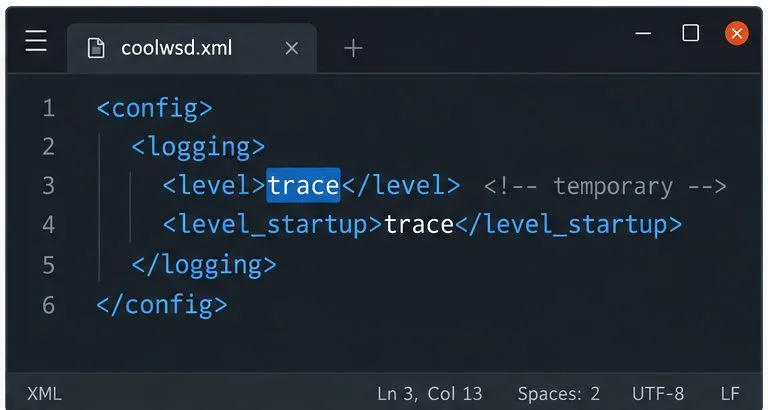
In the active coolwsd.xml, locate the <logging> section and change only the value inside <level>. Start with debug. If the connection attempt still does not produce enough detail, briefly use trace for one reproduction. Keep the existing level_startup, file settings, and unrelated configuration unchanged.
Use trace temporarily when debug does not show enough detail; preserve the startup setting and other XML options.
This is a shortened example of the relevant XML structure, not a replacement for the full configuration file. For container deployments, set the option through the persistent mechanism supported by that image or chart. The official Collabora source includes command-line configuration overrides, so if the value appears ignored, check startup arguments or deployment parameters for a second logging.level value.
If logs go to a file, the current source template documents the file path under logging.file, commonly /var/log/coolwsd.log. File logging may be disabled in a production build, however. If you enable file output or use a custom path, confirm that the cool service account can write there and that systemd allows the service to write to that location. Do not make the log world-readable to solve a permissions problem.
Step 3: Restart or redeploy, then reproduce once
Most packaged configurations take effect after a service restart. Restart during a suitable maintenance window or test instance, since active editing sessions may be interrupted. For a systemd service, a typical command is:
sudo systemctl restart coolwsd
sudo systemctl status coolwsd --no-pager
Use the actual service name on your host. For a container, update the persistent configuration and restart or redeploy that container. For Kubernetes, apply the manifest or Helm change through your normal release process. Confirm the process starts cleanly before reproducing the issue.
Record the exact time, affected user or test account, document-opening step, and browser-visible error. Reproduce the failure once, then stop generating requests. A single timestamped attempt is easier to correlate across Collabora, the reverse proxy, and the storage or WOPI host than a long stream of unrelated sessions.
Step 4: Read the log source for your deployment
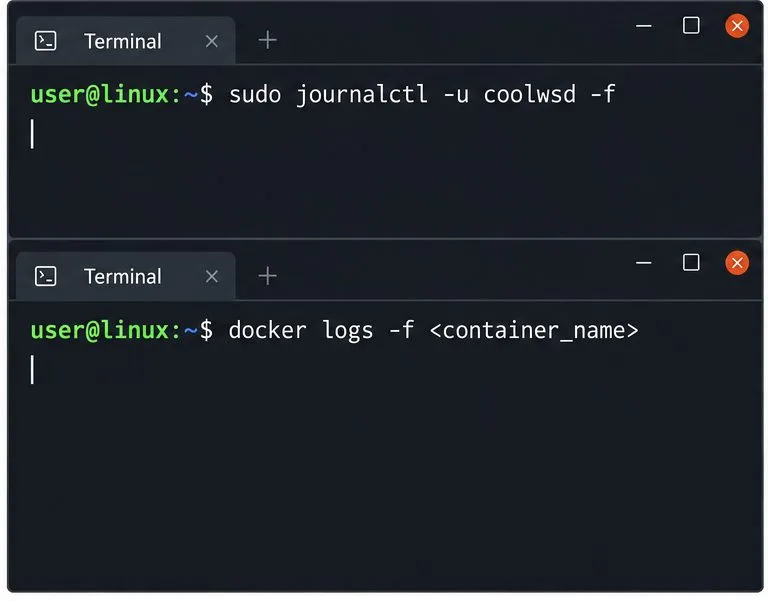
For a systemd service, follow the journal while reproducing the problem:
sudo journalctl -u coolwsd -f
To inspect a bounded recent window, use sudo journalctl -u coolwsd --since "10 minutes ago". If your unit has another name, substitute it. For Docker, use docker logs --since 10m --follow CONTAINER_NAME and replace CONTAINER_NAME with the actual container name or ID. Podman and Kubernetes have their own log commands; check the deployment’s runtime documentation rather than assuming a host file exists.
Read from the active log sink; the container-name text in the Docker command is a placeholder to replace with your actual container.
If file logging is enabled, inspect the configured path, for example sudo tail -F /var/log/coolwsd.log. The path in your file may differ. A missing file does not by itself mean the service produced no logs; it may be writing to the journal or container output instead.
Step 5: Correlate the connection sequence
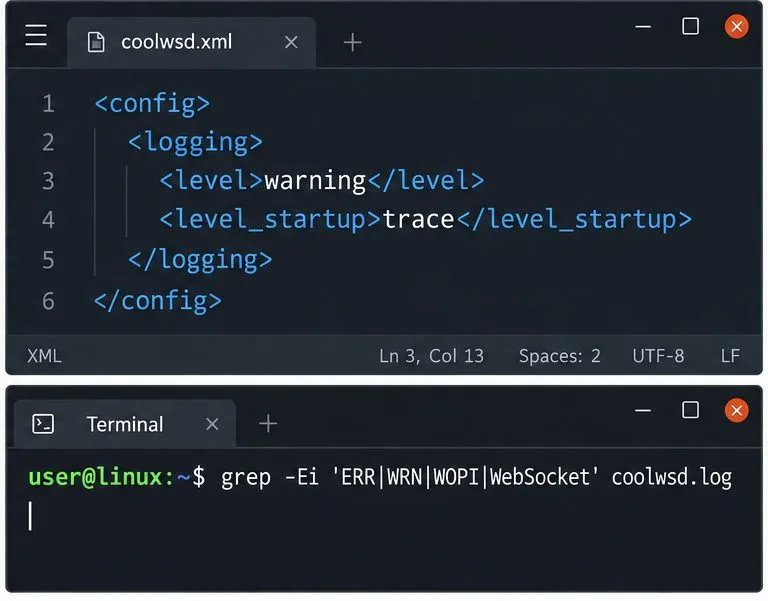
Start with entries at the recorded timestamp. Search for warning and error markers and connection-related terms such as WOPI, WebSocket, Socket, or the relevant request path. In a file, a focused first filter can be:
Then follow the sequence: did the browser reach the public URL, did the reverse proxy forward the request, did the WebSocket upgrade complete, and did Collabora contact the document host? A proxy’s access and error logs can answer questions the coolwsd log cannot, such as whether the request reached the service at all. If the browser reports a WebSocket connection failure but coolwsd records no matching request, investigate DNS, TLS termination, firewall rules, and reverse-proxy routing before changing document permissions.
The current configuration template lists Socket, WebSocket, Admin, and Pixel among the default disabled_areas for high-verbosity output. If trace logging is active but socket details are absent, inspect this setting. For a short diagnostic, remove only the relevant Socket or WebSocket area from the comma-separated disabled list, keeping unrelated exclusions intact. Restart or redeploy and repeat the same controlled test. Restore the original list after collecting the evidence.
Step 6: Restore normal logging and protect the evidence
Return <level> to the previous production value, commonly warning in the public source template, and restore any changed disabled_areas. Restart or redeploy again if required by your packaging. Confirm the service is healthy and that new debug or trace messages have stopped. Keep only the time-bounded diagnostic excerpt in a restricted location.
Restore the normal log level after the test, then review a narrow, relevant excerpt rather than sharing a full log dump.
Before sending a log excerpt to Collabora support or an administrator, remove access tokens, authorization headers, signed URLs, usernames, private hostnames, and document names where possible. Preserve timestamps and the non-sensitive error context needed to reproduce the sequence.
Common debugging mistakes
Changing only level_startup: this setting applies to the initial startup phase and then falls back to level. For a failure after startup, change level.
Assuming trace enables every category: disabled areas can suppress high-verbosity socket or WebSocket messages. Check the filter list.
Looking in the wrong place: journal, container output, and a file are different log sinks. Determine which one is active before troubleshooting an empty file.
Leaving trace enabled: high-volume logging can grow quickly and exposes more operational detail. Restore the previous value as soon as the test is complete.
Changing multiple settings at once: it becomes harder to identify which setting affected the result. Adjust one value, reproduce one failure, and record the outcome.