Home
» MS OFFICE
»
How to Disable Telemetry and Data Collection in LibreOffice
How to Disable Telemetry and Data Collection in LibreOffice
You open LibreOffice, notice options for crash reporting and online updates, and wonder whether the suite is quietly sending usage data in the background. The important distinction is that LibreOffice does not present one master “telemetry” switch in its current official documentation. Instead, the documented data-sharing controls are split across crash reporting and Online Update. If your goal is to minimize data sent to The Document Foundation, you should disable crash-report submission, turn off the Online Update “User Agent” option, and decide separately whether you also want to stop automatic update checks.
This guide was checked against LibreOffice’s official Help and privacy documentation available on October 6, 2026. Menu names can vary slightly by operating system and by vendor-packaged builds, so use the closest matching label if your installation looks different.
What LibreOffice can send, and what each switch actually does
Before changing anything, it helps to separate privacy controls from update behavior. The LibreOffice privacy policy says a crash report is generated after a crash, but the user chooses whether to submit it unless crash-report sending has been disabled in advance. The report can contain the LibreOffice version, operating system, hardware and driver information, loaded modules, stack traces, CPU register contents, and small portions of process memory. The policy also states that user-created documents are not submitted as part of the crash report.
The official Online Update Help page documents a separate “User Agent” checkbox. When enabled, it sends information about your LibreOffice version, operating system, and basic hardware so downloads can be optimized. That setting is independent from the option that checks for updates automatically.
Setting
What it affects
Privacy impact
Trade-off
Send crash reports to The Document Foundation
Submission of crash diagnostics after a failure
Stops LibreOffice crash reports from being sent to TDF when disabled
Developers receive less diagnostic information from your crashes
User Agent in Online Update
Version, OS, and basic hardware information during update activity
Reduces metadata sent for download optimization when disabled
Little practical downside for most privacy-focused users
Check for updates automatically
Periodic network checks for new versions
Reduces routine outbound update traffic when disabled
You must remember to check for security and bug-fix releases manually
Step 1: Open LibreOffice Options
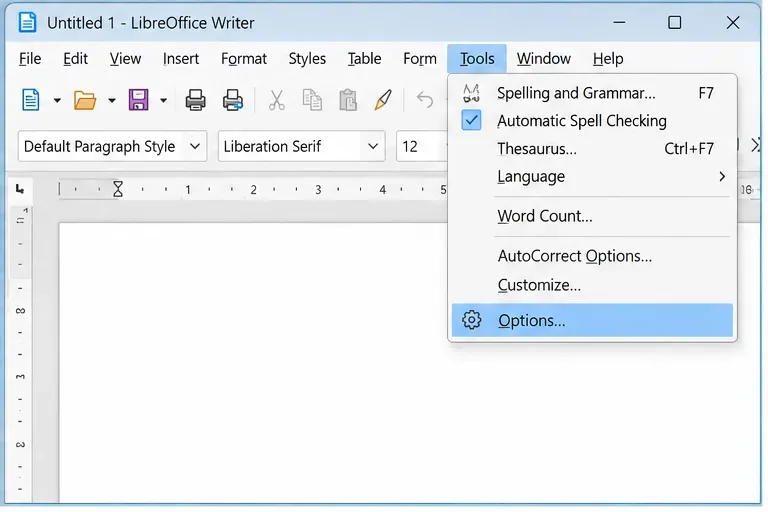
On Windows and Linux, open any LibreOffice component such as Writer, then choose Tools > Options. On macOS, equivalent settings are normally reached from the LibreOffice application menu under Preferences. The exact layout can differ with the user interface mode, but the settings are grouped under the LibreOffice section.
Open Tools > Options to reach the LibreOffice-wide privacy and update settings.
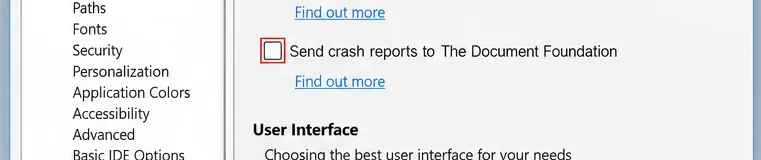
In the left pane, select LibreOffice > General. Find Send crash reports to The Document Foundation and clear the checkbox. Then click OK or continue to the next settings page before confirming.
This is the most important control if your concern is diagnostic data. LibreOffice’s Crash Report Tool documentation explains that reports can include process-memory information, loaded libraries, thread stacks, register states, LibreOffice and OS versions, CPU details, total RAM, and graphics information. It also says the report is anonymous and does not send document content. Disabling the option prevents LibreOffice from offering to send these reports to The Document Foundation.
Clear “Send crash reports to The Document Foundation” in LibreOffice > General if you do not want LibreOffice crash diagnostics submitted to TDF.
Step 3: Disable the Online Update User Agent
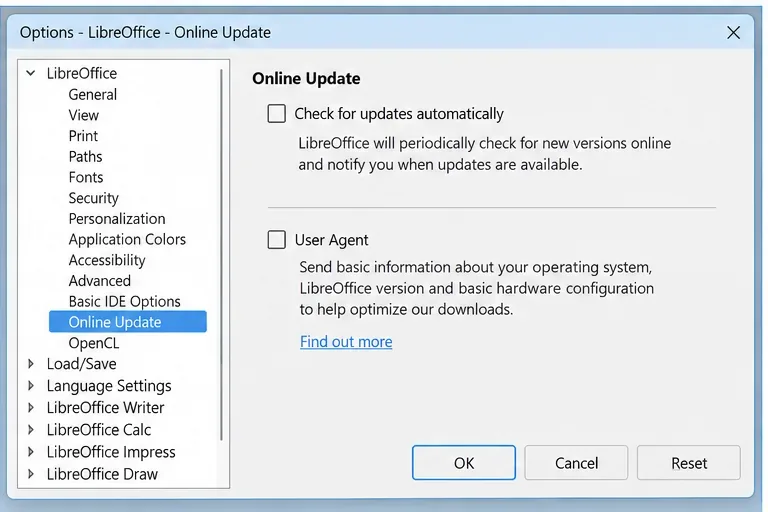
Next, select LibreOffice > Online Update. Clear User Agent. According to the official Help page, this option sends the LibreOffice version, operating system, and basic hardware information for download optimization. Turning it off is the most direct way to reduce that metadata while still allowing update checks.
You will also see Check for updates automatically. This is not described as a general telemetry feature; it controls periodic update checks. If your goal is only to limit metadata collection, you can leave automatic checks enabled and disable only User Agent. If your goal is to minimize routine outbound connections from LibreOffice itself, clear automatic update checks too.
The Online Update page separates automatic update checks from the User Agent metadata option; disable either or both according to your privacy goal.
Step 4: Decide whether to keep automatic update checks
There is a real security trade-off here. Disabling automatic checks reduces background network activity, but it also removes a reminder that a new LibreOffice release is available. For most users, a balanced privacy setup is to leave automatic update checking on while disabling User Agent and crash-report submission. For locked-down or offline systems, turning automatic checks off can make sense if updates are handled by an administrator, an operating-system package manager, or another controlled process.
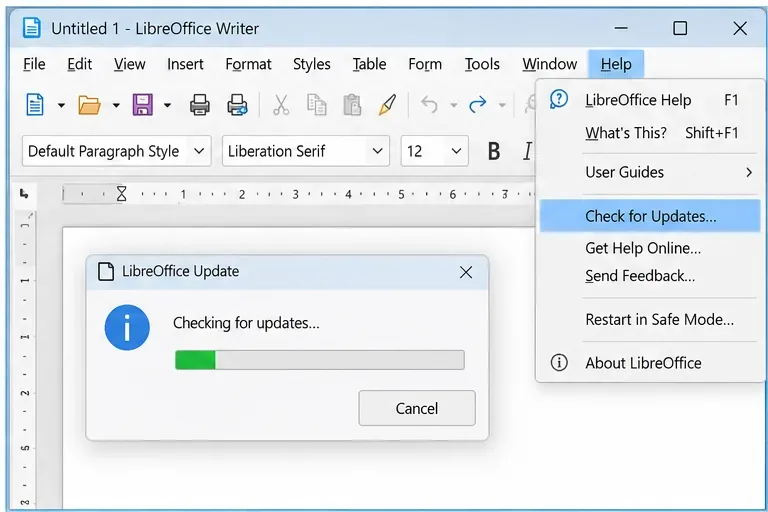
If you disable automatic checks, create a manual routine. Use Help > Check for Updates periodically, or follow your Linux distribution’s update mechanism if LibreOffice came from its repositories. The official Check for Updates documentation notes that manual checks also look for updates to installed extensions.
If automatic checks are disabled, use Help > Check for Updates on a schedule so privacy changes do not turn into missed security and bug-fix releases.
What about “telemetry” beyond these options?
The current LibreOffice Help and privacy pages cited above document crash-report submission and Online Update metadata, but they do not describe a single broad, always-on desktop usage-telemetry switch. That is why instructions that tell you to hunt for a generic “Disable telemetry” checkbox can be misleading: the relevant controls are distributed across separate features.
There is another complication on vendor builds. LibreOffice’s Crash Report Tool page says vendors such as Ubuntu or Apple may package their own crash reporter, and that data from those vendor reporters is not sent to The Document Foundation. If you installed LibreOffice through a Linux distribution, app store, managed enterprise image, or another third party, you may need to review that operating system or vendor’s diagnostics settings separately. Turning off LibreOffice’s TDF crash-report option does not necessarily disable an operating-system crash service.
How to verify the changes
After clicking OK, reopen Tools > Options and check both pages again. Under LibreOffice > General, the crash-report checkbox should remain cleared. Under LibreOffice > Online Update, User Agent should remain cleared, and automatic update checking should reflect the choice you made.
For a simple self-check, close LibreOffice completely, start it again, and revisit those settings. If they persist, the preferences were saved. If an organization-managed installation restores them after restart, a policy or managed configuration may be overriding your local choices. In that case, do not keep changing random advanced settings; ask the administrator which policy controls update and diagnostic behavior.
Optional network verification
If you need stronger assurance on a privacy-sensitive workstation, you can observe outbound connections with operating-system tools or a firewall while LibreOffice is idle and while you manually trigger an update check. This can show whether the application contacts update services, but it does not by itself prove what every encrypted request contains. Treat packet destination and timing as verification of network behavior, not as proof of payload contents.
Recommended privacy configurations
Privacy-conscious home user: disable crash-report submission and User Agent, but keep automatic update checks enabled.
Offline or tightly controlled workstation: disable crash reports, User Agent, and automatic update checks, then use a documented manual or administrator-managed update process.
Enterprise-managed system: use the organization’s configuration policy and update tooling rather than relying only on per-user checkboxes.
Linux distribution package: review both LibreOffice settings and the distribution’s own crash-reporting or update mechanisms.
Final checklist
Open Tools > Options (or the equivalent Preferences window on macOS).
Clear “Send crash reports to The Document Foundation.”
Open Online Update and clear “User Agent.”
Choose whether automatic update checks should stay on or be disabled.
If automatic checks are off, schedule manual update checks or rely on a managed package/update system.
Restart LibreOffice and confirm the settings remain in place.
If you use a vendor build, separately review the vendor or operating system’s diagnostics settings.
For most people, disabling crash-report submission and the Online Update User Agent provides the privacy change they are actually looking for without giving up update notifications. Disabling update checks as well is a stricter network-minimization choice, but it should always be paired with a reliable manual or centrally managed update routine.