Home
» MS OFFICE
»
How to Enable Track Changes and Export to DOCX Without Formatting Loss
How to Enable Track Changes and Export to DOCX Without Formatting Loss
LibreOffice Writer can record edits and save the document as a Microsoft Word DOCX file while keeping tracked changes available for review. The safest workflow is to turn on recording before editing, keep markup visible, save a working copy in DOCX format, and reopen that copy to check both the revisions and page layout. DOCX is an exchange format, however, so no export can guarantee identical pagination on every computer: fonts, printer metrics, and features used by a document can affect how Word displays it.
This guide uses the current LibreOffice Writer desktop menus. Some labels differ slightly between the classic menu and the tabbed interface, but the underlying steps are the same. The illustrated screens are interface examples, not screenshots from a live conversion test.
What Track Changes records
Track Changes is a review feature that marks edits instead of silently replacing the original text. Insertions and deletions remain identifiable, and reviewers can accept or reject changes individually. In Writer, the command is called Record; the display command is Show. Recording and showing markup are separate controls: a document may contain tracked edits while the display is hidden. LibreOffice describes Record as tracking each change by author and date in its Writer Track Changes help.
DOCX is Microsoft Word’s Office Open XML document format. Writer can open and save Microsoft Office formats, but converting formats can require manual reformatting in some documents. The practical goal is to preserve a reviewable file and reduce layout surprises, then validate the exported copy in the application that will receive it.
Before you begin
Make a copy of the source document. Keep the original ODT or DOCX unchanged until the recipient confirms the exported file works.
Ask which Word version or platform the recipient uses if the document is contract-critical, template-driven, or contains complex layouts.
Check that fonts used in the document are available on the recipient’s computer, or choose common fonts permitted by your organization.
Identify high-risk elements: tables, page and section breaks, headers and footers, footnotes, fields, floating images, text boxes, columns, forms, and long headings.
Decide whether the recipient needs to see tracked edits. Hiding markup does not accept or remove revisions.
Step 1: Turn on recording before editing
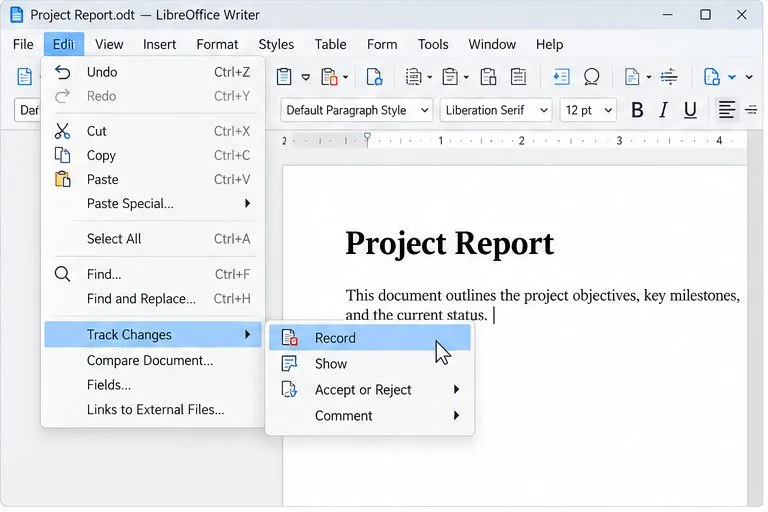
Open the working copy in Writer. In the classic menu, choose Edit > Track Changes > Record. In the tabbed interface, open Review and choose Record. The Track Changes toolbar is another route: choose View > Toolbars > Track Changes, then use its Record control. LibreOffice documents these menu and toolbar paths in its Record Changes reference.
The Edit menu’s Track Changes submenu contains Record; turn it on before making edits you want reviewers to see.
Make a small test edit in the copy, such as changing one word. If markup does not appear, use Edit > Track Changes > Show or enable Show from the Review tab. The Track Changes toolbar reference identifies Show as the control that displays or hides recorded changes.
Step 2: Review the markup without resolving it
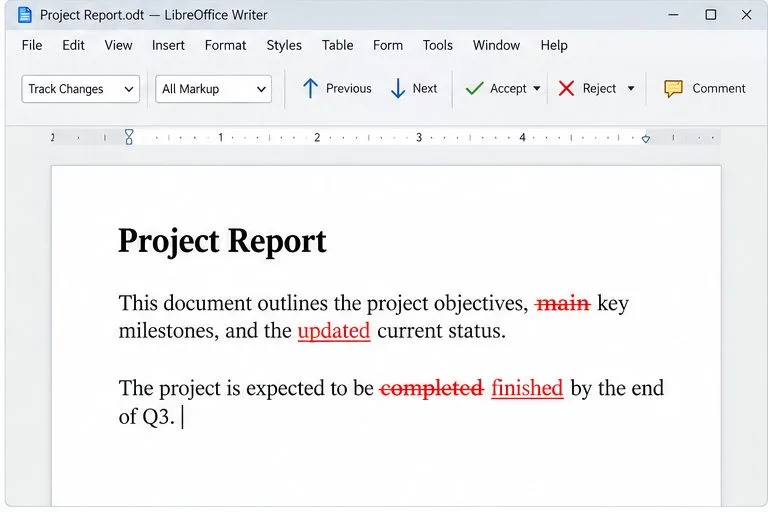
With Show enabled, inserted text and deletions appear as markup. The color and exact appearance depend on Writer’s change-display settings and the author. Continue editing normally; additions and removals should now be recorded. Use comments for explanations that do not belong in the document text. If there are earlier edits, use the previous/next controls or open Edit > Track Changes > Manage to inspect the change list.
Visible markup distinguishes a proposed deletion from inserted replacement text while you review.
Do not select Accept All or Reject All just to clean up the screen. Those actions resolve revisions and change the document’s review state. If the recipient must decide on edits, leave them pending. LibreOffice’s accepting and rejecting changes instructions explain how to inspect and decide on individual changes through Manage.
Step 3: Save a DOCX copy
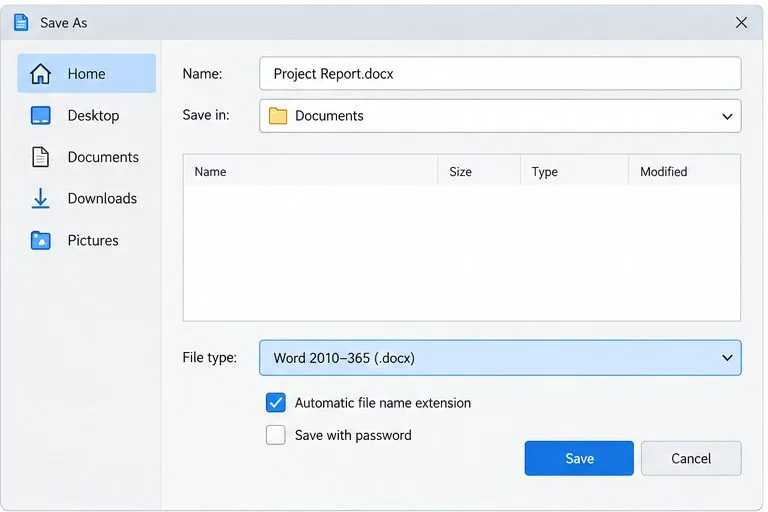
Choose File > Save As. Enter a new filename so the source remains intact, then open the file-type list and select Word 2010–365 (.docx) (the exact label can vary by release). Save the file. If Writer asks whether to use the ODF format or the selected Word format, choose the Word format to complete the DOCX export. The official LibreOffice instructions for saving Microsoft Office files describe Save As and selecting a Microsoft Office file type; its filter table identifies the Word 2010–365 document as DOCX.
Choose the DOCX file type in Save As and give the exported copy a distinct filename.
Keep the confirmation dialog’s default choice for Microsoft Word format when that is the requested deliverable. Do not change the default format for all future documents unless you want every new save to use DOCX; a one-time Save As is enough for this file.
Step 4: Reopen the exported copy and verify it
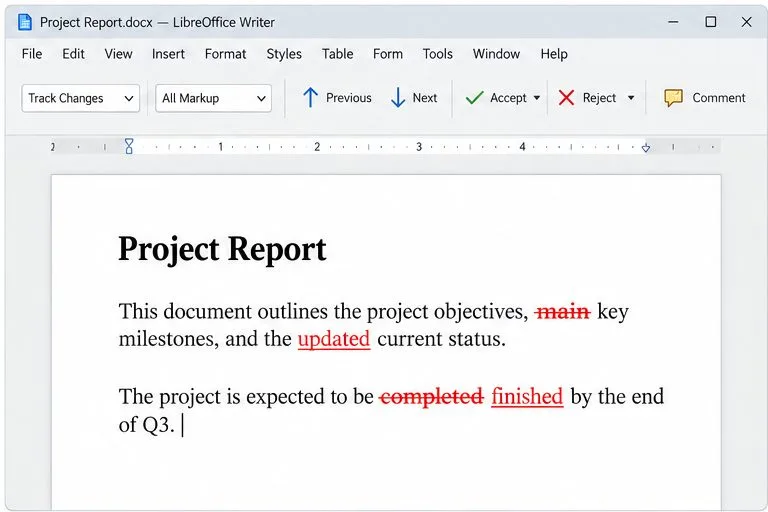
Close or switch away from the ODT/source document, then open the newly saved DOCX. Confirm that the tracked edits are still visible, the author/date information and comments you need remain available, and the document has not silently accepted or rejected revisions. Move through the document from beginning to end, paying extra attention to the high-risk elements listed above. If the file will be reviewed in Microsoft Word, open it in Word or ask the recipient to check the actual copy they received.
Reopen the DOCX and confirm that its revisions remain visible before sending it.
Also compare page count, page breaks, table widths, image positions, headers, footers, and footnotes with the source. A changed page count is a useful warning, not proof by itself that content was lost. If the layout shifted, inspect fonts and paragraph styles first, then review page settings, table sizing, and image anchoring. Make fixes in the working file, export again under a new test name, and repeat the check.
Reduce formatting changes before export
Use paragraph and character styles. Apply built-in or consistent styles for headings and body text rather than manually formatting every paragraph. Styles are easier to inspect and adjust after conversion.
Prefer common fonts and explicit page settings. Missing fonts can substitute different letter widths and line breaks. Verify paper size, margins, and orientation.
Keep layout simple where possible. Use tables for tabular information and inline images for predictable placement. Floating objects, nested tables, unusual section layouts, and positioned text boxes deserve extra review.
Check list numbering and breaks. Numbering, manual line breaks, section breaks, and “keep with next” behavior can be interpreted differently by another word processor.
Retain a source copy. Do not repeatedly shuttle the only copy between ODT and DOCX. Repeated conversion can make changes harder to diagnose.
LibreOffice’s Microsoft Office conversion limitations page notes that some converted files need manual reformatting. The Writer Compatibility options can affect Word-like layout behavior, but changing compatibility settings is not a universal repair. Change a setting only when you understand the affected document, save a separate copy, and compare the result.
Common problems and what to check
Edits seem to disappear after export
First check whether Show is off; hidden revisions may still be present. Reopen the DOCX and use Manage Changes to inspect pending revisions. If the revisions are missing there too, return to the pre-export working copy, confirm Record was on, and export again. Never infer that revisions were preserved just because the page looks clean.
The page count or line breaks changed
Look for missing fonts, different paper size or margins, and tables or images that are close to page boundaries. Replacing a font with an installed, metrically similar font may help, but confirm any replacement is acceptable. Check the repaired DOCX in the target Word application where possible.
The recipient wants a clean final document
Make a separate final copy and accept or reject revisions only after the decisions are complete. Save and reopen that clean copy, and verify that no pending changes or comments remain if they should not be shared. Keep the review copy with markup separately if the audit trail matters.
Quick pre-send checklist
The source file is backed up.
Record was enabled before editing and Show is on for inspection.
The file was saved as Word 2010–365 (.docx), not just renamed with a .docx extension.
The exported DOCX was reopened; pending changes and comments were checked.
Fonts, page count, tables, images, headers/footers, and page breaks were reviewed in the receiving application or a compatible viewer.
The sent file is the verified DOCX copy, with the intended review state.
These checks make the handoff more reliable, but conversion behavior can still vary with LibreOffice and Word versions and with document-specific features. For a document where exact pagination is a legal or production requirement, treat the recipient’s final Word review as part of the workflow.