Home
» MS OFFICE
»
How to Fix Collabora Online High CPU Usage from loolwsd / coolwsd
How to Fix Collabora Online High CPU Usage from loolwsd / coolwsd
When Collabora Online suddenly uses most of a server's CPU, the most important first step is not to restart it repeatedly or immediately impose a very low CPU limit. First determine whether the load comes from normal document work, one pathological document session, too much parallel work, an idle session that is not being cleaned up, or a version-specific regression. The process name may be coolwsd on current releases and loolwsd on older installations.
Illustrative scenario: imagine an 8-vCPU server running Collabora Online behind Nextcloud. Only a few people appear to be editing documents, but the Collabora container sits around 250% to 350% CPU for several minutes. This is a hypothetical example used throughout this guide, not a measured benchmark or a report from a real deployment.
As of October 2026, Collabora's current stable branch is 26.04, and the official release notes list Collabora Online 26.04.3.3 as released on September 14, 2026. Current configuration templates use the coolwsd name. Collabora's migration tooling still documents the older /etc/loolwsd/loolwsd.xml path for installations from the 6.4 era or earlier, which is why administrators may still encounter both names.
1. Confirm which process is actually consuming CPU
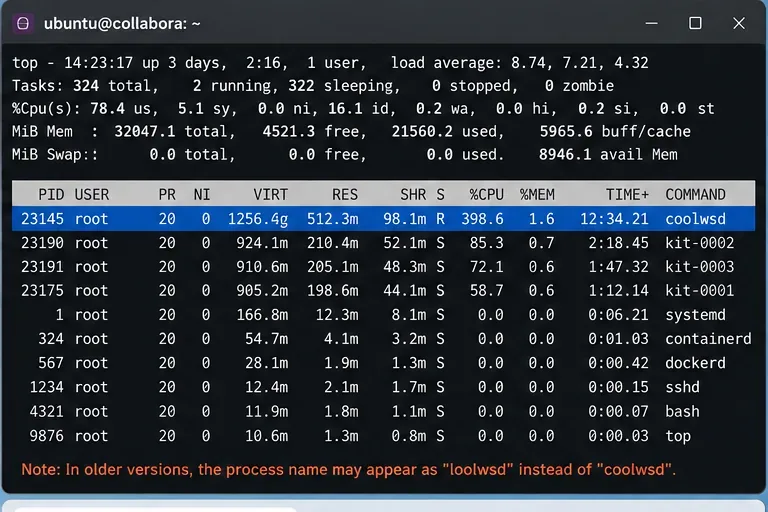
Start at the operating-system or container level. A high number beside coolwsd does not automatically mean the coordinating daemon itself is doing all of the expensive document work. Collabora also runs kit/forkit processes for document sessions, so you want the process tree and per-process CPU usage before changing configuration.
ps -eo pid,ppid,pcpu,pmem,etime,cmd --sort=-pcpu | head -n 25
top -H -p $(pgrep -d, -f 'coolwsd|loolwsd|coolkit|loolkit|forkit')
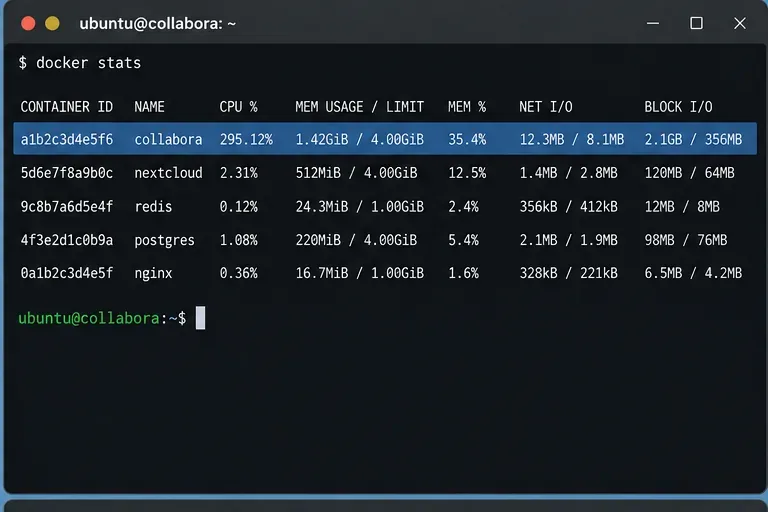
For Docker, also check the container as a whole:
docker stats --no-stream
A process-level view helps separate the main Collabora daemon from document-related kit processes before any tuning is attempted.Container-level CPU is useful for confirming that Collabora is the source of host load, but it does not identify the document or child process responsible.
In the illustrative scenario, suppose the container is near 300% CPU and one kit process is consistently at the top of the process list. That points you toward a specific active document session rather than a generic assumption that the entire server is overloaded.
2. Check Collabora's own metrics instead of relying only on top
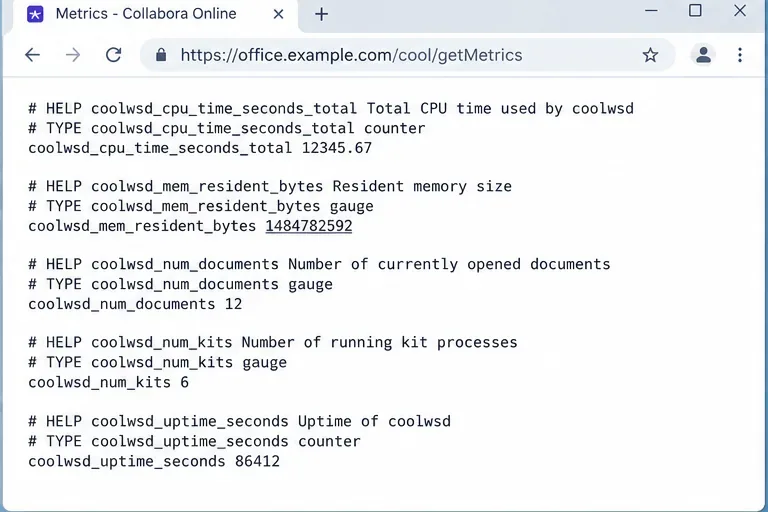
Collabora Online exposes Prometheus-compatible metrics at /cool/getMetrics. The current SDK manual says this endpoint can report CPU and memory use, running kit processes, views, and other server-usage data. It uses the same authentication as the admin console unless metrics are explicitly configured for unauthenticated access.
Do not expose the metrics endpoint publicly just to simplify troubleshooting. The official Helm configuration even includes examples for blocking /cool/getMetrics and admin URLs at an ingress. Use an authenticated, internal path whenever possible.
The Collabora metrics endpoint provides server-side context that complements Linux or Docker CPU measurements.
Look for a relationship between CPU and active documents or views. If CPU rises and falls with legitimate editing activity, you may have a capacity or concurrency problem. If CPU stays high with no corresponding interactive work, investigate stale sessions, a problematic document, repeated background work, or a software issue.
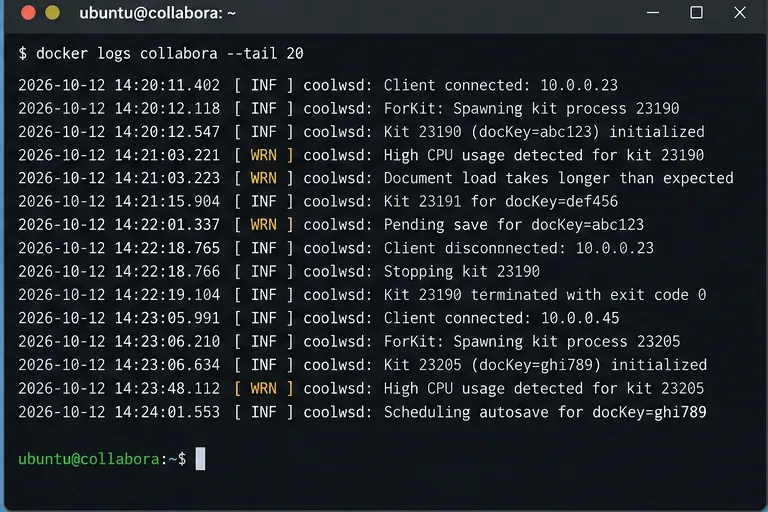
If your service or container has a different name, substitute it. Search for repeated document loads, repeated kit creation, failed saves, crashes, reconnect loops, or the same document key appearing over and over. A short period of higher CPU during document opening, recalculation, rendering, conversion, or export can be legitimate. The stronger warning sign is sustained CPU with no useful progress or the same failure repeating.
Correlate logs with the time of the CPU spike so you can tell normal document activity from repeated or stuck work.
4. Reproduce the spike with one document at a time
Return to the hypothetical server. If one kit process is hot, close or isolate the suspected document and watch whether CPU drops. Then open that same file during a quiet period while monitoring the process list and metrics. Repeat with a simple test document.
This comparison is more useful than immediately restarting the whole service:
If only one file reliably triggers the spike, the file's content, formulas, embedded objects, rendering workload, or a document-specific bug is a stronger suspect.
If every file causes similar saturation once several users are active, investigate server capacity and concurrency.
If CPU remains high after all user activity stops, focus on cleanup, stale kits, repeated background tasks, or a regression.
If the issue began immediately after an upgrade, record the old and new versions before changing many other variables.
5. Reduce per-document concurrency when one document can monopolize cores
The current Collabora configuration template documents per_document.max_concurrency as the maximum number of threads used while processing a document. The template default is 4. On a smaller host, or when a single complex document can dominate the machine, reducing this value can make CPU use more predictable.
Lowering per-document concurrency is a tradeoff: it can reduce how aggressively one document uses CPU, but heavy operations may take longer.
Do not copy the number 2 blindly. If users routinely manipulate large spreadsheets or presentations and the server has ample cores, a lower value may simply make work slower. Change one setting, reproduce the same workload, and compare CPU, responsiveness, and completion time.
6. Verify cleanup and idle-session settings before making them aggressive
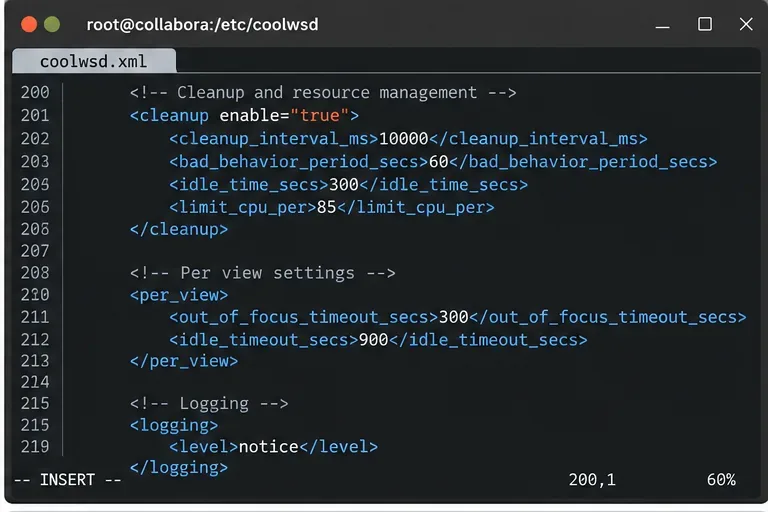
The current coolwsd.xml template includes cleanup logic for resource-consuming idle documents. At the time of writing, the template shows a cleanup check interval of 10,000 ms, a 60-second bad-behavior period, a 300-second idle threshold, and an 85% CPU threshold for a document to become a cleanup candidate. It also includes a per-document idle timeout of 3,600 seconds.
The same template includes per-view timeouts. Current values show 300 seconds before an out-of-focus browser view is dimmed and stops updates, and 900 seconds before an inactive view is treated similarly. These view timeouts are not the same as immediately unloading an entire document session.
Cleanup and view-idle controls can reduce wasted work, but they should be tuned conservatively so normal long-running editing sessions are not disrupted.
Avoid setting the CPU threshold extremely low just to make the graph look better. Cleanup is intended to catch resource-consuming bad or idle documents, not to terminate ordinary active editing whenever it becomes computationally expensive.
7. Restart only after saving a controlled configuration change
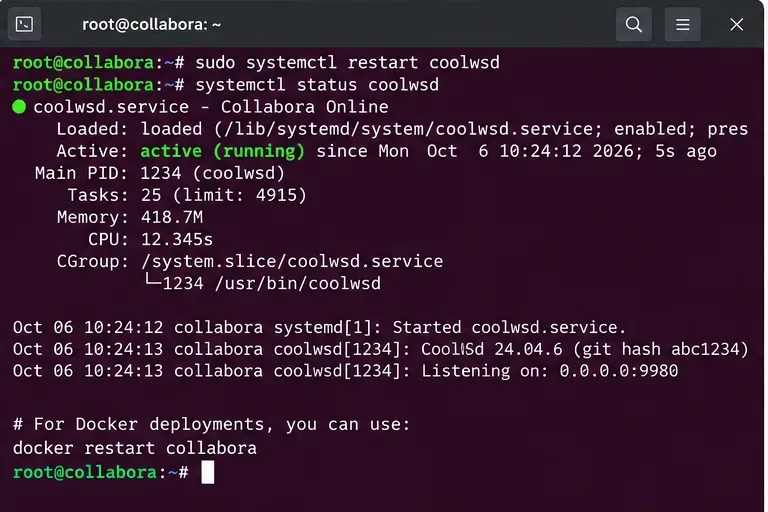
Back up the active configuration first. Package installations typically use /etc/coolwsd/coolwsd.xml. Docker deployments may pass options as environment variables or command-line overrides, or mount a configuration file into the container. Confirm which source is actually active before editing anything.
Restart only after a deliberate, backed-up configuration change, then verify that the service is healthy before users resume testing.
If a restart alone temporarily fixes CPU but the problem repeatedly returns, that is diagnostic information, not a permanent solution. Continue until you can explain what workload or state causes the recurrence.
8. Compare before and after under the same workload
Use the same document, approximately the same number of users, and the same operation sequence. Measure for several minutes rather than comparing a single instant. In the illustrative scenario, success would mean the server no longer remains saturated during the reproduced workload while document opening, editing, saving, and collaboration still behave acceptably.
Use the same metrics endpoint after each controlled change so the before-and-after comparison is based on comparable server data.
Observation
Likely next action
One document or kit stays hot
Reproduce with that file, preserve logs, and test on the current stable micro release.
CPU tracks the number of active users
Review capacity, concurrency, and deployment sizing rather than treating the load as a leak.
CPU stays high after users leave
Inspect idle documents, cleanup behavior, repeated background jobs, and orphaned or restarting kits.
Spike started immediately after an upgrade
Record exact versions and check current release notes and known issues before changing many tuning values.
Lower max_concurrency reduces CPU but editing becomes slow
Increase it gradually or add CPU capacity; the setting is a tradeoff, not a universal fix.
When should you update instead of tuning?
If the behavior started with a particular Collabora version and you can reproduce it with a specific file or operation, configuration tuning may only hide a software defect. Collabora recommends using the latest version from the current stable branch. As of October 7, 2026, the official 26.04 release-notes page lists 26.04.3.3 as the latest Collabora Online release shown there.
For CODE users, remember that Collabora describes the Development Edition as appropriate for small teams, home use, development, and trying newer functionality, while stating that it is not intended for production environments. A production incident on CODE may therefore justify moving to the supported Collabora Online product rather than endlessly tuning around development-edition behavior.
What not to do
Do not assume a high coolwsd number proves a memory leak or infinite loop.
Do not permanently set debug or trace logging during a CPU incident unless you actually need it; verbose logging adds its own overhead and storage pressure.
Do not expose the admin console or metrics endpoint to the public internet just for monitoring convenience.
Do not lower cleanup thresholds until normal active sessions are being killed.
Do not use CPU quotas as the first diagnostic step. A hard limit can protect neighbors on a shared host, but it may convert a CPU problem into slow document rendering and timeouts without revealing the cause.
Recommended troubleshooting order
Confirm whether the busy process is coolwsd, an older loolwsd, or a child kit/forkit process.
Record Docker or host CPU, memory, active documents, and views.
Correlate logs with the exact spike window.
Reproduce with one suspect document and then a simple control document.
Test per_document.max_concurrency only if one document is using too much parallel CPU.
Review cleanup and idle settings without making them unnecessarily aggressive.
Restart after each controlled configuration change and verify service health.
Compare the same workload before and after, then check the current stable release if the behavior looks version-specific.
The practical goal is not to force Collabora Online to use as little CPU as possible. It is to make CPU consumption explainable and proportional to useful work, while preserving acceptable editing and collaboration performance.