Home
» MS OFFICE
»
How to Increase the Memory Limit for a Collabora Online CODE Container
How to Increase the Memory Limit for a Collabora Online CODE Container
If a Collabora Online Development Edition (CODE) container is being killed under load or consistently runs close to its Docker memory ceiling, the practical fix is usually to raise the container's Docker memory limit, not to change a setting inside Collabora itself. Docker applies memory limits at the container runtime level, and Collabora runs within that boundary.
This guide uses a clearly hypothetical example throughout: imagine a small team running a container named code on a Linux Docker host. The container has a 2 GiB hard memory limit, and during busy editing periods it approaches that limit. The team decides to test a 4 GiB ceiling while keeping enough RAM available for the operating system and other services. The figures and utilization values in this example are illustrative, not measured results from a real deployment.
As of October 2026, the commands below align with current Docker documentation. Collabora's own Docker documentation identifies the CODE image as a Docker-deployed Collabora Online option; Docker is the component that enforces container resource limits. Refer to the official Collabora Online CODE Docker documentation and Docker's resource constraints documentation when adapting the steps to your environment.
What increasing the memory limit actually changes
A Docker memory limit is a ceiling on how much RAM a container may use. Raising it gives CODE more headroom before the container encounters memory pressure or an out-of-memory condition. It does not reserve that entire amount in advance, and it does not guarantee that document editing will become faster. CPU saturation, storage latency, network conditions, document complexity, concurrent users, and application-level behavior can still be bottlenecks.
Docker documents --memory (or -m) as the hard container memory limit. Docker also provides --memory-swap, which controls the combined RAM-plus-swap allowance when a memory limit is set. Swap can provide a cushion, but frequent swapping has a performance cost. For an office editing service, avoid treating swap as a substitute for adequate physical memory.
Step 1: Confirm that memory pressure is the real problem
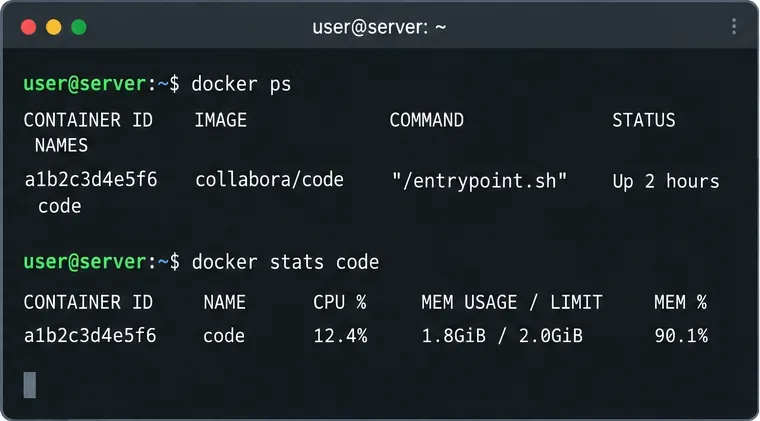
Start by identifying the running CODE container and observing its current resource use:
docker ps
docker stats code
In the hypothetical scenario, docker stats shows the code container using about 1.8 GiB out of a 2.0 GiB limit. That would be a reason to investigate further, but a single snapshot is not enough to justify a permanent change. Watch usage during the workload that causes failures, and inspect container logs for termination or restart symptoms.
Illustrative Step 1: check the running CODE container and observe memory usage relative to its current limit.
A useful decision rule is simple: if the container repeatedly approaches its configured ceiling at the same time users see failed sessions, restarts, or OOM-related events, increasing the limit is a reasonable next test. If memory stays comfortably below the ceiling, changing the limit is unlikely to solve the underlying issue.
Step 2: Read the configured Docker memory limit
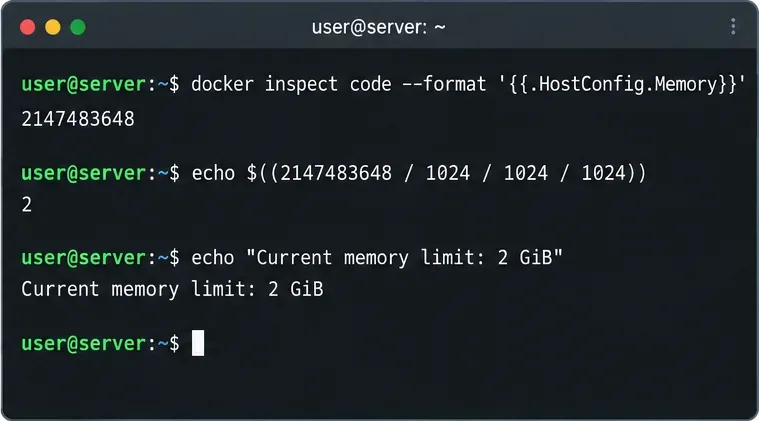
Check the container's configured memory value directly:
Docker reports this value in bytes. For example, 2147483648 bytes equals 2 GiB. You can convert it manually or with shell arithmetic:
echo $((2147483648 / 1024 / 1024 / 1024))
Illustrative Step 2: verify the actual Docker hard memory limit instead of inferring it only from host RAM.
If the inspect value is 0, Docker normally treats the container as having no explicit hard memory limit. In that case, a host-level shortage, another orchestrator, or a different constraint may be the real cause. Docker states that containers have no resource constraints by default unless limits are configured.
Step 3: Increase the limit on an existing Linux container
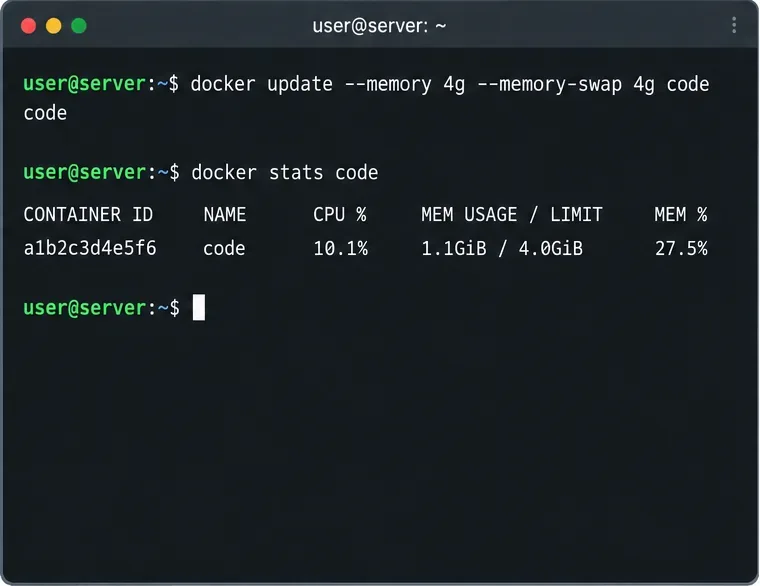
Docker supports changing the memory limit of an existing container with docker update. For the hypothetical 2 GiB-to-4 GiB change:
docker update --memory 4g --memory-swap 4g code
Setting --memory-swap to the same value as --memory prevents that container from using swap under Docker's documented memory-swap rules. If your operational policy allows swap, choose a value deliberately rather than copying this example. For example, a larger --memory-swap value permits some swap beyond the RAM limit, while -1 allows unlimited swap subject to the host's available swap.
Docker's current docker container update documentation lists --memory, --memory-reservation, and --memory-swap as updateable settings. Docker also notes that docker update is not supported for Windows containers; CODE deployments normally use a Linux container, but that distinction matters if you are adapting the command elsewhere.
Illustrative Step 3: raise the running container limit and immediately recheck the reported ceiling.
After updating, verify both the configuration and runtime state:
Do not interpret a lower percentage after the change as proof that the service now needs less RAM. The percentage falls because the denominator is larger. What matters is whether the container remains stable under the workload that previously drove it into memory pressure.
Step 4: Make the change persistent in Docker Compose
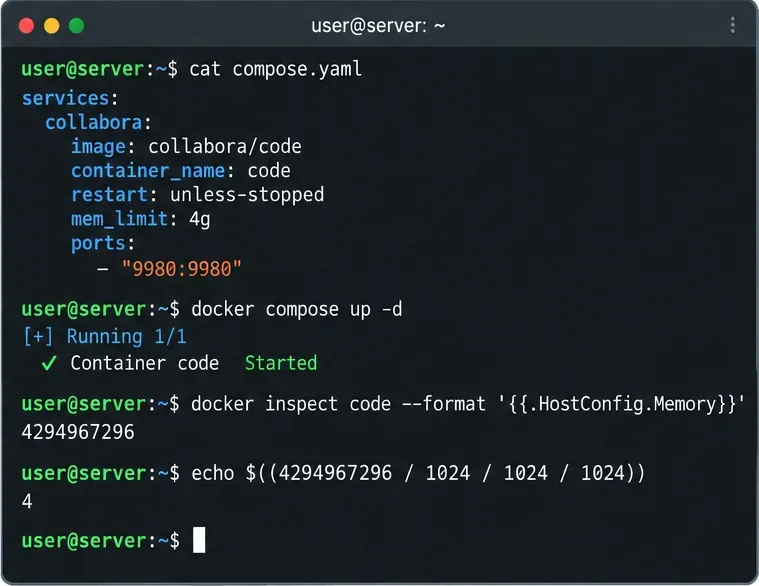
If the container is managed by Docker Compose, update the Compose configuration as the source of truth. Otherwise, a future recreation of the service can restore the old limit or remove the runtime-only change.
For modern Docker Compose, the service-level mem_limit property sets the amount of memory the container can allocate:
Docker's Compose services reference for mem_limit states that mem_limit configures the memory limit for a service container. Compose also supports resource limits under deploy.resources.limits.memory; if you use both forms, Docker says their memory values must be consistent.
Illustrative Step 4: store the new memory ceiling in Compose so a later container recreation keeps the intended setting.
How much memory should you assign?
There is no single safe number for every CODE installation. The appropriate limit depends on concurrent editors, document size and complexity, host capacity, other containers, and the way the service is integrated. Collabora's current SDK manual includes example Kubernetes resource configurations, including a production-oriented example with multi-gigabyte memory requests and limits, but that should not be treated as a universal Docker sizing formula.
For the hypothetical server, moving from 2 GiB to 4 GiB is best treated as a controlled capacity change. The team should confirm that the host has enough free RAM to absorb the higher peak without forcing other critical services into memory pressure. On a host with only a small amount of spare RAM, increasing the CODE limit can simply move the failure from the container to the host.
A practical sizing process
Record the current limit and peak usage during representative busy periods.
Increase the limit in a modest step rather than making it effectively unlimited.
Leave headroom for the host OS, reverse proxy, Nextcloud or other integration services, databases, and monitoring agents.
Repeat the workload and watch actual memory consumption, container restarts, and user-visible failures.
If usage keeps growing toward every new limit, investigate application behavior, document patterns, and logs instead of repeatedly adding RAM.
What about memory reservation and swap?
Docker distinguishes a hard memory limit from a soft memory reservation. A reservation can influence behavior when the host is under contention, while the hard limit remains the absolute ceiling. For many single-host CODE setups, starting with an explicit hard limit is easier to reason about. Add a reservation only when you have a clear host-level resource-sharing policy.
Swap deserves extra caution. Docker's documentation explains that --memory-swap represents total memory plus swap when it is set to a positive value. If --memory=4g and --memory-swap=6g, the container can use up to 4 GiB of RAM and up to 2 GiB of additional swap. That may prevent abrupt failure in some situations, but sustained swap activity can make interactive editing sluggish. Monitor rather than assuming more swap is automatically safer.
How to tell whether the change worked
Success is not simply seeing 4 GiB in docker stats. The meaningful signs are operational:
The configured limit reported by docker inspect matches the intended value.
The container remains below the new ceiling during the workload that previously caused trouble.
Unexpected restarts or OOM-related failures stop occurring under comparable conditions.
The Docker host still retains healthy memory headroom and does not begin swapping heavily.
Editing remains responsive rather than merely avoiding termination.
If the container still fails well below the new limit, change direction. Inspect docker logs code, host kernel logs, reverse-proxy errors, integration-server logs, and CPU or I/O saturation. A memory limit is only one layer of a Collabora deployment.
Common mistakes to avoid
Changing only the running container:docker update can solve the immediate limit, but Compose-managed services should also be updated in the Compose file.
Giving CODE all host memory: the host and neighboring services need headroom. An unrestricted container can contribute to host-wide instability.
Assuming swap is free memory: swap is slower than RAM, and Docker explicitly warns of a performance penalty when applications swap frequently.
Confusing container memory with PHP memory: the Docker CODE container limit is separate from PHP settings used by applications such as Nextcloud.
Using one snapshot as evidence: measure during representative demand and compare behavior before and after the change.
Bottom line
To increase the memory limit for a Collabora Online CODE container, first verify that the existing Docker limit is actually being reached. For an existing Linux container, docker update --memory ... can change the ceiling at runtime. For a Compose-managed deployment, persist the limit with mem_limit or a consistent Compose resource configuration, then recreate or update the service and verify the result.
The hypothetical 2 GiB-to-4 GiB example is useful because it shows the full decision loop: observe pressure, confirm the configured limit, increase it deliberately, persist the configuration, and validate under the same workload. That process is more reliable than simply assigning a large number and assuming the problem is solved.