Home
» MS OFFICE
»
How to Install ONLYOFFICE Docs Enterprise with Docker Compose
How to Install ONLYOFFICE Docs Enterprise with Docker Compose
ONLYOFFICE Docs Enterprise can run as a Docker Compose deployment using the official Docker-DocumentServer repository. The key is to start with the Enterprise-specific Compose file, then set persistent storage, a stable JWT secret, and the license file before treating the server as production-ready. This installs Docs, the online editing service; it does not install the complete ONLYOFFICE Workspace portal.
The steps below were checked against ONLYOFFICE’s Enterprise Docker guide and the official repository on October 6, 2026. The repository’s default branch can change, so for a long-lived server, check out an approved release or tag and keep that version with your deployment notes.
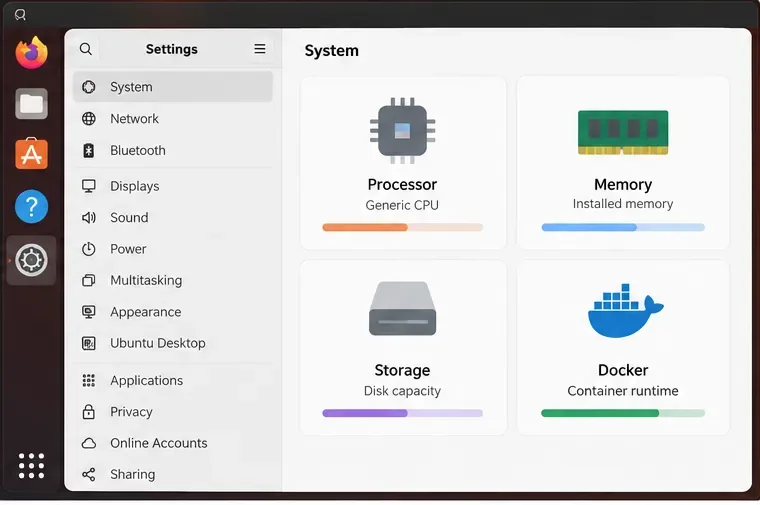
Check the host’s processor, memory, disk space, and Docker readiness before starting the Enterprise image.
Quick requirements checklist
Item
What to prepare
Host
64-bit amd64 Linux; ONLYOFFICE lists a dual-core 2 GHz CPU or better, 4 GB RAM or more, 40 GB free disk space, and at least 4 GB swap, depending on the host OS.
Container tools
Docker Engine and the Docker Compose CLI plugin. Confirm Compose with docker compose version.
Enterprise entitlement
A valid Enterprise license file, license.lic, from ONLYOFFICE for the full licensed version.
Network
A hostname for the Docs service, a plan for HTTPS, and inbound access limited to the ports your deployment needs.
ONLYOFFICE’s current Enterprise guide lists those host requirements. Capacity needs rise with concurrent users, document complexity, and integrations, so treat the vendor’s baseline as a starting point rather than a sizing guarantee.
1. Install Docker Compose and get the official deployment files
If Docker Engine is already installed on Debian or Ubuntu from Docker’s package repository, install the Compose plugin with:
sudo apt-get update
sudo apt-get install docker-compose-plugin
docker compose version
For another Linux distribution, follow Docker’s current installation instructions for that distribution. The current plugin uses the spaced command docker compose; the older standalone command docker-compose is maintained for backward compatibility and is not the path used by ONLYOFFICE’s Enterprise command shown here.
Clone ONLYOFFICE’s repository and enter its directory. If your change-management policy requires a fixed version, check out the approved release tag after cloning and before editing files:
git clone https://github.com/ONLYOFFICE/Docker-DocumentServer.git
cd Docker-DocumentServer
# Optional: select the approved release tag for your deployment
git checkout <release-tag>
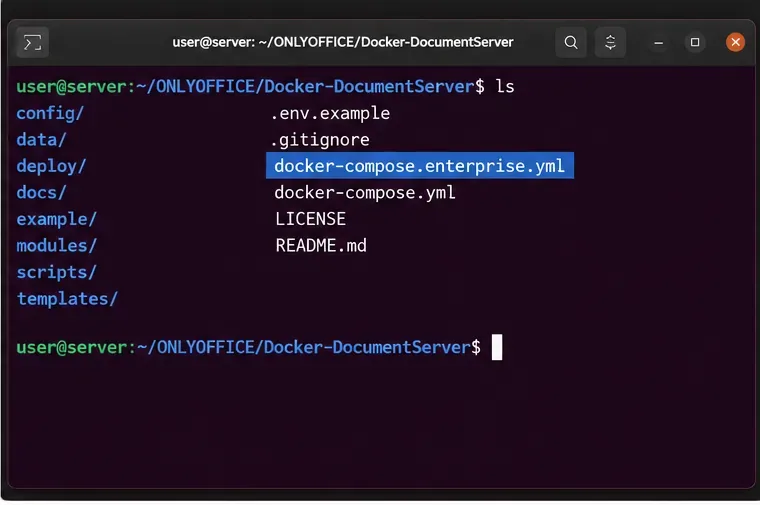
Confirm that the checked-out revision contains docker-compose.enterprise.yml. Do not substitute docker-compose.yml, which is the Community Edition Compose file in this repository.
Use the Enterprise Compose file in the official Docker-DocumentServer repository, not the Community Edition default file.
2. Prepare secrets, data storage, and the license
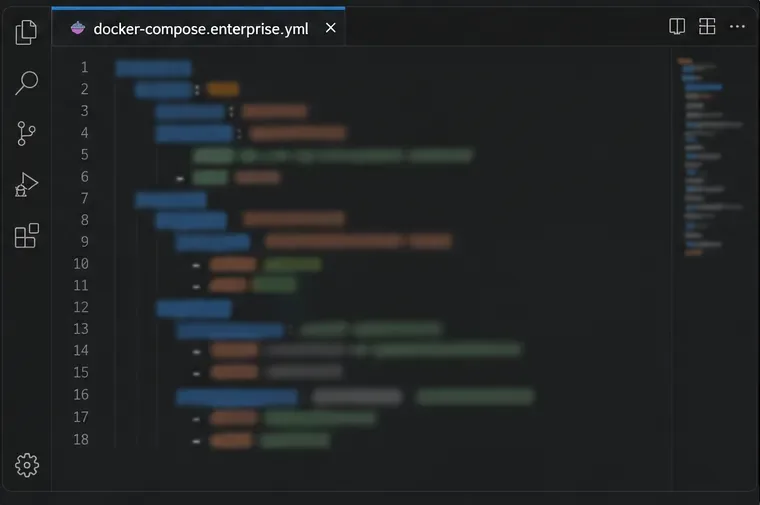
Before the first start, inspect docker-compose.enterprise.yml. In the current official file, the application and PostgreSQL service use a sample database password, and the JWT lines are commented out. Replace the sample database password with a strong value in both the application’s DB_PWD setting and PostgreSQL’s POSTGRES_PASSWORD. They must match. Uncomment or add JWT_ENABLED=true and set a long, unique JWT_SECRET. Keep that same JWT secret for the application or connector that will integrate with Docs.
Generate secrets rather than reusing a login password. For example, run openssl rand -hex 32 and place the output in a private environment file, then reference it from the Compose file as ${JWT_SECRET} and ${DB_PASSWORD}. Protect the environment file from other host users and do not commit it to Git. The key setup is conceptually:
# In a private .env file beside the Compose file
JWT_SECRET=replace_with_a_long_random_value
DB_PASSWORD=replace_with_a_different_long_random_value
Update both database password entries so they reference ${DB_PASSWORD}, and set the server environment entries to JWT_ENABLED=true and JWT_SECRET=${JWT_SECRET}. The upstream Compose file already defines its internal PostgreSQL, RabbitMQ, and Redis services; keep the related service names and dependencies together if you customize it.
Make the important application data persistent on the host. In the onlyoffice-documentserver service, replace the anonymous volume entries for /var/www/onlyoffice/Data and /var/log/onlyoffice with bind mounts such as:
Keep the other volume entries and the named PostgreSQL volume defined by the official file unless you have a tested reason to change them. Create the host directories and copy the license you received into the mounted data directory:
mkdir -p data logs
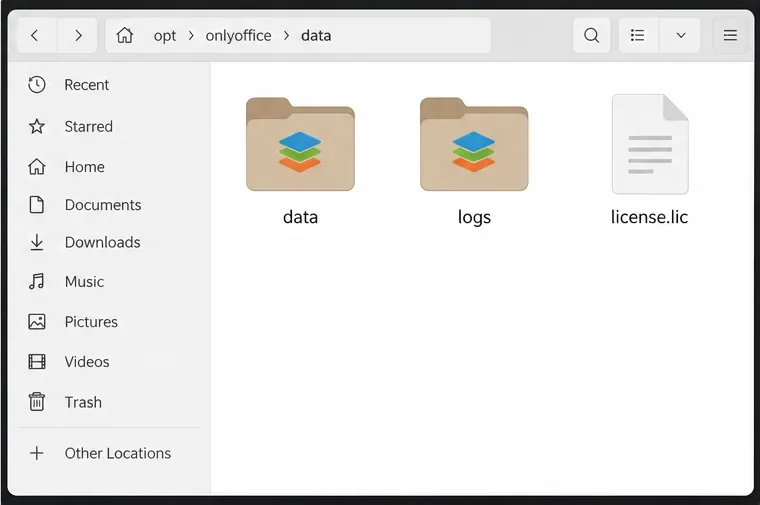
cp /secure/path/license.lic data/license.lic
Ensure the container can read the license and write to its data and log paths. File ownership requirements can depend on the image and host; if you see permission errors, check the running container’s user and the official repository instructions rather than applying broad permissions. Keep the license and secrets out of public web roots and source control.
Review the Enterprise Compose file before startup so the JWT, database password, and storage mounts are set deliberately.Place license.lic in the host directory mounted to /var/www/onlyoffice/Data so it remains available to the container.
3. Validate and start the Enterprise services
From the repository directory, validate the Compose configuration, then launch the Enterprise stack:
The first command checks that Compose can parse the file and resolve its variables. It can print resolved secrets, so run it in a private terminal and do not paste its output into public logs or support threads. The second command builds or starts the services described by the Enterprise file. The official definition includes the Document Server plus its PostgreSQL, RabbitMQ, and Redis dependencies.
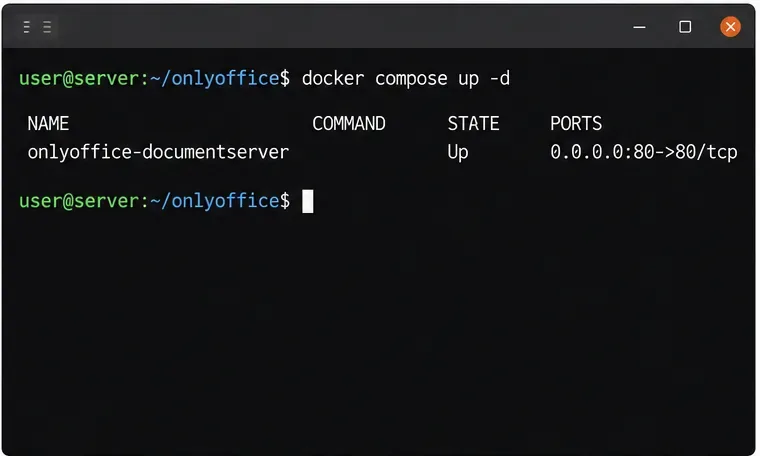
Look for containers that remain in a restarting or unhealthy state, database authentication failures, missing license messages, or permission errors. A service marked “Up” is useful evidence that its container process is running; it does not alone prove that browser editing or an external integration works.
Use the final hostname over HTTPS for clients and integrations; the example address is a placeholder for your own DNS name.After Compose starts, review the actual service state and health status on your host.
4. Put the service behind HTTPS and restrict access
For a production deployment, point a DNS name such as docs.example.com to the server and provide HTTPS using the certificate method you operate: a trusted reverse proxy or ONLYOFFICE’s documented certificate setup. Update the sample hostname in commands and integration settings to your own name. Do not expose a plain HTTP editor endpoint to the public internet for routine use.
The official Enterprise Compose file publishes ports 80 and 443 for the Document Server. Its database, Redis, and RabbitMQ services are internal dependencies and should not be exposed to the public network. Review the firewall and any cloud security group so only required inbound traffic reaches the host. If another reverse proxy already owns ports 80 and 443, change the Compose port mapping to a host-only or unused port and configure the proxy to forward to that local endpoint; the proxy must support the WebSocket traffic used by document editing.
HTTPS and JWT protect different things. HTTPS encrypts traffic between clients and the server. JWT validates requests exchanged between Docs and the connected platform. Keep JWT enabled and configure exactly the same secret in the connector or platform. Do not turn JWT off merely to make an integration test pass; fix the mismatched secret, header, or URL instead.
5. Verify the service, then test an integration
The official Compose file defines a health check against http://localhost:8000/info/info.json inside the Document Server container. Check that the service becomes healthy with docker compose ... ps. You can also use the browser to open the public HTTPS hostname. A running Docs welcome page indicates that the web service responds, but it does not test document callbacks from your storage platform.
To complete the check, connect a compatible platform using the public Docs URL and the same JWT secret. Open a test DOCX, make a small edit, save it, and reopen it from the platform. This verifies that the platform can reach Docs and that Docs can return saved changes to the storage service. If the page loads but an editor fails to open, inspect the browser console, proxy WebSocket configuration, JWT agreement, and server logs. Keep the test document disposable and do not use sensitive material during initial setup.
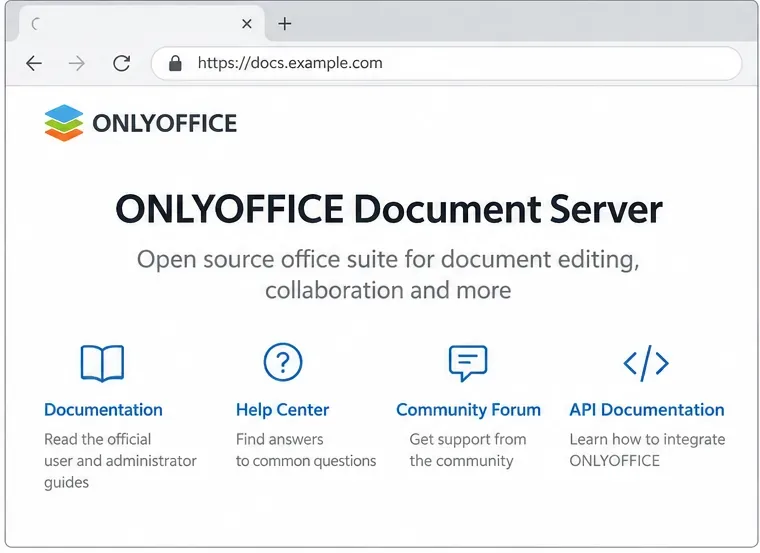
The Document Server landing page should load at the configured hostname before you test editing through a connected platform.Finish with a real save-and-reopen test through the platform that will store your users’ documents.
Operations and troubleshooting notes
License not detected: confirm that license.lic is in the host directory actually mounted at /var/www/onlyoffice/Data, then check the container logs.
JWT errors: compare the server and connector secret, header, and URL. Keep the secret stable across restarts.
Database startup failures: confirm that the database password matches in both PostgreSQL and the Document Server environment.
Data disappears after recreation: confirm that the Enterprise Compose file still uses your bind mount for Data and retains the named PostgreSQL volume. Back up both before upgrades.
Editor opens but cannot save: verify that the platform’s callback URL is reachable from the Docs container and that the proxy passes WebSocket connections.
Use the Enterprise-specific update path and review release notes before changing image versions. Avoid docker compose down -v unless you intend to remove Compose-managed volumes; that option can delete the named PostgreSQL data volume. Back up your data directory, logs if needed, and the database before an upgrade.