Integrating Collabora Online with ownCloud Infinite Scale (oCIS) is a WOPI integration, not the same setup used by ownCloud Classic. WOPI, or Web Application Open Platform Interface, is the protocol that lets an online office suite request a file from a storage platform, edit it in the browser, and write the result back.
That distinction matters because current Infinite Scale deployments use the built-in collaboration service as the bridge between oCIS and Collabora. You do not install the old ownCloud Classic Collabora app and point it at a server URL. The office application is registered through the collaboration and app-registry services instead. The official ownCloud WOPI documentation lists Collabora as a supported office application, while the collaboration service documentation explains the service and its required settings.
As of October 2026, ownCloud's official GitHub releases include Infinite Scale 8.2.0, released August 10, 2026. The project's deployment example may evolve independently, so use a tested production tag rather than assuming a rolling image is appropriate. The official oCIS full deployment example currently recommends Collabora CODE tag 26.04.3.1.1 in its environment file. Check the official Infinite Scale releases and the official deployment example environment file before pinning versions.
First, Understand the Three Endpoints
A production integration normally involves three logical endpoints:
| Endpoint | Purpose | Example |
|---|
| Infinite Scale | User-facing ownCloud Web and storage APIs | https://cloud.example.com |
| Collabora Online | Browser editor and WOPI client | https://office.example.com |
| WOPI/collaboration service | Bridge through which Collabora reads and writes oCIS files | Internal service URL or externally routed WOPI hostname, depending on topology |
Verified: COLLABORATION_APP_ADDR is the Collabora URL, and COLLABORATION_WOPI_SRC identifies the WOPI source used by the office application. Environment-dependent: the WOPI source does not have to be a separate public hostname when Collabora and the collaboration service share a trusted container network. The current official Compose example uses http://collaboration:9300 internally. A separated deployment may require a routed HTTPS WOPI hostname.
Useful action: decide your topology before copying configuration values. If all components run in one official Compose stack, start from that example. If Collabora is on another host or Kubernetes cluster, document which DNS name each side can actually resolve and reach.
Stage 1: Verify DNS, HTTPS, and Collabora Discovery
Before touching oCIS configuration, make sure the ownCloud and Collabora names resolve correctly and that Collabora exposes its discovery endpoint. Collabora publishes WOPI capabilities through /hosting/discovery. A basic check is:
dig +short cloud.example.com
dig +short office.example.com

curl -fsS https://office.example.com/hosting/discovery | head
You should receive XML from the discovery endpoint. If TLS terminates at a reverse proxy, confirm that the certificate presented for office.example.com is valid from the perspective of the oCIS host or container network.
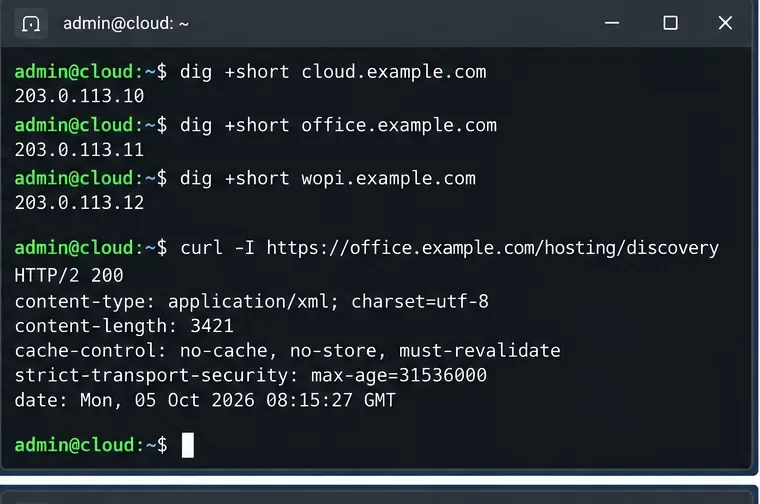
Caption: Check name resolution and the Collabora /hosting/discovery endpoint before debugging WOPI registration inside Infinite Scale.
Common misunderstanding: seeing a Collabora landing page in a browser does not prove the WOPI integration works. It proves the web endpoint is reachable. The collaboration service must also reach Collabora, and Collabora must be able to reach the WOPI source.
Useful action: run connectivity tests from the same network namespace as the relevant service—for example, from inside the collaboration container when using Docker.
Stage 2: Configure the Infinite Scale Collaboration Service
The collaboration service is not started automatically by a generic ocis server supervised-mode setup. The ownCloud documentation states that it must be started explicitly, because administrators may run more than one collaboration-service instance for different office products.
The important settings for Collabora are:
COLLABORATION_APP_NAME=CollaboraOnline
COLLABORATION_APP_PRODUCT=Collabora
COLLABORATION_APP_ADDR=https://office.example.com
COLLABORATION_WOPI_SRC=http://collaboration:9300
OCIS_URL=https://cloud.example.com
The exact WOPI source above matches the topology used by the current official Compose example: Collabora and the collaboration service share the same Docker network. If your Collabora server is external, replace the internal URL with the address that Collabora can reach.
The service also depends on Infinite Scale's gateway and app-provider infrastructure. In a split-container deployment, the ownCloud documentation specifically warns that the oCIS configuration must be shared with the collaboration container because generated secrets are required across services. See the current official Collabora Compose definition.
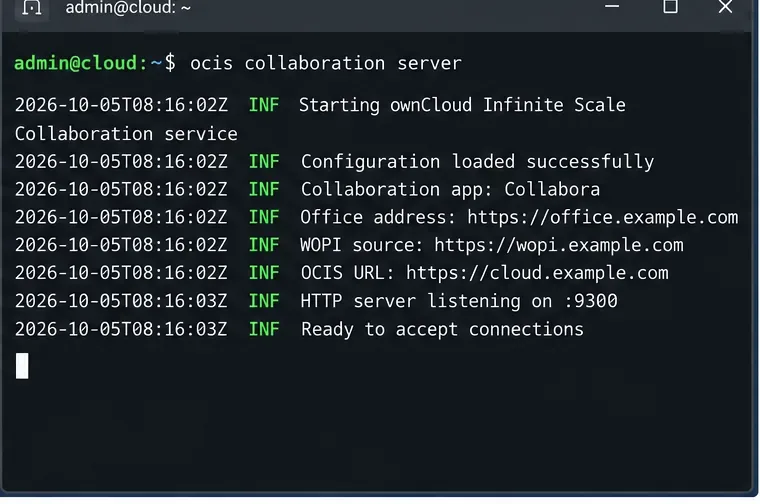
Caption: A collaboration-service process should start with the intended Collabora address and WOPI source; use real service logs to confirm the values in your deployment.
Useful action: if you built the deployment manually, compare your environment against the official collabora.yml instead of copying settings from an old cs3org/wopiserver tutorial.
Stage 3: Configure Collabora for the WOPI Host and Browser Embedding
Collabora must trust the WOPI host and be allowed to render inside the ownCloud Web page. The official oCIS Compose example passes Collabora options that terminate TLS at the reverse proxy and set net.frame_ancestors to the oCIS domain. It also generates a WOPI proof key before starting Collabora.
In the official example, relevant Collabora-side values include:
DONT_GEN_SSL_CERT=YES

extra_params:
  --o:ssl.enable=...
  --o:ssl.ssl_verification=...
  --o:ssl.termination=true
  --o:welcome.enable=false
  --o:net.frame_ancestors=cloud.example.com
The exact SSL flags depend on where TLS terminates. The recommended Internet-facing arrangement is HTTPS with certificate verification enabled. The example's INSECURE=true option exists for local setups using self-signed certificates; ownCloud's deployment guide explicitly tells administrators to remove it or set it to false for public servers.
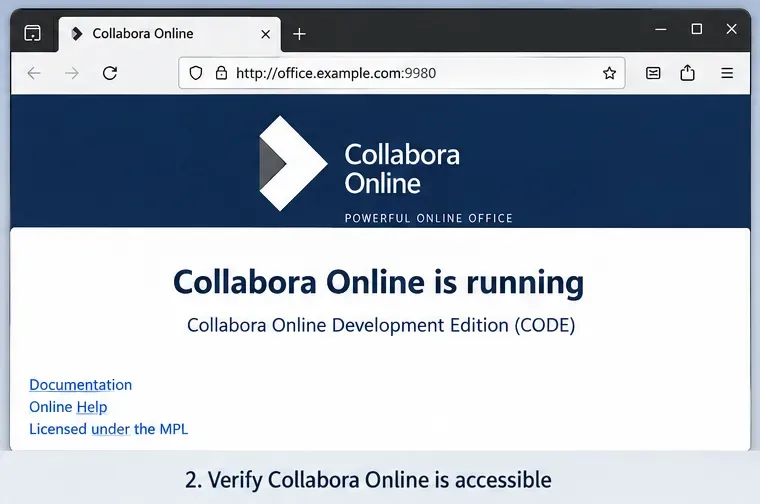
Caption: A reachable Collabora endpoint is one prerequisite; production deployments should expose it through HTTPS with a certificate trusted by the other components.
Useful action: if document loading produces a blank iframe or CSP error, inspect browser developer tools and reverse-proxy headers. Do not disable certificate verification or content-security restrictions broadly just to make the page load.
Stage 4: Register Office File Types and Test Editing
Infinite Scale's app-registry service decides which application can open each MIME type. Its configuration can define the MIME type, extension, icon, default application, and whether users may create new files of that type. The official App Registry documentation describes these fields.
A key detail is that the app name used by the registry must correspond to the collaboration provider you actually registered. Current official Collabora deployment examples use CollaboraOnline as COLLABORATION_APP_NAME and Collabora as the product name. Do not mix names copied from older examples without checking the deployment version.
After startup, log in to ownCloud Web and open a supported office document. A successful flow looks like this:
- ownCloud Web selects the registered office application for the document's MIME type.
- The collaboration service creates the WOPI launch information.
- Collabora loads in the browser and requests the file through WOPI.
- Edits are written back to Infinite Scale through the same integration.
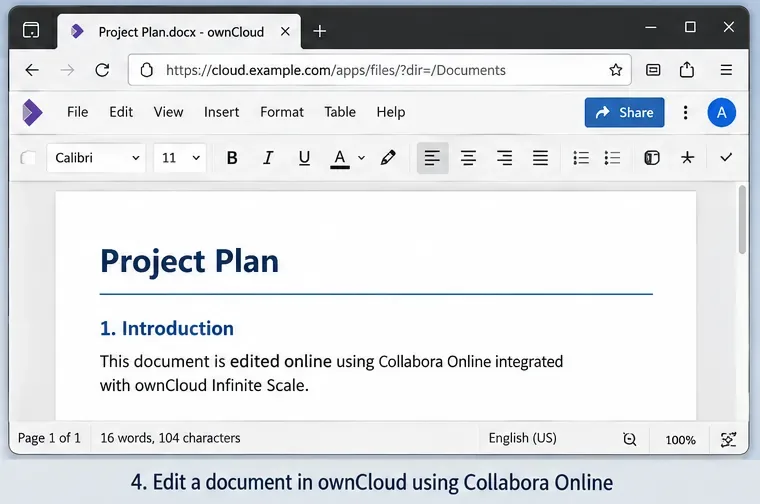
Caption: The final test is opening a real office document from ownCloud Web, editing it in Collabora, closing it, and confirming the saved version is visible again in Infinite Scale.
Useful action: make a small change to a disposable test document, close the editor, reopen the file, and verify the change persisted. A page that merely loads the editor is not a complete write-path test.
Use the Official Compose Example When You Do Not Need a Custom Topology
For a conventional Docker deployment, the lowest-risk path is ownCloud's maintained ocis_full example. It includes Infinite Scale, the collaboration service, Collabora, and Traefik. The official guide says the deployment requires domains for oCIS and Collabora and documents the WOPI component as part of the stack. See the official full deployment guide.
A typical production-oriented environment file includes values conceptually like:
OCIS_DOCKER_IMAGE=owncloud/ocis
OCIS_DOCKER_TAG=<tested-production-version>
OCIS_DOMAIN=cloud.example.com

COLLABORA=:collabora.yml
COLLABORA_DOCKER_TAG=<tested-collabora-version>
COLLABORA_DOMAIN=office.example.com

INSECURE=false
Then start the stack with:
docker compose pull
docker compose up -d
docker compose ps
Verified: the current official reverse-proxy example enables encoded slashes, question marks, and percent characters on the HTTPS entry point because collaboration/Collabora requires them. Environment-dependent: if you use Nginx, HAProxy, an ingress controller, or a cloud load balancer instead of Traefik, you must reproduce the required URL handling, WebSocket/proxy behavior, certificates, and timeouts in that platform.
Useful action: do not translate Traefik labels literally into another proxy. Use them to understand the routing requirements, then implement those requirements using your proxy's documented syntax.
Troubleshooting Reference
| Symptom | Likely area | Check next |
|---|
| No office option for DOCX/ODT | App Registry / provider registration | Confirm the collaboration service is registered and the MIME type points to the correct app name. |
| Collabora page works but document does not open | WOPI reachability | Verify Collabora can reach COLLABORATION_WOPI_SRC and inspect collaboration logs. |
| Blank frame or browser CSP error | Frame/CSP configuration | Check frame_ancestors, oCIS CSP, and the actual origin used by the browser. |
| TLS or certificate error | Reverse proxy / trust chain | Use valid certificates in production and test HTTPS from the service containers, not only your workstation. |
| Editor opens but save fails | WOPI write path / shared secrets | Inspect collaboration and Collabora logs and confirm shared oCIS configuration is mounted where required. |
| One file opens in multiple office suites unexpectedly | Multiple office integrations | The official environment file currently warns against enabling overlapping office apps because same-file app interlocking is not available. |
What Is Known, What Depends on Your Deployment, and What to Avoid Assuming
Known: Infinite Scale supports Collabora through WOPI, the built-in collaboration service is the current bridge, and the official full deployment provides a working reference architecture.
Depends on your environment: whether the WOPI endpoint is an internal container URL or a public hostname, where TLS terminates, which proxy you use, and whether Collabora runs in the same network as oCIS.
Do not assume: instructions for ownCloud Classic apply to Infinite Scale. Classic documentation that tells you to install a Collabora/richdocuments app or configure it through Classic's admin UI describes a different product architecture.
The most reliable integration workflow is therefore: start from the official Infinite Scale deployment model, prove network and TLS reachability, configure the collaboration service, confirm Collabora trusts and can reach the WOPI host, register the relevant MIME types, and finally test both opening and saving a real document.









