Home
» MS OFFICE
»
How to Integrate ONLYOFFICE Docs With a Custom PHP Application
How to Integrate ONLYOFFICE Docs With a Custom PHP Application
Start with the integration boundary: a custom PHP application does not send document bytes directly into the editor. Your application authenticates the user, stores the file, serves a URL that the ONLYOFFICE Docs server can fetch, and exposes a callback endpoint where Docs posts save updates. The browser loads the Docs API script and creates an editor in a page element. This pattern works with a self-hosted Docs server when the browser and both servers can reach the required URLs.
A relevant version note: ONLYOFFICE announced Docs 9.4 on May 19, 2026. The announcement says the open-source Community Edition removed its former 20-simultaneous-connection limit beginning with 9.4. That changes one deployment consideration for Community users; it does not remove the need for reachable storage and callback endpoints, JWT signing, or licensing review. Check the release and license terms for the exact Docs build you plan to deploy. The integration below follows the current documented Docs API flow.
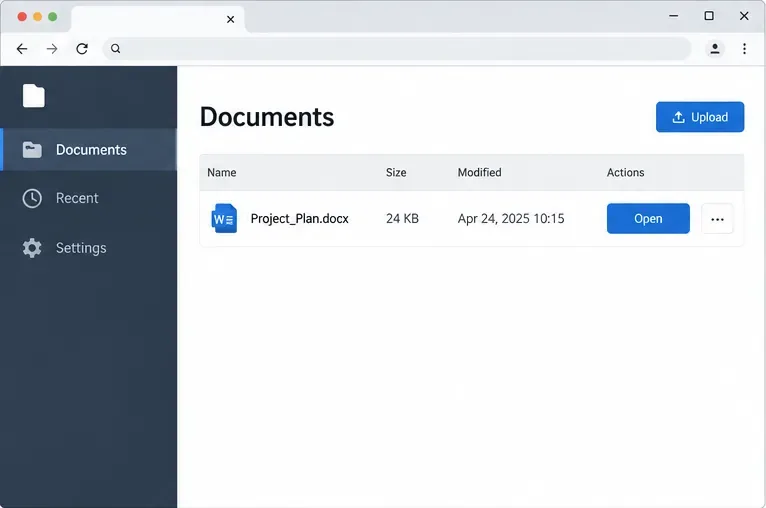
Step 1: The PHP application lists a stored DOCX file and gives an authorized user an Open action.
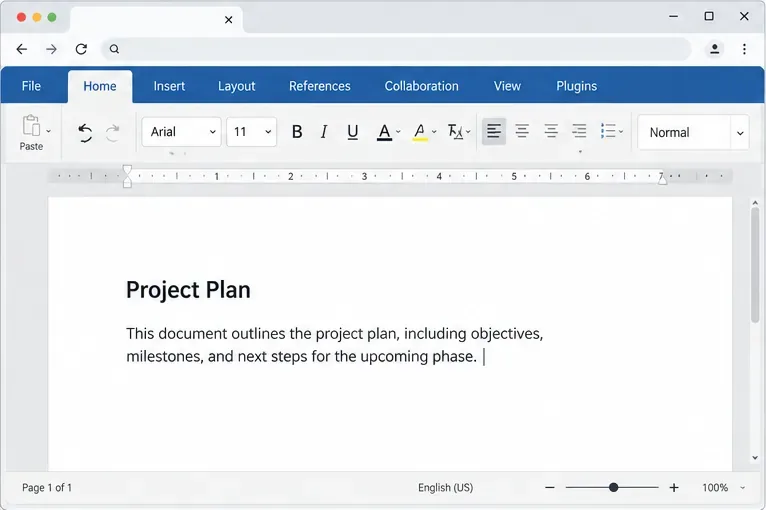
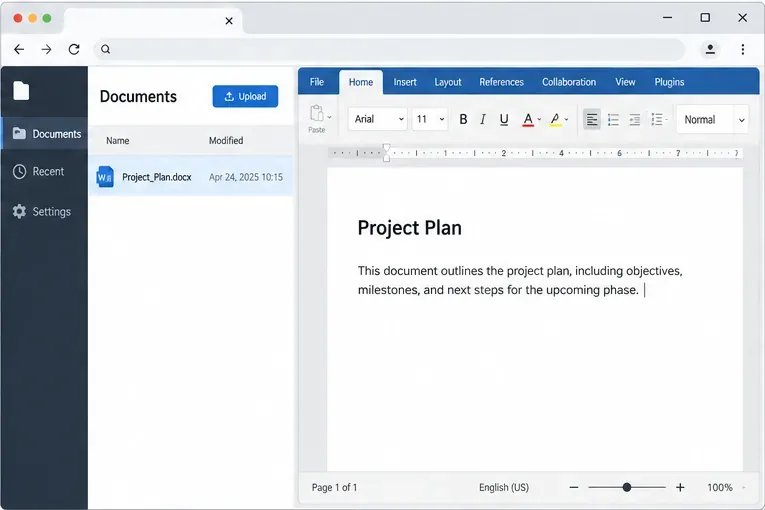
The four screen illustrations are conceptual examples, not captured product screenshots. The document list and PHP project layout are application-specific, and the editor interface can vary by Docs version and configuration.
Before you connect anything
You need a PHP application, an ONLYOFFICE Docs server, and document storage controlled by your application. Docs and the PHP application can run on separate hosts or containers. The user’s browser must reach the Docs server to download its editor assets. Separately, the Docs server must reach your application’s document URL and callback URL. A hostname such as localhost often fails in a container setup because it points back to the container making the request, not to the other service.
Use HTTPS for public endpoints, persist your JWT secret outside source control, and decide how document permissions map to your application’s users. For local development, a private network or tunnel may be needed so Docs can fetch a development file; production should use stable, authenticated routes. The official ONLYOFFICE Docs Docker installation guide explains installation and JWT configuration. Its sample secrets are examples—replace them with a private secret and keep it consistent with your Docs configuration.
Step 1: Define document and network routes
Start by making the document available at a stable, absolute URL that Docs can fetch. Do not point the editor at a PHP session path or a browser-only relative URL. Instead, create an authenticated application route such as https://app.example.com/docs/42/download. Before returning bytes, that route should check the signed-in user’s access to document 42. If the Docs server cannot reuse the user’s browser session, issue a short-lived, scoped download URL or another server-to-server authorization mechanism.
Also create a callback route such as https://app.example.com/onlyoffice/callback?document=42. It must accept a POST from the Docs server, identify the target file safely, and be reachable from the Docs server network. The URL parameter that Docs posts back is a temporary download link for the edited document; it is not the saved file in your database. Your callback must fetch those bytes and write them into your storage.
ONLYOFFICE describes the editor and document storage service as separate pieces: Docs supplies the editing service, while the integrator supplies the document manager and storage. See the official “How it works” overview before choosing your endpoint and network design.
Step 2: Build the editor configuration in PHP
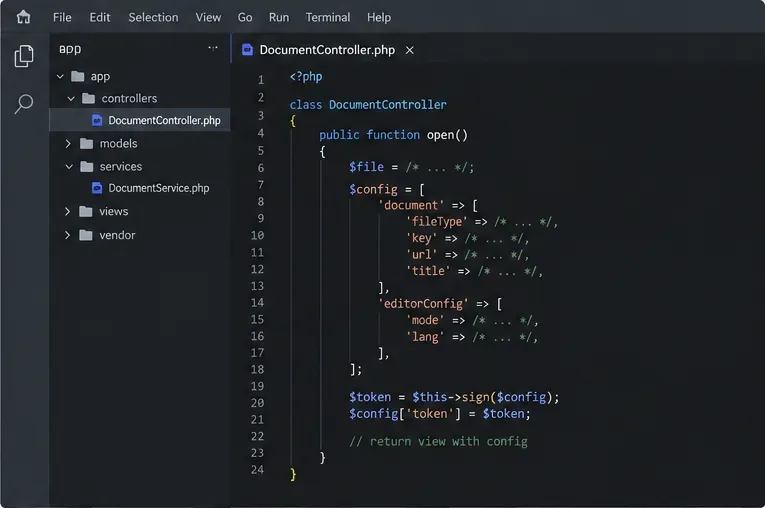
For a Word document, the configuration identifies the source file type, a unique document key, title, downloadable URL, editor mode, and callback URL. The key is important: it lets Docs identify the editing session and reuse a cached document. Generate a fresh key when the file has been edited and saved; reuse the same key for clients that are meant to join the same active document session. Keep the key within the documented character and length limits.
Step 2: The PHP backend prepares the file URL, document key, editor options, callback URL, and signed token.
The sample below assumes Composer and the Firebase PHP-JWT library. Replace every example URL and storage lookup with your own authorization-aware services.
The document.url must be readable by the Docs server, not merely by the browser. The document.key should track a saved revision: if you reuse a stale key after the source file changes, Docs may open cached content. The token is a signed JSON Web Token (JWT), a standard format for proving that the configuration came from a server holding the shared secret. The signing secret stays on the PHP server; never put it in JavaScript or HTML.
The code names docsDownloadUrl(), callbackUrl(), and editingKey() are application methods, not built-in ONLYOFFICE PHP functions. The exact implementation depends on your storage system, web framework, and access-control model. ONLYOFFICE publishes an official PHP integration SDK and multi-language examples, but the repository explicitly describes its demo applications as test examples that need production changes. Review the official JWT signature guide and the official integration examples.
Step 3: Load the Docs API and render the editor
Render the signed configuration into the page only after the PHP route has authorized the user. Escape the JSON for a JavaScript context, and make the editor container tall enough to be usable. The browser fetches api.js from your Docs server; the constructor replaces the placeholder element with an editor iframe.
Step 3: The page loads the Docs editor into the area reserved by the PHP application.
The tags above are shown as escaped sample markup so they can be read as code. In your real page, load the API script from the URL of the Docs server serving your editor. If the editor area is blank, first confirm that the browser can open that URL, that the app and Docs use compatible HTTPS certificates, and that browser developer tools show no blocked mixed-content or network request. The DocsAPI.DocEditor documentation explains the placeholder and iframe behavior.
Step 4: Save updates through the callback
When editing ends, Docs sends a POST to editorConfig.callbackUrl. The status value determines what your handler should do. Status 2 means the document is ready to save after editing closes. Status 6 means the current state has been saved through a force-save operation while the editing session can continue. Other values indicate connection, no-change, or error states; do not treat every callback as a new file.
Step 4: The edited document remains inside the application workflow after the callback stores the updated file.
A callback handler should parse the JSON body, validate the request according to the JWT outbox settings enabled on your Docs server, map the callback to a document the current integration owns, and handle save states deliberately. On status 2 or 6, download the posted url from the Docs server, verify the download succeeded, and replace the stored file atomically so a partial download cannot corrupt the original. Return the callback response expected by the current API, typically a JSON object with error set to 0 after successful processing.
<?php
$payload = json_decode(file_get_contents('php://input'), true);

// Verify the callback token as configured for your Docs server.
// Resolve the document from your own database; do not trust a user-supplied path.
$status = (int) ($payload['status'] ?? 0);

if (in_array($status, [2, 6], true) && !empty($payload['url'])) {
    $file = $storage->downloadFromDocs($payload['url']);
    $storage->replaceAtomically($document, $file);
}

header('Content-Type: application/json');
echo json_encode(['error' => 0]);
downloadFromDocs() and replaceAtomically() are placeholders, not complete production routines. Use an HTTP client with timeouts, TLS verification, response-size limits, and controlled outbound destinations; do not fetch an arbitrary URL without safeguards. Check the callback’s signature/token using the method documented for the exact Docs version and configuration you run. The official callback handler reference lists statuses and when the edited-file URL is present.
Test the full save path
Open a small DOCX as a user who has permission to edit it.
Make a visible change, wait for the editor to indicate it is saved, and close the document.
Inspect PHP and Docs logs. Confirm that the callback arrived and your storage route downloaded the returned file.
Reopen the file from the application and confirm the change persists. Test a no-change close and a second simultaneous editor separately.
The official save-flow guide notes that, in most cases, the save completes about 10 seconds after editing ends; file size, complexity, conversion time, and server performance can affect the delay. Do not report “saved” to the user just because the editor iframe closed—verify the callback and stored revision.
Common integration failures
Editor opens but cannot load the file: test document.url from the Docs server’s network, not only from your desktop browser.
JWT rejected: compare the secret and HS256 configuration on both sides; confirm the token signs the exact configuration object being sent.
Changes disappear: check callback reachability, status handling, temporary download URL fetching, and file replacement permissions.
Old version appears: issue a new document key after a saved revision and avoid serving cached source URLs unintentionally.
Works locally, fails in production: inspect reverse-proxy paths, TLS certificates, container DNS, firewall rules, and the public-versus-internal hostname used in each URL.
This is the core path for integrating ONLYOFFICE Docs with a custom PHP application: authorize and serve the source file, sign a per-document editor config, render the official API editor, then securely process save callbacks. Production details—authentication, storage, URL signing, callback verification, and concurrency policy—must match your own application and the exact Docs version you deploy.