Home
» MS OFFICE
»
How to Password Protect Sections of a Document in LibreOffice Writer
How to Password Protect Sections of a Document in LibreOffice Writer
LibreOffice Writer can make a selected section read-only and require a password before someone removes that protection. This is useful when a document should remain editable overall but a passage such as approved wording, instructions, or a form introduction should not be changed by mistake.
There is an important limit: LibreOffice describes section protection as a way to prevent accidental changes, not as information security. A protected section remains part of the document. Use file encryption when people must not be able to open or read the document at all.
What you should see when protection is set up correctly
The protected passage should still appear in the document, but Writer should block edits inside that section. Text outside it should remain editable. If a user tries to remove the section protection through the Sections dialog, Writer should ask for the correct password. This gives you a practical way to test both the boundary and the password behavior.
This procedure matches the current LibreOffice 26.8 Help for Writer. The exact menu placement can vary with the user interface layout or localization, but the commands are named in the standard menu-based interface.
Before you start: identify the exact text to protect
Section protection applies to content placed inside a Writer section. Decide which paragraphs belong in the protected passage before changing the document. If the section does not already exist, you can select the text and create one. If the text is already in a section, edit that section instead of creating a second one around it.
Save a working copy first if this is an important document. That makes it easier to check the boundaries and restore the original if the wrong paragraphs are selected.
Protect a new section with a password
1. Select the content and create a section
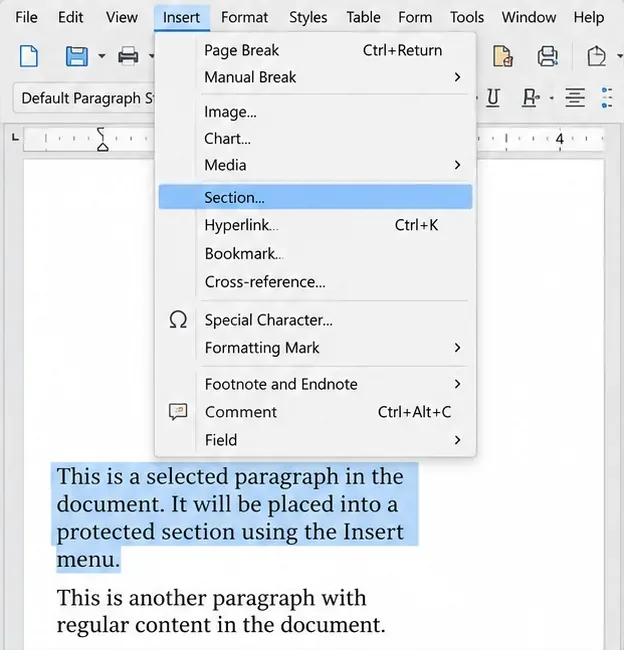
In the document, select the paragraph or continuous block of text that should become read-only. Choose Insert > Section. Writer opens the Section dialog. Give the section a useful name, such as ApprovedText, so it is easier to recognize later. Confirm that the selected content is the content you intended to protect.
Select the passage to protect, then use Insert and choose Section to place it in a section.
If the content already belongs to a section, skip the selection and creation step. Choose Format > Sections, select the relevant section from the list, and edit it.
2. Turn on write protection
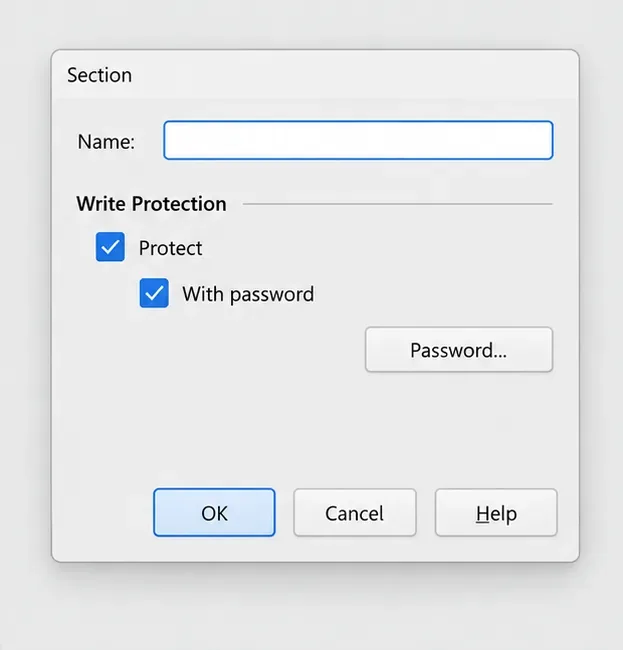
In the Section dialog, find the Write Protection area. Select Protect. To require a password when protection is removed, also select With password, then click Password.
Select both protection check boxes in the Section dialog before setting the password.
Checking only Protect makes the section read-only but does not require a password to turn protection off. Use both check boxes for a password-protected section.
3. Enter and confirm the password
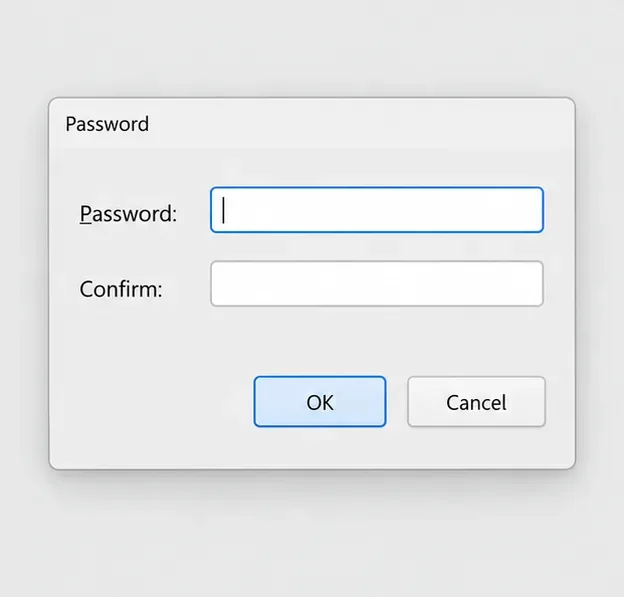
Enter the password in the Password dialog, repeat it in the confirmation field, and confirm. LibreOffice Help specifies a minimum of five characters. Use a longer, unique password for a document that matters, and store it in a password manager or another approved location. The password is required later to remove or change the protection.
Enter the same password in both fields and confirm it; the password must be at least five characters.
Return to the Section dialog and confirm the change. Save the document in LibreOffice’s native OpenDocument Text format if you need the most direct match with Writer’s own section feature. When saving to another word-processing format for someone else, test a copy in the recipient’s software before relying on section protection; the Help pages do not guarantee identical behavior across every format and editor.
Verify the protected boundary before sharing
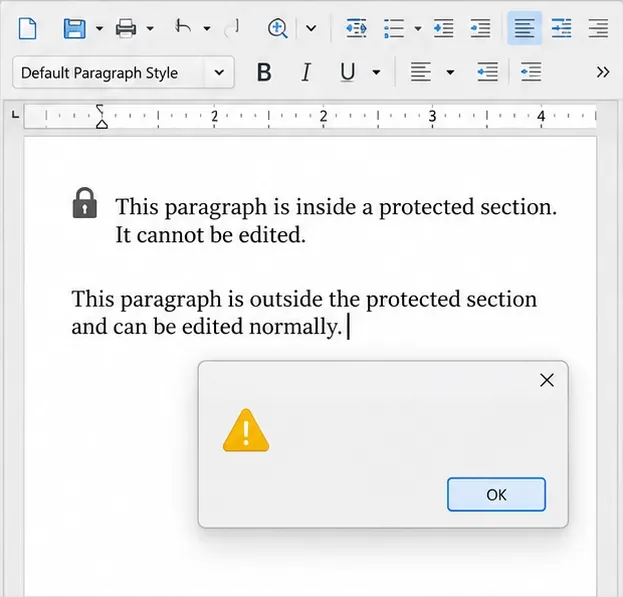
Test the document while it is open in Writer. Click inside the protected passage and try to insert or delete a character. Writer should prevent the change and display a warning. Then click in a paragraph immediately before or after the section and confirm that normal editing still works there.
Check that Writer blocks changes inside the section while text outside the section remains editable; the dialog appearance can vary by version and theme.
Also verify that the protection requires the password when you try to remove it. Open Format > Sections, select the protected section, and clear Protect. Writer should request the correct password before it allows the protection to be removed. Cancel the dialog so the protection stays on.
Expected result: the chosen section stays visible but read-only.
Password check: removing the protection prompts for the password.
Save check: save, close, and reopen the document, then repeat a brief edit test.
Edit or remove protection later
Choose Format > Sections and select the section you want to change. To remove protection, clear Protect. If the section has a password, enter the correct one when prompted, then confirm the dialog. To change a password, use the section’s Password button and follow the prompt to set and confirm the new value.
If the protected text is difficult to select with the mouse, use the section list in the dialog to choose it by name. Do not click Remove unless your goal is to convert the section to ordinary text; removing a section is different from merely turning off its write protection.
When section protection is not enough
Section passwords are for edit prevention, not confidentiality. They do not encrypt the complete document or hide the protected text from someone who can open the file. If readers should not see the content, save the document with an opening password using an OpenDocument format. LibreOffice’s Save dialog documentation says that only LibreOffice XML-based formats can be saved with a password.
If you are distributing a PDF, use the PDF export security options when appropriate. LibreOffice’s PDF export documentation distinguishes a password that is required to open the PDF from a permissions password used to restrict selected actions. Test the exported file in a separate PDF viewer and communicate its password through a separate channel.
Choose the control according to the outcome you need:
Need
Use
Result to verify
Prevent accidental edits to one passage
Protected Writer section with password
Writer blocks edits in that section and asks for the password to unprotect it
Prevent readers from opening an editable document
Save with password in an OpenDocument format
The file requests a password before opening
Share a read-only copy with controlled opening
Export to PDF and configure PDF security
The PDF viewer requests the open password or applies the selected permissions
Limits and troubleshooting
The whole document seems protected: confirm you selected only the intended text before choosing Insert > Section. Reopen Format > Sections and inspect the selected section’s boundaries.
Anyone can turn off protection: verify that both Protect and With password were selected, then save and test again.
You cannot remember the password: the documented removal procedure requires the correct password. Keep it in a managed password store; do not assume there is a supported password recovery shortcut.
You need to hide information: section protection does not conceal text. Use file encryption or remove the sensitive text from the shared copy.
The feature behaves differently after conversion: check the file in the exact application and format that recipients will use. If edit prevention is important, distribute a verified protected copy or use a workflow that preserves the needed control.
Password-protecting a section is a good fit when collaborators may edit a Writer document but should leave a particular passage unchanged. A successful setup is easy to recognize: only the chosen section resists editing, adjacent text remains usable, and unprotecting the section requires its password. For confidentiality, protect the file itself rather than relying on a section lock.