Home
» MS OFFICE
»
How to Restrict File Export Options in Collabora Online CODE
How to Restrict File Export Options in Collabora Online CODE
To restrict file export in Collabora Online CODE, have the WOPI host return DisableExport: true in its CheckFileInfo response for the affected file and user. Add HideExportOption: true so the “Download as” command is also removed from the editor menu. The first property disables Collabora’s export function in the backend; the second controls visibility. Setting only the visibility flag is not an access-control measure.
CODE is the document editor. In a standard integration, a separate WOPI host such as Nextcloud, ownCloud, or a custom application stores the original file and supplies Collabora with file metadata and permissions. This is why export permissions are usually configured in the host integration, not as a universal switch in the Collabora container’s coolwsd.xml.
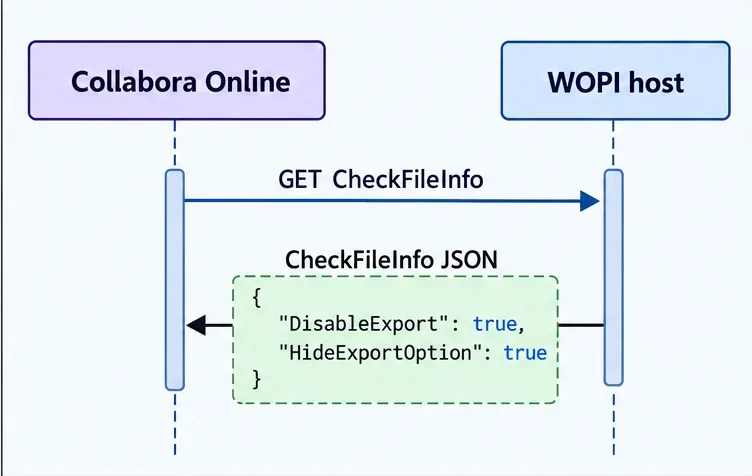
Collabora Online asks the WOPI host for file information; the host response can carry export restrictions for that document session.
Choose the control that matches the action
WOPI property or control
What it does
When to use it
HideExportOption
Hides “Download as” in the file menu.
As a companion to backend enforcement, so users do not see an unavailable command.
DisableExport
Disables Collabora’s export functionality and implies HideExportOption.
When export from the open document should be blocked for a particular file or session.
UserCanNotWriteRelative
Tells the host that the user cannot save a relative or “Save As” copy back through WOPI. The host must reject that request.
When Save As or creating a copy through the editor must also be prevented.
DisablePrint
Disables printing in the Collabora backend and implies the print option is hidden.
Only when printing is also restricted; it is separate from export.
Use the first two fields for the narrow task of blocking Collabora’s Download as/export feature. Add the other controls only if your policy also covers those separate actions. A missing menu item by itself does not prove that downloads are blocked.
Decide where to apply the restriction
First identify the application that stores the file and opens it in Collabora. In WOPI terminology, that application is the host. Collabora calls the host’s CheckFileInfo endpoint to obtain file information and capabilities. The host knows who opened the document and whether a share, account, or file policy allows downloads.
Nextcloud or another integrated file platform: use its supported share or secure-view setting if your installed version offers a “Hide download” or equivalent policy. The integration can translate that policy into WOPI permissions. Check the actual host response or the platform’s current documentation before assuming which export, print, copy, or direct-download paths it blocks.
Your own WOPI host: update the code that builds the CheckFileInfo JSON response. Calculate the restriction from the authenticated user’s permissions and the file’s sharing policy.
CODE container administrator without control of the host: ask the host administrator or integration developer to enforce it. Editing only the CODE container may hide certain optional formats from the interface, but does not provide a per-file WOPI permission policy.
Collabora’s current source configuration describes extra_export_formats as interface-level options: disabling those optional formats there only hides them visually. Do not treat that setting as server-side export enforcement. It is intended for format-menu presentation, not as a substitute for host permissions.
Set export permissions in a custom WOPI host
1. Find the CheckFileInfo response handler
Locate the route that responds to Collabora’s WOPI GET /wopi/files/{id} request. Confirm how it authenticates the access token and maps that token to the current user and file. Do not trust a browser-supplied flag such as ?disableExport=true unless the host validates it against its own authorization rules.
2. Derive the decision from the host’s policy
Use server-side access-control data to decide whether this person may export this file. A file owner, an internal editor, and a public-link viewer may have different rights. If the restriction is for a single share, determine it from that share’s policy, not from a global environment variable that accidentally affects every user.
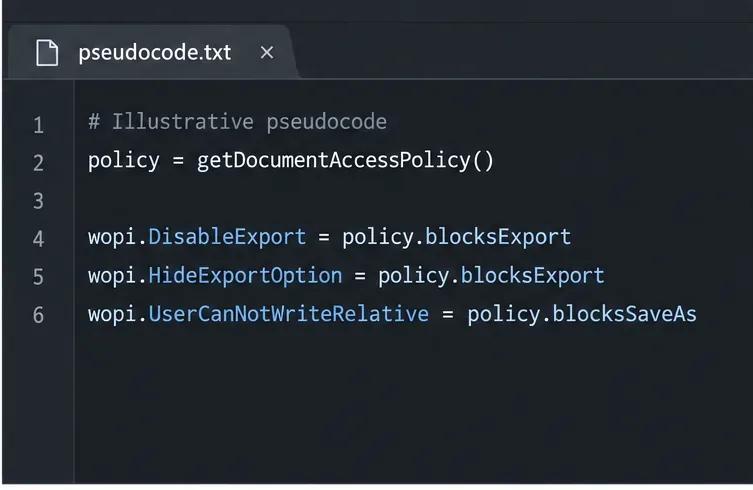
Illustrative pseudocode: derive the WOPI flags from the file and user's actual access policy, rather than setting one user's choice globally.
3. Return Boolean WOPI fields
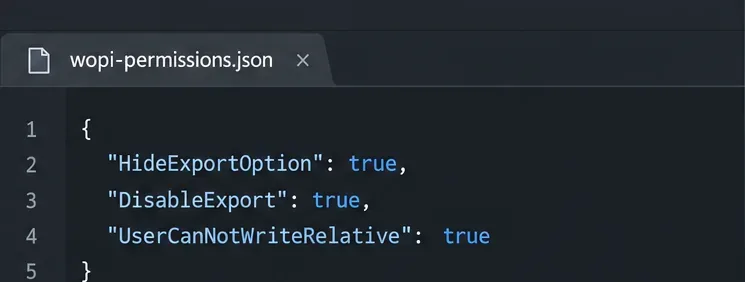
Add the two Boolean fields to the JSON response. This is a fragment to merge into your existing, complete CheckFileInfo response, not a replacement for its required file and user properties:
Example CheckFileInfo permission fields. Set the Save As property only when the host also refuses relative-save requests.
Keep the ordinary required fields and capability flags that your integration already supplies. Use JSON booleans true and false, not strings such as "true" or "1". When export is allowed, return false or omit optional properties according to the behavior supported by your integration and Collabora version.
4. Block Save As separately if the policy requires it
Exporting to a local format and saving a copy back to the WOPI host are different operations. If users must not create a “Save As” copy through the editor, return UserCanNotWriteRelative: true and make the host reject the corresponding relative-write request. Do not assume that DisableExport blocks every copy or save path. Likewise, include DisablePrint: true only when printing is covered by the policy.
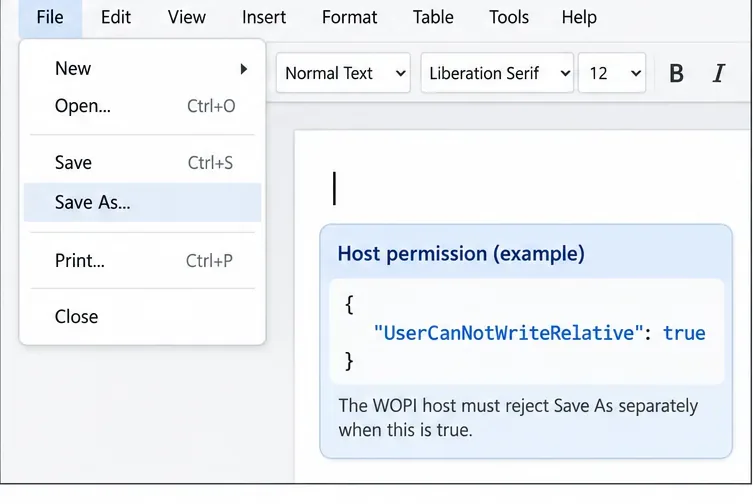
The menu mockup omits Download as; Save As is a separate action that the WOPI host must reject when relative saving is disallowed.
Apply the equivalent setting in an integrated platform
When Nextcloud manages the file and share, the least invasive route is its own supported hide-download or secure-view permission, if available for that share type and version. Current Nextcloud Richdocuments source maps a host-side hide-download policy to Collabora’s DisableExport and HideExportOption fields, along with print and copy restrictions. The exact controls exposed to an administrator can vary by Nextcloud release, edition, and share type, so confirm behavior in the installed product rather than copying a custom WOPI patch into its application files.
If you maintain a different WOPI host, implement the fields in its CheckFileInfo response. Avoid modifying Collabora’s generated container configuration to add undocumented keys: the WOPI response is where per-file permissions are communicated. After a host code change, deploy it using that application’s normal release process. A Collabora restart is generally not the step that changes a host-generated permission decision; close and reopen the document to obtain a fresh CheckFileInfo response.
Verify that the restriction works
Open a test document using an account that should be restricted.
Inspect the WOPI host’s CheckFileInfo response in application logs or a safe development trace. Confirm both fields are JSON booleans set to true for this session.
In Collabora, check that “Download as” is absent and test the relevant export action. Do not use a real confidential file during initial verification.
If Save As should also be blocked, test that host-side relative-write request is rejected. The menu item may remain visible even though the host refuses the operation.
Open a separate document with export permission. Confirm the change did not unintentionally disable export for all users or files.
Test direct download from the storage platform separately. Collabora’s export flag does not automatically revoke the user’s permission to download the original file from Nextcloud, ownCloud, WebDAV, or another host endpoint.
If the command remains visible, confirm that the response is for the file and user you tested, reopen the document to create a fresh session, and verify that the host actually sends HideExportOption. If the button disappears but exporting still works through another route, check that DisableExport is true and that the action is truly a Collabora export rather than a download offered by the storage host or an integration-specific postMessage handler.
Security limits and practical recommendation
These settings control Collabora’s supported export and save operations; they cannot stop a user who can view the document from taking screenshots, photographing the screen, or manually copying information that the application permits them to see. Collabora must also receive the document content to render it. For stronger data controls, combine editor restrictions with the file host’s download authorization, access-token scope, share policy, audit logging, and any organization-approved watermark or data-loss-prevention controls. Describe the result as restricting supported export paths, not as making visible content impossible to copy.
For most CODE installations, use DisableExport and HideExportOption in the host-generated WOPI CheckFileInfo response, scoped to the applicable user and document. Enforce direct downloads and Save As at the host, and verify both restricted and permitted sessions after deployment.