Home
» MS OFFICE
»
How to Run LibreOffice Headless Inside a Docker Container
How to Run LibreOffice Headless Inside a Docker Container
A common server-side problem looks simple at first: an application receives a DOCX, XLSX, ODT, or PPTX file and needs to return a PDF, but the host should not run a desktop session. Installing a full office suite directly on the host also makes deployments harder to reproduce. LibreOffice can run without a graphical interface, and Docker can isolate the conversion runtime, but reliable results depend on more than adding --headless to a command.
The practical causes of most failures are predictable: the image does not contain the required LibreOffice component, the container cannot write its user profile, bind-mounted files have the wrong permissions, fonts are missing, two jobs share the same profile, or the output directory is not writable. This guide starts with the simplest working container and then hardens it for repeatable document conversion.
As of October 2026, LibreOffice lists 26.8 as its latest feature branch and 26.2.6 as the mature previous branch recommended for enterprise use. Debian 13 stable packages may carry a different, distribution-maintained LibreOffice version, so pin the base image and verify the actual version in your built container rather than assuming it matches upstream. See the official LibreOffice release notes and the Debian libreoffice-nogui package page.
What “headless LibreOffice in Docker” actually means
LibreOffice documents --headless as a mode that runs without a user interface. For file conversion, the important companion options are --convert-to and --outdir. LibreOffice also requires write access to its user profile directory, a detail that matters when you run a container as a non-root user or make its root filesystem read-only. The authoritative CLI reference is LibreOffice Help: Starting LibreOffice Software With Parameters.
The goal for a good container is therefore specific: it should start without X11 or a desktop, read an input document, write the expected output format, exit cleanly, and produce a file whose layout is acceptable for your workload.
Step 1: Create a small, reproducible Docker image
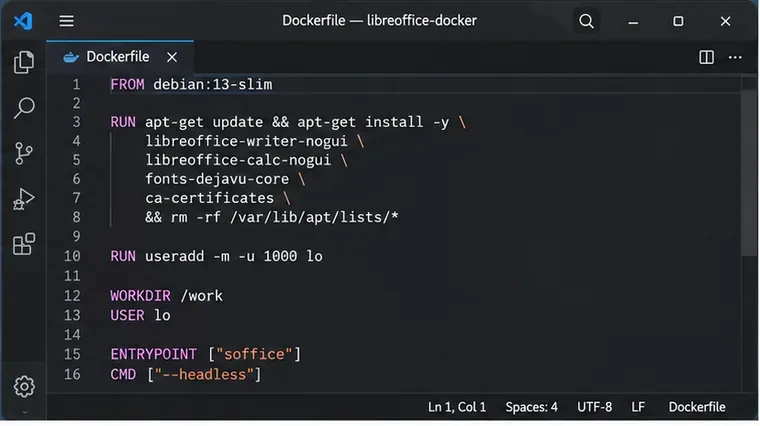
For broad format coverage on Debian 13, libreoffice-nogui is a useful starting point because Debian describes it as the no-GUI metapackage intended mostly for scripting. If you only convert Writer documents, you can reduce dependencies by installing libreoffice-writer-nogui and only the other no-GUI components you need.
Build from a known Linux base and install LibreOffice packages that match the document types you need. A no-GUI package set is appropriate for server-side scripting.
The font packages are not cosmetic. Office documents frequently reference fonts that are not installed in a minimal Linux image. LibreOffice will substitute another font when the requested one is unavailable, which can change line wrapping, page count, table width, and slide layout. Carlito and Caladea are commonly useful metric-compatible substitutes for Calibri and Cambria, while Liberation and DejaVu cover many general cases. If your documents use corporate or licensed fonts, install or mount those fonts only when your license permits it.
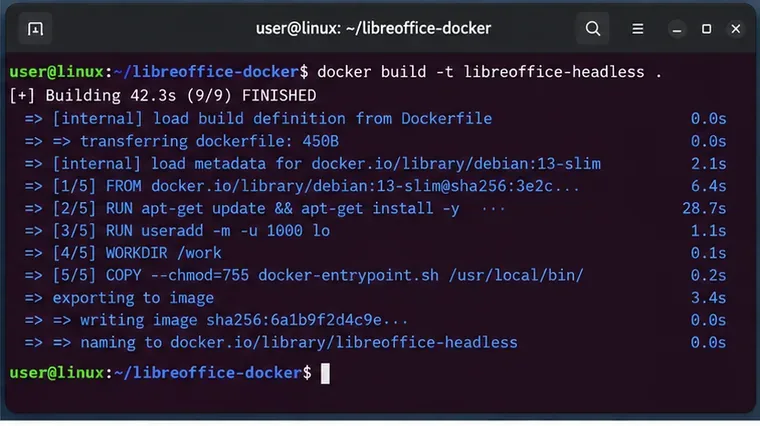
Step 2: Build the image and record the LibreOffice version
docker build -t libreoffice-headless:debian13 .
Build the image once, then record the resulting image tag or digest in the service that will perform conversions.
Then check the version that is actually in the image:
docker run --rm --entrypoint soffice libreoffice-headless:debian13 --version
This check matters when a base image is rebuilt weeks later. If exact rendering is important, use an immutable image digest in production and deliberately rebuild after security or LibreOffice updates. “Latest” tags are convenient during experimentation but make output differences harder to investigate.
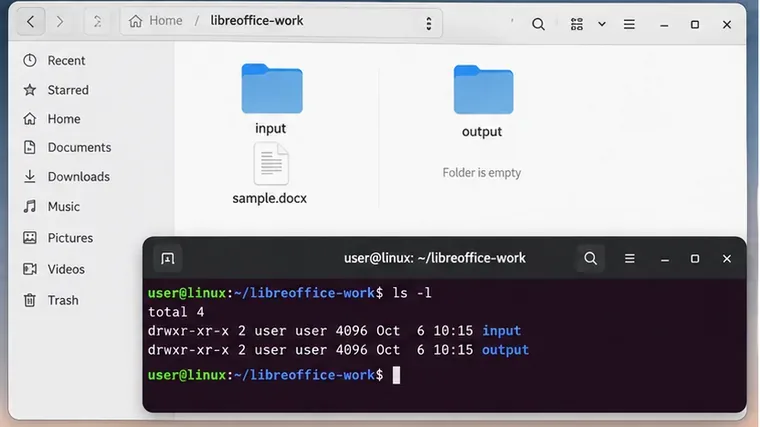
Step 3: Prepare separate input and output directories
Create two host directories. The input side can be read-only; the output side must be writable by the container user.
mkdir -p input output
cp sample.docx input/
Keep source documents and generated files in separate mounts. A read-only input mount reduces the chance of accidental modification.
Docker recommends the --mount syntax for bind mounts. Its documentation also notes that bind mounts are writable by default, so explicitly setting the source directory to read-only is a useful safeguard. See Docker bind mounts documentation.
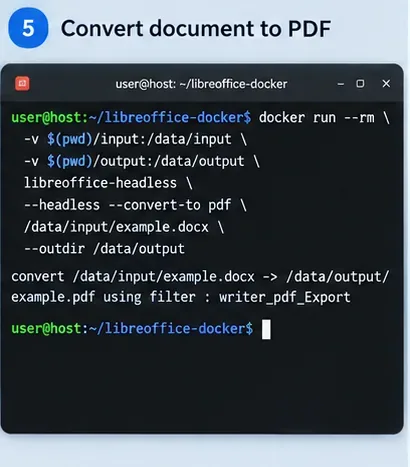
Step 4: Convert one document to PDF
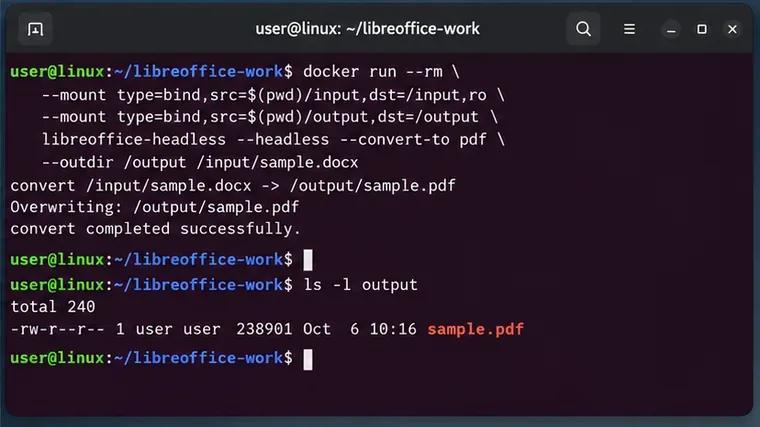
Run a disposable container and mount the source directory read-only:
docker run --rm --mount type=bind,src="$(pwd)/input",dst=/input,readonly --mount type=bind,src="$(pwd)/output",dst=/output libreoffice-headless:debian13 --convert-to pdf --outdir /output /input/sample.docx
For one-shot jobs, run a short-lived container and send the result to a writable output directory.
LibreOffice officially supports the --convert-to OutputFileExtension[:OutputFilterName[:OutputFilterParams]] form. For a straightforward Writer-to-PDF conversion, --convert-to pdf lets LibreOffice select the appropriate PDF export filter. When you need specific PDF behavior, LibreOffice also documents filter parameters; see the official PDF CLI parameter reference.
Step 5: Give each concurrent job its own LibreOffice profile
A single conversion often works without extra profile configuration, which can hide a scaling problem. LibreOffice keeps state in a user profile and requires write access to it. Parallel workers should not compete for the same profile directory.
Use the documented -env:UserInstallation=... bootstrap variable to give a job a private profile:
docker run --rm --mount type=bind,src="$(pwd)/input",dst=/input,readonly --mount type=bind,src="$(pwd)/output",dst=/output --tmpfs /tmp libreoffice-headless:debian13 -env:UserInstallation=file:///tmp/lo-profile --convert-to pdf --outdir /output /input/sample.docx
A successful conversion should produce both a zero-error container run and an expected output file; do not rely on a single log line alone.
A private temporary profile is particularly useful for short-lived containers and worker pools. Docker documents tmpfs mounts for temporary in-memory files. If you instead run a long-lived UNO service, use a deliberate persistent profile strategy and serialize or isolate access according to your application design.
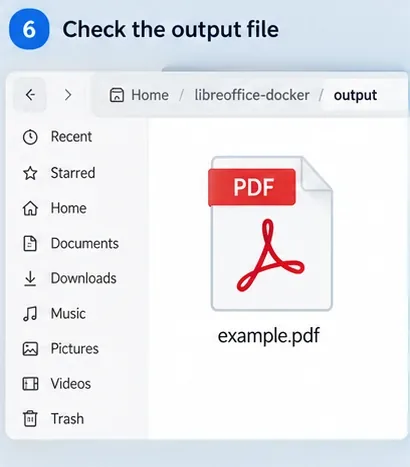
Step 6: Verify that the output file really exists
After the container exits, inspect the host output directory:
ls -lh output/sample.pdf
file output/sample.pdf
Check the output directory on the host after the container exits. File existence, size, and ownership are useful first checks.
A zero exit status plus a non-empty PDF is a reasonable automation gate, but it is not a full fidelity test. For a conversion API, also set a timeout and reject output that is missing or unexpectedly tiny. The right size threshold depends on your documents, so avoid a universal hard-coded number unless you have measured your corpus.
Step 7: Handle batches carefully instead of sharing one process blindly
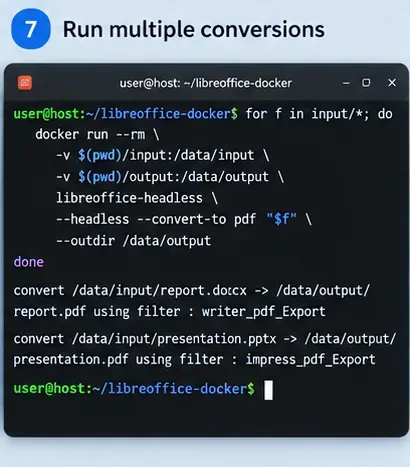
LibreOffice can accept multiple input files with --convert-to, and a shell loop is also simple. For example:
for f in input/*.docx; do
  docker run --rm     --mount type=bind,src="$(pwd)/input",dst=/input,readonly     --mount type=bind,src="$(pwd)/output",dst=/output     --tmpfs /tmp     libreoffice-headless:debian13     -env:UserInstallation=file:///tmp/lo-profile     --convert-to pdf     --outdir /output     "/input/$(basename "$f")"
done
For batch work, process files deliberately and isolate concurrent jobs with separate LibreOffice user profiles rather than sharing one profile.
For higher throughput, repeatedly starting LibreOffice may become expensive. That is the point at which you may consider a persistent LibreOffice process controlled through UNO using --accept=..., which LibreOffice documents as the interface for creating an acceptor. However, that changes the operational model: you now need process supervision, request isolation, timeouts, health checks, and a strategy for recycling a process after problematic documents. A one-shot container remains easier to reason about for low or moderate volumes.
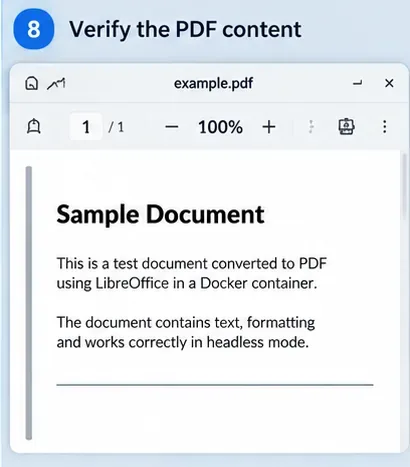
Step 8: Check visual fidelity, not just command success
Open or inspect representative PDFs after conversion. Visual fidelity depends on fonts, source features, and the filters available in the image.
Open representative generated PDFs and compare them with expected output. Pay special attention to page breaks, substituted fonts, embedded images, equations, headers and footers, charts, spreadsheet print areas, and presentation text boxes. Headless mode removes the graphical desktop requirement; it does not guarantee that every proprietary Office feature will render identically to Microsoft Office.
For automated regression testing, keep a curated set of representative documents and compare measurable properties such as page count, extracted text, image dimensions, or rendered-page similarity. Review any threshold carefully, because benign LibreOffice updates can change PDF metadata or small layout details.
When a conversion fails: fix the simple causes first
1. The container exits but no output appears
First check the path passed to --outdir and confirm the destination mount is writable by UID 10001. Docker bind mounts map host filesystem permissions into the container. If your host directory is owned by a different UID and is not group-writable, the non-root LibreOffice process may be unable to create the output.
2. LibreOffice reports a profile or lock problem
Use a distinct -env:UserInstallation=file:///... path per simultaneous job. Do not point several workers at one writable profile directory. LibreOffice documents both the profile requirement and the UserInstallation override.
3. The PDF is created but layout is wrong
Check fonts before changing export options. Use fc-list inside the image to confirm the required fonts are visible. If the source file relies on macros, external data, unusual embedded objects, or proprietary features, headless conversion may not reproduce the original application exactly. Move to a corpus-based compatibility test rather than adding random command-line switches.
4. Spreadsheets or presentations do not convert
Make sure the corresponding LibreOffice components are installed. The libreoffice-nogui Debian metapackage includes Writer, Calc, Impress, Draw, Base, and Math without GUI support. If you intentionally built a smaller image with only Writer, an XLSX or PPTX conversion may lack the needed component.
5. A read-only root filesystem breaks startup
Hardening with Docker's --read-only can be useful, but LibreOffice still needs writable locations for its profile and temporary files. Provide explicit writable tmpfs or volume mounts for those paths. Docker's container run documentation explains how read-only root filesystems can be combined with writable mounts.
A more production-oriented run command
After the basic flow works, a stricter invocation can keep input read-only, isolate temporary state, and remove the container after each job:
docker run --rm --read-only --mount type=bind,src="$(pwd)/input",dst=/input,readonly --mount type=bind,src="$(pwd)/output",dst=/output --tmpfs /tmp:rw,nosuid,nodev --tmpfs /home/office:rw,nosuid,nodev libreoffice-headless:debian13 -env:UserInstallation=file:///tmp/lo-profile --convert-to pdf --outdir /output /input/sample.docx
Whether this exact hardening works for every document type depends on extensions, Java-dependent features, templates, dictionaries, and other runtime needs. Add writable paths only when a verified workload requires them rather than making the entire container writable.
Self-check: how to know the setup is ready
Before calling the container production-ready, verify all of the following:
soffice --version reports the LibreOffice build you intended to deploy.
A known DOCX converts to PDF with a clean container exit.
The PDF appears on the host with non-zero size and can be parsed or opened.
The source directory is mounted read-only and remains unchanged.
The process runs as a non-root user unless you have a documented reason not to.
Representative documents use the expected fonts and preserve acceptable page layout.
Two simultaneous conversions use separate user profiles and do not interfere with each other.
Your application treats timeouts, conversion errors, and missing output as failures rather than returning an empty or stale file.
If those checks pass, a one-shot headless LibreOffice container is a solid fit for document conversion jobs that value isolation and reproducibility. If startup latency becomes the dominant cost, or you need API-level document manipulation rather than format conversion, switch to a supervised persistent LibreOffice/UNO service and test that architecture separately. Docker solves packaging and isolation; it does not remove the need to validate document fidelity against the files your application actually processes.