Home
» MS OFFICE
»
How to Set Up Automated Backup for ONLYOFFICE Workspace Data
How to Set Up Automated Backup for ONLYOFFICE Workspace Data
Automated backup in ONLYOFFICE Workspace is best configured through the built-in Control Panel, because that workflow creates a restorable portal archive instead of merely copying one container or one data directory. The current ONLYOFFICE documentation still describes the same core server-side process: choose a persistent storage target, enable Automatic backup, select a daily, weekly, or monthly schedule, define how many copies to retain, optionally include Mail, and save the configuration. This guide focuses on self-hosted ONLYOFFICE Workspace Server deployments. In the cloud edition, automatic backup availability can depend on the pricing plan; see the official ONLYOFFICE cloud backup documentation for plan-specific behavior.
What should an automated Workspace backup protect?
A useful backup must let you recover the portal data that users actually depend on, not just prove that a scheduled job ran. ONLYOFFICE's Control Panel backup is designed for that purpose. The server documentation states that completed backups are saved as compressed .tar.gz archives, and the same interface also provides the restore workflow. The official ONLYOFFICE Control Panel backup and restore guide is the primary reference for the settings described below.
Before configuring a schedule, decide where the archive will live. A backup stored only on the same host protects against some application-level mistakes, but it is weak protection against disk failure, ransomware, or loss of the entire server. Prefer storage that is physically or logically separate from the Workspace host. Depending on the integrations available in your installation, the Control Panel can use the Documents module and supported third-party storage. Temporary storage is intended for a manual backup download and is not offered as an automatic-backup destination.
Step 1: Open the Backup page in Control Panel
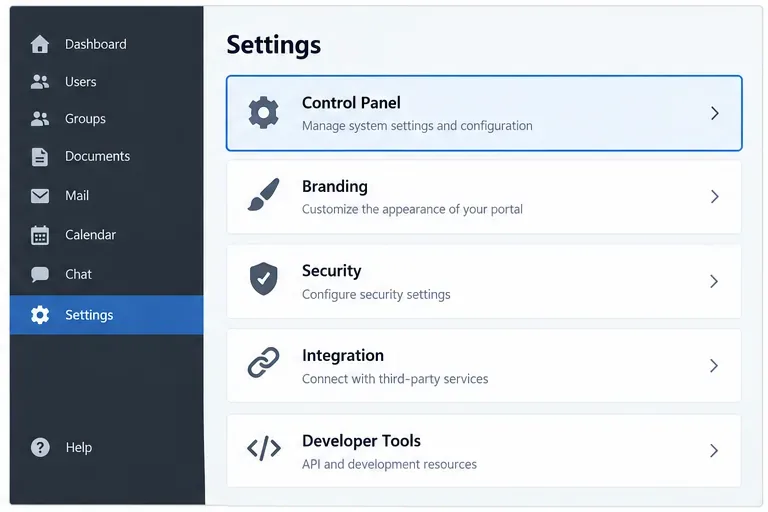
Sign in to ONLYOFFICE Workspace with an administrator account. From the portal start page, open Control Panel. The documentation also notes that Control Panel can be reached from portal Settings. In Control Panel, open the Backup page under the common or data-management settings area.
The administrator starts from Settings and opens Control Panel before configuring automated backups.
If your interface labels differ slightly, do not assume the feature is missing. ONLYOFFICE has changed navigation wording across releases, while the documented Backup and Restore functions remain part of the Control Panel workflow. Confirm your installed Workspace version and use the current Help Center instructions for that branch if navigation does not match.
Step 2: Enable Automatic backup
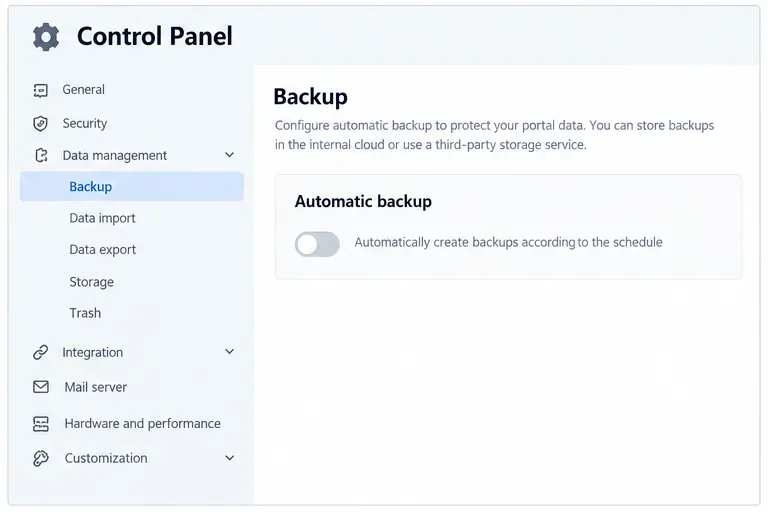
On the Backup page, locate the Automatic backup section and enable it. This switch is the point at which the portal moves from ad-hoc manual archives to scheduled backups. Do not save yet if you still need to choose storage, frequency, retention, or Mail data.
The Backup page includes an Automatic backup control that must be enabled before a recurring schedule can be saved.
If you are administering ONLYOFFICE Workspace Cloud rather than a self-hosted server, check the cloud-specific documentation first. ONLYOFFICE states that automatic backup in the cloud version is available only when the subscribed plan includes that feature. This distinction matters because a missing toggle in cloud does not necessarily indicate a server problem.
Step 3: Choose a storage location that survives a server failure
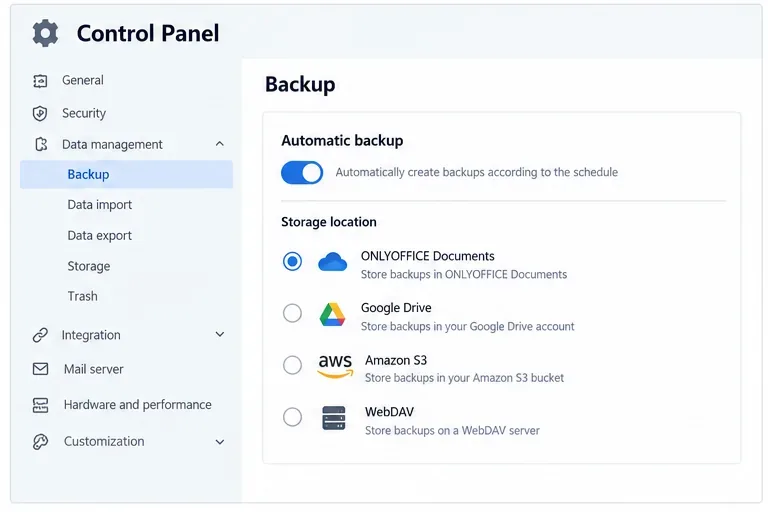
Select the storage target for the archive. The exact choices depend on what your portal has connected and what your edition exposes. The official server documentation describes storing backups in the Documents module or in supported third-party storage connected to the portal, while ONLYOFFICE's security guidance also discusses remote services such as object storage and WebDAV. The practical rule is simple: choose a target that will still be reachable if the Workspace host itself becomes unavailable.
An example storage-selection view illustrates the key decision: keep automated backup archives in a persistent location, preferably separate from the Workspace host.
For small installations, a connected cloud folder can be adequate if access is tightly controlled. For business-critical deployments, use a storage design with independent credentials, retention controls, and monitoring. The official ONLYOFFICE Workspace security guide explicitly recommends automatic backup and also suggests keeping additional copies with third-party services from time to time.
One important security detail is easy to miss: ONLYOFFICE documents that when portal encryption is enabled, a newly created backup archive contains decrypted files; when restored, the files are encrypted on disk again. Treat the backup destination as sensitive data. Restrict who can read it, enable encryption at rest on the destination, and avoid placing archives in broadly shared folders.
Step 4: Set the schedule, retention, Mail option, and save
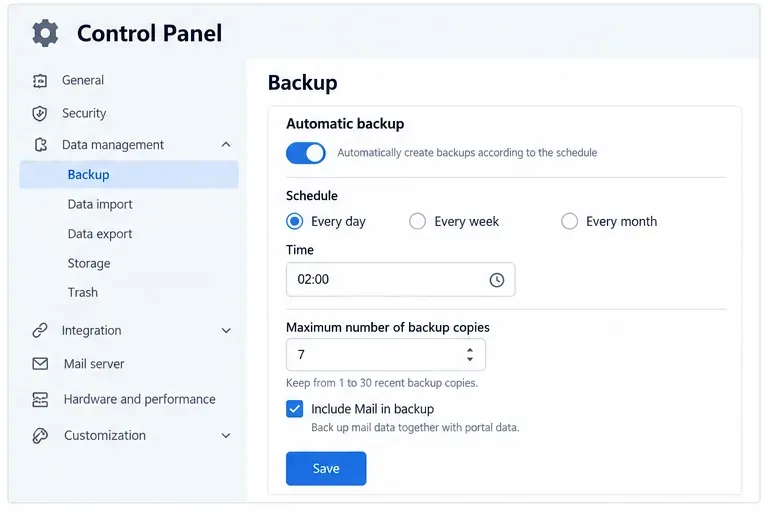
Choose how often the backup should run. The current Control Panel documentation supports Every day, Every week, or Every month, with the relevant time or day selection. Then set the maximum number of stored copies. ONLYOFFICE documents a retention range of 1 to 30 backup copies.
The final configuration combines backup frequency, retention, the optional Mail inclusion setting, and Save.
If your users rely on the integrated Mail module, select Include Mail in backup. ONLYOFFICE warns that omitting this option means Mail data is not restored from the portal backup and accounts may need to be connected again. Including Mail increases both backup time and archive size, so verify that the destination has enough capacity.
Click Save. At this point the configuration is complete, but the backup strategy is not. A schedule is only trustworthy after you have confirmed that new archives appear and that you understand how they will be restored.
How often should you back up ONLYOFFICE Workspace?
There is no universal interval. Match the schedule to your acceptable recovery point objective: the amount of recent work you can afford to lose. A small internal portal with few daily edits might be comfortable with a nightly backup. A team that creates and edits documents continuously may need more frequent protection than the built-in daily schedule can provide, in which case the Control Panel backup should be combined with infrastructure-level snapshots or storage replication designed for the deployment.
Workspace pattern
Practical starting point
What to watch
Light internal use
Daily backup, 7-14 copies
Storage growth and successful archive creation
Active team collaboration
Daily backup, 14-30 copies
Whether one day of lost edits is acceptable
Business-critical portal
Daily built-in backup plus separate infrastructure protection
Off-site recovery, database consistency, restore time, and documented ownership
These are planning examples, not ONLYOFFICE product requirements. Your retention window should be based on compliance needs, available capacity, and how long it may take your organization to notice accidental deletion or corruption.
Verify that automation is actually creating backups
After the first scheduled run, return to the Backup or Restore area and confirm that a new archive is present in the expected storage location. The server guide says backup files use a portal-and-timestamp naming pattern and are created as .tar.gz archives. Confirm the date, expected size range, and destination. A zero-byte file, unexpectedly tiny archive, or missing run should be treated as a failed backup until investigated.
Also verify that retention behaves as expected. If you configured seven copies, for example, the storage should not grow indefinitely. If you use third-party storage, check both the ONLYOFFICE backup history and the remote service itself so that a stale connector, quota limit, expired token, or permissions change does not silently defeat the schedule.
Test restore before you need it
The purpose of backup is recovery, so a restore test is more valuable than simply counting archives. ONLYOFFICE provides a Restore page in Control Panel where an administrator can select a backup from supported sources or choose a computer file. For production systems, perform restore testing in a controlled environment rather than overwriting a healthy live portal.
There are several restore details worth documenting in advance. ONLYOFFICE states that license data is not included in the backup, so the license file must be uploaded again after restore where applicable. For a restore to a new server, password recovery also depends on preserving the original server machine key. The official guide explains that for Docker installations the machine key can be replaced at /app/onlyoffice/CommunityServer/data/.private/machinekey, or supplied through the installation script's machine-key parameter. Record this key securely as part of your disaster-recovery documentation rather than discovering the requirement during an outage.
Do Docker volume backups replace the Control Panel backup?
Not by themselves. The official ONLYOFFICE Docker Compose definition shows that Workspace is made of multiple stateful components, including MySQL, Community Server data, Document Server data, Mail Server data, Control Panel data, and Elasticsearch storage. You can review the current layout in the official ONLYOFFICE Docker Compose file.
A raw copy of only one named volume therefore does not represent the whole Workspace. Infrastructure-level backups can be valuable as a second layer, especially for faster whole-host recovery, but they should be designed with database consistency and all required volumes in mind. For most administrators, the safest pattern is to keep the supported Control Panel portal backup as the logical recovery method and add host or volume protection according to the platform where Docker is running.
Backup checklist for a production Workspace
Use the Control Panel Automatic backup feature for a supported, restorable portal archive.
Store automated copies somewhere that is not dependent on the same physical disk as the Workspace host.
Set a retention count that is long enough to catch delayed discovery of data loss.
Include Mail when the integrated Mail service must be recoverable from the same backup.
Protect backup storage with restricted access and encryption, especially because encrypted portal files are documented as decrypted inside newly created backup archives.
Verify that a fresh archive appears after the first scheduled run and periodically afterward.
Test restore in a safe environment and document the machine key and license reinstallation requirements.
For Docker deployments, maintain a separate infrastructure recovery plan for the multiple persistent volumes and service configuration.
Final recommendation
For a self-hosted ONLYOFFICE Workspace, the simplest reliable starting point is a daily Control Panel backup to independent storage, enough retained copies to cover at least several days of unnoticed problems, Mail included when it is part of the deployment, and a periodic restore test. The configuration itself takes only a few minutes; the quality of the backup strategy comes from where the archive is stored, how long it is retained, and whether you have already proved that it can be restored.