Home
» MS OFFICE
»
How to Set Up Master Documents in LibreOffice for Book Writing
How to Set Up Master Documents in LibreOffice for Book Writing
For a long book, create one LibreOffice Writer master document (.odm) and keep each chapter in its own Writer text file (.odt). The master document links the chapters, lets you arrange the book in Navigator, and brings shared front matter, contents, references, and page flow together when you update it. Keep the master file and all chapter files in a stable project folder, use the same template and heading styles, and update the master after chapter edits.
This setup is a good fit when you are writing a multi-chapter book, revising large sections independently, or working with coauthors. For a short manuscript that rarely changes, one .odt file is usually simpler. LibreOffice Writer Guide 26.2, published in March 2026, documents the workflow described here; menu wording can vary across LibreOffice versions and operating systems.
Plan the book files before you start
A master document is a container of links, not a single file that absorbs every chapter while you write. Each linked subdocument remains a separate .odt file. A practical project might look like this:
File or section
What it contains
MyBook.odm
Master document, book-level page structure, and links
00-FrontMatter.odt
Title, copyright, dedication, preface, or contents page
01-Introduction.odt
Introduction
02-Chapter-01.odt, etc.
One file per chapter or major part
99-BackMatter.odt
Bibliography, index, acknowledgments, or back matter
You do not have to use these exact names or split points. Decide what should be common to the whole book and keep that material in the master document or a dedicated front/back matter file. Put the actual chapter text, figures, and tables in chapter files. Store the files together, or preserve their relative folder paths, and avoid renaming or moving a linked chapter casually: a changed path can appear as a broken link. Keep a backup of the entire project folder.
Set up a master document and chapter template
1. Create and save the .odm file
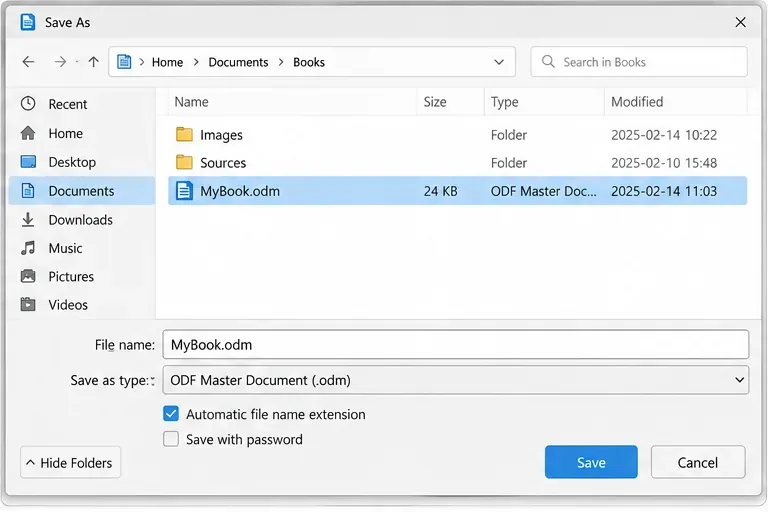
In Writer, choose File > New > Master Document. If you already have a master-document template, open it through File > New > Templates. Set up the book-level page styles and any title or copyright material you want to keep in the master, then save the file in your project folder with a clear name such as MyBook.odm. The .odm extension identifies the master document format.
The Save As dialog shows the book master file named MyBook.odm and the ODF Master Document format.
2. Create chapter files from the same template
Create each chapter as a regular Writer text document (.odt), ideally from the same template used for the master document. Apply paragraph styles instead of manually formatting each heading: for example, use Heading 1 for chapter titles and Heading 2 or Heading 3 for section levels. Use a consistent body-text style as well. You can still open and edit every chapter as an ordinary stand-alone document.
Matching templates matter because a style with the same name in the master can take precedence when Writer assembles the book. If two chapter files define the same custom style differently, the first linked version may become the one used in the master. Establish the styles before chapters multiply, and update both templates when you change a shared style.
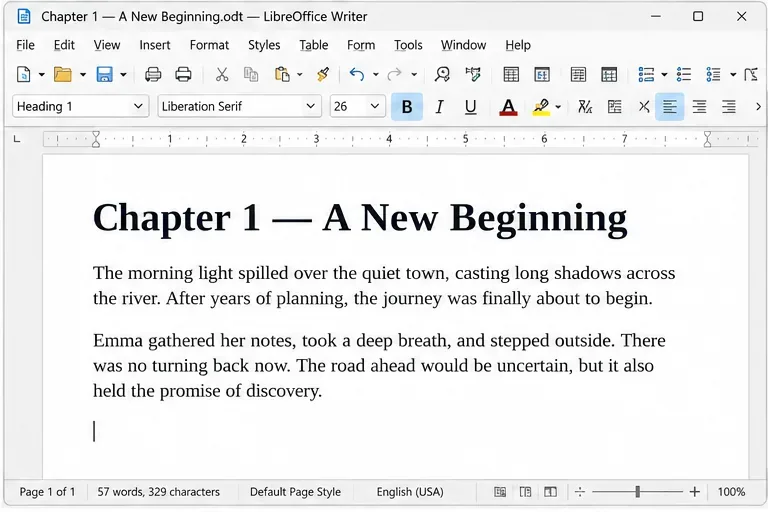
A chapter stays independently editable as an .odt file, with its title assigned a consistent Heading 1 style.
Link and arrange the chapters
3. Add a chapter through Navigator
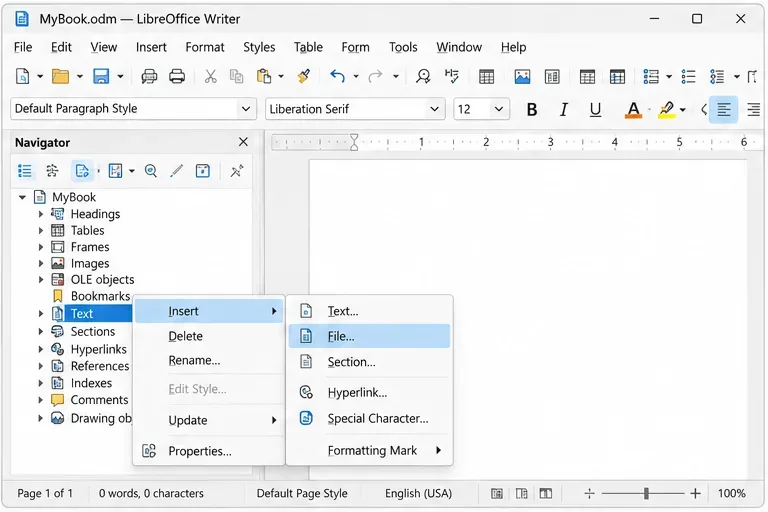
Open the .odm file, then open Navigator with F5 or View > Navigator. Switch Navigator to Master View so it displays the master document's linked files. Select Text, then use Insert > File in the Navigator controls or right-click Text and choose Insert > File. Browse to a chapter .odt and open it. Repeat for each chapter or matter file.
When you add files, check the insertion point in Navigator: a new subdocument is inserted before the selected item. If the book order is not right, select a linked filename and move it with the up/down controls or drag it to the intended position.
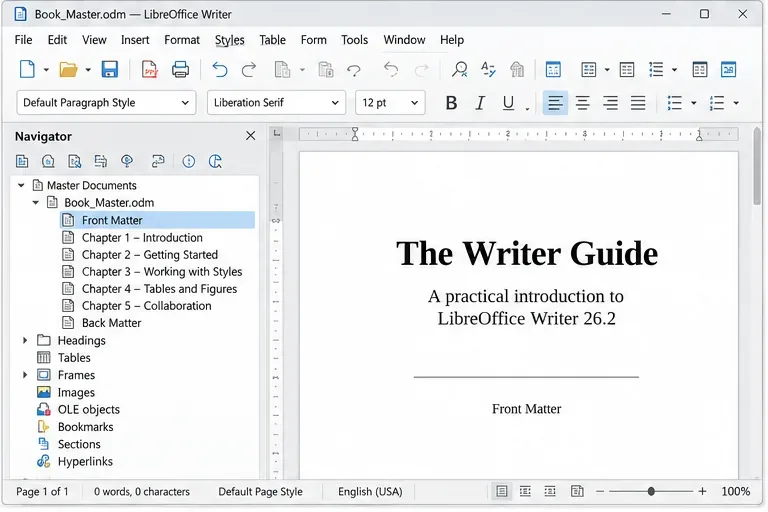
In Navigator's Master View, the context menu on Text exposes Insert > File for linking a chapter document.
4. Confirm the reading order
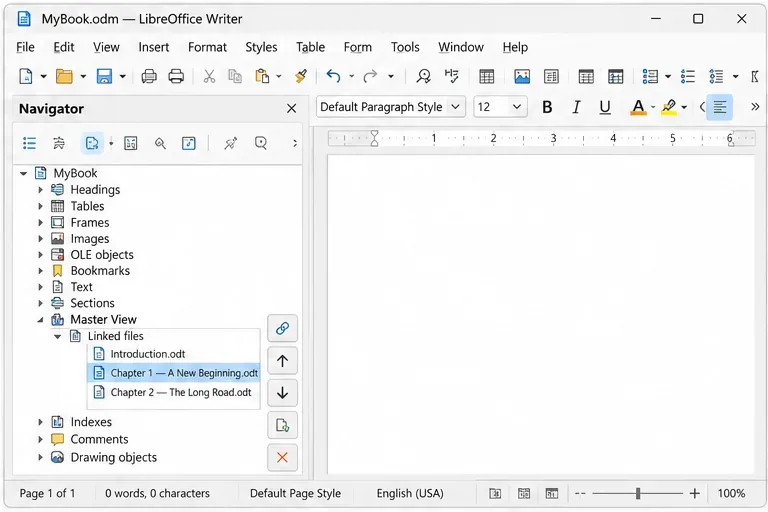
Arrange the entries in the same order a reader should encounter them: front matter, introduction, chapters, then back matter. A simple example is Introduction, Chapter 1, Chapter 2. If you keep front matter and back matter in separate .odt files, place them at the beginning and end respectively. Save the master document after inserting or reordering files.
The Navigator list makes the current chapter sequence visible and provides controls for changing it.
Optional: split an existing manuscript
If you already have a complete manuscript with consistent chapter headings, Writer can split it into a master document and subdocuments. Open the source file and choose File > Send > Create Master Document, select a new destination and filename, and choose the outline level that marks chapter starts. The Writer Guide notes that the default is Outline Level 1. Use a new filename so the master and generated chapter files do not collide with the source. Inspect the resulting files and page styles; the split is a starting point that may need cleanup.
Update the table of contents and check the book
5. Add a generated table of contents
Place the cursor in the master document where the contents page belongs. Choose Insert > Table of Contents and Index > Table of Contents, Index or Bibliography, then confirm the Table of Contents type. Writer builds the entries from headings, so a missing chapter usually means its title is not using the expected heading style or outline level. The TOC is a generated field; it does not reliably refresh itself after edits.
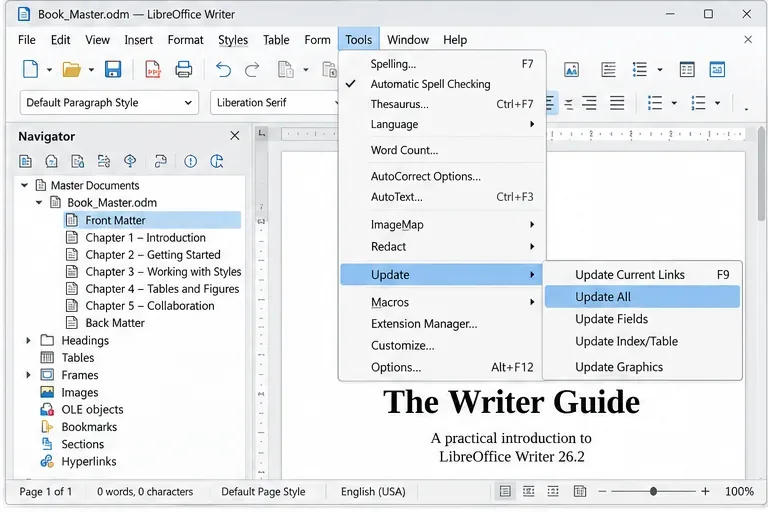
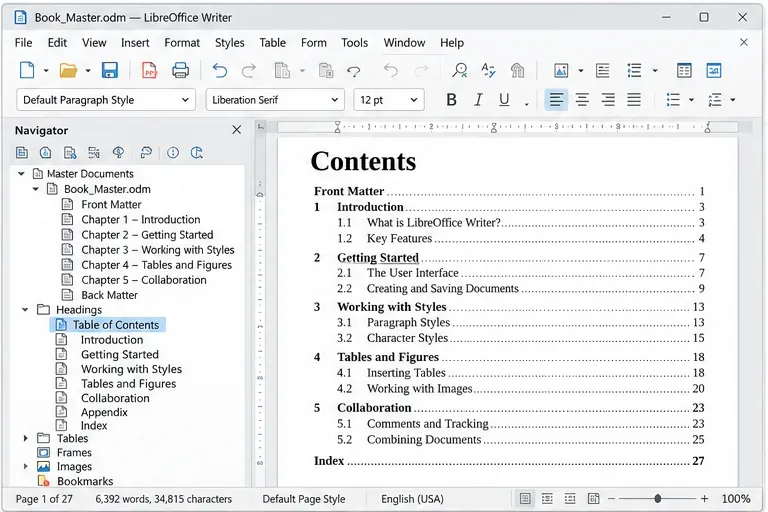
To refresh linked content and page flow after editing chapters, open the master document and choose Tools > Update > Update All, or use the update control in Navigator. Then update the TOC if needed by right-clicking it and selecting Update Table of Contents. The update can take longer for complex books because Writer checks the linked files.
The master view combines book-level front matter with a Navigator list of linked chapter files.Tools > Update > Update All refreshes linked content and document references in the master.A generated contents page lists styled chapter headings with page numbers after the master document is updated.
6. Review the assembled pages, then export
Scroll through the complete master from the title page to the last page. Check that the first page of each chapter begins where intended, page numbers continue correctly, the contents matches the headings, and references or indexes are current. Review images, tables, footnotes, and cross-references too: combining separate files can change pagination and move anchored objects. Using the same page styles and templates reduces surprises, but a final visual check is still necessary.
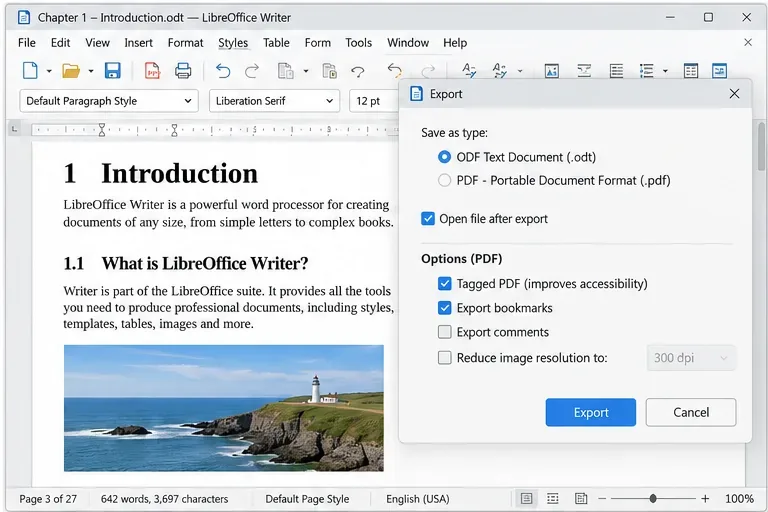
For a shareable reading copy, export the master to PDF after updating it. If an editor or publisher specifically needs a single editable Writer file, use File > Export and choose ODF Text Document (.odt), then follow the Writer Guide's steps to update the exported file and break its section links before treating it as a standalone document. Keep the .odm and chapter .odt files as the working project.
The export dialog offers ODT and PDF output for a composed book; check the chosen format before exporting.
Common problems and practical fixes
A chapter appears in the wrong place: select it in Navigator and drag it into order; newly inserted files appear before the selected item.
A chapter link is broken: restore the original filename and folder path, or use the broken entry's section/link settings to browse to the moved file.
A heading is missing from the TOC: apply the correct Heading paragraph style or verify the outline level, then update the TOC.
Formatting changes only in the master: check for same-named styles in the master and chapter files, then align the styles in both templates.
An image moves after assembly: review the image anchor and page layout in its chapter file, then inspect the master again. LibreOffice's guide says “As Character” can provide more predictable placement, with less freedom to position the image.
When this workflow is worth using
A master document is useful when separate chapter files make drafting, review, or collaboration easier and you need a unified book output. It adds file-management work: the links, style definitions, and final pagination all need attention. If your manuscript is short, has few revisions, or will be edited by tools that do not preserve LibreOffice's linked-document structure, a single .odt may be easier to maintain. Choose the structure that matches how you will revise and deliver the book.