Home
» MS OFFICE
»
How to Set Up ONLYOFFICE Workspace on Ubuntu 24.04 LTS
How to Set Up ONLYOFFICE Workspace on Ubuntu 24.04 LTS
ONLYOFFICE Workspace combines online document editing with a broader collaboration portal. On Ubuntu 24.04 LTS, the most approachable server setup is to use the official ONLYOFFICE Workspace Community installation script with Docker. Docker runs the Workspace components in isolated containers, which makes the deployment easier to reproduce and update than a hand-built stack.
This guide uses the Community edition and starts with a practical choice for first-time administrators: install Workspace without the optional ONLYOFFICE Mail server. That removes DNS and mail-delivery requirements from the first deployment. You can add Mail later from the Control Panel if you need it.
As of October 2026, Docker officially supports Ubuntu 24.04 LTS (Noble). ONLYOFFICE's current Workspace Community documentation lists an amd64 Linux host with at least a 4-core CPU, 8 GB of RAM, 40 GB of free disk space, and 6 GB of swap. The vendor recommends more CPU and RAM for a smoother deployment. Check the current ONLYOFFICE Workspace Community Docker installation guide and Docker's Ubuntu installation documentation before deploying on a production server.
What you need before you begin
You need an Ubuntu 24.04 LTS server or virtual machine, an account with sudo privileges, outbound Internet access to download packages and container images, and enough free resources for the Workspace services. If you want the portal to be reachable from other computers, the server also needs a stable LAN address or public IP address.
amd64 means the common 64-bit x86 server architecture used by Intel and AMD processors. Do not assume that Docker support for another architecture automatically means ONLYOFFICE Workspace supports it; the current Workspace requirements specifically name amd64 Linux.
Item
Practical target
Why it matters
CPU
4 cores minimum; 6 recommended by ONLYOFFICE
Several services run at the same time.
Memory
8 GB minimum; 12 GB recommended
Document editing, databases, and collaboration services are memory-intensive.
Disk
At least 40 GB free
Container images, logs, databases, and user files all consume storage.
Swap
At least 6 GB according to the script-based guide
Provides additional virtual memory during heavier workloads.
Architecture
amd64
Matches the current ONLYOFFICE Workspace requirement.
Step 1: Confirm the Ubuntu host has enough resources
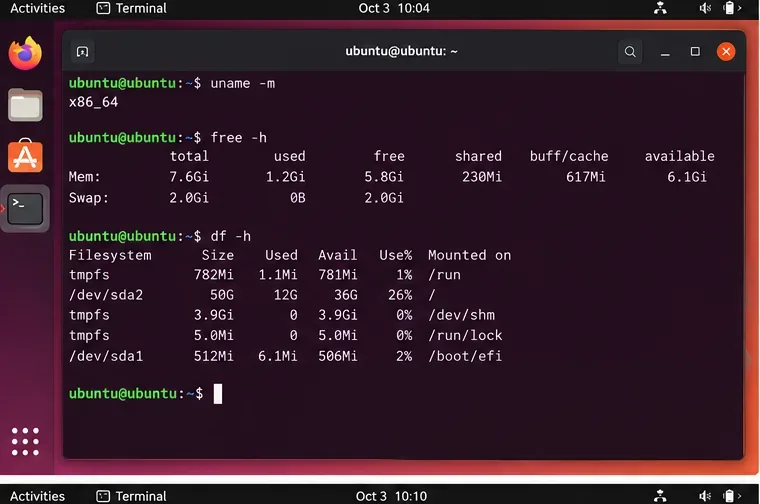
Open Terminal or connect to the server over SSH. Run:
uname -m
free -h
df -h
uname -m reports the processor architecture. On a compatible x86-64 host, you will normally see x86_64. free -h shows RAM and swap, while df -h shows free disk space in human-readable units.
Check architecture, memory, swap, and disk capacity before installing the Workspace services.
Avoid continuing on a server that is already low on memory or storage. Installation may complete but later fail under editing or indexing workloads, which is harder to diagnose than correcting capacity first.
Step 2: Install Docker Engine from Docker's official Ubuntu repository
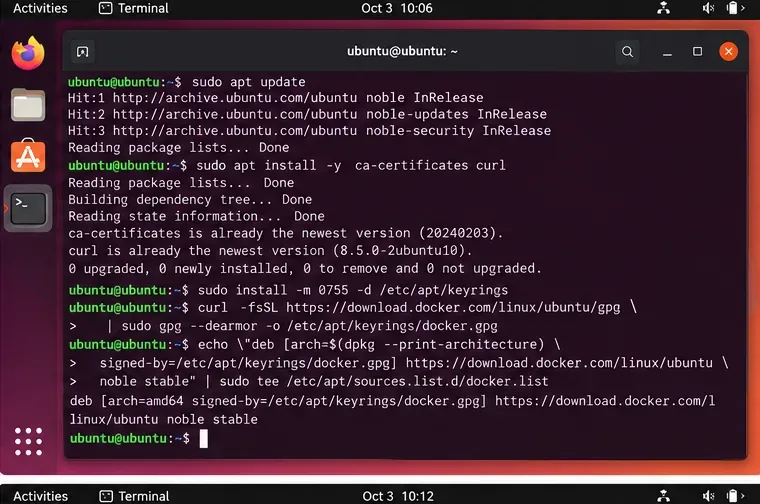
Docker Engine is the service that creates and runs the containers used by the Workspace deployment. Docker's current Ubuntu instructions support Ubuntu 24.04 LTS and recommend using Docker's own APT repository for a normal server installation.
Prepare Docker's package source before installing the engine. Follow the current commands in the text because repository configuration formats can change over time.
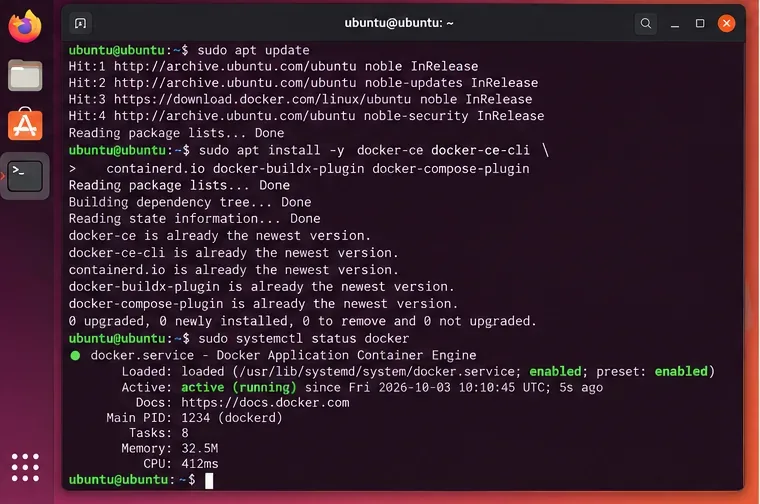
Then install Docker Engine and the Compose plugin:
A healthy Docker installation should report the Docker service as active before you start the Workspace installer.
Step 3: Verify Docker before involving ONLYOFFICE
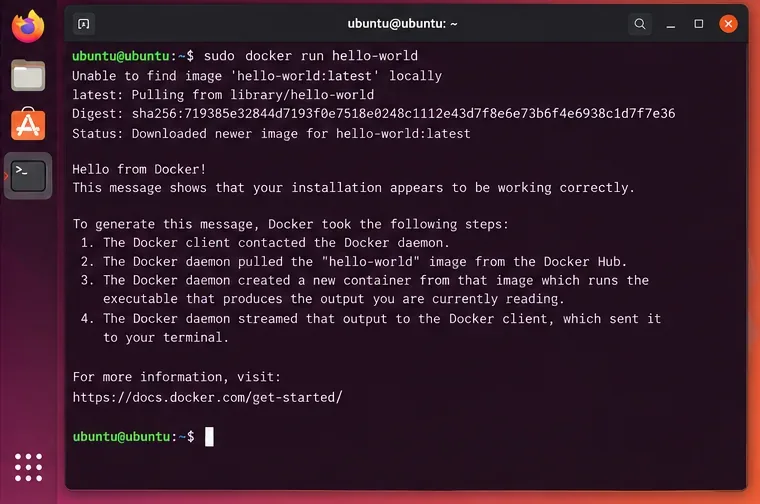
This small check separates Docker problems from Workspace problems. Run:
sudo docker run --rm hello-world
Docker downloads a tiny test image, starts a container, prints a confirmation message, and exits. If this fails, fix Docker first rather than continuing with the Workspace script.
The hello-world test confirms that the Docker client can communicate with the Docker daemon and start a container.
A common beginner mistake is to treat a permissions error from docker as an ONLYOFFICE failure. This guide intentionally uses sudo docker, so you do not need to add your account to the Docker group. Docker warns that membership in that group effectively grants root-level control, so do not add users casually just to shorten commands.
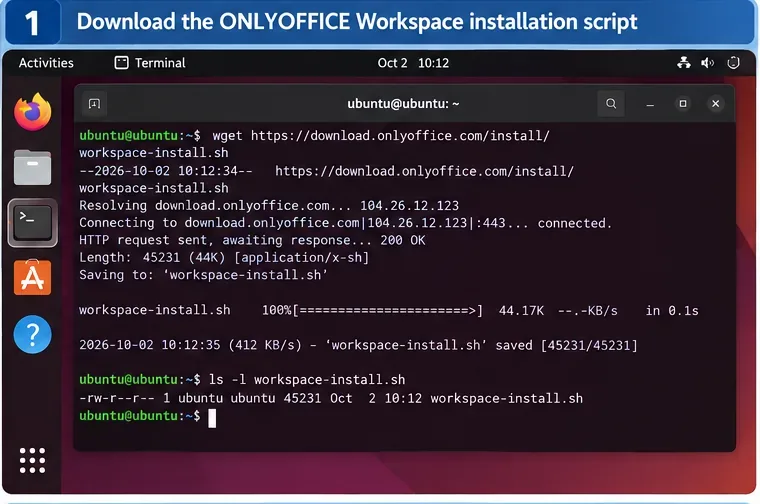
Step 4: Download the official ONLYOFFICE Workspace installer
ONLYOFFICE publishes an installation script at its own download domain. Download it directly:
Before running any downloaded administrative script, it is good practice to inspect it:
less workspace-install.sh
Press q to leave less. This does not prove a script is safe, but it gives you a chance to verify the source and notice unexpected commands before giving it root privileges.
Download the Workspace installer from ONLYOFFICE's official download domain, then review it before execution.
Step 5: Install Workspace without the Mail server first
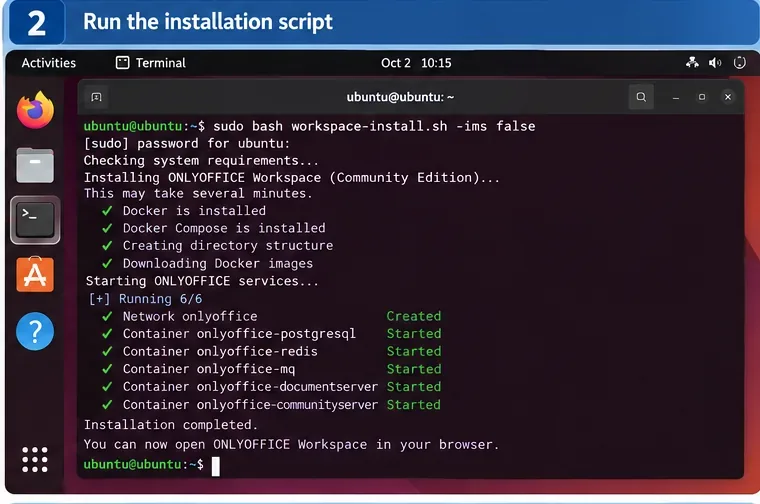
For a first deployment, run the official script while skipping ONLYOFFICE Mail:
sudo bash workspace-install.sh -ims false
The -ims false parameter means “do not install the Mail Server component.” This keeps the initial setup focused on the Workspace portal, document editors, and administration components. ONLYOFFICE documents that Mail can be installed later from the Control Panel.
Running the installer without Mail avoids requiring mail-domain DNS configuration during the first Workspace deployment. Status lines and container names can vary by release.
If you already have a properly configured mail service domain and specifically want the full installation, ONLYOFFICE documents this form instead:
Replace mx1.example.com with your real mail-service hostname. The hostname must resolve to the server, and the mail domain needs the appropriate DNS records. Do not use a made-up hostname just to make the installer continue. Incorrect DNS is one of the easiest ways to turn an otherwise successful Workspace deployment into a mail-delivery problem.
Step 6: Check that the containers are actually running
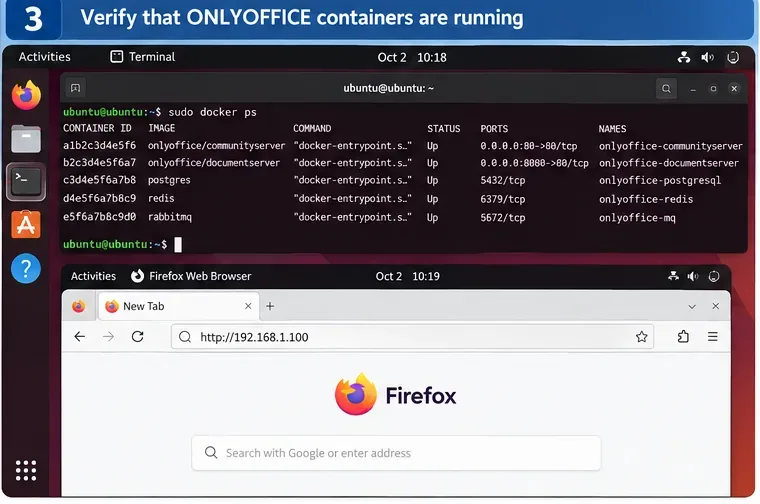
When the script finishes, inspect running containers:
sudo docker ps
Do not worry if your container names differ from examples you see online. Names and internal components can change across releases. The useful signals are that the expected ONLYOFFICE containers are present and their status is running rather than repeatedly restarting or exiting.
Use docker ps to confirm that the deployment is running, then open the server's real IP address in a browser. The displayed container names are illustrative and may differ from your release.
If a container keeps restarting, inspect the real name from docker ps -a and then run:
sudo docker logs --tail 100 CONTAINER_NAME
Replace CONTAINER_NAME with a name shown by Docker. This is safer than copying an old container name from a tutorial.
Step 7: Open the portal using the server's real network address
Find the server's addresses with:
hostname -I
From a browser that can reach the server, open:
http://SERVER_IP
ONLYOFFICE's Docker guide specifically advises using the machine's network IP instead of localhost or 127.0.0.1 when verifying the portal. Initial startup can take a few minutes after installation, so a short delay does not automatically mean the deployment failed.
Step 8: Complete the administrator setup
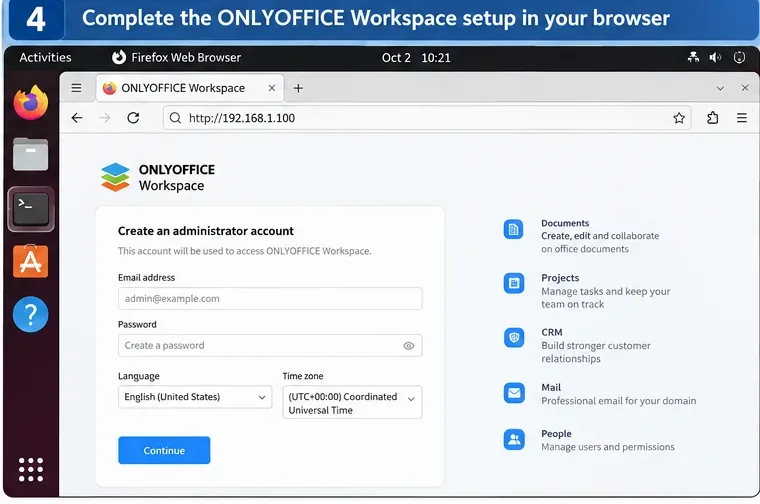
The first-run page asks you to create the portal administrator account. Set a strong password, enter a valid email address, select the correct language and time zone, and accept the license terms. ONLYOFFICE notes that the default password policy requires between 8 and 120 characters; you can tighten security settings later.
Finish the portal's first-run configuration with an administrator email, a strong password, and the correct language and time zone.
After the initial wizard, confirm that you can open the Documents module and create a test document. A successful sign-in alone proves the portal is reachable; opening and editing a document also checks that the document-editing component is connected correctly.
Secure the installation before inviting users
If the server will be used beyond a temporary lab, move from plain HTTP to HTTPS. ONLYOFFICE's Control Panel can generate and apply a Let's Encrypt certificate or accept an existing certificate and private key. For the built-in Let's Encrypt workflow, port 80 must be reachable during certificate issuance. See the official ONLYOFFICE HTTPS configuration guide.
Also review which network ports you actually need. ONLYOFFICE publishes a Workspace Community port reference. Do not expose database or internal-service ports to the Internet just because they appear in that table.
Ubuntu includes UFW, a host firewall, but there is an important Docker-specific caveat: Docker's documentation warns that published container ports can bypass UFW rules. That means “I blocked it in UFW” is not sufficient proof that a Docker-published port is unreachable. Review Docker's firewall behavior and, for an Internet-facing server, use a properly designed host or upstream firewall policy rather than assuming UFW alone controls every container port. Ubuntu's own firewall reference is available in the Ubuntu Server firewall documentation.
Common problems and what to check first
The installer says a required port is already in use
Check listeners before stopping random services:
sudo ss -ltnp | grep -E ':(80|443)\b'
If Apache, Nginx, another container, or a management panel already owns the port, decide which service should keep it. Do not blindly kill a production web server.
The portal does not load after installation
Check Docker first:
sudo systemctl is-active docker
sudo docker ps -a
If Docker is inactive, start it and review its journal. If the Workspace containers are up but the page is unavailable, confirm that you are using the correct server IP and that routing, cloud security groups, and upstream firewalls allow the required web traffic.
The server runs out of memory during installation
Re-check free -h. The Workspace script-based guide expects at least 6 GB of swap and lists 8 GB of RAM as the minimum. A very small VM can become unstable while several images initialize simultaneously. Moving to a larger VM is usually cleaner than trying to tune every service around insufficient memory.
You prefer Docker Compose instead of the installation script
That is a valid alternative when you want more control over the deployment definition. ONLYOFFICE's current Compose instructions require Docker Compose 2.16.0 or later for Ubuntu 22.04 and later and instruct administrators to enable the relevant cgroup line in the Workspace YAML file. Ubuntu 24.04 falls into that “22.04 and later” category. Follow the official ONLYOFFICE Docker Compose guide rather than copying an old Compose file from an unrelated tutorial.
How to know the setup is genuinely finished
A good installation has several independent signs of health: Docker is active; the Workspace containers remain running; the portal opens from another machine using the server's real network address; the administrator can sign in; and a test document opens in the browser editor. If you plan to expose the service publicly, HTTPS should also work with a certificate that browsers trust.
For a first Ubuntu 24.04 deployment, stopping after those checks is better than immediately adding mail, custom reverse proxies, third-party storage, and authentication integrations. Add one feature at a time, verify it, and keep a record of DNS, firewall, and container changes. That makes later troubleshooting far more predictable.