Home
» MS OFFICE
»
How to Stop LibreOffice Calc From Dropping Leading Zeros in CSV Files
How to Stop LibreOffice Calc From Dropping Leading Zeros in CSV Files
Fast fix: reopen the original CSV in LibreOffice Calc, open the Text Import dialog, select each identifier column in the preview, and set its column type to Text before importing. Check that the preview still shows values such as 02108 and 00501, then click OK. A CSV does not store spreadsheet number formatting, so choosing Text during import is the dependable way to preserve postal codes, account IDs, product codes, and other digit strings that begin with zero.
The steps below apply to current LibreOffice Calc releases, including the 26.8 Help documentation available when this guide was prepared in October 2026. Menu wording and dialog layout can vary slightly by operating system, locale, and release. The documented controls are in the Text Import dialog.
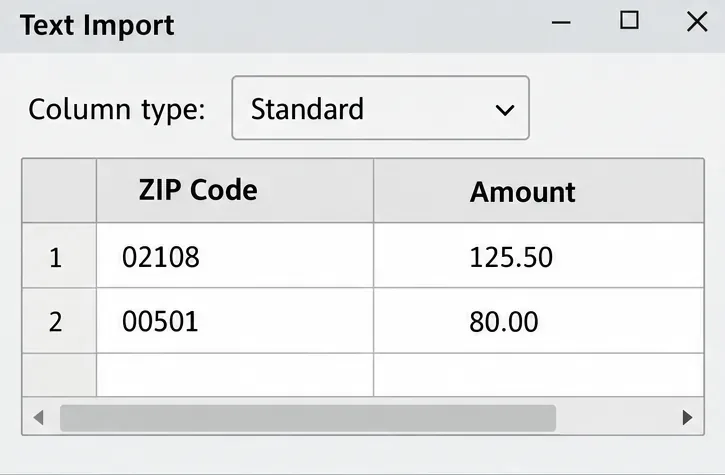
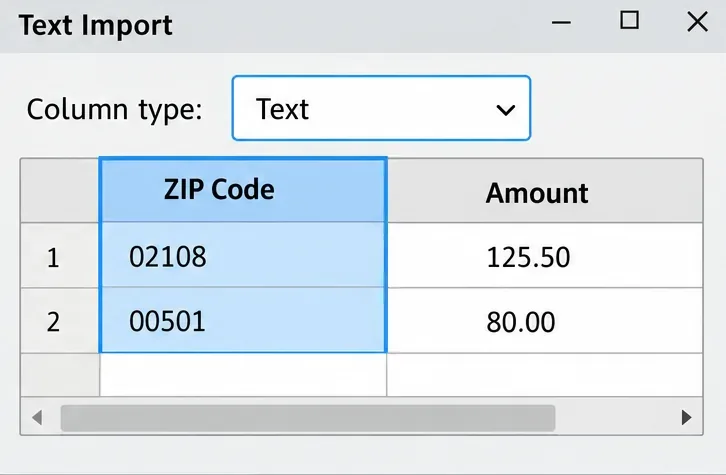
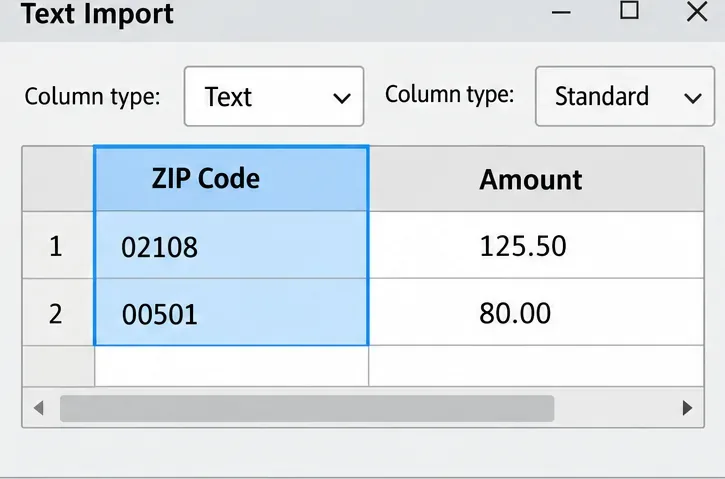
The interface panels below illustrate the documented controls; your Calc theme or version may look different.
A Text Import preview with the ZIP Code column still set to Standard. Select the column and check its type before accepting the import.
Why Calc removes leading zeros
A CSV file stores rows and fields as text, but it does not carry a spreadsheet column type such as Text or Number. During import, Calc can interpret a digit-only field as a number. Numeric values do not retain zeros at the left as part of their value: the numeric value represented by 02108 is the same as 2108. A postal code is an identifier, however, so those two strings are not interchangeable.
Use Text for values whose digits identify something rather than measure something. Common examples include ZIP codes, phone numbers, invoice IDs, SKUs, and account numbers. Leave amounts, quantities, and values you intend to calculate as numeric columns. This distinction matters: converting every column to Text can prevent intended calculations, while importing identifiers as numbers can discard meaningful characters.
Prepare before importing
Keep the original CSV unchanged and work from a copy if you may need to export it again.
Identify which columns are identifiers and which are numeric measures. If a column mixes both, decide how each row should be treated before import.
Know the file’s separator. Comma-separated files use a comma, but some exports use a semicolon, tab, or another delimiter.
Decide whether the first row contains headers. A header such as ZIP Code should remain a label, not a data value.
These checks prevent a false fix. If you choose the wrong separator, the preview may combine several fields into one column; setting that whole column to Text will not split the data properly.
Import the CSV with identifier columns set to Text
In Calc, choose File > Open and select the CSV file. If the file uses a non-CSV extension, choose the Text CSV file type in the file picker.
Open the import settings. Depending on the file picker and saved preferences, enable Edit filter settings so Calc displays the Text Import dialog. If Calc skips the dialog because it reused prior settings, reopen the file with that option enabled.
Choose the correct separator and text delimiter. Check that each field appears in its own preview column and that the header row is treated as the first row of the file.
Click the preview column containing the IDs or postal codes. In the Column type control, choose Text. If your build presents the column-type menu through a right-click on the preview column, use that menu. The column heading should indicate the selected type.
Inspect the preview again. Confirm that values such as 02108 and 00501 appear with their zeros, and that unrelated columns such as Amount remain Standard or otherwise appropriate for numeric data.
Click OK to import. If you will edit the workbook, save a working copy in the ODS format before exporting a CSV.
The ZIP Code preview column is selected and its type is Text, the documented choice for preserving zeros during import.Set types by column: preserve ZIP codes as text while keeping the Amount column available for numeric work.
Which import option should you use?
Need
Recommended setting
Reason
Preserve a zero-padded ID or postal code
Set that preview column to Text
Calc imports the field as text instead of interpreting it as a number.
The CSV producer encloses the entire field in quotes
Optionally enable Format quoted field as text
This option treats fully quoted fields as text, but only when the entire value is inside the text delimiters.
Keep currency, quantities, or amounts calculable
Leave those columns Standard or choose a suitable number type
Only identifier fields need text treatment.
Change how fields split into columns
Correct the separator and inspect the preview
Column type does not fix a delimiter mismatch.
LibreOffice’s Format quoted field as text setting is useful when a source consistently quotes a whole field, but it is not a universal “preserve zeros” switch. A CSV may contain unquoted digits, and the setting is limited to values whose first and last characters are the text delimiter. Selecting Text for the actual identifier column is more direct. See LibreOffice’s Text Import help for the option definitions and current dialog behavior.
Likewise, turning off Detect special numbers is usually not the targeted fix for zero-padded IDs. That option concerns recognition of special number formats, including dates and times. You can leave unrelated import settings alone unless the preview shows a separate date, time, or locale problem.
If the zeros are already missing
Changing a cell’s format to Text after import does not reconstruct characters Calc already removed. LibreOffice documents that existing numeric cells remain numeric after changing their format; the Text format affects later entries or values edited afterward. The safest recovery is to import the original CSV again and set the affected column to Text before clicking OK.
If you no longer have the source file, restore the zeros only when you know the required length or rule. For a field that is definitively five digits, a formula such as =TEXT(A2,"00000") can display a numeric value in five-character zero-padded form; adjust the cell reference and mask to your data. Confirm the required width with the data owner before applying it down a column. Do not pad every value just because some rows start with zero: variable-length IDs may have different valid lengths, and a guessed prefix can corrupt records. If the original value was longer than the precision Calc retained, re-fetch it from the source system rather than trying to infer missing digits.
For a quick audit, compare the expected length with =LEN(A2) and check whether an imported ID is text with =ISTEXT(A2). Replace A2 with a cell from the identifier column. Function separators can differ with locale settings. These checks help find suspicious rows, but they cannot prove that a value is correct without an authoritative source or known length rule.
Save or export without losing the fix
Keep an editable master as an ODS workbook if you need to preserve cell types, formulas, and formatting. When you export as CSV, Calc writes the current sheet’s data; spreadsheet formatting and other workbook features are not part of the CSV format. Choose File > Save As, select Text CSV, review the export options, and save to a new filename so you retain your source and ODS copy.
After export, inspect a copy of the CSV in a plain-text editor or reopen it in Calc using the Text Import dialog. Check the exact raw identifier strings and confirm the file’s delimiter. A displayed zero-padding number format may look right inside a spreadsheet but is not the same as storing the identifier as text. For important data, verify a few known records before distributing the file. LibreOffice’s CSV import and export instructions also note that exporting to CSV saves only the current sheet and does not retain formatting.
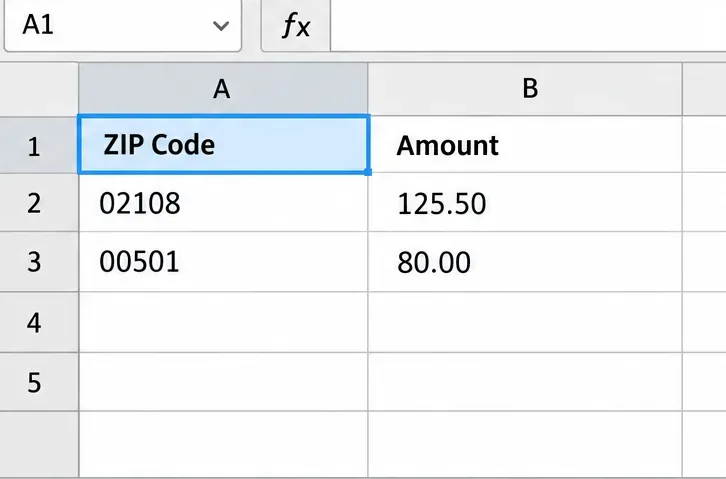
After import, confirm that identifier strings still display as 02108 and 00501 before saving or sharing the data.
Quick verification checklist
The preview splits the CSV into the intended columns.
Every identifier column is set to Text before import.
Leading zeros remain visible in the preview and in the resulting cells.
Columns needed for arithmetic remain numeric.
The workbook master is saved separately from the exported CSV.
The exported CSV is checked as raw text or re-imported to confirm the exact identifiers.
In short, prevent Calc from converting identifier strings to numbers at import time. Re-import the original when possible, set only the relevant preview columns to Text, and verify the exported text. For details on why number formatting is not a reliable substitute after import, consult LibreOffice’s guide to formatting numbers as text.