Home
» MS OFFICE
»
How to Use ONLYOFFICE Macros to Automate Spreadsheet Cleaning
How to Use ONLYOFFICE Macros to Automate Spreadsheet Cleaning
Spreadsheet cleaning is repetitive: exported names arrive with extra spaces, pasted text contains nonbreaking spaces, and formulas or IDs can be damaged by broad replacements. An ONLYOFFICE macro can standardize text in a defined range while leaving numeric values and formula cells alone. The example below handles whitespace only; duplicate removal, date conversion, and blank-row deletion require separate rules.
Documentation checked October 6, 2026. ONLYOFFICE macros use JavaScript with the Office JavaScript API, not Excel VBA. The editor’s current documentation opens the macro workspace from View → Macros. The exact toolbar appearance can vary across desktop and hosted editions.
Cleaning tasks this macro can handle
The sample removes leading and trailing spaces or tabs, changes nonbreaking spaces to regular spaces, and collapses repeated spaces or tabs inside text. It skips formulas and values that are not strings. This narrow scope reduces the chance of changing dates, amounts, or calculated cells while preparing a recurring import.
Data issue
What the sample does
Review before automating
Leading or trailing spaces and tabs
Removes them from text cells
Usually safe for names and labels, but check fields where spacing is meaningful
Nonbreaking spaces
Replaces them with regular spaces
Useful for copied web text; spot-check the source field
Repeated spaces or tabs
Collapses each run to one space
Do not use on fixed-width text or intentional indentation
Formulas, numbers, and booleans
Leaves them unchanged
Verify formula cells still calculate after the run
Duplicate rows, dates, blank rows
Does not change them
Define business rules first; these are not purely cosmetic cleanup
1. Prepare a copy and define the range
Save a working copy of the spreadsheet before running any macro that changes cells. Identify the worksheet and the data rows to clean. In the code below, A2:D500 is a sample range: row 1 is assumed to contain headers, and data is expected in columns A through D. Change this address to match your sheet. Use a bounded range that covers the intended records, and do not include notes, formulas, or unrelated columns.
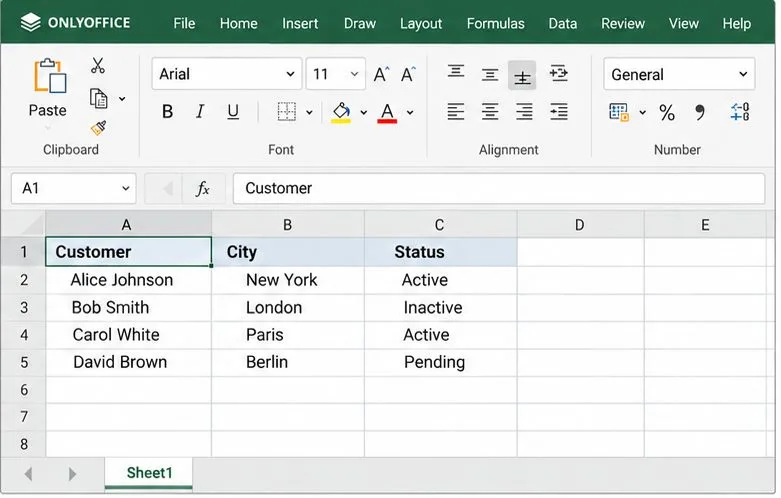
A small worksheet provides a bounded sample; keep the header row outside the cleaning range.
For a first test, copy a few representative records to a temporary sheet or duplicate the file and shorten the range, such as A2:D10. Include examples with ordinary spaces, pasted text, blank cells, and formulas so you can confirm how the macro treats each case.
2. Open the ONLYOFFICE macro editor
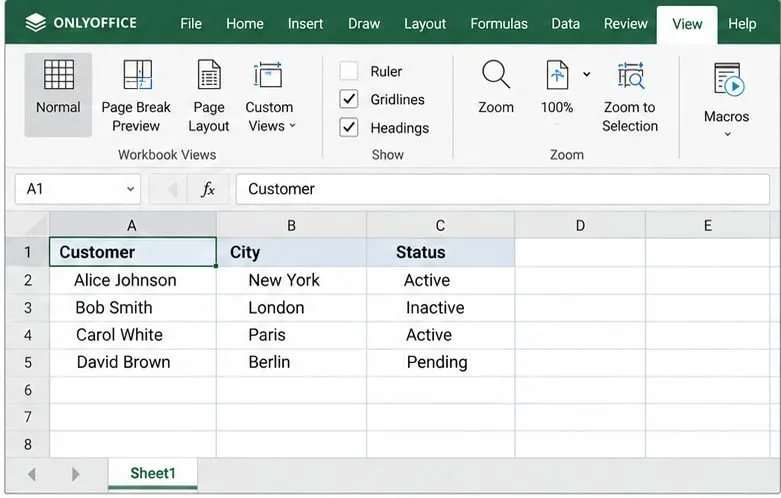
Open the spreadsheet in ONLYOFFICE Spreadsheet Editor and choose View → Macros. Create a new macro in the macro window, or select a new module, then give it a clear name such as CleanTextWhitespace. The official ONLYOFFICE macros getting-started guide documents this entry point and the run control.
The View ribbon contains the Macros control used to open the macro workspace.
If macros are disabled by your editor settings, review Settings → Advanced Settings → Macros. ONLYOFFICE documents options to disable macros, show a notification, or enable them. For a workbook you did not create, do not enable all macros globally just to run one script; inspect the code and follow your organization’s policy.
(function () {
    var oSheet = Api.GetActiveSheet();
    var oRange = oSheet.GetRange("A2:D500");
    var nRows = oRange.GetRowsCount();
    var nCols = oRange.GetColumnsCount();

    for (var r = 1; r <= nRows; r++) {
        for (var c = 1; c <= nCols; c++) {
            var oCell = oRange.GetCells(r, c);
            var sFormula = oCell.GetFormula();

            // Do not replace formulas with their displayed results.
            if (sFormula) {
                continue;
            }

            var v = oCell.GetValue();

            // Restrict this cleanup to text constants.
            if (typeof v !== "string") {
                continue;
            }

            var sClean = v
                .replace(/\u00A0/g, " ")
                .replace(/[ \t]+/g, " ")
                .replace(/^[ \t]+|[ \t]+$/g, "");

            // SetValue treats strings beginning with "=" as formulas.
            if (sClean.charAt(0) === "=") {
                continue;
            }

            if (sClean !== v) {
                oCell.SetValue(sClean);
            }
        }
    }
})();
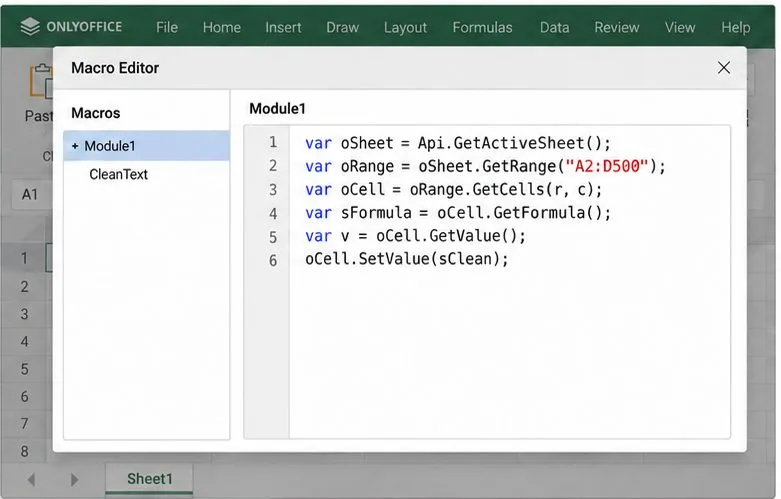
The code pane shows the range and cell-reading methods used by the cleaning macro.
The row and column counters passed to GetCells are relative to the selected range; the API examples use numbered positions to access a cell. The macro reads each cell’s formula first and skips it when a formula is present. It then reads the value and edits only strings that actually change. A string that would become an equals-sign formula after trimming is also skipped because SetValue can interpret a leading equals sign as a formula.
The whitespace expression intentionally leaves line breaks alone. It does not change capitalization, punctuation, numeric values, or date serials. If your source contains multiline notes, fixed-width fields, or identifiers with special spaces, test those columns separately and adjust the policy rather than applying broader normalization.
4. Run once, then verify the result
Run the macro from the macro editor. Since it updates the cells in the selected range, inspect the changed text in the working copy before saving over your source. Compare a few rows against the original, including the first and last rows in the range. Confirm that headers stayed untouched, formulas still calculate, and numeric cells such as dates, currency, and IDs have not changed.
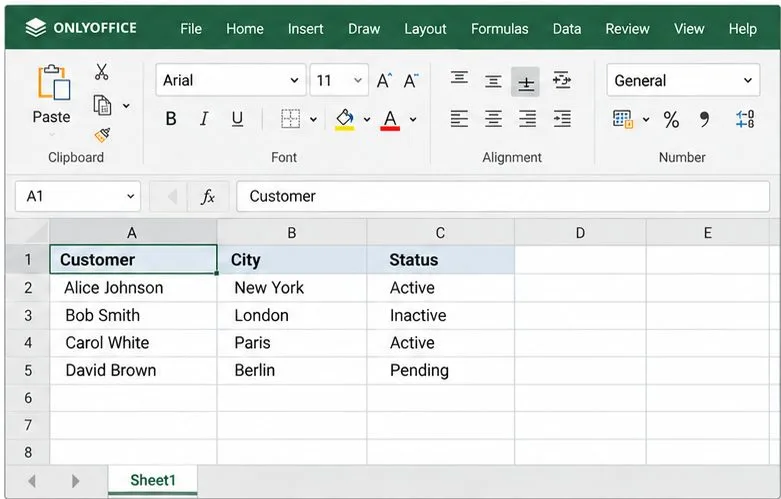
Use the worksheet to spot-check representative rows and compare them with the untouched copy.
For a large sheet, filter or search for suspicious spaces before and after the run, and compare row counts. The macro does not delete rows, deduplicate records, convert dates, or fill blanks, so these checks should focus on text values. If you need a visible audit trail, add a separate review column or copy cleaned results to a staging sheet rather than writing status messages into an arbitrary cell.
Common cleaning rules that need a separate decision
Duplicate records: Decide which columns define a duplicate and whether repeated transactions are valid before removing rows. Two identical names do not necessarily represent the same person or order.
Blank cells and blank rows: An empty cell, a zero, and a text value such as “N/A” have different meanings. Do not replace or delete them without a data rule.
Dates and numbers stored as text: Choose an expected format and locale first. The sample avoids converting these values because a string such as 03/04/2026 is ambiguous across regions.
Leading zeros: Import identifiers such as 00127 as text. If a spreadsheet has already stored them as numbers, trimming text cannot restore missing zeros.
Case normalization: Lowercasing email addresses or uppercasing state codes can help specific fields, but applying it to names or product descriptions can destroy intended capitalization.
Use ONLYOFFICE macros when a repeatable rule can be expressed precisely and you can test it on a copy. The macro system is JavaScript rather than VBA, is attached to a document rather than available globally, and is restricted from direct file-system and network access, as explained in the ONLYOFFICE macro FAQ. That sandbox limits what a macro can reach outside the editor, but a macro can still change workbook contents, so review and test code before running it.
For recurring imports, keep the script in a controlled template or document copy and use a short checklist: confirm the active sheet, update the range address, exclude headers and formulas, run on a copy, spot-check edited strings, and compare the final workbook with the original before saving or sharing it.