Home
» MS OFFICE
»
LibreOffice Calc VLOOKUP vs XLOOKUP: A Beginner-Friendly Functions Guide
LibreOffice Calc VLOOKUP vs XLOOKUP: A Beginner-Friendly Functions Guide
LibreOffice Calc gives you more than one way to find a value in a table and return related data. For years, VLOOKUP was the familiar choice. Today, Calc also includes XLOOKUP, a newer lookup function that removes several VLOOKUP limitations and is usually easier to maintain.
This guide starts with the basic mental model, then walks through practical formulas you can copy into a small spreadsheet. It also explains where INDEX/MATCH still fits, what can go wrong, and which function makes sense for a new workbook.
What should you know before using lookup functions?
A lookup searches one range for a key, such as a product ID, then returns a related value, such as the product price. The search key might be text, a number, a date, or a cell reference.
In current LibreOffice Help, XLOOKUP is documented as a modern replacement for VLOOKUP, HLOOKUP, and LOOKUP. XLOOKUP has been available since LibreOffice 24.8. The current LibreOffice 26.8 Help documents exact and approximate matching, wildcard and regular-expression matching, reverse search, and binary search. See the official LibreOffice XLOOKUP documentation.
One detail that often surprises people coming from Microsoft Excel: LibreOffice formula examples commonly use semicolons between arguments. For example, =XLOOKUP(F2;A2:A6;D2:D6). Calc may adapt separators to your locale, so follow the separator that your installation accepts.
VLOOKUP vs XLOOKUP at a glance
Capability
VLOOKUP
XLOOKUP
Exact match
Yes, but you normally specify 0/FALSE
Yes; exact match is the default
Return a value to the left of the search column
No, not directly
Yes
Separate search and return ranges
No; uses one table array plus a column index
Yes
Built-in result when no match is found
No dedicated argument
Yes
Search from last item to first
No direct search-mode argument
Yes
Approximate match
Yes
Yes, with explicit match modes
Available in LibreOffice before 24.8
Yes
No
Prepare a small practice table
Create columns A through D with the headers Product ID, Product Name, Category, and Price. Add a few IDs such as P001 through P005. Put the ID you want to search for in F2 and place your formula in G2.
Formulas in Calc begin with an equals sign. You can type them directly into a cell or into the Formula Bar; the official LibreOffice formula-entry guide describes both methods.
Step 1: Use VLOOKUP for a basic exact match
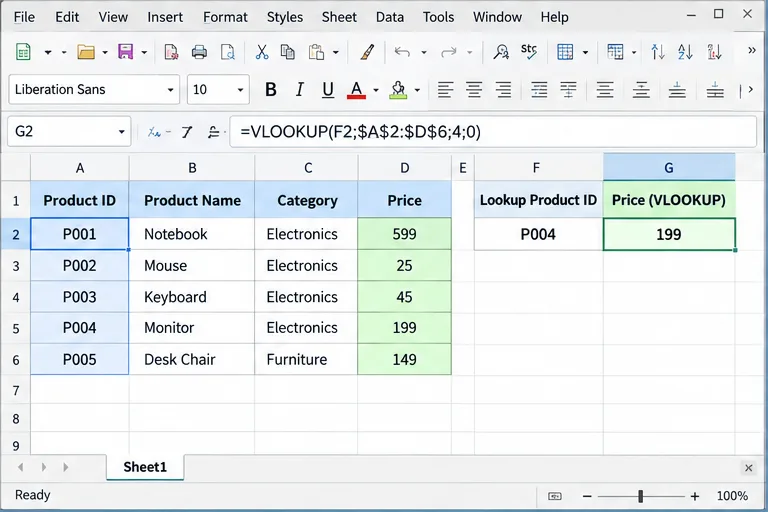
Suppose P004 is in F2 and you want the price from column D. Enter:
=VLOOKUP(F2;$A$2:$D$6;4;0)
The arguments mean: look for the value in F2, search the first column of A2:D6, return the value from the fourth column of that table, and require an exact match. The dollar signs create absolute references, which keep the lookup range fixed if you copy the formula to other cells.
A basic VLOOKUP exact match: the search key is in F2, the table is A2:D6, and column 4 supplies the price.
LibreOffice documents VLOOKUP as a vertical search in which the lookup value must be in the first column of the table array and the return value comes from a column to its right. It also warns that if the final argument is omitted or TRUE, the function assumes sorted data and can return an approximate match. Review the official LibreOffice Spreadsheet Functions reference before relying on approximate VLOOKUP behavior.
Step 2: Use XLOOKUP when the return column is on the left
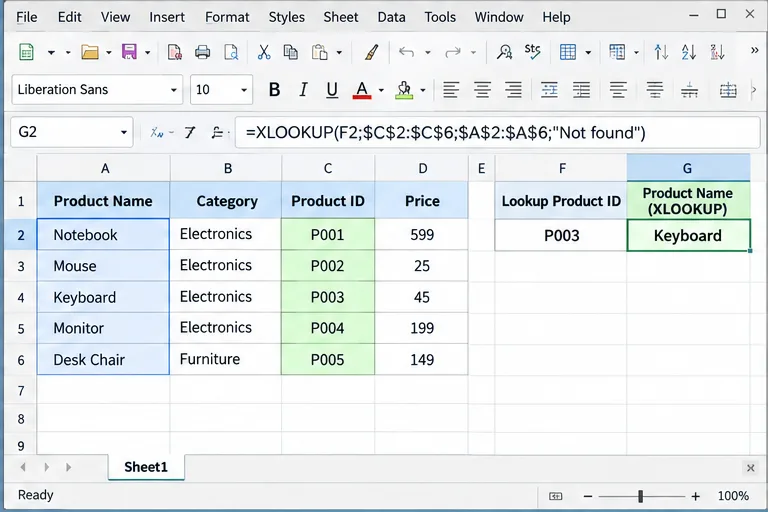
Now rearrange the table so Product Name is in column A and Product ID is in column C. With VLOOKUP, this layout is awkward because the function searches only the first column of its table array and returns values to the right.
XLOOKUP separates the search array from the result array. To find P003 in column C and return the product name from column A, use:
=XLOOKUP(F2;$C$2:$C$6;$A$2:$A$6;"Not found")
XLOOKUP can search one column and return a value from a column to its left without rearranging the table.
The fourth argument is the value to return when no match exists. That makes the formula easier to read than wrapping a lookup in a separate error-handling function for this common case.
Step 3: Handle missing IDs without exposing #N/A
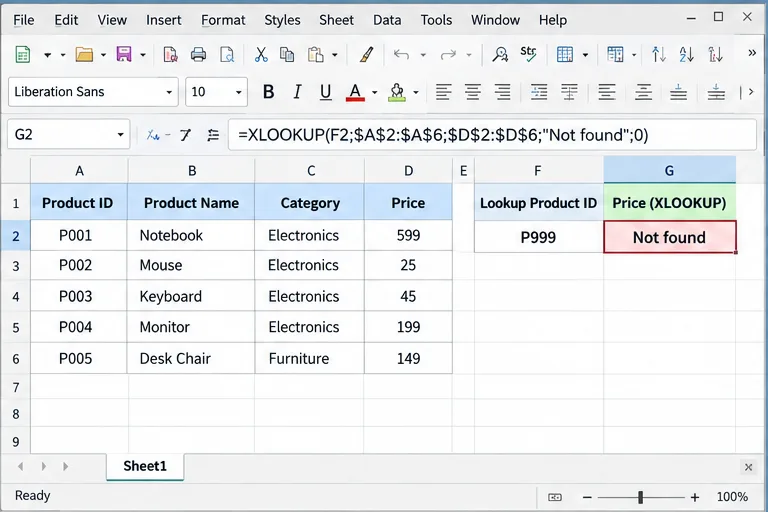
If a user enters an ID that does not exist, a plain exact lookup normally produces #N/A. In XLOOKUP, place a friendly result in the fourth argument:
=XLOOKUP(F2;$A$2:$A$6;$D$2:$D$6;"Not found";0)
The 0 match mode explicitly requests an exact match, although exact matching is already the XLOOKUP default. Writing it can still be useful when you want the formula's intent to be obvious to someone reviewing the sheet.
XLOOKUP can return a readable fallback such as “Not found” when an exact match is unavailable.
Do not hide every error automatically. If an ID should always exist, #N/A may be valuable because it exposes bad or incomplete source data. Use a friendly fallback when missing keys are expected, not when they indicate a data-quality problem.
Step 4: Search from the bottom to get the latest matching record
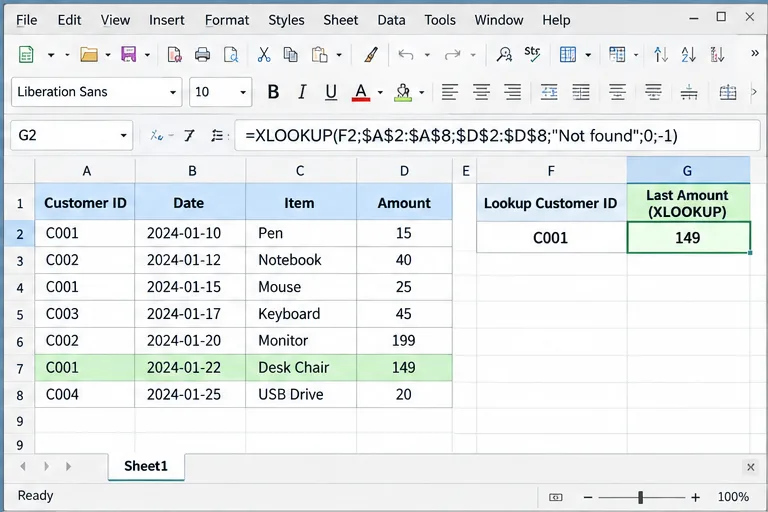
Sometimes a key appears more than once. For example, a transaction log may contain several rows for customer C001. XLOOKUP has a Search Mode argument. A value of -1 searches from the last item toward the first.
To return the amount from the last row containing the customer ID in F2, use:
=XLOOKUP(F2;$A$2:$A$8;$D$2:$D$8;"Not found";0;-1)
With Search Mode -1, XLOOKUP starts at the bottom of the search array and returns the last matching customer record.
The official XLOOKUP reference defines Search Mode 1 as first-to-last and -1 as last-to-first. It also provides binary-search modes 2 and -2, but those require correctly sorted data. Using binary search on unsorted data can return invalid results.
When should you still use INDEX and MATCH?
Before XLOOKUP arrived in Calc 24.8, a common flexible alternative was INDEX plus MATCH. MATCH finds the relative position of a key; INDEX returns the value at that position. For example:
=INDEX($D$2:$D$6;MATCH(F2;$A$2:$A$6;0))
This remains useful when you need compatibility with older LibreOffice installations or when an existing workbook already uses INDEX/MATCH consistently. The official spreadsheet-function reference documents both INDEX and MATCH.
Calc also provides XMATCH starting with LibreOffice 24.8. XMATCH adds match and search modes similar to XLOOKUP, including reverse search. See the official LibreOffice XMATCH documentation.
Common mistakes to avoid
Leaving VLOOKUP's last argument blank when you need an exact match
With VLOOKUP, omitting the final argument invokes the sorted-range behavior. For product IDs, employee numbers, SKUs, and other discrete identifiers, use 0 or FALSE for an exact match unless approximate matching is intentionally part of your design.
Counting the wrong VLOOKUP column index
The VLOOKUP column index is counted from the first column of the table array, not from the spreadsheet's column letters. In A2:D6, column D is index 4. If you insert a column inside that table later, the hard-coded index may no longer refer to the field you intended.
Using ranges with different lengths in XLOOKUP
Your search array and result array should align row-for-row or column-for-column. A search range such as A2:A100 paired with D2:D90 is a design error because the corresponding positions do not cover the same records.
Using binary search on unsorted data
XLOOKUP Search Mode 2 expects ascending order, while -2 expects descending order. The LibreOffice documentation explicitly warns that unsorted data can produce invalid results. If you do not control sorting, use the normal forward or reverse search modes.
Confusing wildcards with regular expressions
Calc supports wildcard and regular-expression matching, but they are separate match modes in XLOOKUP. Wildcard mode uses characters such as * and ?; regular-expression mode uses Calc's regular-expression engine. Choose the mode deliberately instead of assuming a pattern will be interpreted automatically.
Which lookup function should a beginner choose?
For a new spreadsheet running on LibreOffice 24.8 or later, start with XLOOKUP. Its separate search and result ranges are easier to read, exact match is the default, left-side returns are straightforward, and the built-in not-found and reverse-search options reduce the need for formula workarounds.
Use VLOOKUP when you are maintaining an existing workbook built around it, sharing with environments where XLOOKUP support is uncertain, or working with a simple stable table where its limitations do not matter. Use INDEX/MATCH when older LibreOffice compatibility is important or the workbook already follows that pattern.
The most important habit is not memorizing every argument. Instead, identify four things before writing the formula: what value am I searching for, where am I searching, what range should supply the answer, and what should happen if the key is missing? Once those are clear, choosing between VLOOKUP, XLOOKUP, and INDEX/MATCH becomes much easier.