Home
» MS OFFICE
»
LibreOffice Writer vs. Microsoft Word: Page Numbering Differences Explained
LibreOffice Writer vs. Microsoft Word: Page Numbering Differences Explained
Page numbers look simple until a document needs an unnumbered cover, Roman-numbered front matter, or a main section that starts at page 1. LibreOffice Writer and Microsoft Word can produce these results, but they organize the controls differently. Writer uses page styles to define page layout and repeated headers or footers; Word uses sections to separate parts of a document and control whether headers and footers continue across a boundary.
That distinction matters when you are new to either program or move an editable document between them. A number typed as ordinary text will not update, and a page break alone does not create the same kind of boundary as a page style change or a Word section break. This guide explains the terms, the basic setup, the common special cases, and what to inspect before sharing a file.
Before you add numbers, decide what the document needs
A page-number field is a dynamic placeholder that displays the current page number and can update as pages are added or removed. It is different from typing “1” into a footer. A header or footer is a repeated area at the top or bottom of pages, where a page-number field usually belongs.
Write down the intended numbering before opening the menus:
Should the cover show a number, hide it, or count as page 1 without displaying the number?
Should a table of contents or other front matter use Roman numerals such as i, ii, and iii?
Should the main text restart at 1, or continue the earlier count?
Do odd and even pages need different header or footer content?
Make a copy before changing a complex document. If it will be edited in both applications, keep a working copy in the format you need and check the final layout in the application that will be used to edit or print it. Menu names can vary by release and platform; the official help pages linked below were checked on October 5, 2026.
Add ordinary page numbers
In LibreOffice Writer
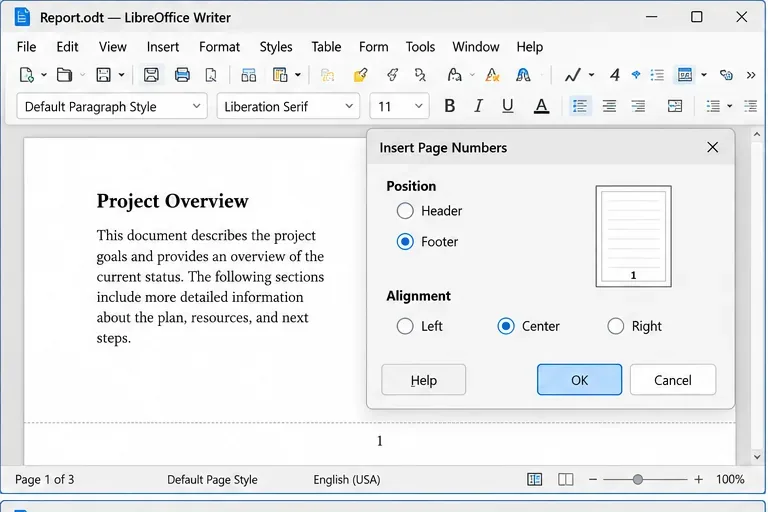
Writer places page numbers in a header or footer attached to a page style. A page style is a set of page-level settings, including margins, orientation, headers, and footers. Pages using the same style can share those settings. The Insert > Page Numbers wizard offers a quick way to add a number to the header or footer for the current page style. You can also turn on the relevant header or footer and insert a Page Number field from Insert > Field.
The Writer page-number wizard places a field in the selected header or footer for the current page style.
Click in the page style where numbering should appear.
Use Insert > Page Numbers, then choose the header or footer and alignment, or add a footer first and choose Insert > Field > Page Number.
Check another page that uses the same style. The number should advance automatically.
If your version or document makes the wizard unavailable, use the header/footer route. A page-number field in the document body may move with nearby text, while a repeated header or footer stays in its page area. For a total such as “Page 2 of 8,” insert a page-number field and a separate page-count field; the two values have different jobs.
In Microsoft Word
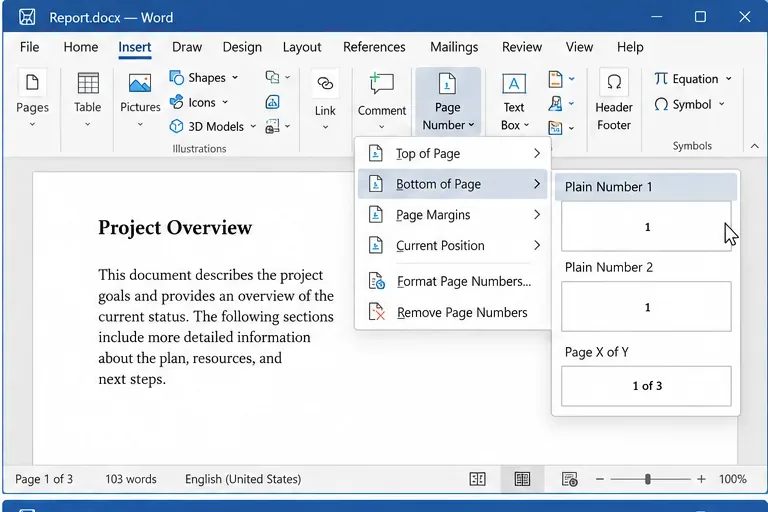
Word puts the number in a header or footer too, but its special formatting is usually managed by section. For a basic document, choose Insert > Page Number and select a position and style. Word’s built-in choices include simple numbers and layouts such as “Page X of Y.” You can format the numbering from the Page Number menu.
Word’s Page Number gallery provides footer placements and formats for a straightforward document.
After inserting the field, open the header or footer to adjust alignment or add surrounding text. Avoid entering the displayed digit yourself: a typed number remains the same when pagination changes.
Make a cover page look different
Hiding the number on a cover is not always the same as removing the cover from the count. Decide whether the second page should display 2 or display 1; these are different numbering plans.
Writer: use page styles for page-level differences
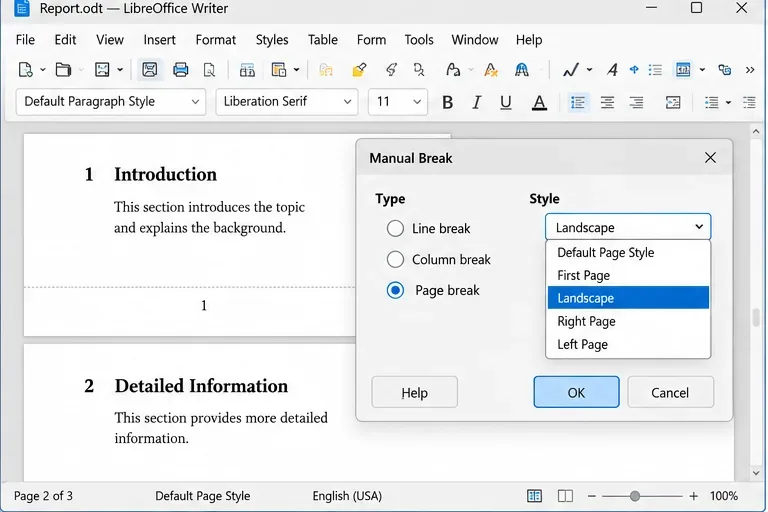
Writer includes a First Page page style that can be used for a cover, followed by another style such as Default Page Style. Page styles can define whether a header or footer is present, so the cover can omit the number while later pages show it. When a new page needs a particular style, use Insert > More Breaks > Manual Break, choose a page break, and select the page style for the following page. Depending on the document structure, you may also need to set a new page number at that break. Confirm the result on the first page after the break; do not assume that hiding the footer also restarted the count.
A Writer manual page break can apply a page style to the next page; select the style that matches the transition in your document.
Word: use Different First Page or a section boundary
For a single cover, edit the header or footer and select Different First Page. This hides or changes the first page’s header and footer within that section. The following page can still display 2 because it is the second page in the count. If the second page should display 1, Microsoft’s instructions say to set the section’s page-number starting value to 0 while the first page is hidden.
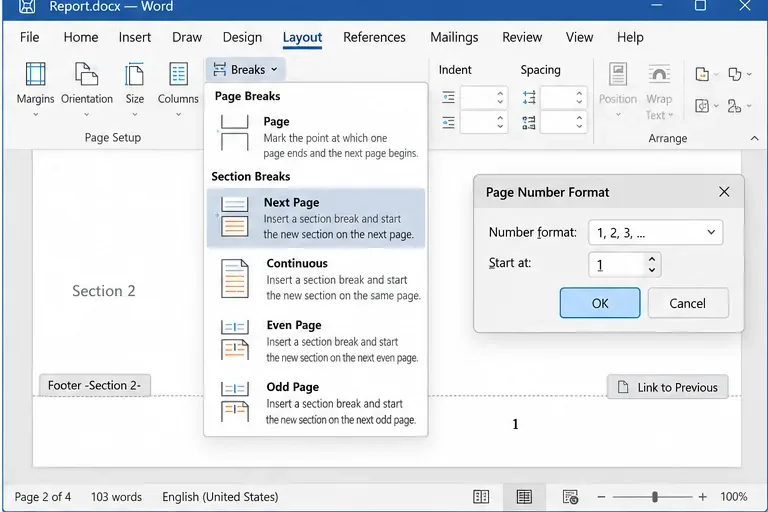
For more than one numbering scheme, insert a section break at the boundary instead of relying on an ordinary page break. A section is a document portion whose layout or numbering can be controlled separately. Choose Layout > Breaks > Next Page to start the next section on a new page. Then edit its header or footer and check Link to Previous. That control determines whether the header or footer carries over from the preceding section; headers and footers are linked separately.
A Word section break creates a new numbering boundary; set its format and starting value, and review the header or footer link.
Use Roman numerals for front matter and restart the main text
A common book or report layout numbers a title page without a visible number, uses lowercase Roman numerals for preliminary pages, then starts the main content at Arabic numeral 1. The dependable approach in either application is to create a clear boundary where the format changes, insert a real page-number field in the appropriate repeated area, and inspect the first page on both sides of that boundary.
In Word, insert a Next Page section break before the main text. In the main section’s header or footer, turn off Link to Previous if its numbering must differ. Open Page Number > Format Page Numbers, select the desired number format, and set Start at to 1. Repeat at the front-matter boundary if the preliminary section needs a different format.
In Writer, use page styles to express the different page layouts and use a manual break when a page must switch styles or restart numbering. Set the page-number field’s format for the relevant part of the document, then verify the displayed number at the transition. Writer’s page styles also control broader page settings, so changing a style can affect margins, orientation, and headers or footers as well as numbering. The exact arrangement depends on how the existing document is built; check the official Writer guidance before changing a long or heavily formatted file.
Check the result and avoid common mistakes
Every page repeats the same digit: replace typed text with a Page Number field. Check that the field is in a repeated header or footer.
The cover number is gone, but the next page shows 2: hiding a first-page number did not restart the sequence. Set the intended starting value or create the needed boundary.
The main section keeps the old format: in Word, check the section break and Link to Previous for the correct header or footer. In Writer, confirm that the next page actually uses the intended page style and that the break carries the right numbering setting.
The footer disappears unexpectedly: check whether the page style has a footer enabled, whether Word’s Different First Page option is active, and whether the page is in the section you intended to edit.
The page total or numbering looks stale: Word supports updating fields; select the document text and press Ctrl+A, then F9, and review the result. Before printing or exporting from either program, inspect the output.
Check at least the cover, the last page of front matter, the first page of the main text, a later page, and the final page. Also review a PDF export if that is what recipients will see. When moving an editable file between Writer and Word, inspect the section or page-style transitions and the printed layout in the destination application. The applications use different structures for these controls, so matching the visible numbering on one screen is not proof that every boundary will behave the same way after another edit.
Which approach should you choose?
For a short document with one continuous sequence, either program’s basic page-number field is usually sufficient. Choose Writer’s page-style approach when different page layouts, headers, or footers are central to the document’s organization. Choose Word’s section approach when you need independent numbering or header/footer behavior across defined portions. In either app, plan the boundaries first, use fields rather than typed digits, and verify the pages immediately around every change.