How to Move a Picture in Microsoft Word
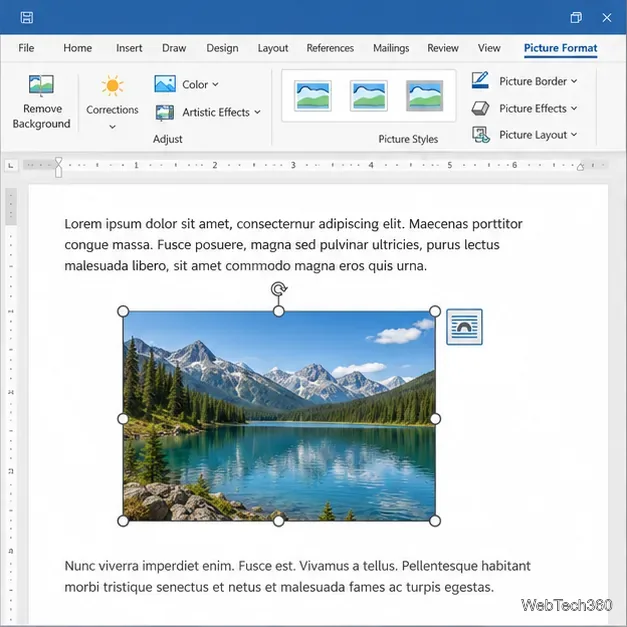
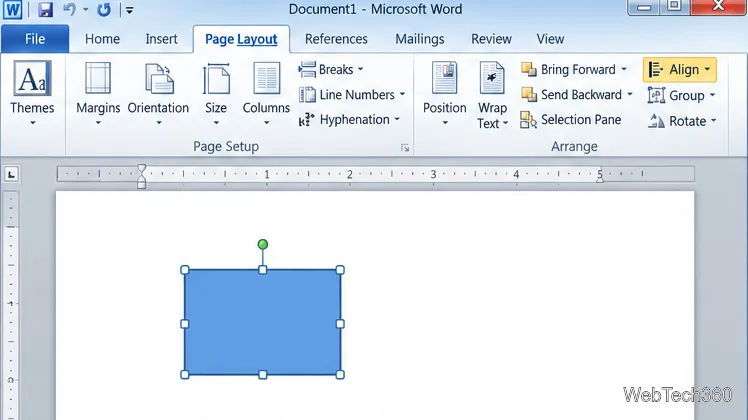
Learn how to drag a picture in Word, choose text wrapping, keep it with a paragraph or fix it on the page, and troubleshoot images that will not move.
Word 2010 templates give you a ready-made starting point for letters, resumes, calendars, agendas, and other documents. To use one already installed, open File > New, select a template, review its preview, and choose Create. For a reusable template you download or build yourself, use the .dotx format; save each finished document as a separate .docx file.
Word 2010 opens a template chooser from its File tab. The exact choices depend on what was installed with Office and what is available on the computer.
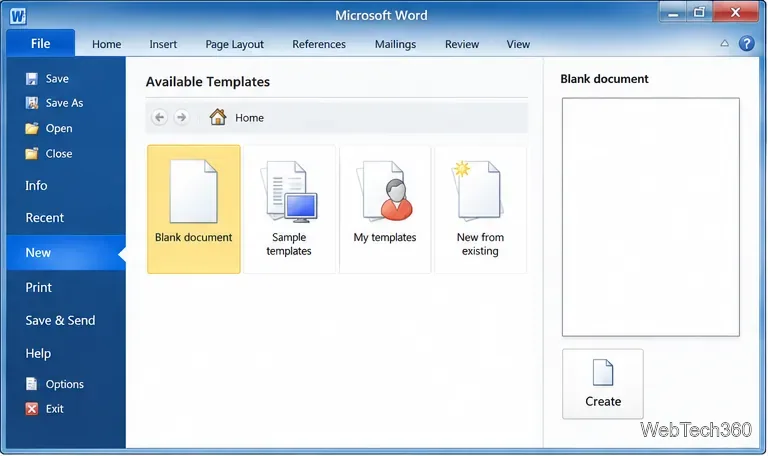 New screen with Blank document, Sample templates, My templates, and New from existing choices.">
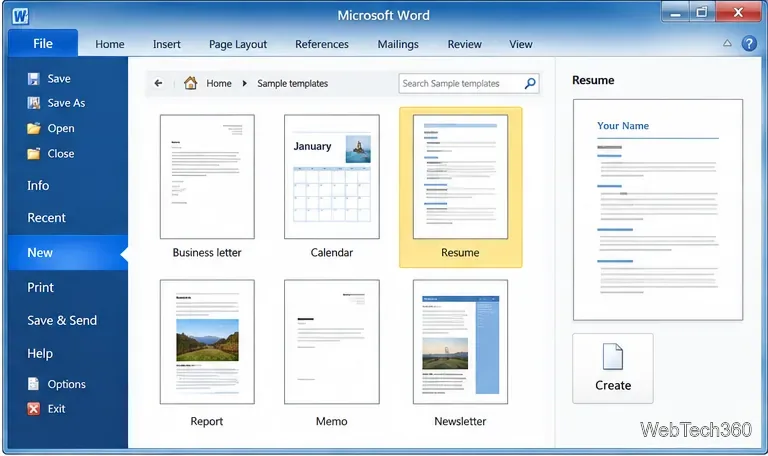
Templates are useful when they supply more than a decorative page. A resume template can include heading and spacing styles; a calendar can provide a prearranged grid; a business letter can set the margins, date line, and closing. Check that the layout fits your purpose before filling it in, especially when the template includes placeholder text, pictures, or tables.
The old Office.com catalog linked from Word 2010 may not load consistently today. Office 2010 is out of support, so use the current Microsoft Word template gallery in a browser if the in-app list is empty or unavailable. Microsoft also describes its free pre-built templates and categories such as letters, calendars, resumes, and newsletters.
.dotx file is a reusable Word template; a .docx file is a normal document that you can use as a starting point. Word 2010 supports both formats, but newer templates can include design features that may look different in an older version..dotx appear in Word 2010, find the personal template folder from File > Options > Advanced > General > File Locations. Select User templates and choose Modify to see or change that folder. Save the downloaded template there..docx instead, use File > Save As before editing the original so you work in a separate copy.If you only need a template once, you can skip adding it to the template folder: open the downloaded file, then immediately save a working copy under a new name. Avoid files ending in .dotm unless you specifically need macros and trust the source, because macro-enabled files can contain executable code.
Build a reusable file with the parts that should stay the same every time: your preferred margins, fonts, heading styles, letterhead, recurring sections, or a standard table. Leave clear placeholders for information that changes, such as a client name or meeting date. Avoid putting private or one-time details into a template that you plan to reuse.
When the layout is ready, choose File > Save As. Enter a descriptive name, then select Word Template (*.dotx) from Save as type and save it. Word 2010 recognizes .dotx as a template format; use .dotm only when the template needs macros. Microsoft’s Word file format reference lists .dotx for templates and .docx for documents, including support for Word 2010.
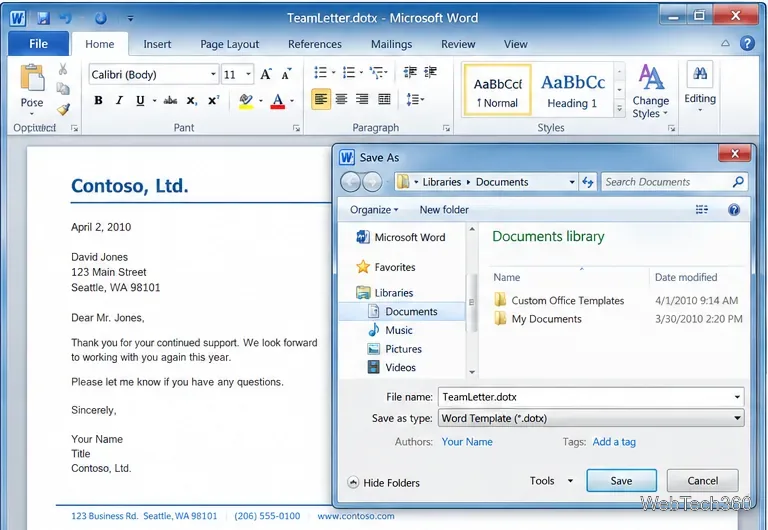
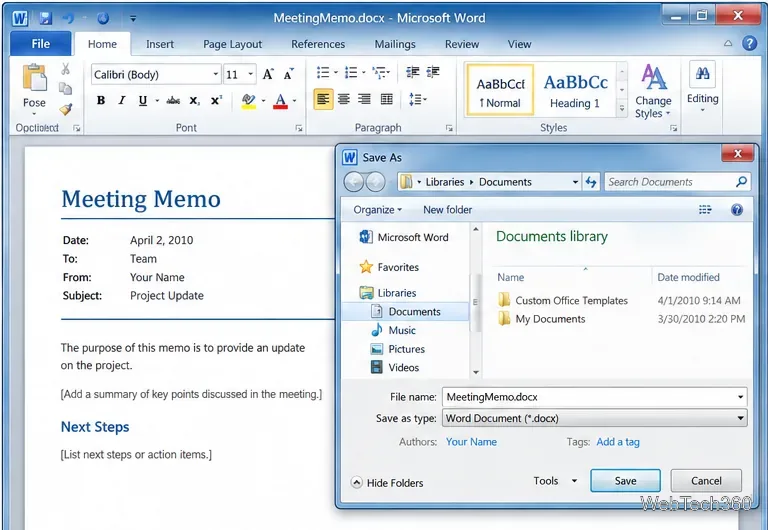
After saving a template, start future work from File > New > My templates and choose the template as the basis for a document. Enter the new content, then use File > Save As and select Word Document (*.docx). Give the copy a new name and choose a working folder. The .dotx remains the reusable starting point, while the .docx holds the specific letter, report, or memo you just created.
If a personal template is missing from the chooser, confirm that the file ends in .dotx and is in the User templates location shown by File Locations. Close and reopen Word after moving a file. If a downloaded template opens with changed fonts, spacing, or page breaks, choose a simpler template or adjust it in Word 2010 before saving the new document.
Office 2010 apps can continue to run, but Microsoft support for Office 2010 ended on October 13, 2020. Microsoft no longer provides technical support, bug fixes, or security fixes for newly reported vulnerabilities in the suite. See Microsoft’s Office 2010 end-of-support notice before relying on it for sensitive or connected work.
Learn how to drag a picture in Word, choose text wrapping, keep it with a paragraph or fix it on the page, and troubleshoot images that will not move.
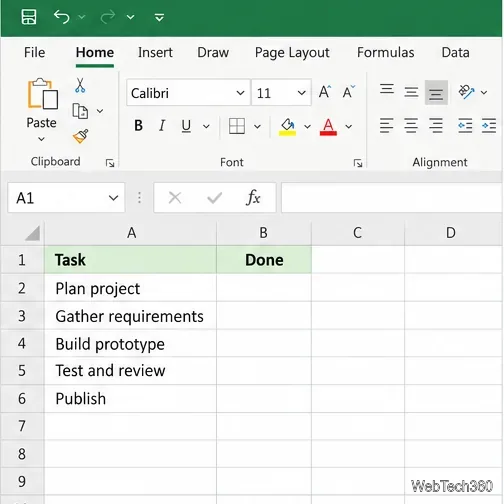
Learn how to insert a checkbox in Excel with the in-cell tool, count checked items with formulas, or add a linked Form Control in older desktop versions.
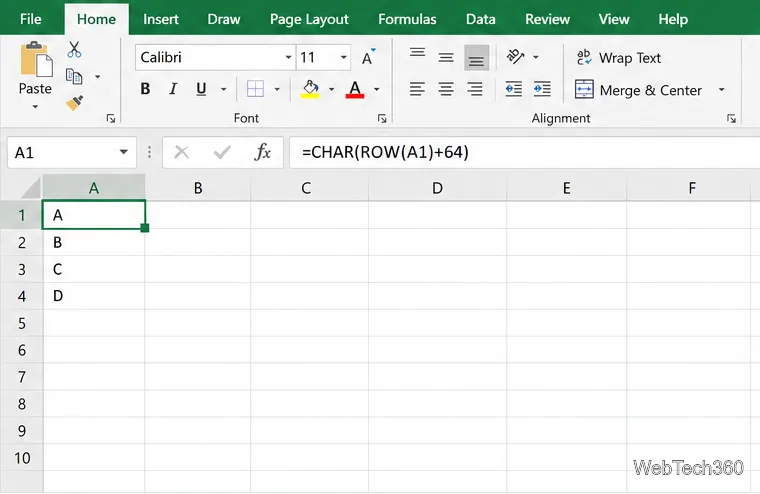
Generate A to Z, lowercase letters, or labels beyond Z in Excel with a fill-handle formula, SEQUENCE, or a reusable custom list.
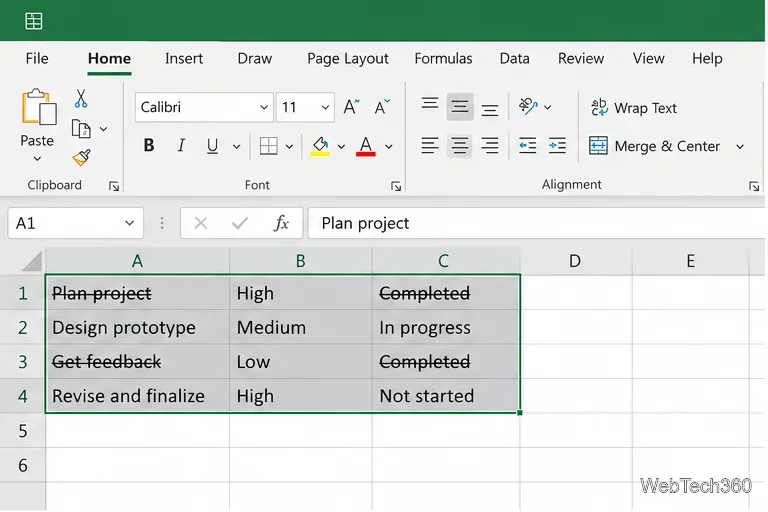
Learn how to strikethrough in Excel on Windows, Mac, and the web, format part of a cell, and remove the line without deleting its value.
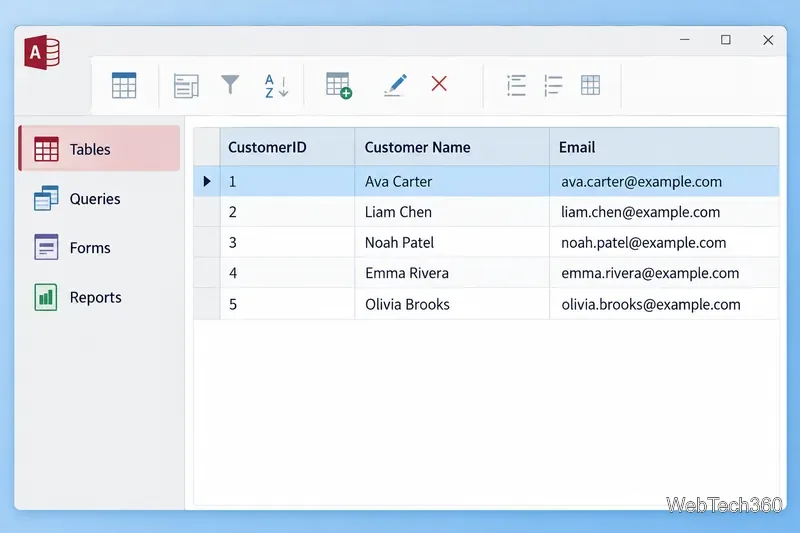
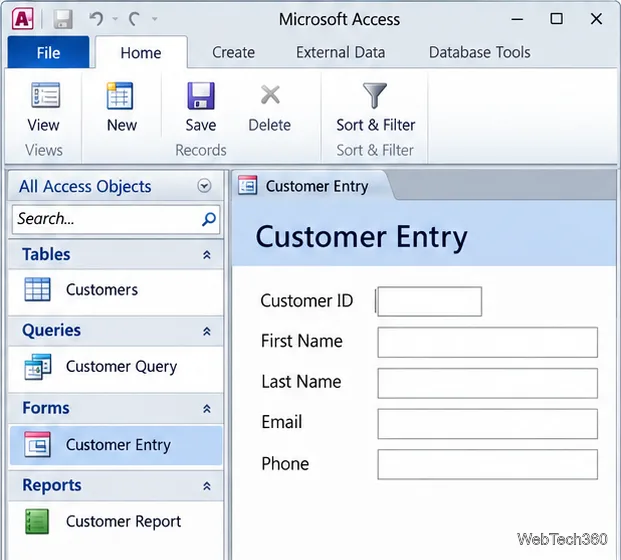
Microsoft Access is a Windows database app for storing related records, building queries, creating data-entry forms, and generating reports. Learn how it works and when it fits.
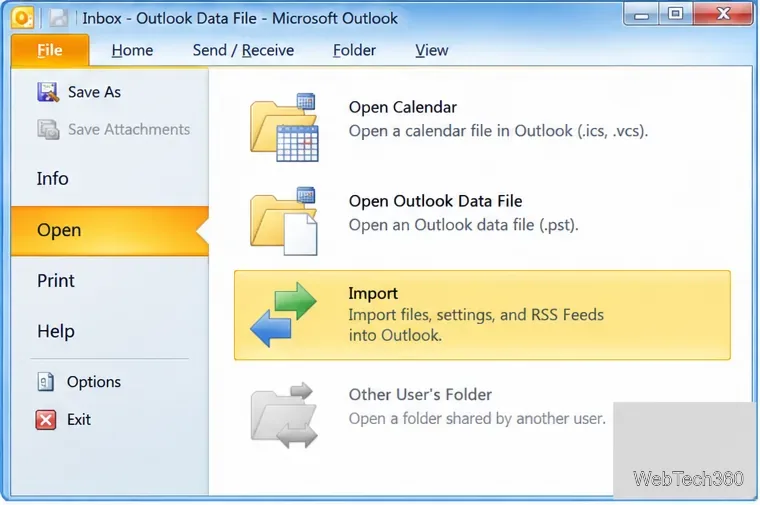
Learn how to import a PST into Outlook 2010 or export mail, contacts, calendar, and tasks. Follow the correct menus and avoid missing folders or duplicates.
Learn how to adjust gridline height and width in Word 2010, change visible line frequency, and set the underlying horizontal and vertical drawing-grid spacing.
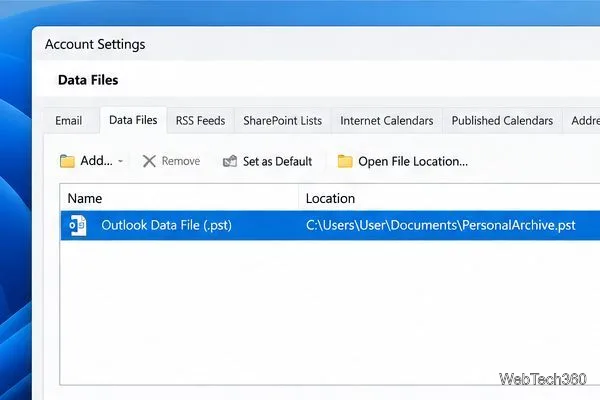
Recover a forgotten Outlook PST password with Kernel’s current steps, including how to identify the right file, make a backup, and check the tool’s limits.
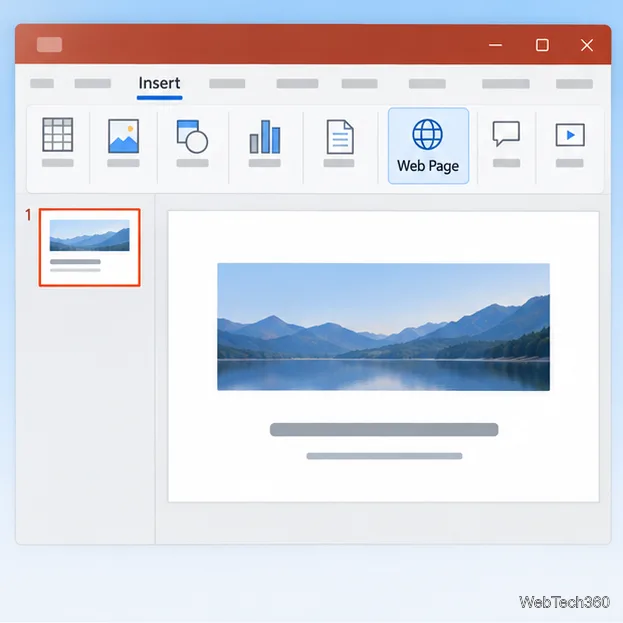
Use the LiveWeb add-in to place a website on a PowerPoint slide, set its size and refresh behavior, and check compatibility before presenting.
Set an Access 2010 database application to open directly to a data-entry form, hide object lists, limit menus, and check the setup before sharing.