How to Move a Picture in Microsoft Word
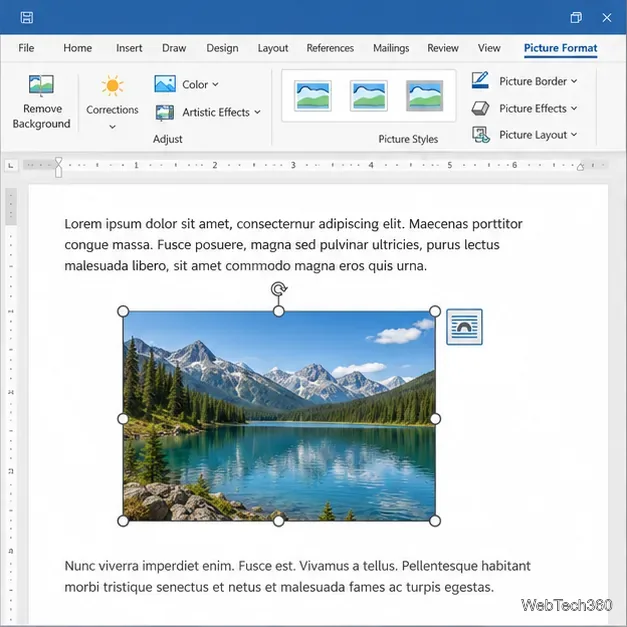
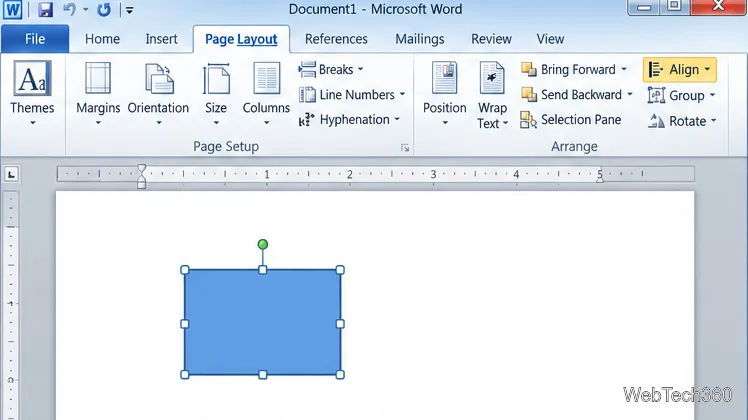
Learn how to drag a picture in Word, choose text wrapping, keep it with a paragraph or fix it on the page, and troubleshoot images that will not move.
The Quick Access Toolbar (QAT) in Office 2010 keeps frequently used commands available as you switch Ribbon tabs. Add a visible command with a right-click, find less obvious commands in the Options window, move the toolbar above or below the Ribbon, and export your setup for safekeeping. These steps cover Office 2010 desktop apps; command lists vary by program.
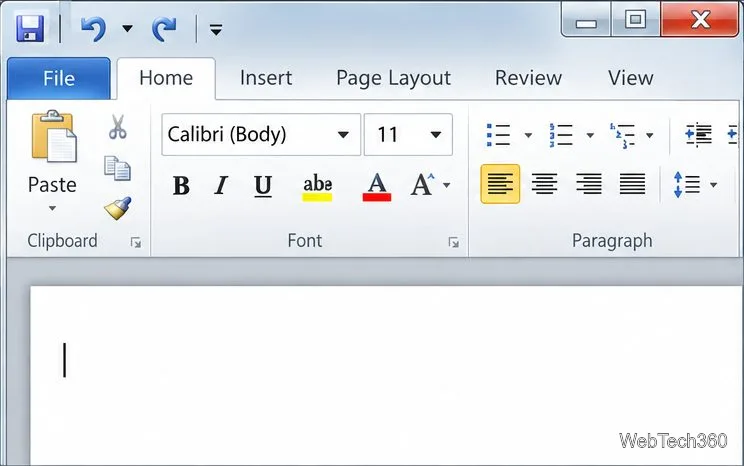
The QAT is a small row of buttons, usually at the upper-left of the Office window. Save, Undo, and Redo are common defaults. Its buttons remain available as you move between Ribbon tabs, making frequent commands easy to reach.
The QAT arrived with the Ribbon in Office 2007 and remained in Office 2010. It is a shortcut area, not a Ribbon replacement. Customize it separately in Word, Excel, PowerPoint, or Outlook. Some apps also let you apply a change to all files or only the current document or workbook.
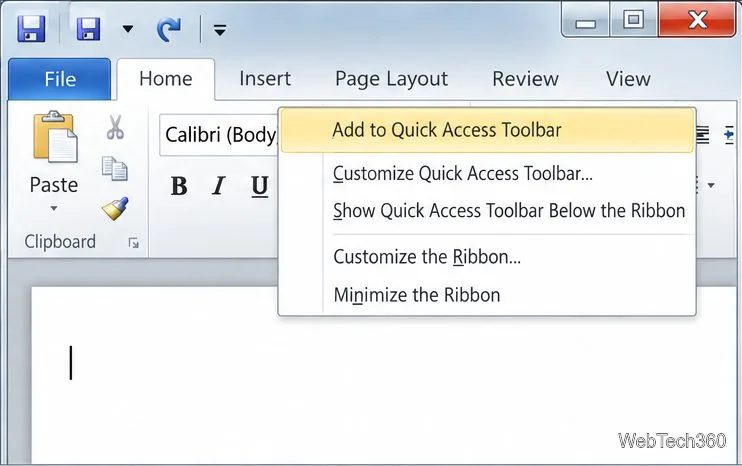
For a command you can see, this is the quickest method:
The command appears as a small button in the QAT. To remove one later, right-click its QAT button and choose Remove from Quick Access Toolbar.
To find a command that is not visible or organize several buttons, select the arrow at the QAT's right end and choose More Commands. You can also open File > Options > Quick Access Toolbar.
In Word or Excel, check the scope selector to apply buttons to every file or only the active document or workbook. Command names vary by app and installed features. Some are available only in the right context, and menu values or gallery choices cannot be added as standalone buttons.
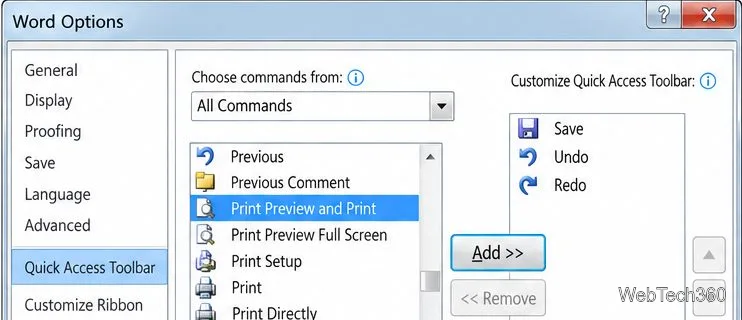
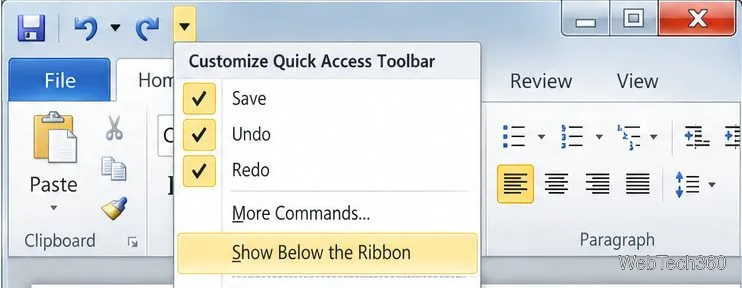
Open the QAT dropdown and select Show Below the Ribbon to move it closer to your work, or Show Above the Ribbon to return it to the title-bar area. Above the Ribbon preserves vertical workspace; below it uses more screen space.
To keep a copy of your settings, open File > Options, then the customization page for the Ribbon or Quick Access Toolbar. Choose Import/Export > Export All Customizations and save the resulting customization file, typically with an .exportedUI extension. This export includes both Ribbon and QAT customizations for that Office application.
To use the file on another computer, copy it there and choose Import/Export > Import Customization File in the same app. Export the current setup first: importing replaces that app's existing Ribbon and QAT customizations. Make a separate export for each Office program you customized.
Office 2010 reached the end of support on October 13, 2020. Microsoft no longer provides technical support, bug fixes, or security fixes for it. These steps can help with an existing installation, but anyone still relying on Office 2010 should account for that support status when deciding how to use it, especially on a computer connected to the internet or work data.
Learn how to drag a picture in Word, choose text wrapping, keep it with a paragraph or fix it on the page, and troubleshoot images that will not move.
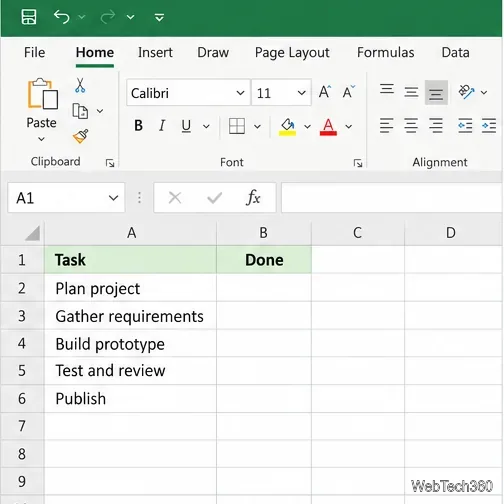
Learn how to insert a checkbox in Excel with the in-cell tool, count checked items with formulas, or add a linked Form Control in older desktop versions.
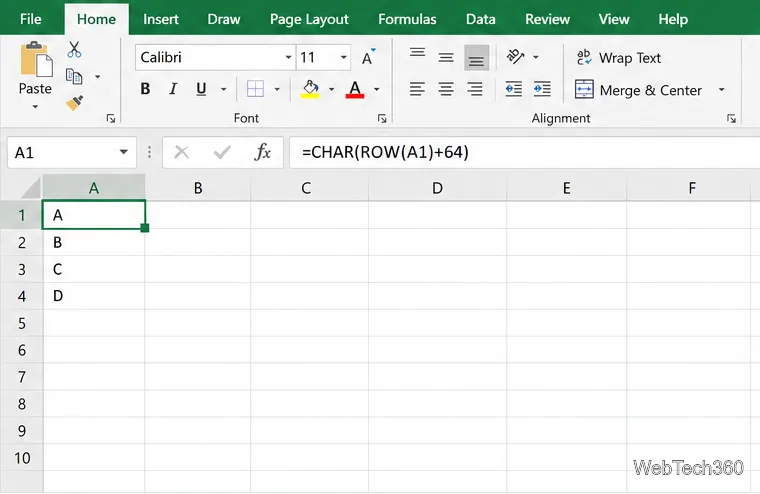
Generate A to Z, lowercase letters, or labels beyond Z in Excel with a fill-handle formula, SEQUENCE, or a reusable custom list.
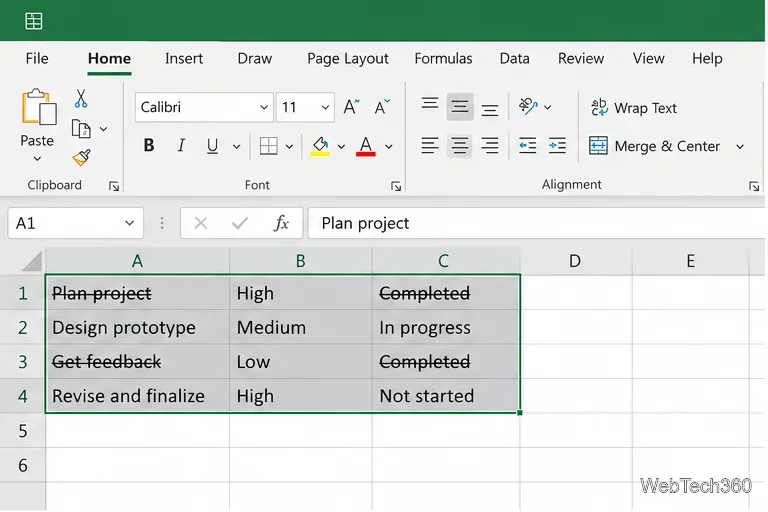
Learn how to strikethrough in Excel on Windows, Mac, and the web, format part of a cell, and remove the line without deleting its value.
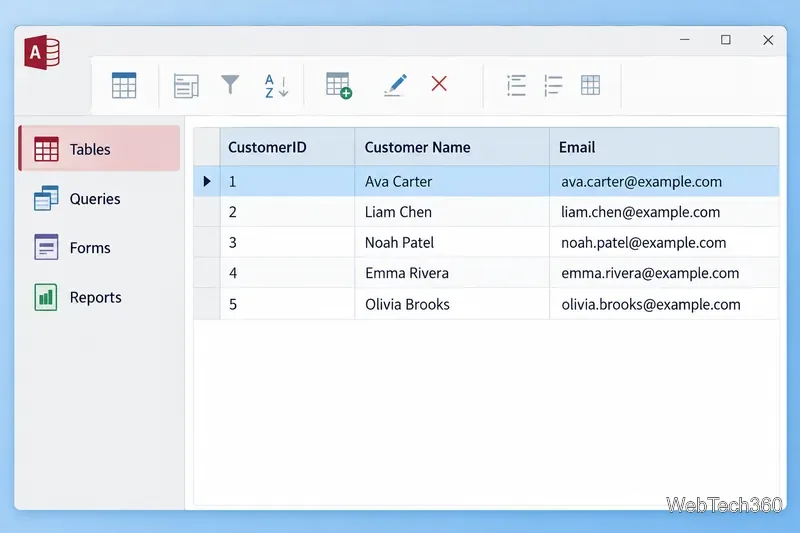
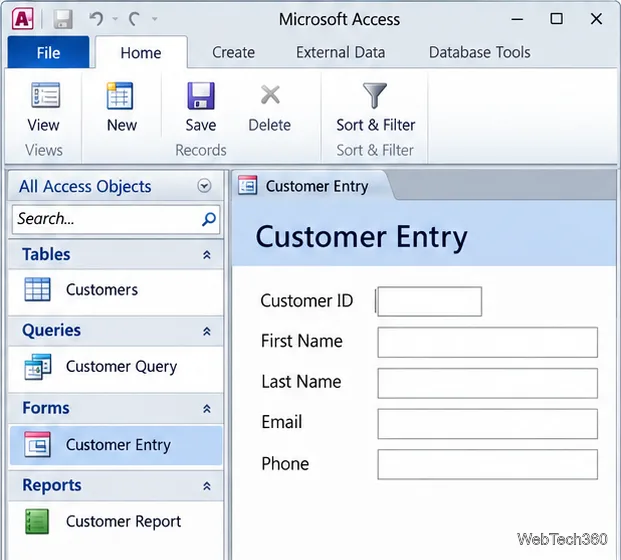
Microsoft Access is a Windows database app for storing related records, building queries, creating data-entry forms, and generating reports. Learn how it works and when it fits.
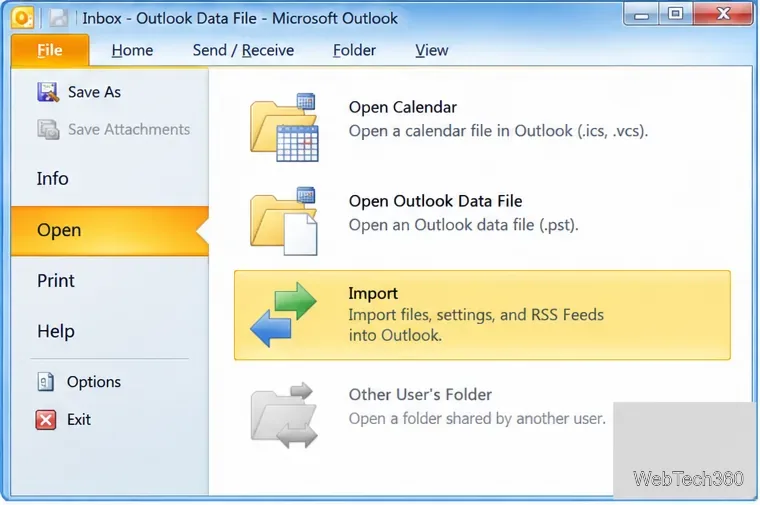
Learn how to import a PST into Outlook 2010 or export mail, contacts, calendar, and tasks. Follow the correct menus and avoid missing folders or duplicates.
Learn how to adjust gridline height and width in Word 2010, change visible line frequency, and set the underlying horizontal and vertical drawing-grid spacing.
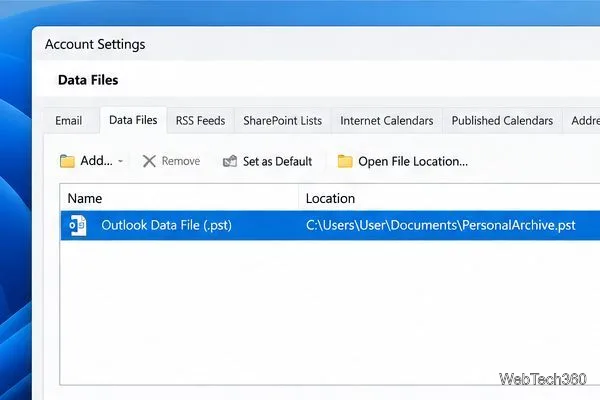
Recover a forgotten Outlook PST password with Kernel’s current steps, including how to identify the right file, make a backup, and check the tool’s limits.
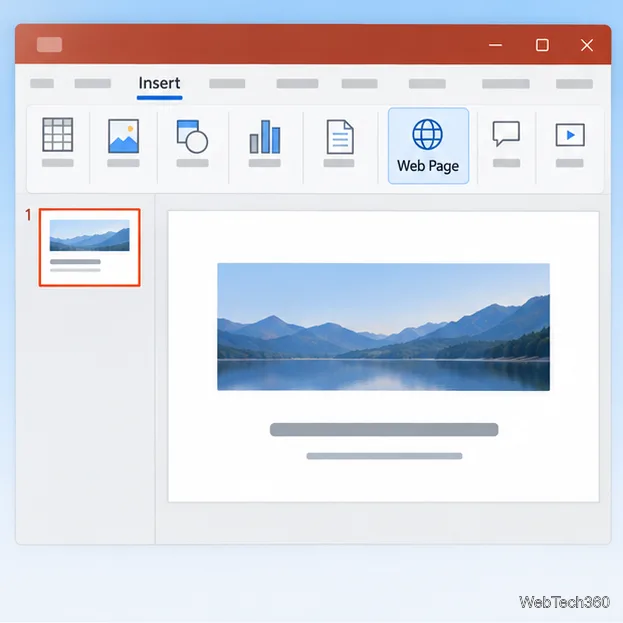
Use the LiveWeb add-in to place a website on a PowerPoint slide, set its size and refresh behavior, and check compatibility before presenting.
Set an Access 2010 database application to open directly to a data-entry form, hide object lists, limit menus, and check the setup before sharing.