Home
» MS OFFICE
»
ONLYOFFICE Desktop Editors vs LibreOffice: Performance Benchmark and Practical Trade-Offs
ONLYOFFICE Desktop Editors vs LibreOffice: Performance Benchmark and Practical Trade-Offs
If you are choosing between ONLYOFFICE Desktop Editors and LibreOffice, the most useful performance question is not “Which one is faster?” It is “Which one is faster for the files and workflows I actually use?” There is no current, vendor-neutral benchmark published by both projects on identical hardware, so a responsible comparison should not invent startup times, RAM figures, or export speeds. Instead, this benchmark-focused guide separates what can be verified from official documentation from what you should measure on your own PC.
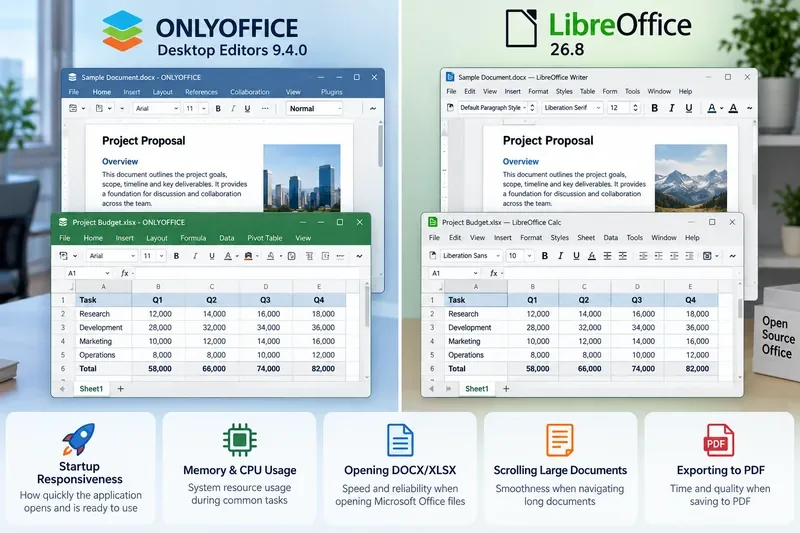
ONLYOFFICE Desktop Editors and LibreOffice can be compared meaningfully by testing the same documents for startup responsiveness, memory and CPU use, Office-file handling, scrolling, and PDF export.
Benchmark context: the versions matter
As of October 2026, the latest documented ONLYOFFICE Desktop Editors release is version 9.4.0, released May 19, 2026. The official changelog lists application-wide changes plus updates to the document, spreadsheet, presentation, forms, and PDF editors. You can verify the release history in the ONLYOFFICE Desktop Editors changelog.
LibreOffice is on a different release cadence. The Document Foundation lists LibreOffice 26.8.0, released August 26, 2026, as the latest branch and LibreOffice 26.2.6, released September 24, 2026, as the previous, more mature branch recommended for enterprise use. See the official LibreOffice release notes.
That distinction affects benchmarking. A newer branch may contain performance work but can also carry newer regressions. For example, The Document Foundation reported in July 2026 that Skia rendering on Windows and macOS was moved back to experimental status in LibreOffice 26.2.5 after crash and hang reports. That is a useful reminder that graphics acceleration can improve some workloads while also changing stability characteristics. The original announcement is available in the LibreOffice 26.2.5 release post.
What the published system requirements tell us
Minimum hardware requirements are not performance results, but they do show how conservatively each project defines its supported baseline.
Published baseline
ONLYOFFICE Desktop Editors
LibreOffice
RAM
2 GB or more
256 MB minimum, 512 MB recommended on Windows and Linux; 512 MB on macOS
CPU
Dual-core 2 GHz or better
Pentium-compatible PC on Windows; platform-specific requirements on Linux and macOS
Disk space
At least 2 GB
Up to about 1.5 GB on Windows, about 1.55 GB on Linux, and up to 800 MB on macOS
ONLYOFFICE explicitly notes that its stated requirements apply to the simplest files and that document complexity can increase resource needs. Those figures come from the official Windows requirements. LibreOffice publishes its current requirements on the official system requirements page.
The important trade-off is that a lower published minimum does not prove an application will use less RAM in every real workload. It only means the project claims it can run within that baseline. A 300-page DOCX with embedded images, a 100,000-row spreadsheet, and a blank document can produce very different memory behavior.
Performance category 1: cold start and warm start
Cold start means launching the suite after a reboot or after the application has been fully closed long enough that operating-system caches are less helpful. Warm start means launching it again while libraries and files may still be cached in memory.
For a fair test, measure both. Start the timer when you launch the application and stop when a blank document is usable. Repeat at least five times, discard obvious outliers, and report the median rather than the single best run. Keep antivirus, cloud synchronization, and startup applications consistent between tests.
This test is especially relevant on older laptops, SATA SSDs, or systems with limited RAM. On a modern NVMe SSD with 16 GB or more of memory, the difference may matter much less than document compatibility or rendering quality.
Performance category 2: opening real DOCX, XLSX, and PPTX files
ONLYOFFICE places strong emphasis on Microsoft Office Open XML formats. Its desktop documentation describes support for DOCX, XLSX, PPTX, ODT, ODS, CSV, ODP, PDFs, and other formats; see the ONLYOFFICE Desktop Editors getting-started documentation.
LibreOffice also opens and saves Microsoft Office formats, including DOCX, XLSX, and PPTX, according to the official LibreOffice help page for Microsoft Office files. LibreOffice additionally treats OpenDocument Format, or ODF, as a first-class native standard and supports current ODF versions.
If your organization exchanges complex Microsoft Office files all day, benchmark those exact files. Time how long each suite takes to open them, then check whether page breaks, fonts, charts, formulas, SmartArt-like objects, comments, and track changes remain usable. A file that opens one second faster but requires ten minutes of manual layout repair is not the faster option in practice.
Performance category 3: large spreadsheets
For spreadsheet work, raw opening time is only part of the story. Measure recalculation time, scrolling smoothness, filter response, sort time, copy-and-paste latency, and save time. Use at least three spreadsheet types: a wide table with many columns, a tall dataset with many rows, and a formula-heavy workbook with charts or pivot-style analysis.
LibreOffice 26.2 was promoted with performance improvements in several areas, including scrolling speed, EPUB export, SVG export with bitmaps, and 3D charts. The project’s official download page summarizes those improvements. That still does not mean Calc will beat ONLYOFFICE in every spreadsheet; it means recent LibreOffice releases contain targeted performance work that should be tested against your files.
ONLYOFFICE 9.3 added Solver to spreadsheets, and 9.4 continued expanding spreadsheet functionality. If you use calculation-heavy models, include Solver, large formula chains, and repeated saves in your benchmark instead of relying only on application startup.
Performance category 4: long documents and layout-heavy files
For Writer and ONLYOFFICE Document Editor, use a realistic long document: 100 to 300 pages, embedded images, tables, footnotes, headers, tracked changes, and multiple styles. Measure initial open time, page-to-page scrolling, search response, switching to print preview, and save/export time.
A useful test is to jump from page 1 to page 200, edit a paragraph, insert an image, undo the action, and export to PDF. This catches delays that a blank-document test never reveals. If your work is mostly contracts, manuals, academic papers, or policy documents, long-document responsiveness matters more than the difference between a 1.2-second and 1.8-second cold launch.
Performance category 5: PDF workflows
Both suites can work with PDFs, but their workflows differ. ONLYOFFICE has a dedicated PDF editor and has continued adding PDF editing, forms, signatures, and related features across recent releases. LibreOffice typically routes PDF editing through Draw and provides broad export controls from its applications.
Benchmark the operation you actually need: opening a 200-page PDF, annotating it, editing text, filling forms, or exporting an office document to PDF. If the task is only “save this DOCX as PDF,” export time and output fidelity are more relevant than the breadth of each PDF toolset.
Compatibility versus raw speed
Performance testing should include document fidelity because compatibility failures create hidden labor. ONLYOFFICE tends to appeal to teams centered on DOCX, XLSX, and PPTX workflows and users who prefer a ribbon-style interface close to Microsoft Office. LibreOffice is especially attractive when ODF, open standards, Linux integration, advanced Writer/Calc tooling, or a broader traditional desktop-suite model matters.
LibreOffice documentation notes that Microsoft Office and LibreOffice macros are not generally interchangeable, even though some VBA handling is supported. If your spreadsheets depend on macros, measure “time to a working result,” not just file-open speed. A macro that needs rewriting can outweigh small runtime differences by orders of magnitude.
A practical benchmark you can run in 30 minutes
Install current versions of both suites and reboot the computer.
Use the same three files in both applications: one DOCX, one XLSX, and one PPTX from your normal workload.
Measure cold start five times for each suite.
Measure file-open time five times for each file.
Record peak memory while each file is open and idle for 30 seconds.
Perform the same edit sequence in each file and record whether interaction stays smooth.
Save a copy and export to PDF where applicable.
Open the output in another viewer and check layout, fonts, formulas, charts, and comments.
Use Task Manager on Windows, Activity Monitor on macOS, or a consistent process-monitoring tool on Linux. Keep screen scaling, fonts, extensions, and background applications unchanged. If one suite loads plugins or cloud connections and the other does not, note that in your results.
Which one should you choose?
Your priority
Better starting point
Why
Heavy DOCX/XLSX/PPTX exchange
Benchmark ONLYOFFICE first
Its desktop suite is strongly oriented around Office Open XML workflows and a Microsoft Office-like editing experience.
ODF-first workflows
Benchmark LibreOffice first
ODF is central to LibreOffice, with mature Writer, Calc, Impress, Draw, and Base tooling.
Very low-spec hardware
Benchmark LibreOffice first
Its published minimum RAM requirement is substantially lower, although real document complexity still determines actual usage.
Integrated PDF editing
Benchmark ONLYOFFICE first
Recent desktop releases emphasize a dedicated PDF editing workflow.
Conservative enterprise rollout
Consider LibreOffice 26.2.6
The Document Foundation labels the 26.2.6 branch as mature and suitable for enterprise users.
Mixed Linux desktop environments
Test both
Both support Linux, but packaging, desktop integration, fonts, and graphics stacks can affect perceived performance.
Bottom line
There is no defensible universal winner in an ONLYOFFICE Desktop Editors vs LibreOffice performance benchmark without controlling the hardware, operating system, document set, fonts, extensions, graphics backend, and application versions. The official requirements suggest LibreOffice targets a lower minimum hardware baseline, while ONLYOFFICE publishes higher minimum requirements and focuses heavily on modern Office-format workflows. LibreOffice’s recent releases also contain explicit performance work, but that does not substitute for measuring your own documents.
For Microsoft Office-heavy teams, start by benchmarking ONLYOFFICE with the most complex DOCX, XLSX, and PPTX files you exchange. For ODF-heavy environments, older hardware, or teams that rely on LibreOffice’s broader desktop toolset, start with LibreOffice. In either case, choose the suite that completes your real tasks with the fewest delays, formatting corrections, and compatibility surprises—not the one that wins a synthetic launch-time test.