Home
» MS OFFICE
»
ONLYOFFICE Docs vs Microsoft 365 Web Apps: Which Preserves Formatting Better?
ONLYOFFICE Docs vs Microsoft 365 Web Apps: Which Preserves Formatting Better?
When a DOCX looks different after opening it in another browser editor, the file extension alone does not tell you which application will preserve its layout best. For a practical comparison, evaluate the same document in ONLYOFFICE Docs and Microsoft Word for the web, then compare the pages you actually need to print or share. Both work with Word documents, but they do not expose the same editing controls, and complex page elements can behave differently.
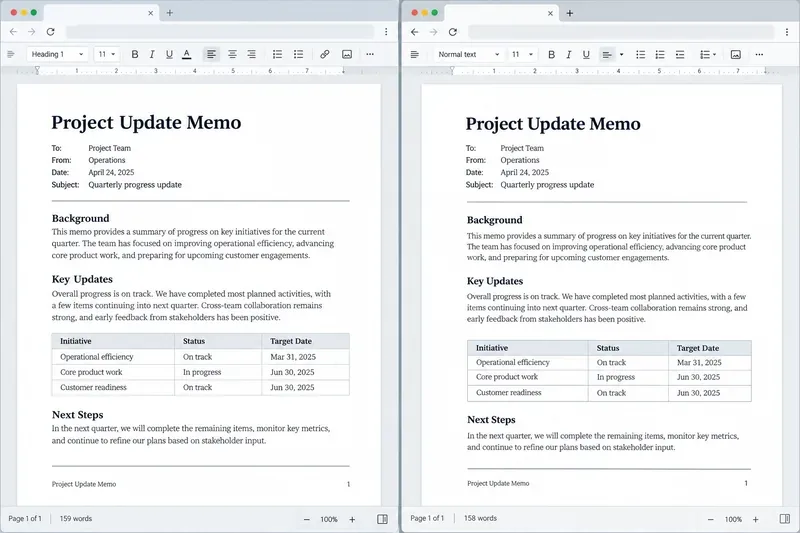
A generic document comparison illustrates why line wrapping and table position should be checked in the actual file.
Scope: “Microsoft 365 Web Apps” can refer to Word, Excel, and PowerPoint in a browser. This article compares word-processing layout in ONLYOFFICE Docs Document Editor and Microsoft Word for the web. Spreadsheet and presentation fidelity require their own file-specific checks.
What formatting fidelity means
Formatting fidelity is how closely an editor displays and preserves a document’s intended appearance: page breaks, line wrapping, typefaces, spacing, tables, images, headers, footers, and other objects. It is not the same as whether the text survives, whether the file opens, or whether the editor can export DOCX.
A DOCX is an Office Open XML package, but sharing that format does not guarantee identical rendering in every application. A missing font, different pagination behavior, a converted source format, or an object that the browser can only display may affect the result. Microsoft itself documents that its browser and desktop environments differ in how some features work. Microsoft’s Word for the web feature guide describes these differences. Action: judge a representative file in the final editor and export path, rather than treating “DOCX supported” as a fidelity score.
What the official documentation confirms
Word for the web has a different editing view
Microsoft says Word for the web displays a document in Print Layout when viewing or printing, where it looks as it does in the desktop app’s Print Layout view. Its Editing view, however, does not show page formatting such as margins and page breaks. Some objects—including shapes, charts, text boxes, SmartArt, equations, and certain fields—may appear as placeholders or be unavailable for editing in the browser. Page margins, orientation, and columns are preserved but cannot be changed in Word for the web, according to the same support guide. Microsoft’s documentation is not fully consistent about headers and footers: its browser-versus-desktop guide says they are unavailable for editing, while its feature comparison lists header/footer support in Word for the web. Treat that capability as dependent on the current web editor and document. Action: test the exact header or footer you need in your account before changing a shared template.
This is a difference in what the browser editor lets you inspect or change; it does not prove that every document will render incorrectly. Action: if pagination matters, use Word’s Reading or Print view and a PDF export for the final visual check, and open the desktop app for page-level changes the browser does not expose.
ONLYOFFICE Docs exposes page-layout controls in its editor
The ONLYOFFICE Document Editor guide describes page orientation, size, margins, and columns under its Layout tab, and its style guide describes paragraph and text styles for headings, lists, normal text, and other content. Its supported-formats documentation lists DOCX among editable document formats and says files are converted to OOXML when uploaded or opened for editing. See the ONLYOFFICE supported-formats table, page-parameter guide, and formatting-styles guide.
Those documented controls may be useful when your workflow requires browser-based page setup, but their presence is not evidence that every imported Word file will retain exact pagination. Available behavior can also depend on the ONLYOFFICE edition and how it is deployed. Action: check the version and integration you will use, then test the source file after opening, editing, saving, and reopening it.
Which editor is more likely to preserve your layout?
There is no universal winner established by the documentation above. Neither vendor’s feature list is a neutral, file-by-file rendering benchmark, and this comparison did not run a controlled test corpus. A simple document made of paragraphs, headings, and basic tables may travel cleanly between both editors; a heavily designed report can expose differences that a simple sample will not.
Document situation
What the documentation supports
Useful next step
Simple DOCX with headings and paragraphs
Both products document DOCX editing support; that alone does not certify identical line breaks.
Compare title spacing, paragraph wrapping, and page count after saving and reopening.
Precise print layout with margins, columns, or page breaks
ONLYOFFICE documents browser controls for page parameters. Word for the web preserves some layout but its editing view omits page formatting controls.
Inspect print preview or export PDF, then confirm page count and break positions.
Headers, footers, fields, diagrams, or embedded objects
Word for the web may preserve some objects but show placeholders or restrict editing; support depends on object type.
Check each critical element visually and confirm it remains editable if that matters.
ODT, RTF, or another non-DOCX input
Word for the web’s format support depends on storage and type; ONLYOFFICE lists a wider set of input formats, with conversion to OOXML for editing.
Keep an untouched original and compare the converted DOCX or PDF before adopting it.
Microsoft documents that Word for the web can open DOCX and DOTX, and can display older DOC/DOT files but creates a DOCX/DOTX copy to edit them. ODT support is limited to files stored in a SharePoint library; Microsoft also warns that formatting can differ between ODT and DOCX. See Word for the web’s supported formats and its ODT/DOCX comparison. Action: convert only a copy, and retain the original until the converted file has passed review.
Common assumptions to correct
“Both support DOCX, so they will look identical.”
Not verified. Format support means an editor can handle the file under documented conditions; it is not a promise of pixel-identical layout across renderers. Differences become more noticeable when pagination depends on exact font metrics, table sizing, section settings, or positioned objects. Action: create a test copy containing one example of every layout feature used in your real documents.
“If the screen looks right, the printed result is guaranteed.”
Not necessarily. A browser’s editing canvas, reading view, exported PDF, and printer can represent different stages of the workflow. Word’s documentation distinguishes Editing view from viewing and printing behavior. Action: review the exported PDF at page size and inspect every page break before sending a document to print.
“A feature listed as preserved is fully editable online.”
That depends on the feature. Microsoft says some content is preserved in Word for the web but may appear as placeholders or cannot be edited there. Preservation protects content from being discarded in supported cases; it does not automatically provide browser editing controls. Action: make a checklist of elements that must remain editable, not just visible, and verify each one in the chosen editor.
A repeatable fidelity test
Save a copy of the source document as DOCX if DOCX is the shared format for your team.
Include representative features: styles, a multi-page table, section breaks, images with text wrapping, headers and footers, footnotes, and any diagrams or equations you rely on.
Open the same untouched copy in each editor. Record the product version, browser, and whether the file was converted on import.
Compare font substitution, line endings, table widths, page count, image placement, header/footer position, and section-specific page settings.
Make a small edit, save, close, and reopen the document in both editors. This catches changes that are not obvious before the save round trip.
Export to PDF from the workflow you intend to use. Compare the PDF pages with the approved reference and check that fonts, diagrams, and tables remain legible.
Use the same browser zoom and page size while comparing, and avoid judging a reflowing web view against a fixed-page PDF. For sensitive contracts, forms, publications, or documents with strict pagination, keep a known-good original and require a human review of the exported file.
Practical recommendation
Choose based on the job your team actually does. ONLYOFFICE Docs may suit browser workflows where users need documented page-layout controls and broad input-format handling. Word for the web may suit teams already collaborating in Microsoft 365 who need familiar DOCX access and online coauthoring, while accepting that some advanced layout editing remains desktop-only. These are workflow considerations, not a claim that one renderer always wins.
If exact appearance is contractual, regulatory, or print-critical, use the editor that passes your own representative-file test and treat PDF as the reviewed delivery format. For everyday documents, test a few real files before migration; a ten-minute comparison of the troublesome pages is more informative than a generic compatibility label.